By Darinder Shokar
Originally posted on https://medium.com/@darinder.shokar
This blog refactors the solution in this blog by tapping into the new capabilities of Next Generation scripting engine.
Sending HMAC-based One-time Passwords (HOTPs) via email is common for tasks like verifying a user’s email during registration or handling forgotten credentials. In this blog, we’ll walk through how to implement this in PingOne Advanced Identity Cloud (AIC), including how to apply a template to the outbound email for personalisation and an improved user experience.
Configure An Email Template
Configure a sample email template using these instructions. The key points are:
- The template id is configurable but set it to
otpto use the variable defined in the script. {{object.givenName}}and{{object.otp}}must be defined to pass the first name and HOTP value to the email service.
See sample_template.txt from here for example content. It looks like this:

Import the Logging Library Script
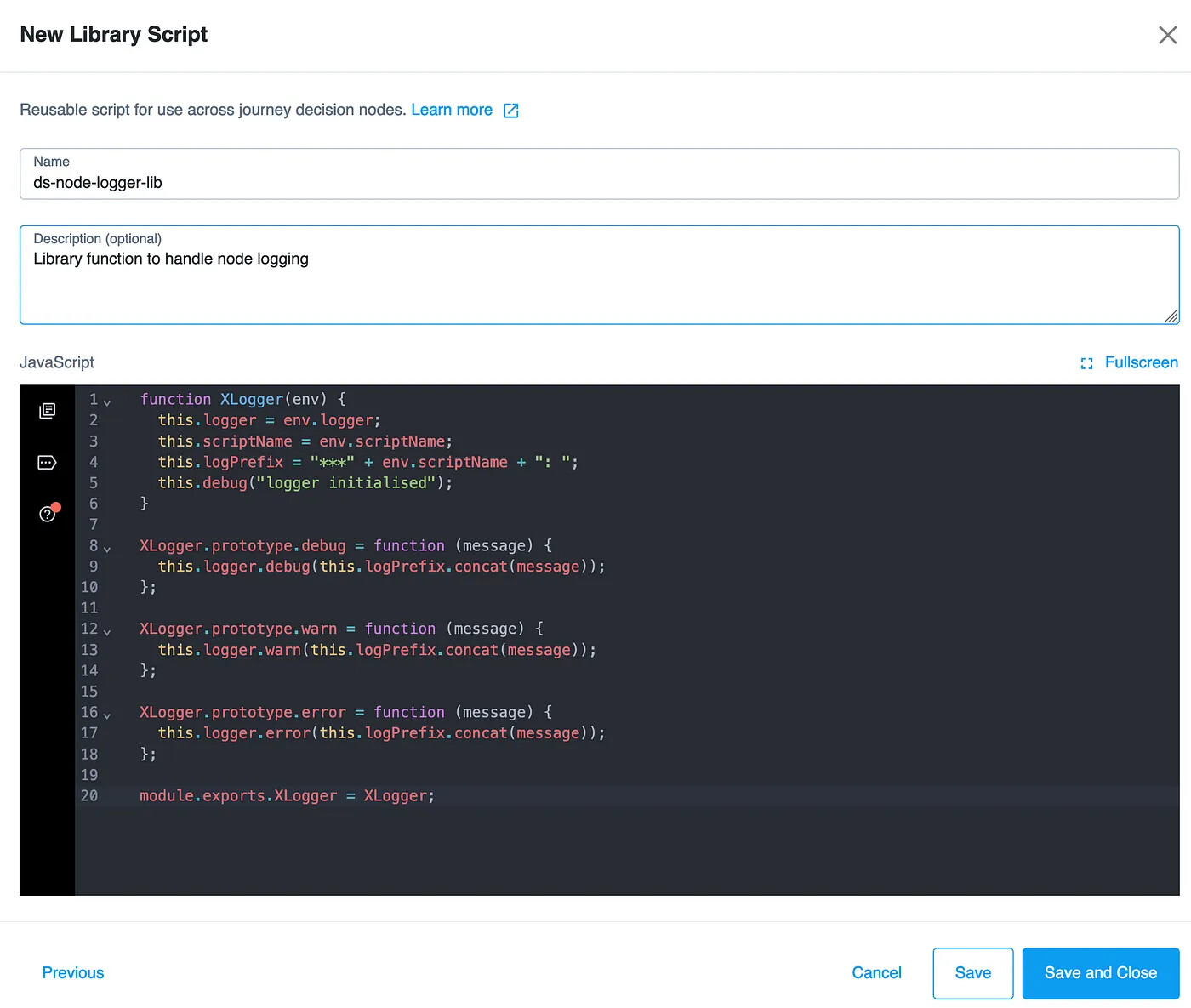
Library functions are a fantastic addition to PingOne AIC, which allow code re-use. One great example of this is logging. Instead of writing logging code again and again across the platform, you can write the logic once and import for re-use.
- From the PingOne Platform UI, navigate to
Scriptson the left panel >Auth Scripts> BlueNew Script>Other>Library - Enter a
Nameofds-node-logger-libandDescriptionofLibrary function to handle node loggingand in the JavaScript code block add the code from here - Hit Save and Close
Import the Journey
Now we’re ready to import the sample journey.
- Download the journey JSON export file to your local machine from here
- From the platform UI, navigate to
Journeyson the left panel >Import> Browse for the journey JSON file > HitNext>Import - In the journey list select
HOTPViaEmailServiceNextGencopy thePreview URL
The example HOTPViaEmailServiceNextGen journey will look like this:

Execution
To test the flow complete the following steps:
- Call the URL stored from step 3 above e.g:
https://<TENANT>/login/?realm=/alpha&authIndexType=service&authIndexValue=HOTPViaEmailServiceNextGen#/ - After entering the username and password a templated email will be sent, enter the OTP into the login prompt to successfully authenticate.
Example templated email:

t should be noted that in Production the default SMTP Service should be replaced with your own via this guide.
Conclusion
There you have it, an example of how to send HOTPs using the feature rich capabilities of the PingOne Advanced Identity Cloud platform.
Thanks for reading!