Collaborate on Blogs Before Publishing with Our New Shared Drafts
Author: |
Sheila Albertelli |
Created at: |
May 2023 |
Updated at: |
May 2023 |
Shared Drafts
Many of our talented subject matter experts (SMEs) who regularly blog on behalf of ForgeRock have expressed the need for a collaborative workflow that enables our Content Developers and Trusted Bloggers to work together on shared drafts before publishing.
That day has come! We are pleased to announce that this feature is now available and enabled in our Draft Content space. Additionally, subcategories have been established to categorize content based on access permissions and groups for UKD Content Developers and Trusted Bloggers.
With the shared draft feature, multiple users can work on the same document simultaneously, saving time and increasing efficiency. Additionally, users with appropriate permissions can even publish on an author’s behalf, making the publishing process even more streamlined. So, go ahead and create your shared draft today!
Creating a Shared Draft:
Click the “+ Create Shared Draft” button to create a shared draft. This will initiate the creation process and generate a draft in the assigned category. From there, you can edit and collaborate with other users in real-time until the draft is ready for publishing.
-
Click the “Create a new Topic” button on the top left of the composer and choose Shared Draft:

-
Choose the appropriate Shared Drafts sub-category for your content group: UKD or Trusted Bloggers:
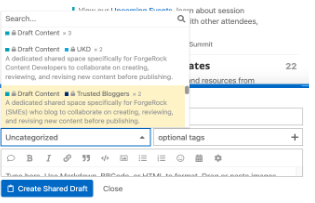
Add a title and your content, and when ready to share:
-
Click Create Shared Draft, and your shared draft will be created in the designated draft category!
Finding + Reviewing Shared Drafts
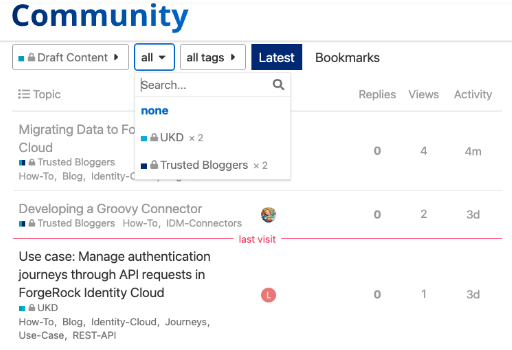
As part of the workflow, you’ll also see your shared draft listed above the regular topic list when browsing the destination category. This is an easy way to see what drafts are in progress for a particular category:
-
Navigate to Draft Content.
-
Choose a specific category (UKD or Trusted Bloggers) to view shared drafts for a particular group. Alternatively, you may select the “all” option to view all shared drafts across all categories and groups.
Publishing your Shared Draft
When reviewing a shared draft, you will see a sizable control area at the top, enabling you to select a Destination Category for publishing. To publish your draft, pick the relevant category and then click on the “Publish Shared Draft” button:
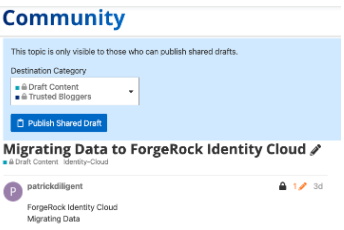
Once you click “Publish Shared Draft”, the following will happen:
-
The topic will be published in the destination category.
-
The timestamps of the topic will be changed to the time of publishing.
-
Any edit history on the first post will be removed.
That’s all there is to it!
As always, please do not hesitate to reach out in our slack channel
#community or in the
comments with any questions that you may have.
Happy Blogging!