Use case: Set up and customize dashboards in ForgeRock Identity Cloud
Author: |
Lucy Billington |
Created at: |
Feb 2023 |
Updated at: |
Feb 2023 |
Use case overview
This use case provides an overview of dashboards in ForgeRock Identity Cloud and demonstrates how you can use and customize these dashboards for reporting, monitoring and administration purposes.
The following dashboards are included with Identity Cloud:
-
Identity Cloud analytics dashboard
-
Risk dashboard (Autonomous Access)
-
Identity Management dashboards
Identity Cloud analytics dashboard
The Identity Cloud analytics dashboard provides a snapshot of system usage for the selected realm.
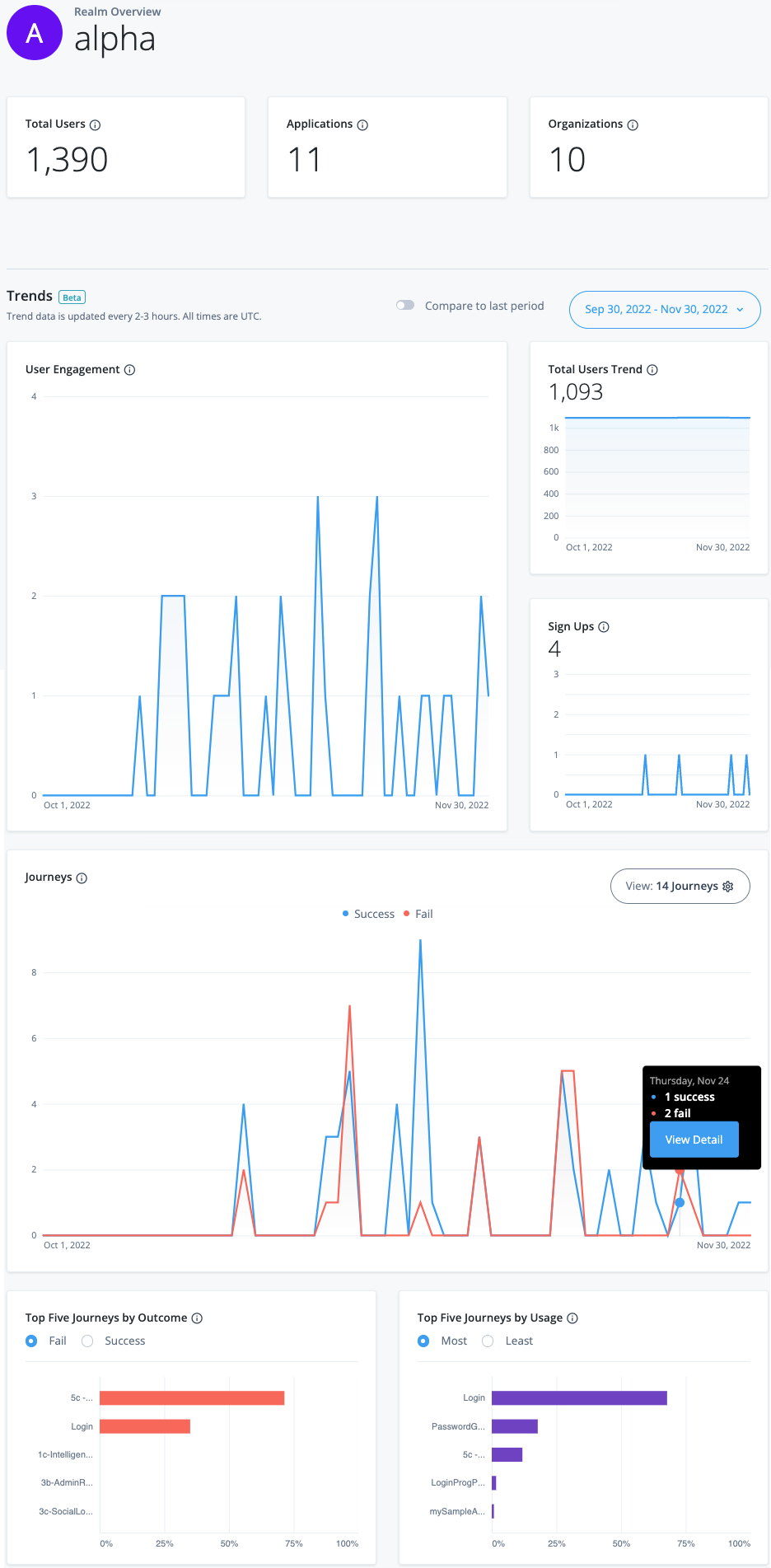
Example Identity Cloud analytics dashboard
You can use the analytics dashboard to gain valuable insights on your Identity Cloud tenants, including monitoring the number of user engagements, monitoring journeys, accessing journey pass/fail details, and viewing the top five journeys by outcome and usage.
To access the analytics dashboard:
-
Sign in to the Identity Cloud admin UI using your admin tenant URL, in the format
https://<tenant-name>/am/XUI/?realm=/#/.If you do not have the Autonomous Access add-on service, Identity Cloud opens on the analytics dashboard for the selected realm.
-
If you have the Autonomous Access add-on service, go to Dashboard > Realm Overview.
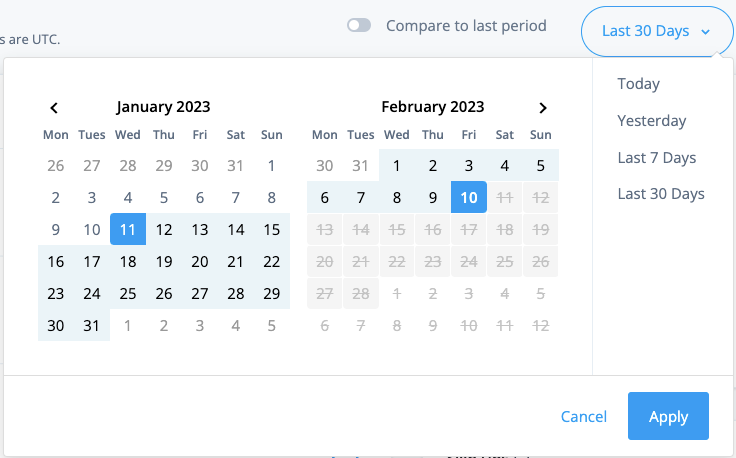
You can filter the data displayed on the analytics dashboard by changing the date range:
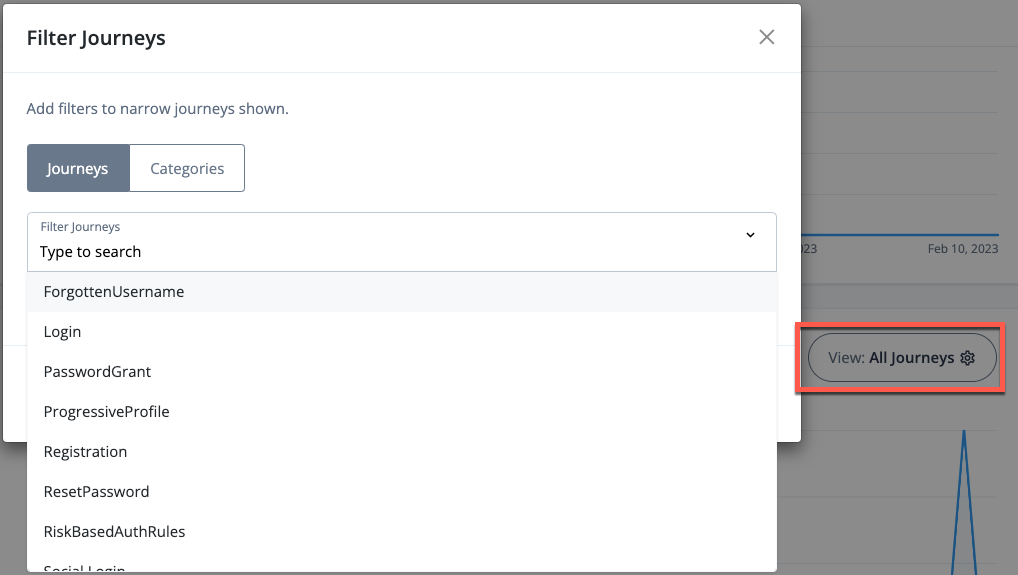
You can also filter the journeys you want to view:
Comprehensive documentation on configuring and using the analytics dashboard is provided in the Identity Cloud documentation. See Identity Cloud analytics dashboard for further information.
Risk dashboard (Autonomous Access)
The Risk dashboard displays the anomalous or risky events detected across your organization. Event details include the date the anomalous event occurred, a risk score, the type of heuristic used in the AI/ML analytics, the geolocation, and browser type.
NOTE: The Risk dashboard is only available if you have the Autonomous Access add-on service with your Identity Cloud tenant.
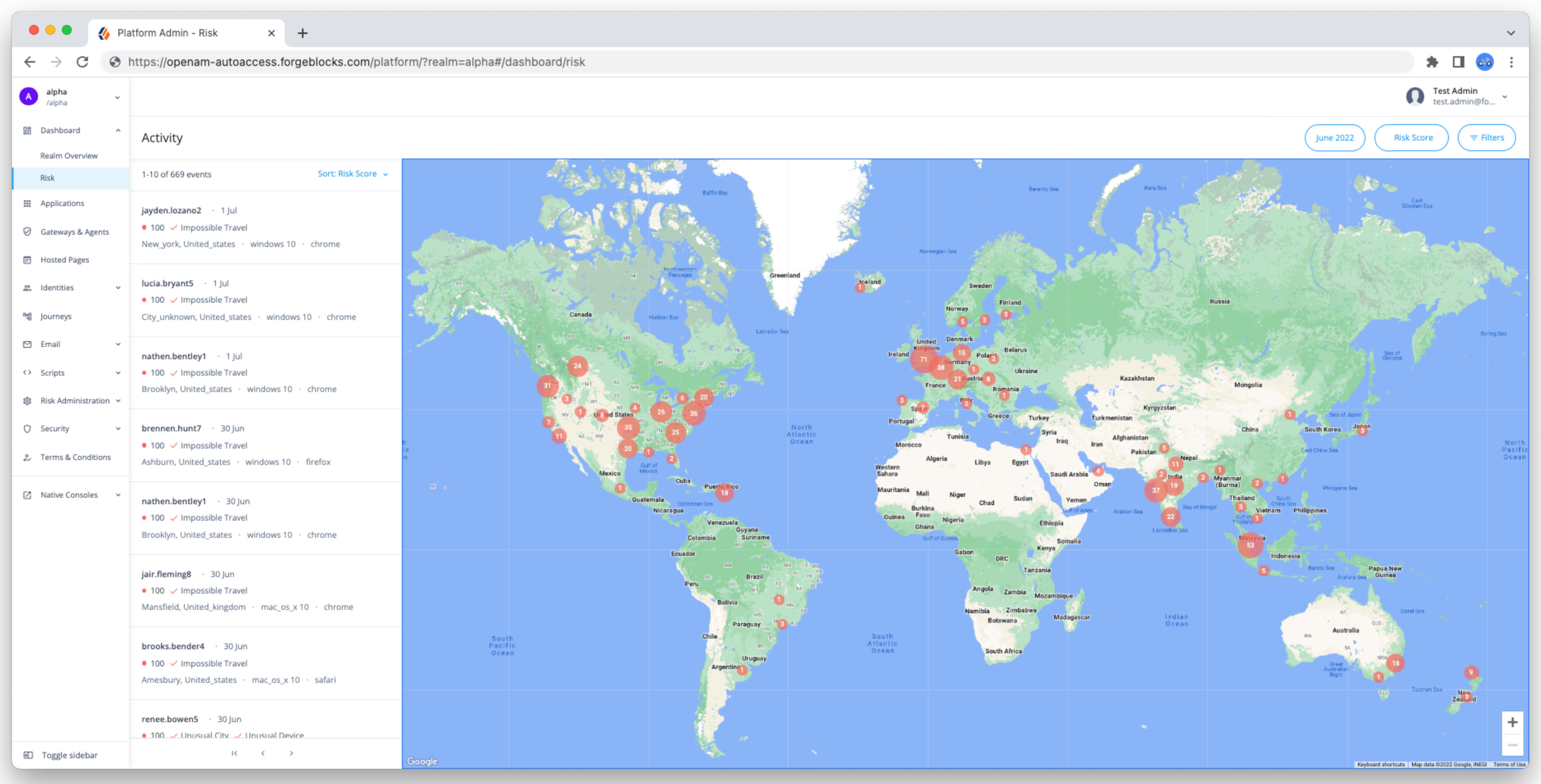
To access the Risk dashboard:
-
Sign in to the Identity Cloud admin UI using your admin tenant URL, in the format
https://<tenant-name>/am/XUI/?realm=/#/. -
Go to Dashboard > Risk.
Comprehensive documentation on the Risk dashboard, including how to filter the data, is provided in the Identity Cloud documentation. See Dashboards for further information.
Identity Management dashboards
The Identity Management native console includes dashboards for accessing common administrative tasks, monitoring data from the most recent data reconciliation, and reporting on resources such as configured connectors, mappings and managed object types.
To view and manage Identity Management dashboards:
-
Sign in to the Identity Cloud admin UI using your admin tenant URL, in the format
https://<tenant-name>/am/XUI/?realm=/#/. -
Go to Native Consoles > Identity Management > Dashboards.
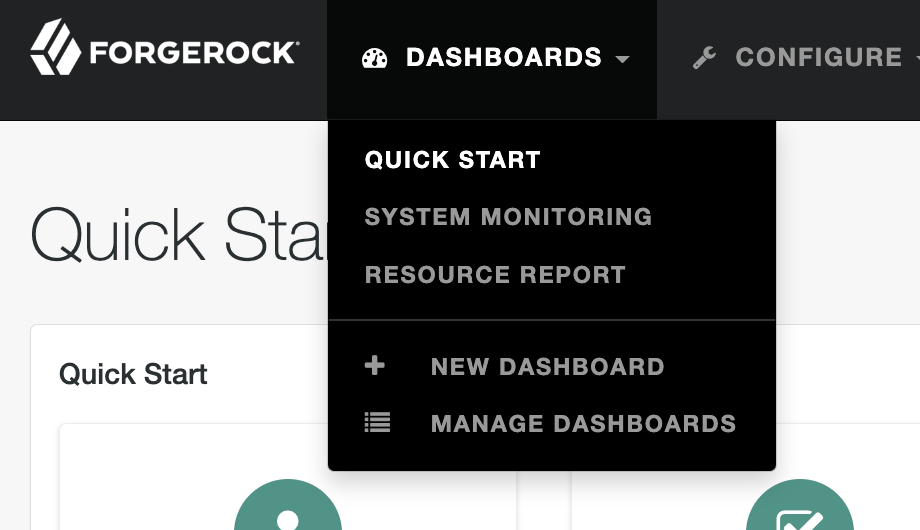
Three preconfigured dashboards are available:
-
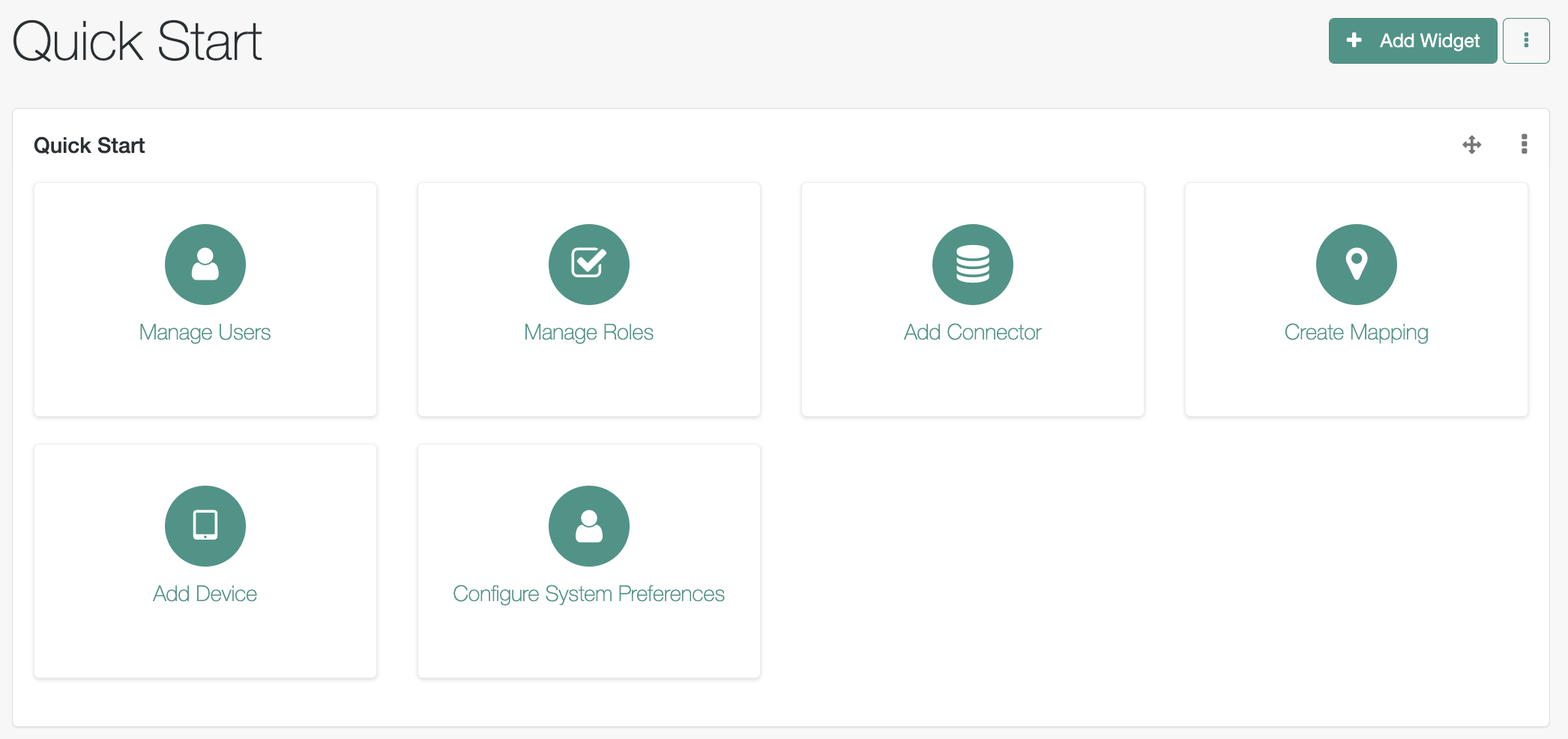
Quick Start - Provides one-click access to common administrative tasks.
-
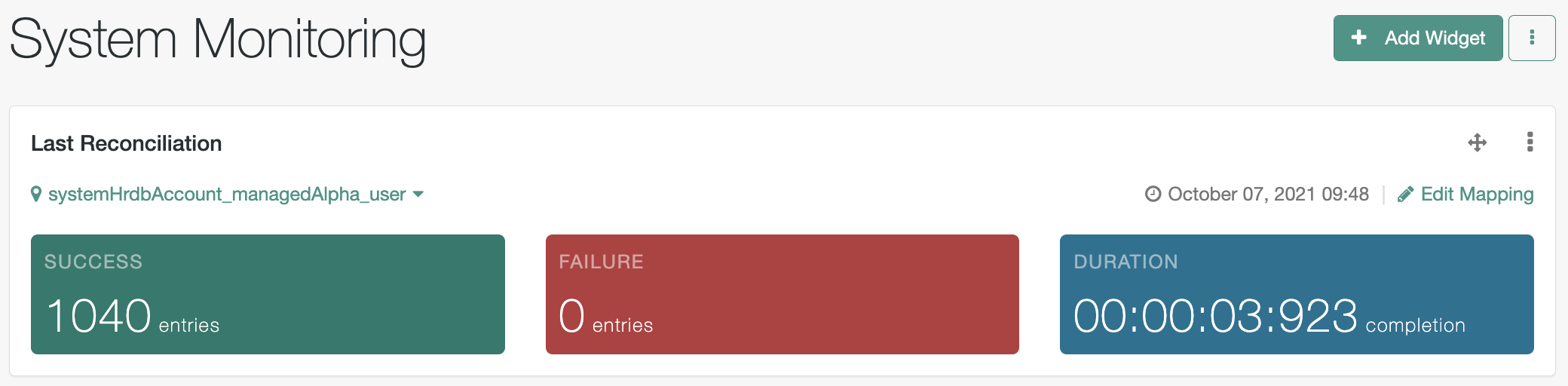
System Monitoring - Shows data from the most recent data reconciliation.
-
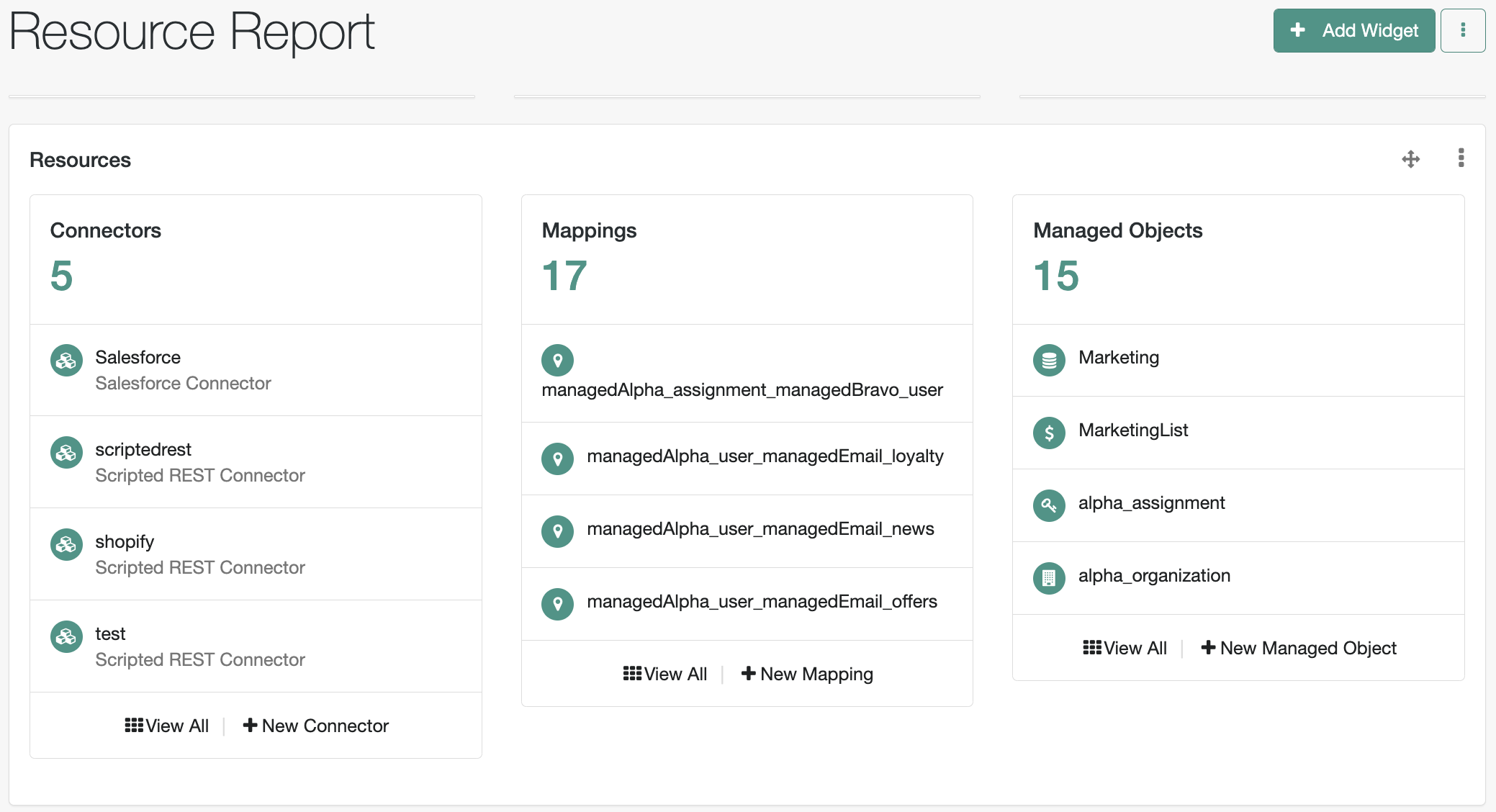
Resource Report - Shows configured connectors, mappings, and managed object types.
Customize Identity Management dashboards
You can set up additional dashboards for a customized view, or customize the existing dashboards.
ForgeRock provides the following widgets which you can include in the dashboard:
-
Resources - Shows connectors, mappings and managed objects.
-
Last Reconciliation - Shows statistics from the most recent reconciliation.
-
Managed Objects Relationship Diagram - Provides a graphical diagram with connections between managed object properties.
-
Quick Start - Provides links to common tasks.
To create a dashboard:
-
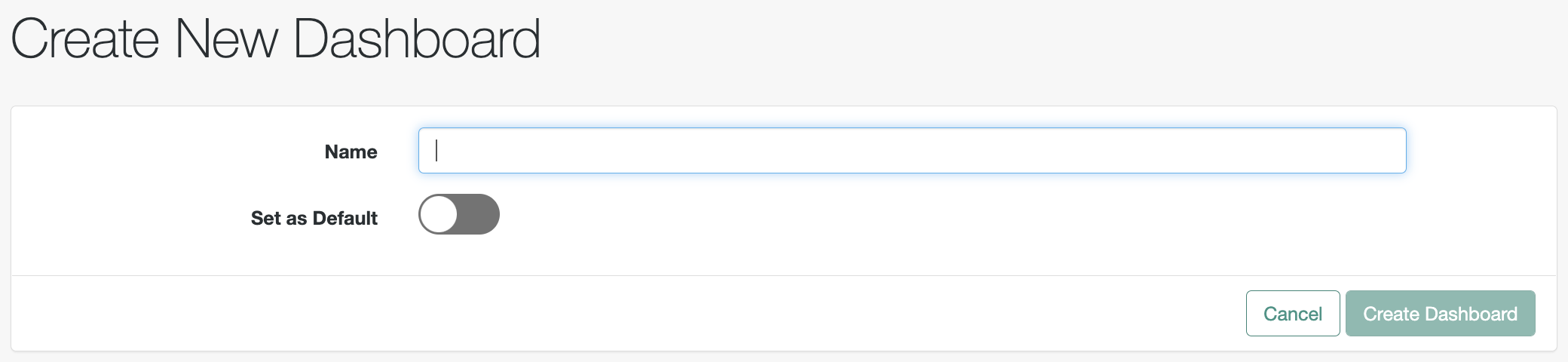
In the Identity Management native console, go to Dashboards > Create New Dashboard.
-
Enter a unique name for the dashboard and select whether this dashboard should be the default board that is displayed when you open the Identity Management native console, and click Create Dashboard.
-
Click Add a Widget.
-
Select the widget you want to add, and click Add. You can add multiple widgets to a dashboard.
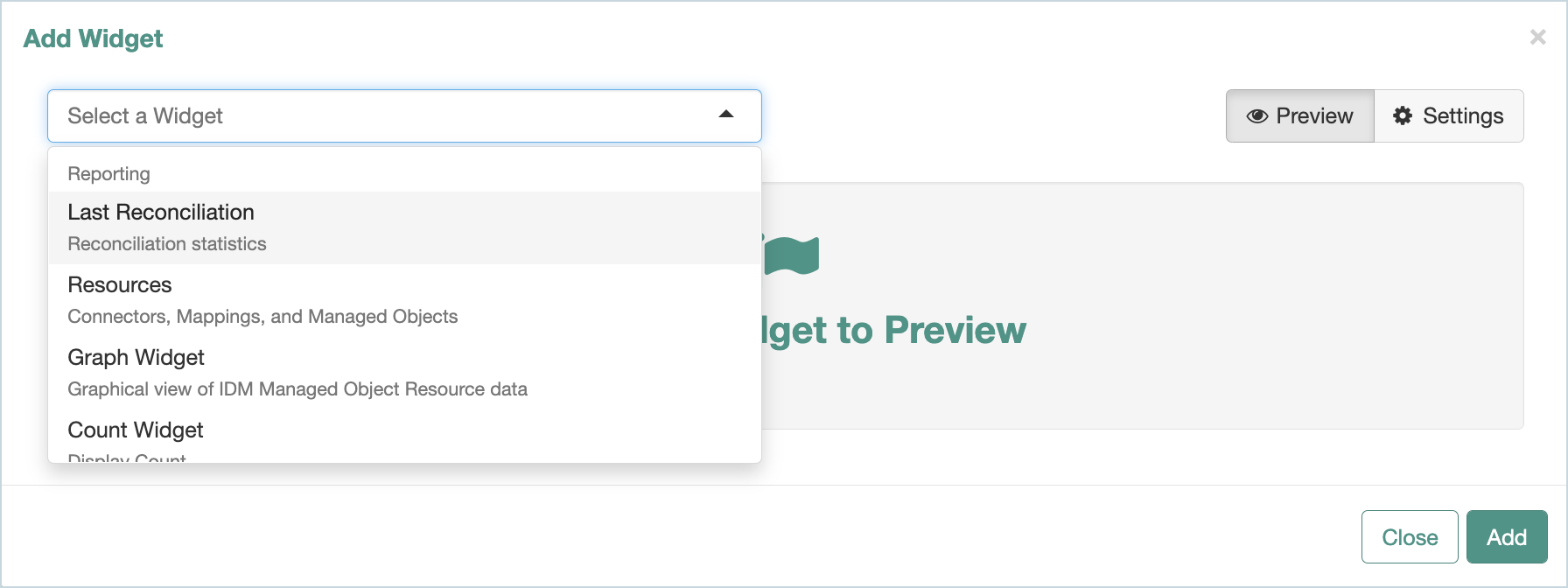
NOTE: The Graph Widget and Count Widget are not available in Identity Cloud deployments of Identity Management.
Additional resources
Documentation:
-
Dashboards (Autonomous Access)
-
Manage dashboards (Identity Management)
Training videos:
Other resources: