Getting started with the ForgeRock Identity Cloud REST API: Part 8 -
Author: |
Rajesh Rajasekharan |
Created at: |
Jul 2023 |
Updated at: |
Mar 2024 |
This is Part 8 of 8 in the series Getting started with the ForgeRock Identity Cloud REST API.
Auditing and monitoring
This guide provides examples of running ForgeRock Identity Cloud
auditing and monitoring requests using both Postman and curl commands.
Before you begin
This guide assumes that you have already prepared the ForgeRock Identity Cloud Postman Collection environment and run the collection prerequisites. See Part 1 - Introduction and Part 2 - Prerequisite requests for further information.
Example using Postman ~ 5 min
-
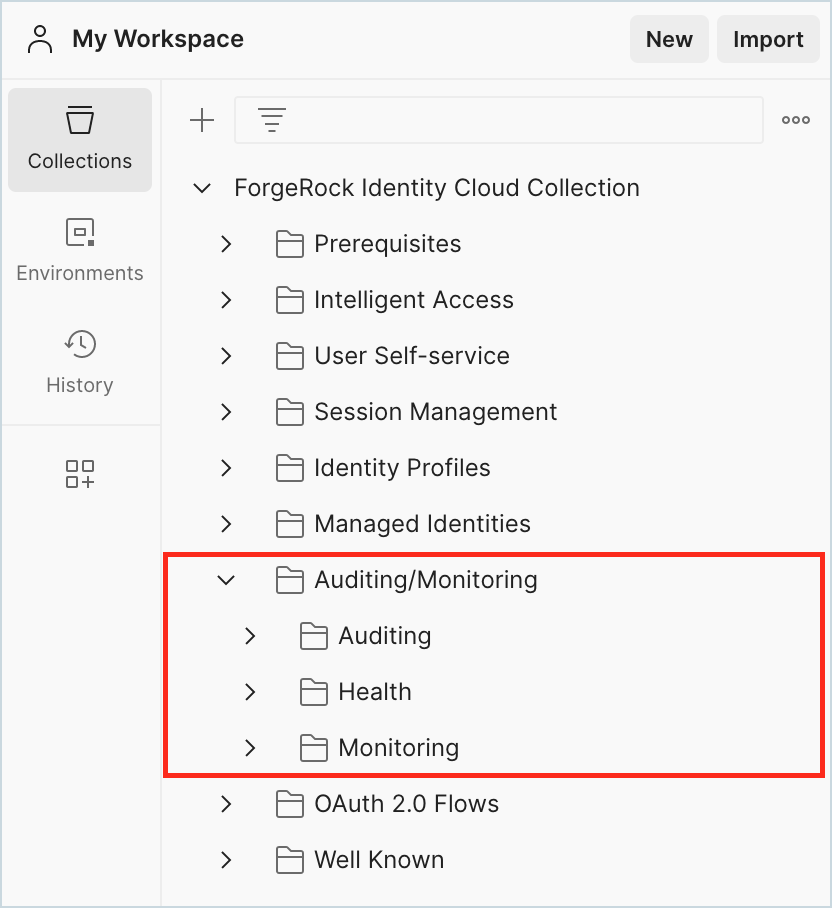
In Postman, go to ForgeRock Identity Cloud Collection > Auditing/Monitoring.
-
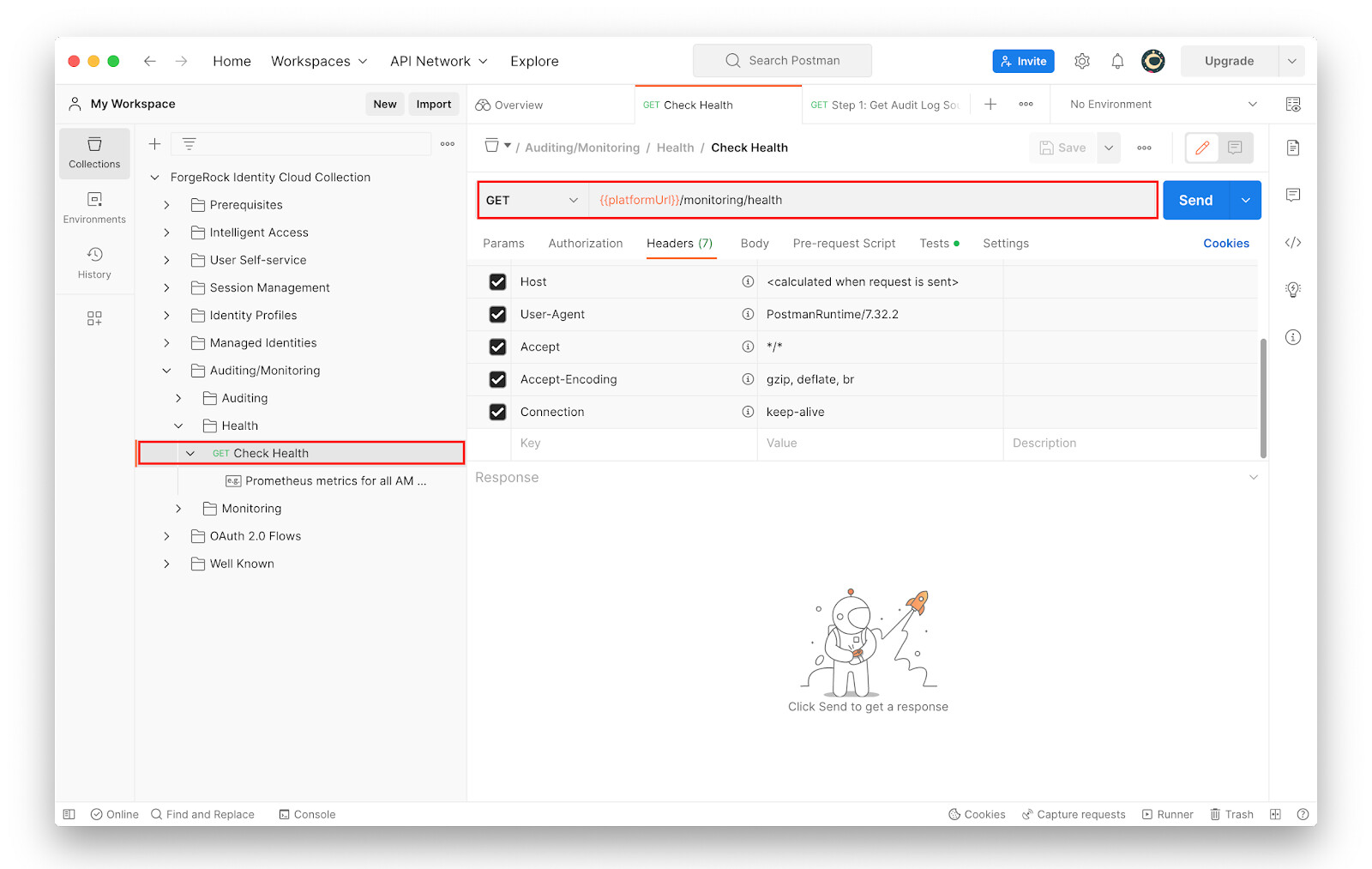
Go to Auditing/Monitoring > Health > Check Health and study the request URL.
-
Click Send.
The server returns an
"OK"status.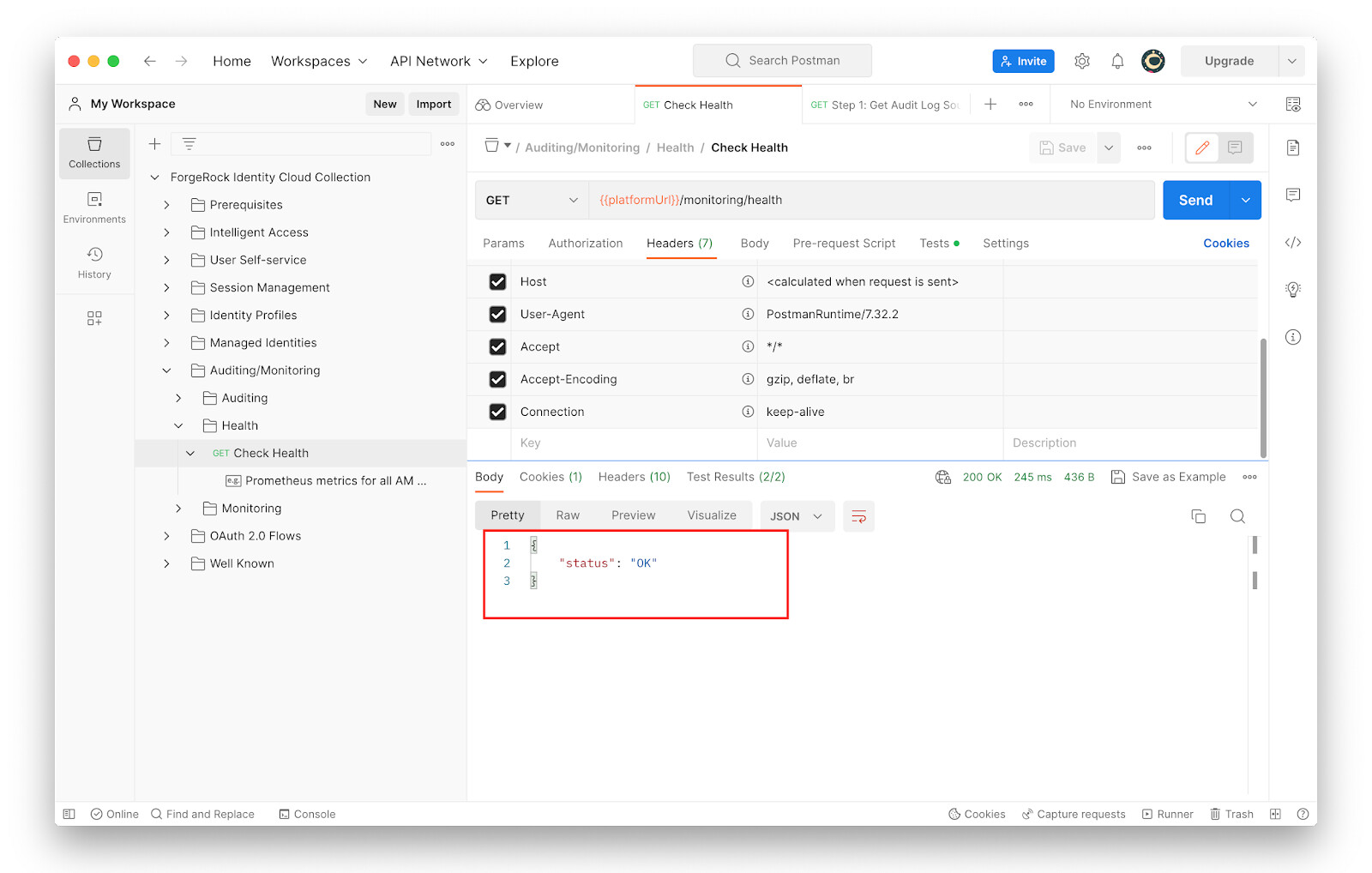
-
Go to Auditing/Monitoring > Auditing > Step 1 and study the following:
-
The request method: GET
-
The request URL:
{{platformUrl}}/monitoring/logs/sources?_prettyPrint=true -
The request headers
Note that the request headers include
x-api-keyandx-api-secret, whose values are not set yet. These values need to be generated in the Identity Cloud tenant first. To use the /monitoring/log endpoint of Identity Cloud, authentication using the headersx-api-keyandx-api-secretis required.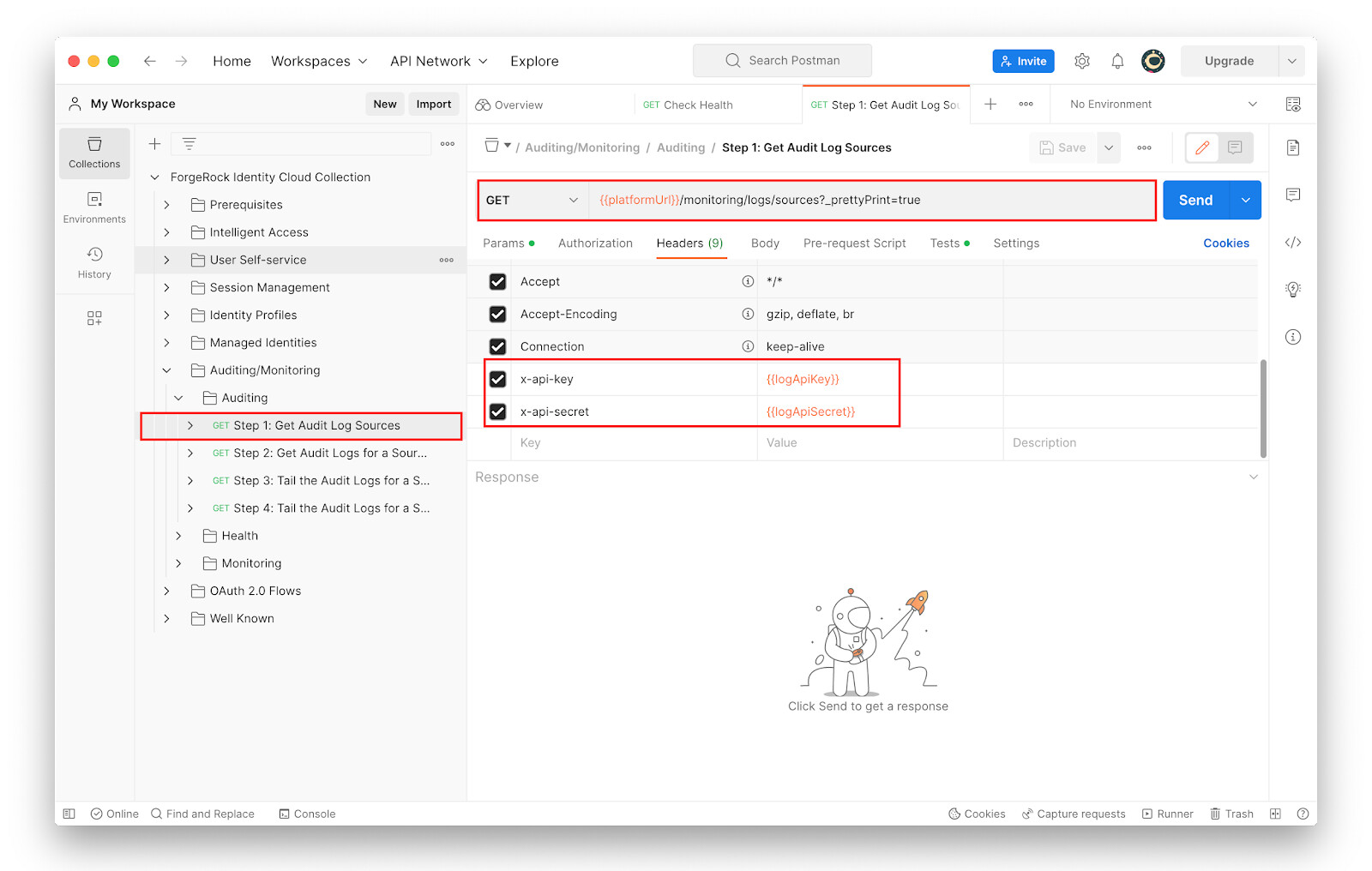
-
-
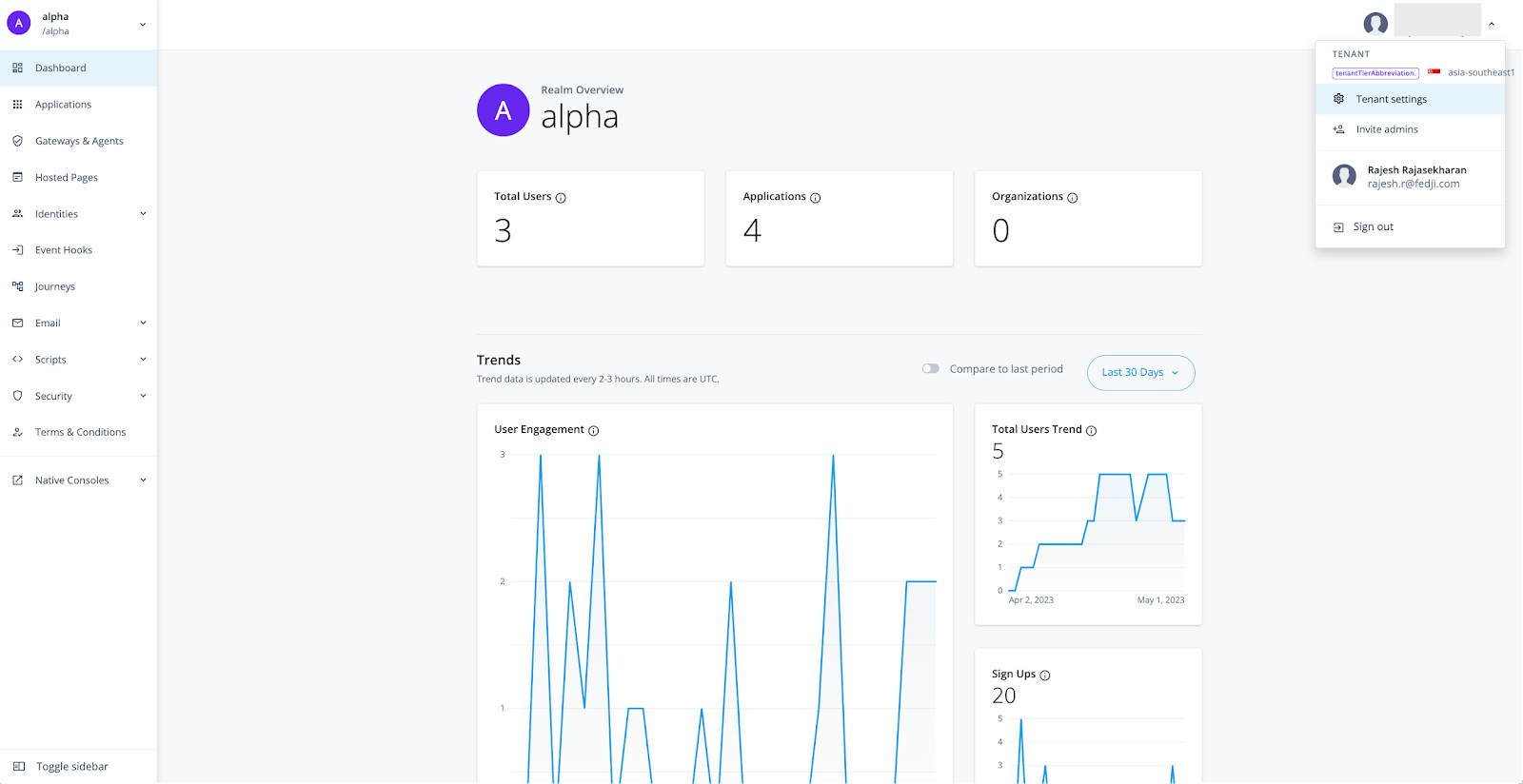
To generate Log API Keys, log into the Identity Cloud Admin UI, and click on Tenant Settings under your profile menu on the top right corner of the page.
-
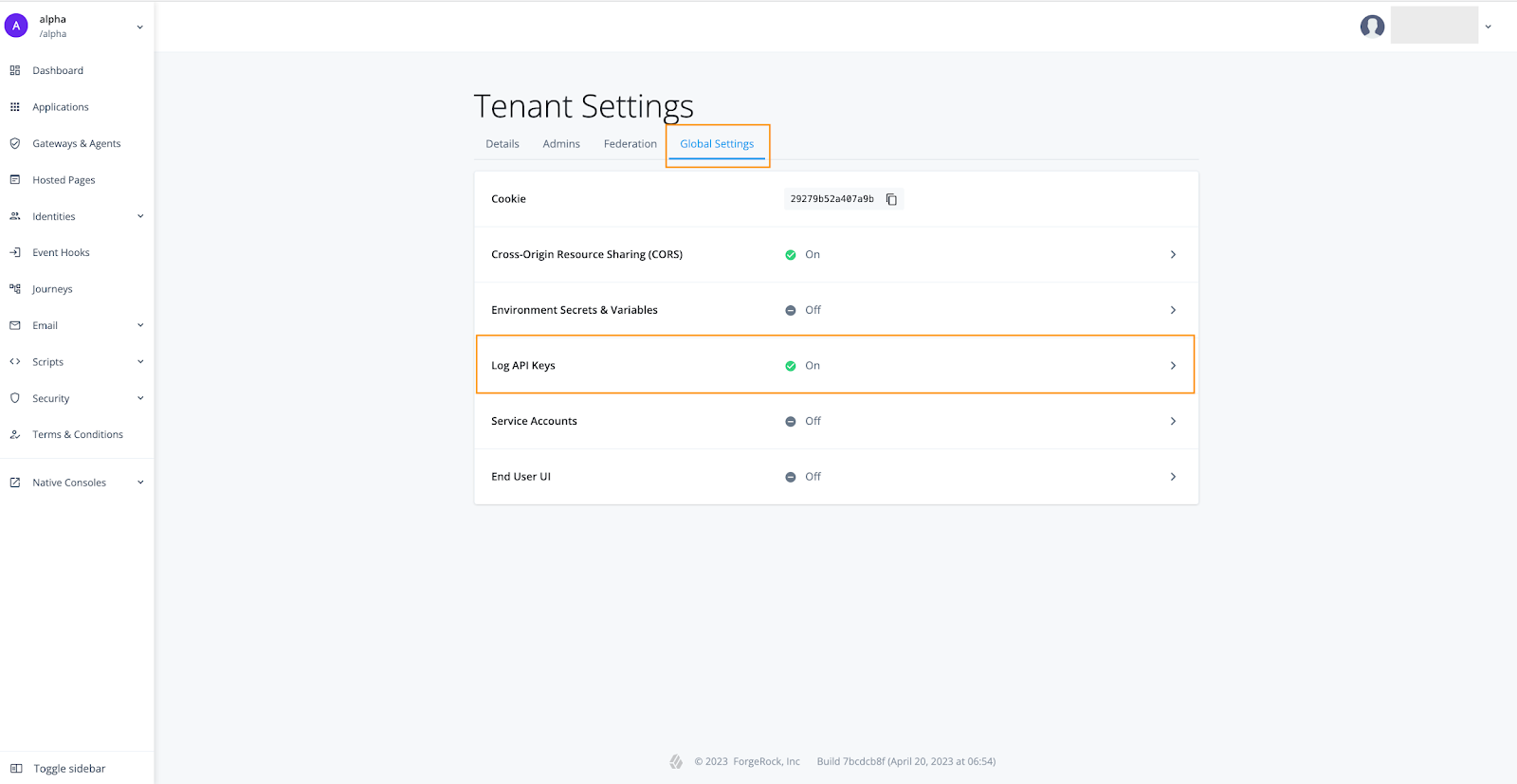
On the Tenant Settings page, go to the Global Settings tab and select Log API Keys.
-
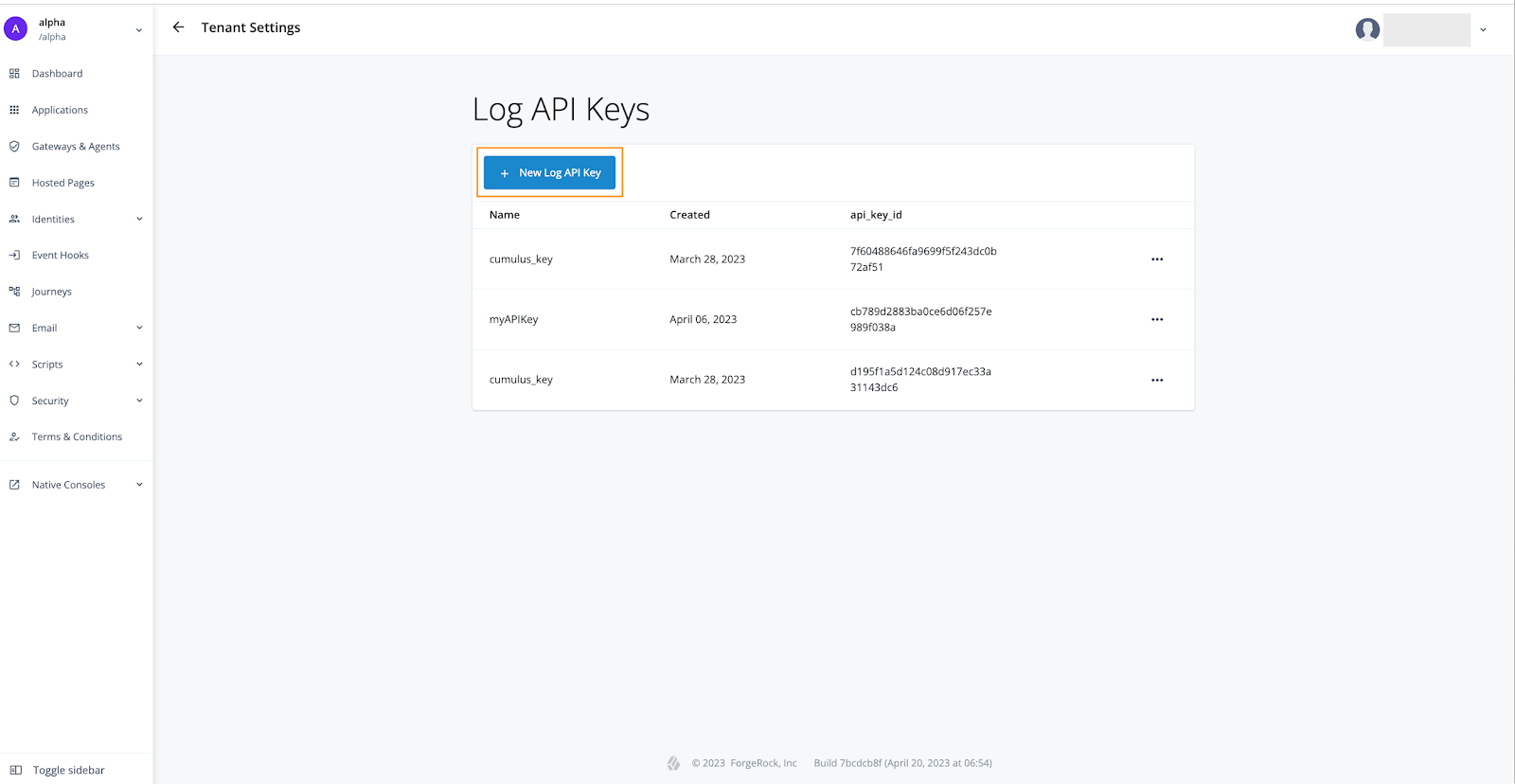
Click + New Log API key.
-
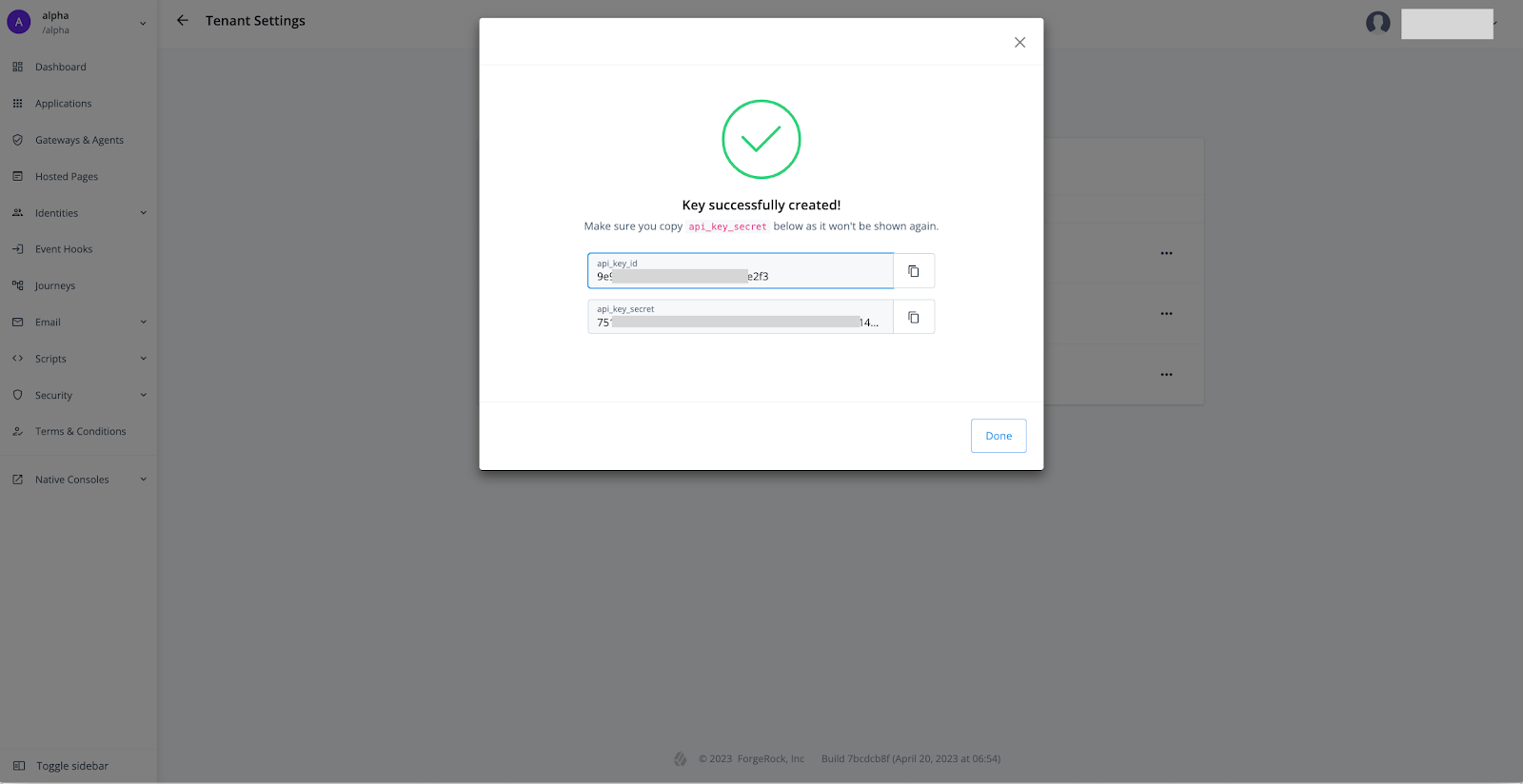
Provide a name for the Log API and click Create Key.
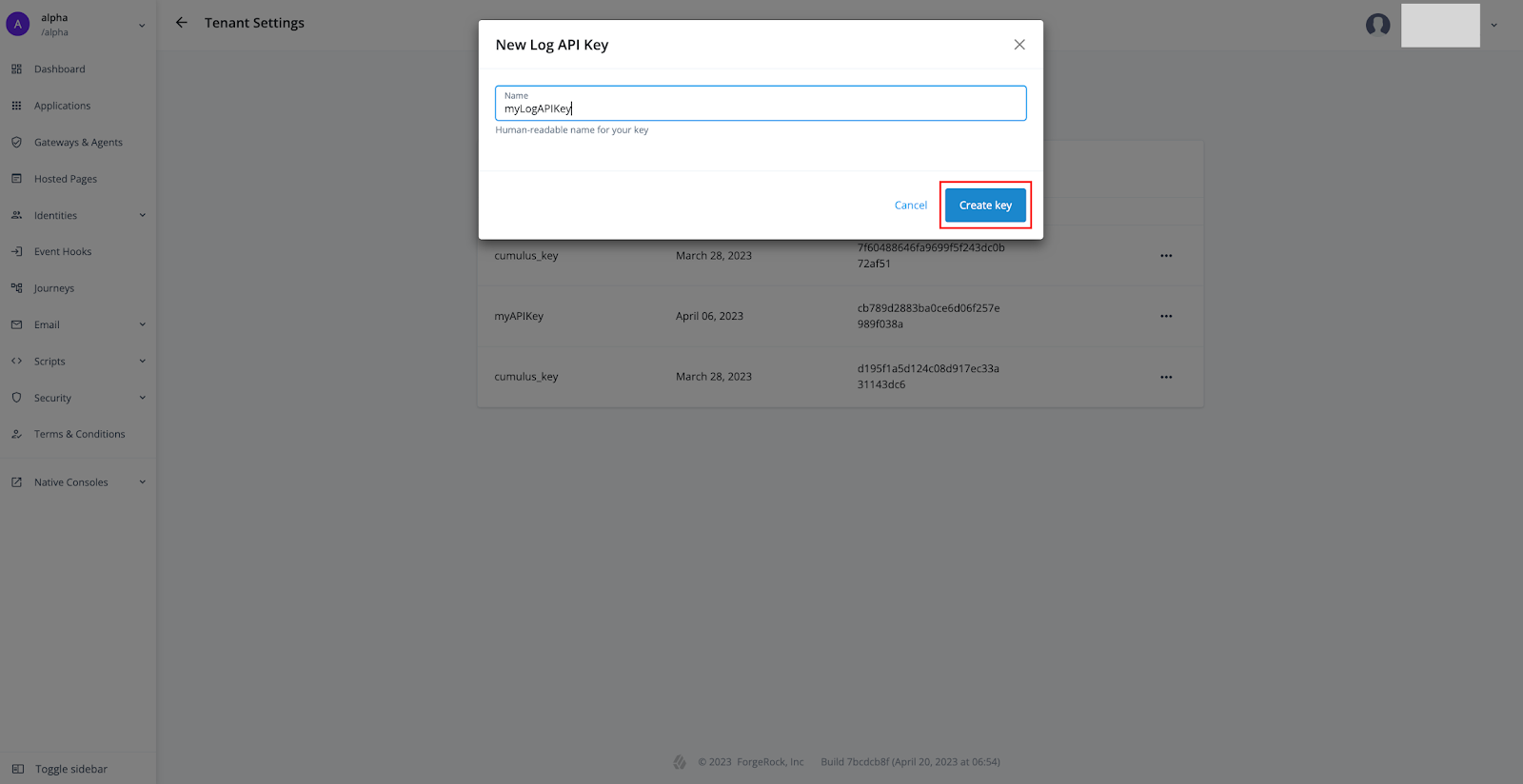
The newly generated api key id and key secret are displayed. Keep a copy of them handy as we will update these values in our Postman application variables in the next step. The api key secret is never shown again.
-
Click Done.
-
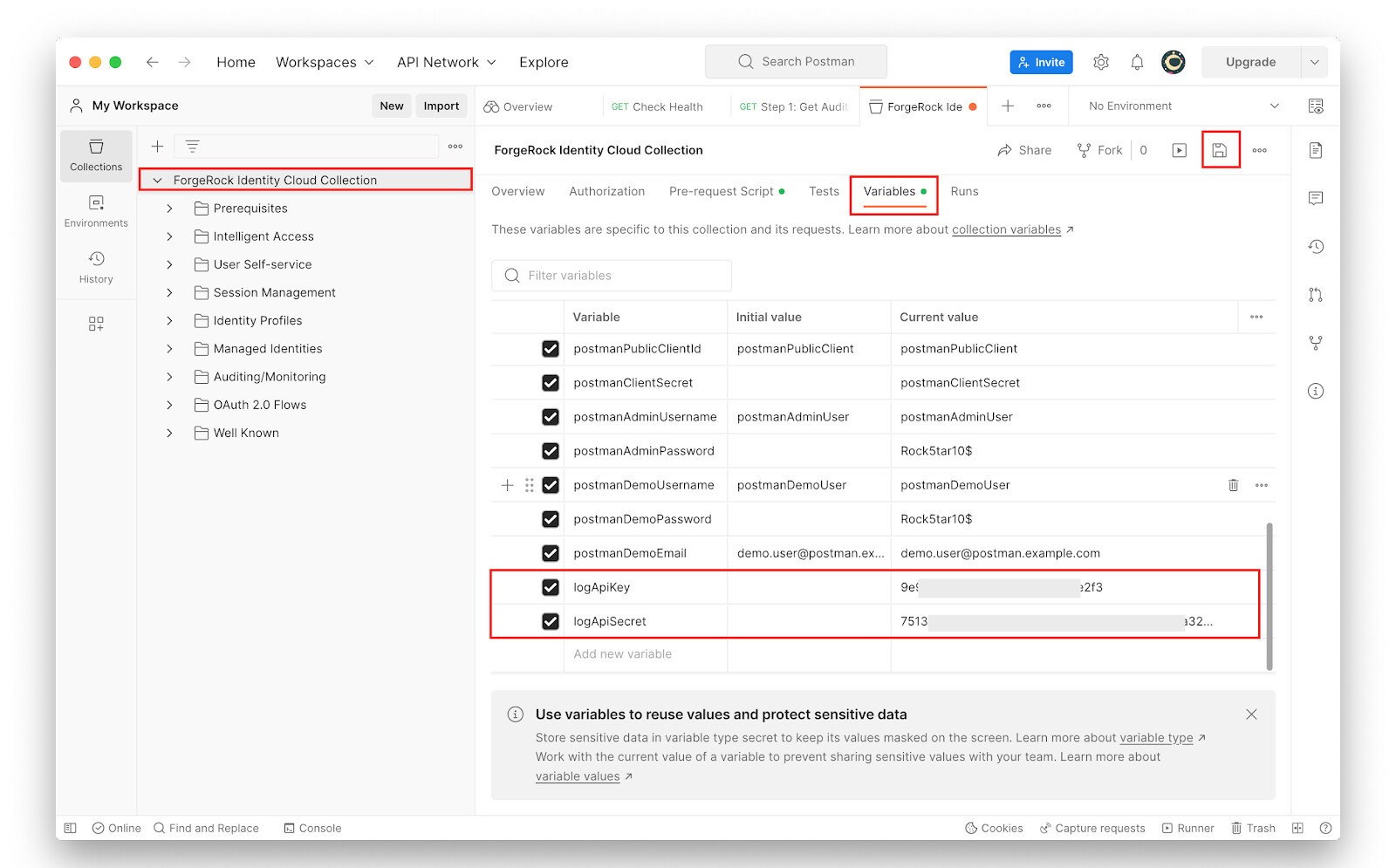
In Postman, go to ForgeRock Identity Cloud Postman Collection > Variables. Update the Current value of
logApiKeyandlogApiSecretto the ones picked up from Identity Cloud.
-
Save the changes.
-
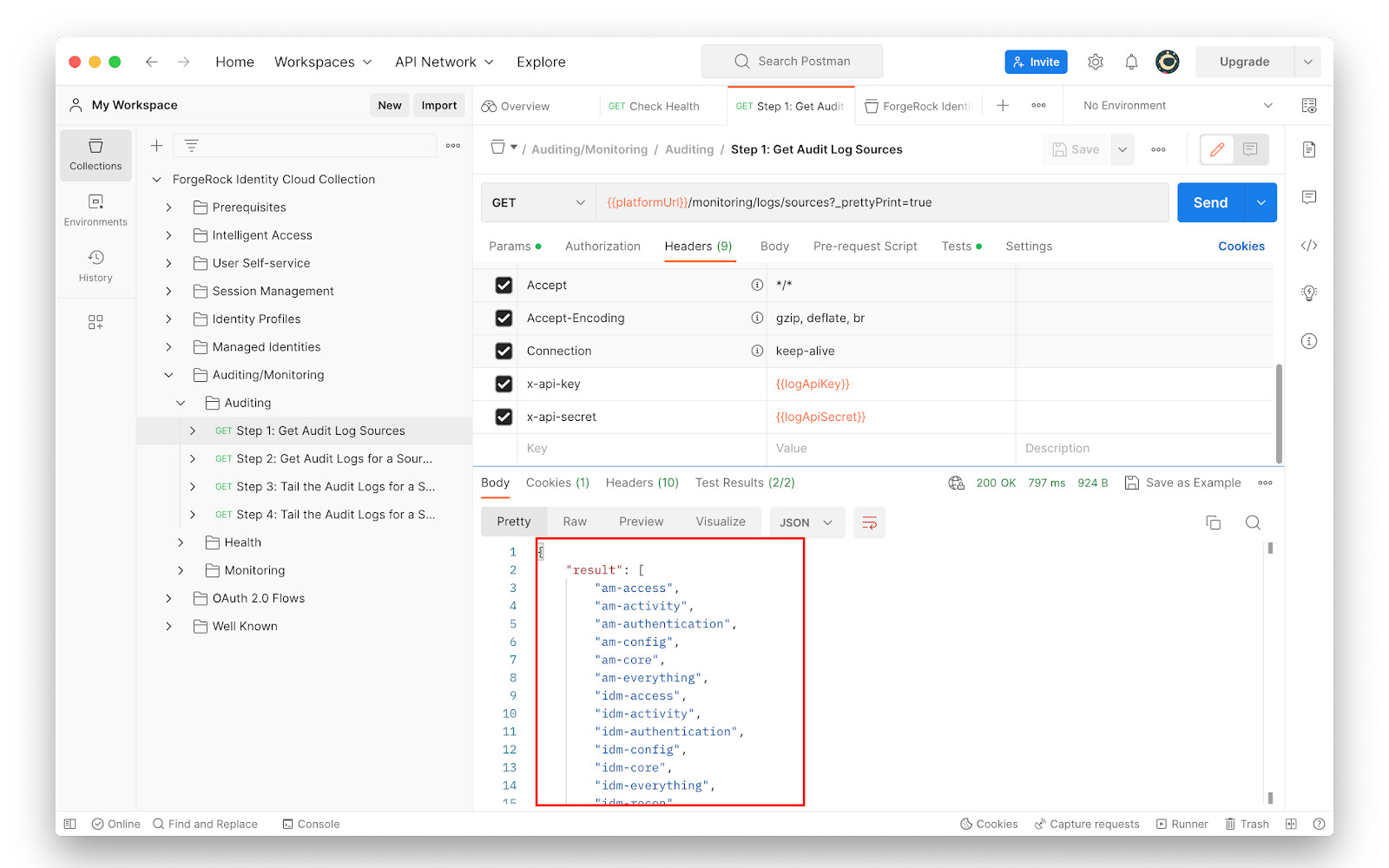
Go to Auditing/Monitoring > Auditing > Step 1 and click Send.
The response from Identity Cloud lists various sources of Identity Cloud logs.
-
Go to Auditing/Monitoring > Auditing > Step 2 and study the following:
-
The request method: GET
-
The request URL:
{{platformUrl}}/monitoring/logs?source={{auditSource}}&_pageSize=10&_prettyPrint=true -
The request headers, specifically the
x-api-keyandx-api-secretparametersNote that the
{{auditSource}}placeholder in the request URL now has a valueam-access. Sending this request to the/monitoring/logsendpoint will therefore return access logs of the Access Management component of Identity Cloud.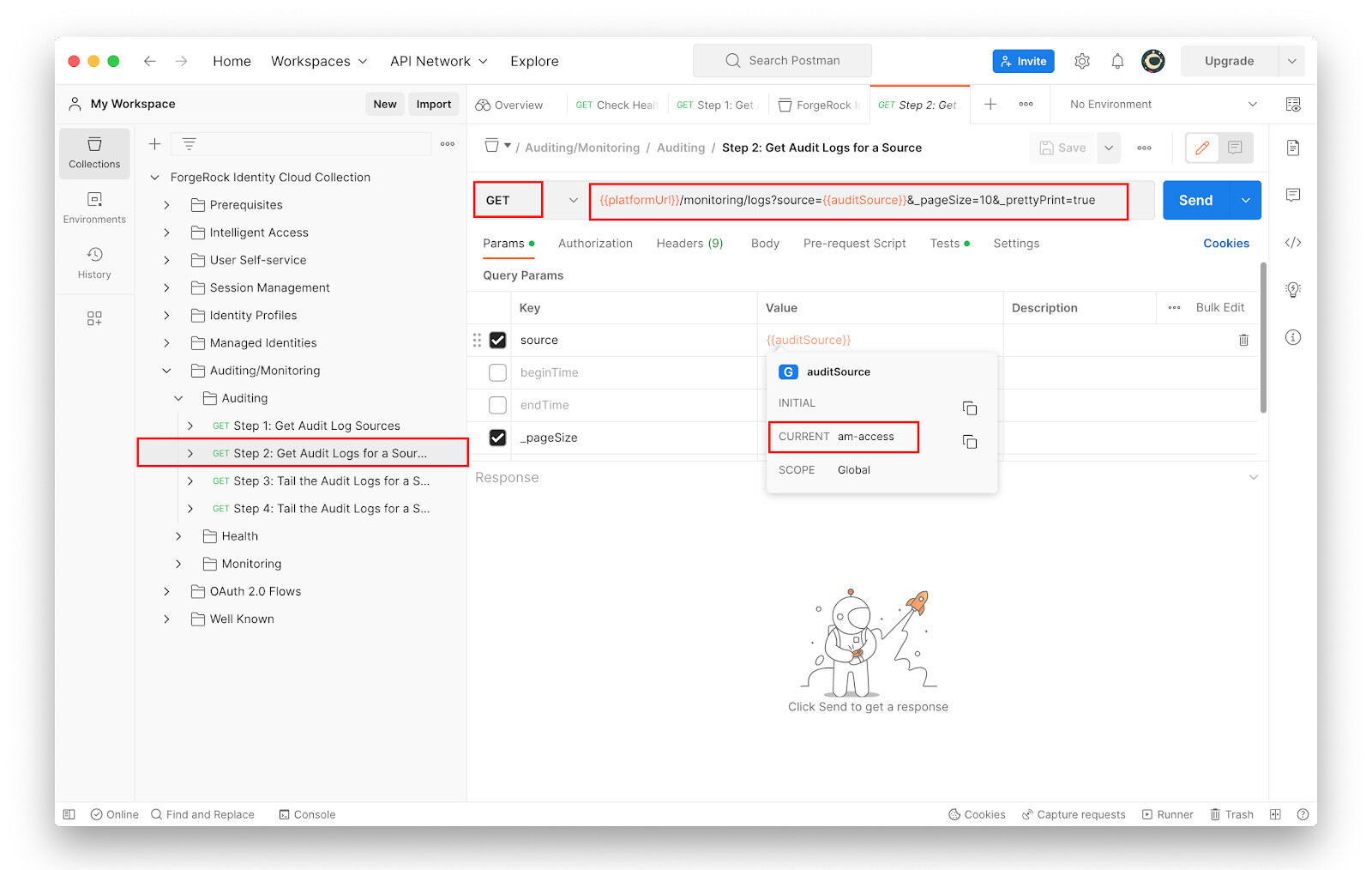
-
-
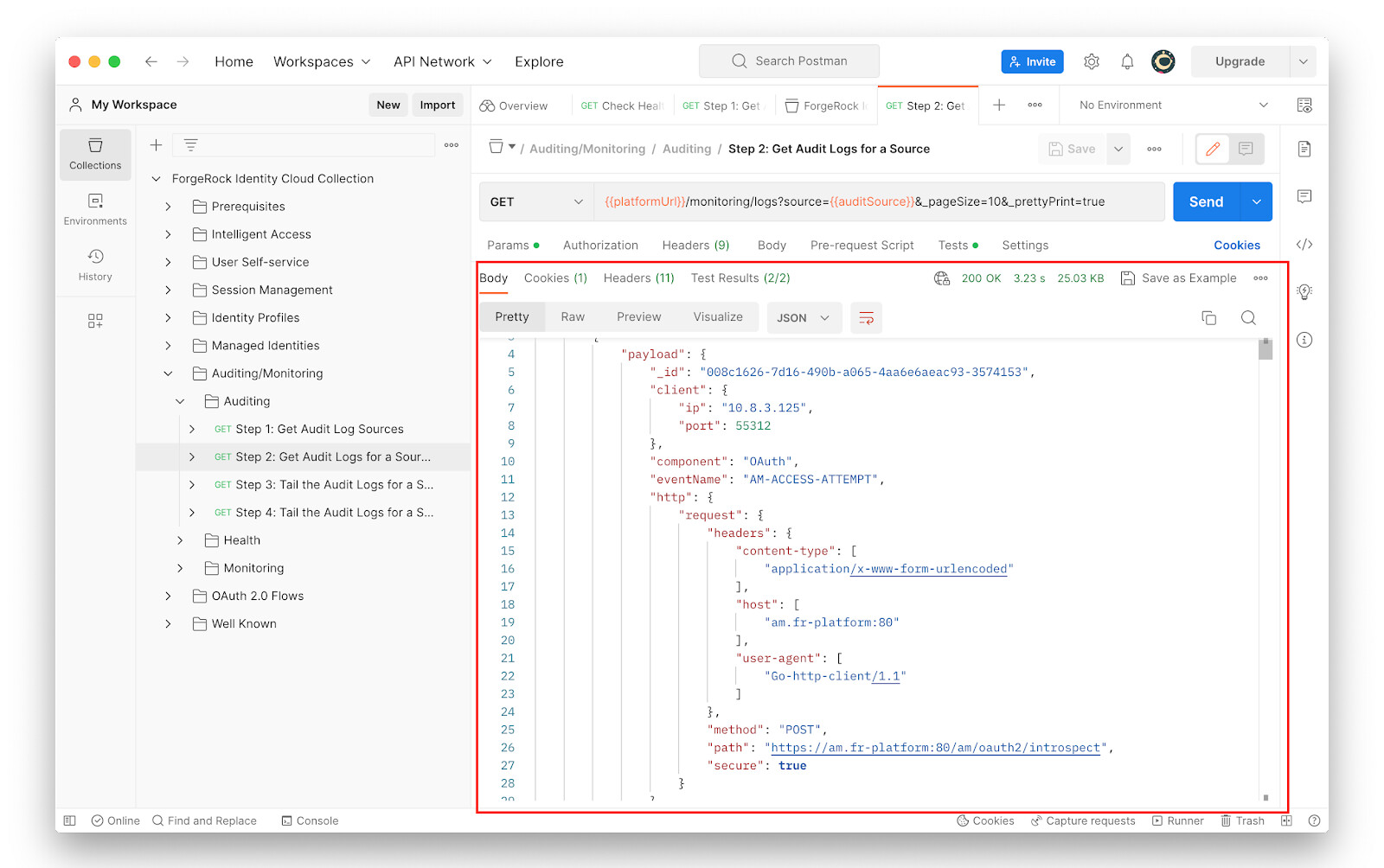
With Auditing/Monitoring > Auditing > Step 2 selected, click Send.
The response returns access logs of Identity Cloud Access Management components.
Examples using curl
The following example curl commands invoke REST calls to the various
“/monitoring” endpoints of Identity Cloud. As noted earlier, some
“/monitoring/logs” endpoints of the Identity Cloud expect authentication
using the parameters x-api-key and x-api-secret.
-
Make the following request to monitor system performance:
$ curl --request GET 'https://<id-cloud-tenant>/monitoring/health'Response:
{ "status": "OK" } -
Make the following request to view a list of the available audit logging sources:
  $ curl --location 'https://<id-cloud-tenant>/monitoring/logs/sources?_prettyPrint=true' \
--header 'x-api-key: {{x-api-key}}' \
--header 'x-api-secret: {{x-api-secret}}' | jq .
Result:
{ "result": [ "am-access", "am-activity", "am-authentication", "am-config", "am-core", "am-everything", "idm-access", "idm-activity", "idm-authentication", "idm-config", "idm-core", "idm-everything", "idm-recon", "idm-sync" ], "resultCount": 14, "pagedResultsCookie": null, "totalPagedResultsPolicy": "NONE", "totalPagedResults": 1, "remainingPagedResults": 0 } -
Make a request similar to this to retrieve the logs for a specific audit logging source. In our example we are retrieving the logs for
am-access:$ curl --location 'https://<id-cloud-tenant>/monitoring/logs?source=am-access&_pageSize=10&_prettyPrint=true' \ --header 'x-api-key: {{x-api-key}}' \ --header 'x-api-secret: {{x-api-secret}}' | jq .Result:
{
 "result": [
   {
  "payload": {
    "_id": "008c1626-7d16-490b-a065-4aa6e6aeac93-3609206",
    "client": {
      "ip": "10.8.4.237",
      "port": 58658
    },
    "component": "OAuth",
    "eventName": "AM-ACCESS-ATTEMPT",
    "http": {
      "request": {
        "headers": {
          "content-type": [
            "application/x-www-form-urlencoded"
          ],
          "host": [
            "am.fr-platform:80"
          ],
          "user-agent": [
            "Go-http-client/1.1"
          ]
        },
        "method": "POST",
        "path": "https://am.fr-platform:80/am/oauth2/introspect",
        "secure": true
      }
    },
    "level": "INFO",
    "realm": "/",
    "request": {
      "detail": {}
    },
    "source": "audit",
    "timestamp": "2023-04-30T12:23:57.476Z",
    "topic": "access",
    "transactionId": "71be4f74-7a24-490c-84be-02cf7ff2d32a/0"
  },
  "timestamp": "2023-04-30T12:23:57.477715569Z",
  "type": "application/json",
  "source": "am-access"
},
< -------- output truncated for brevity ------>

 "totalPagedResultsPolicy": "NONE",
 "totalPagedResults": -1,
"remainingPagedResults": -1
}