How to enable SSL for LDAP and Configure the LDAP connector to use SSL
Author: |
Hope Sun |
Created at: |
Oct 2023 |
Updated at: |
Oct 2023 |
Overview:
This article will guide you through how to Enable Active Directory LDAP SSL on Windows 2022 and configure the LDAP connector to use SSL. These instructions apply to both Identity Cloud and Platform deployments.
Enable Active Directory LDAP SSL on Windows 2022
-
Assuming you have LDAP already installed on Windows 2022 and possess a CA certificate from Let’s Encrypt with the following pair:
privatekey.pemandmycert.pem. -
Generate a PKCS12 certificate with the key using the following command:
openssl pkcs12 -export -out cert.pfx -inkey privatekey.pem -in mycert.pem-
Run the following`ldif` command to modify LDAP settings:
ldifde -i -f ldap.txtNote:
ldap.txtshould contain the following content:
dn:
changetype: modify
add: renewServerCertificate
renewServerCertificate: 1
Configure the LDAP Connector to Use SSL
-
In this example, assume that you have already created a remote connector server named
rcs4hopeand connected it to the Identity Cloud tenant. -
Log in to the tenant and access the IDM native console.
-
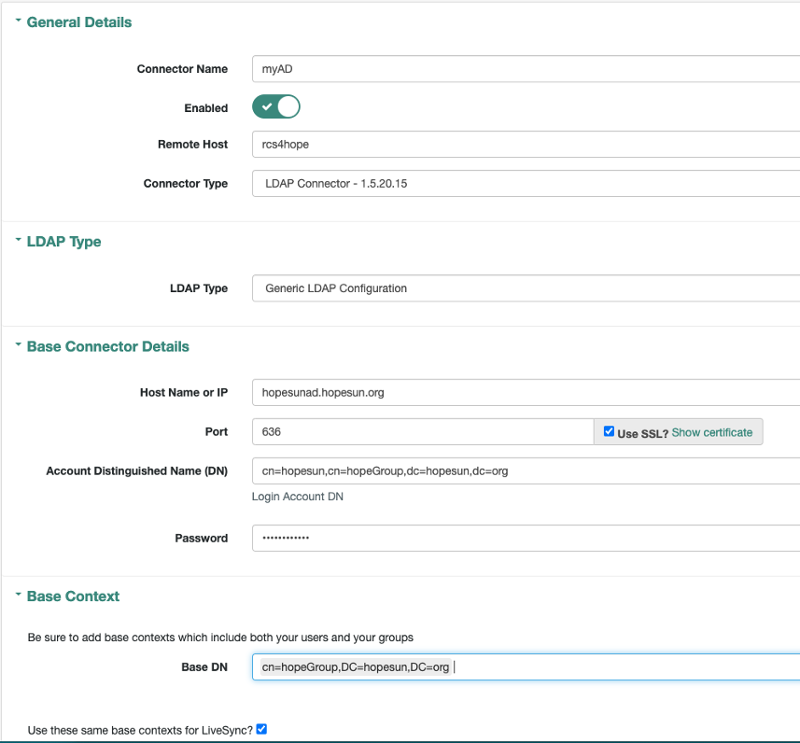
Create a new connector with the following properties, as shown in the screenshot below: