Use case: Configure organizations in ForgeRock Identity Cloud
Author: |
Lucy Billington |
Created at: |
Jan 2023 |
Updated at: |
Oct 2023 |
Use case overview
Grouping identities into organizations is a common use case that is easily implemented in ForgeRock Identity Cloud. Organizations enable you to build hierarchy, ownership and delegated administration to suit your business needs.
For example, you can configure organizations so that administrators in one organization have no access to users in another organization or sub-organization in the hierarchy. With delegated administration, you can grant certain users (such as help desk users) access to a subset of user management options for an organization.
See Organizations for further information on organizations in Identity Cloud.
Steps to achieve this use case
This use case has two parts:
-
Create and manage organizations, owners, administrators and members
-
Allow helpdesk users to access a subset of user management options based on an internal role
Create and manage organizations, owners, administrators and members
Organizations include a designated owner, administrators and members:
-
An organization owner can add administrators to their organizations and create sub-organizations.
-
Organization administrators manage user identities within organizations and sub-organizations and can delegate administration to individual users through roles and assignments.
-
Organization members are users who belong to an organization.
In this use case we’ll demonstrate how to:
-
Create an organization, assign an organization owner and add members
-
Log in as the organization owner and assign an organization administrator
-
Log in as an organization administrator and create new members and a sub-organization
-
Log in as the organization owner and add administrators to a sub-organization
Prerequisites
For this example use case we have already added two user identities in the Identity Cloud alpha realm, called “Company-C-owner” and “Company-C-admin”.
See Manage Identities for further information on creating user identities in Identity Cloud.
Create an organization, assign an organization owner and add members
-
Sign in to the Identity Cloud admin UI using your admin tenant URL, in the format
https://<tenant-name>/am/XUI/?realm=/#/. -
Go to Identities > Manage > Alpha realm - Organizations.
-
Click New Alpha realm - Organization.
-
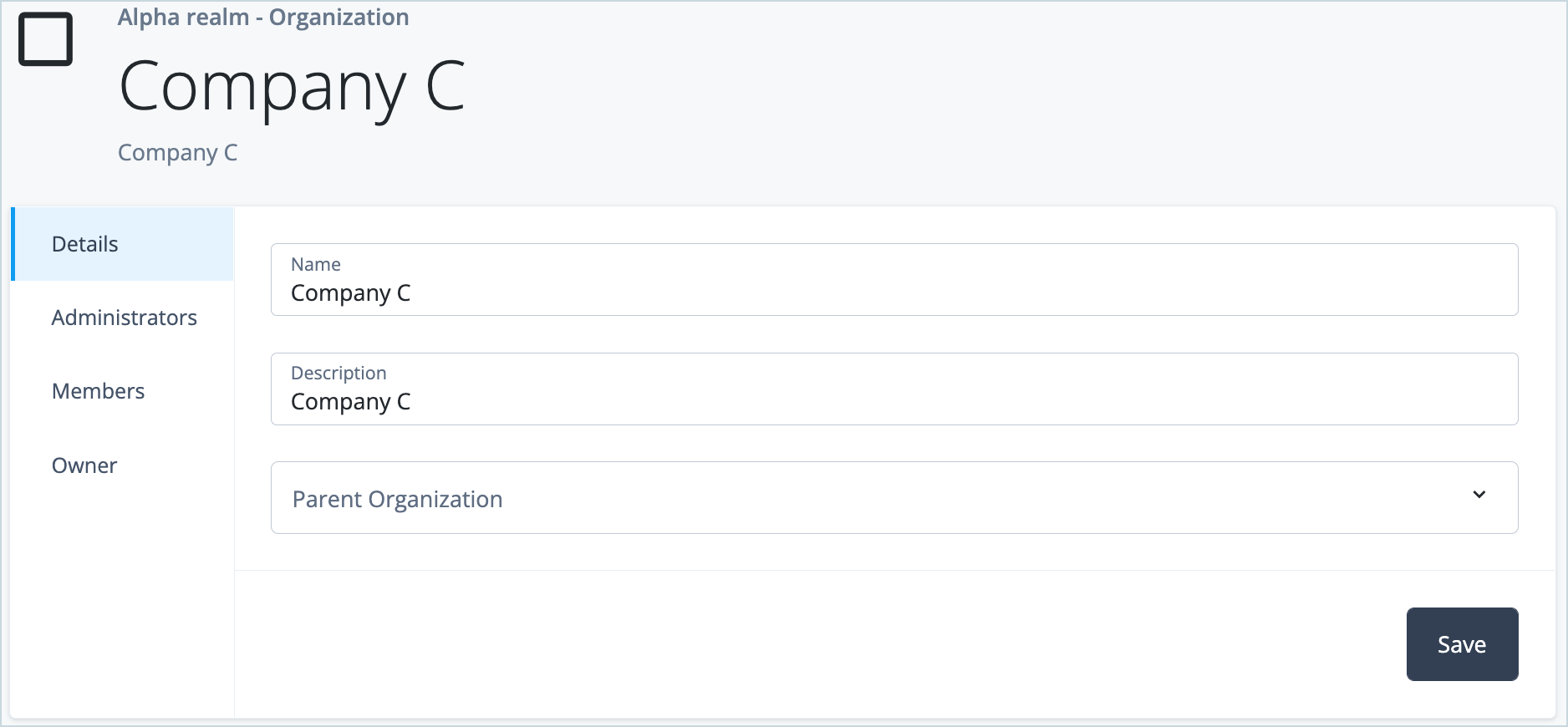
Enter a name for the organization and click Save. In this use case, we’re calling it Company C.
-
Click Owner > Add Owner.
-
Select
Company-C-ownerand click Save.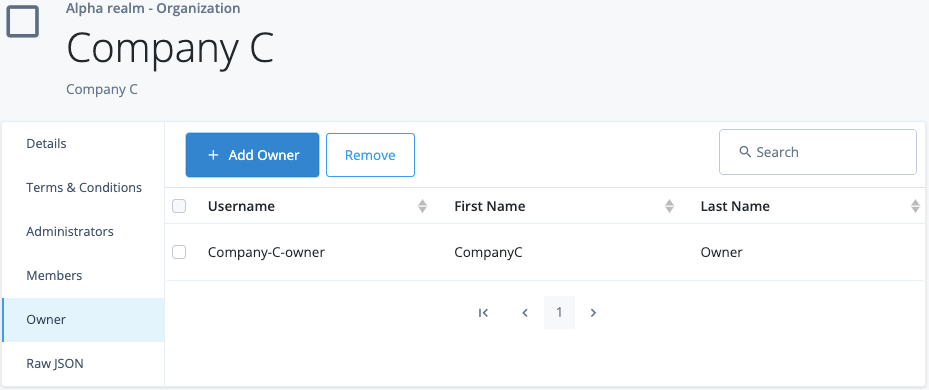
-
Click Members > Add Members.
-
Add the following members:
Company-C-adminandCompany-C-ownerand click Save
Note that we are not adding an organization administrator yet. We’ll do that in the next steps.
-
Sign out of Identity Cloud.
Assign an organization administrator
Only organization owners or tenant administrators can assign organization administrators.
-
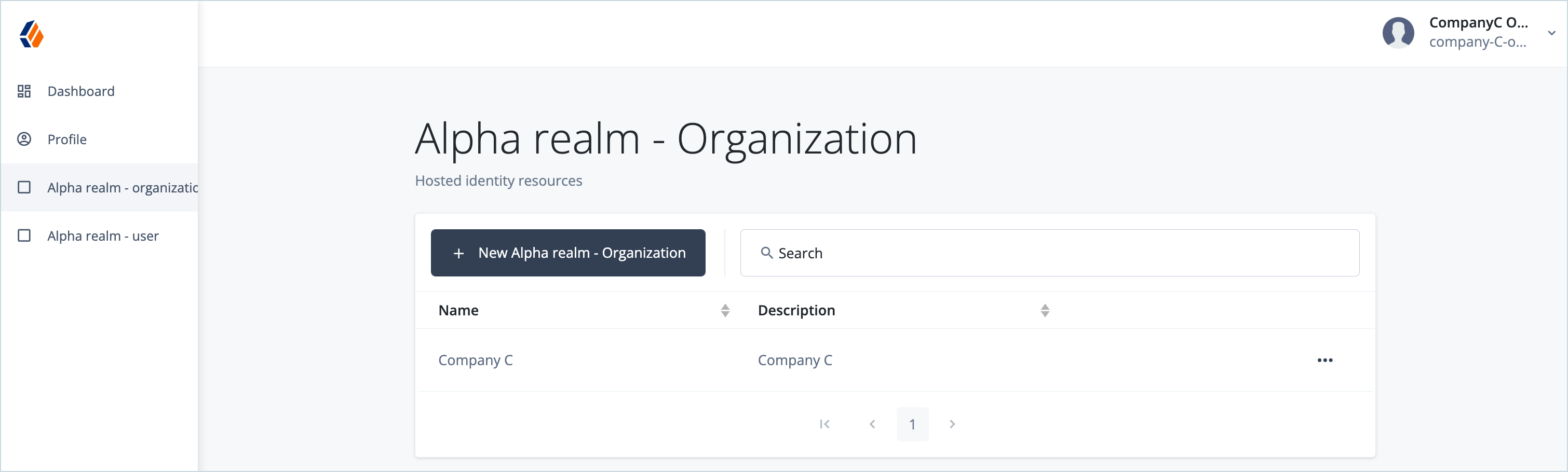
Sign in to the Identity Cloud end user UI as the Company C organization owner (Company-C-owner).
-
Click Alpha realm - organization.
-
Click on Company C.

-
Click Administrators > Add Administrators.
-
Select
Company-C-adminand click Save.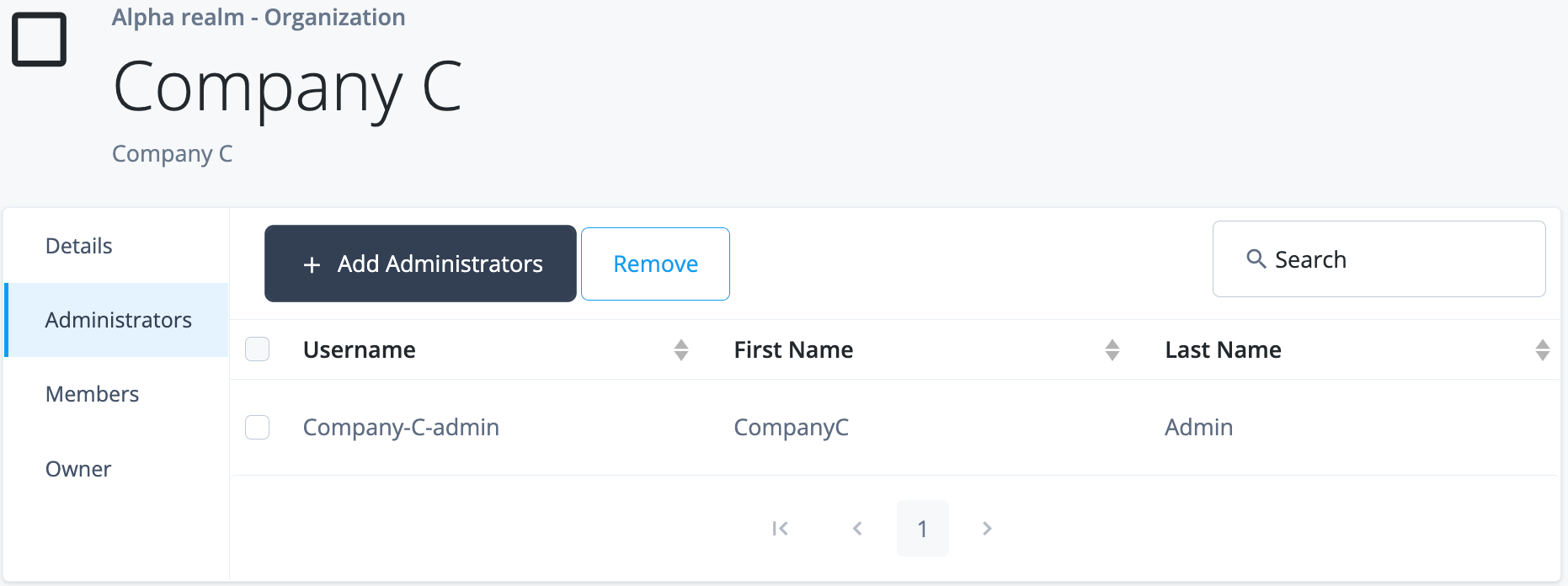
-
Sign out of Identity Cloud.
Create organization members and sub-organizations (as an organization administrator)
Organization administrators can create users (organization members) and sub-organizations.
-
Sign in to the Identity Cloud end user UI as a Company C administrator (Company-C-admin).
-
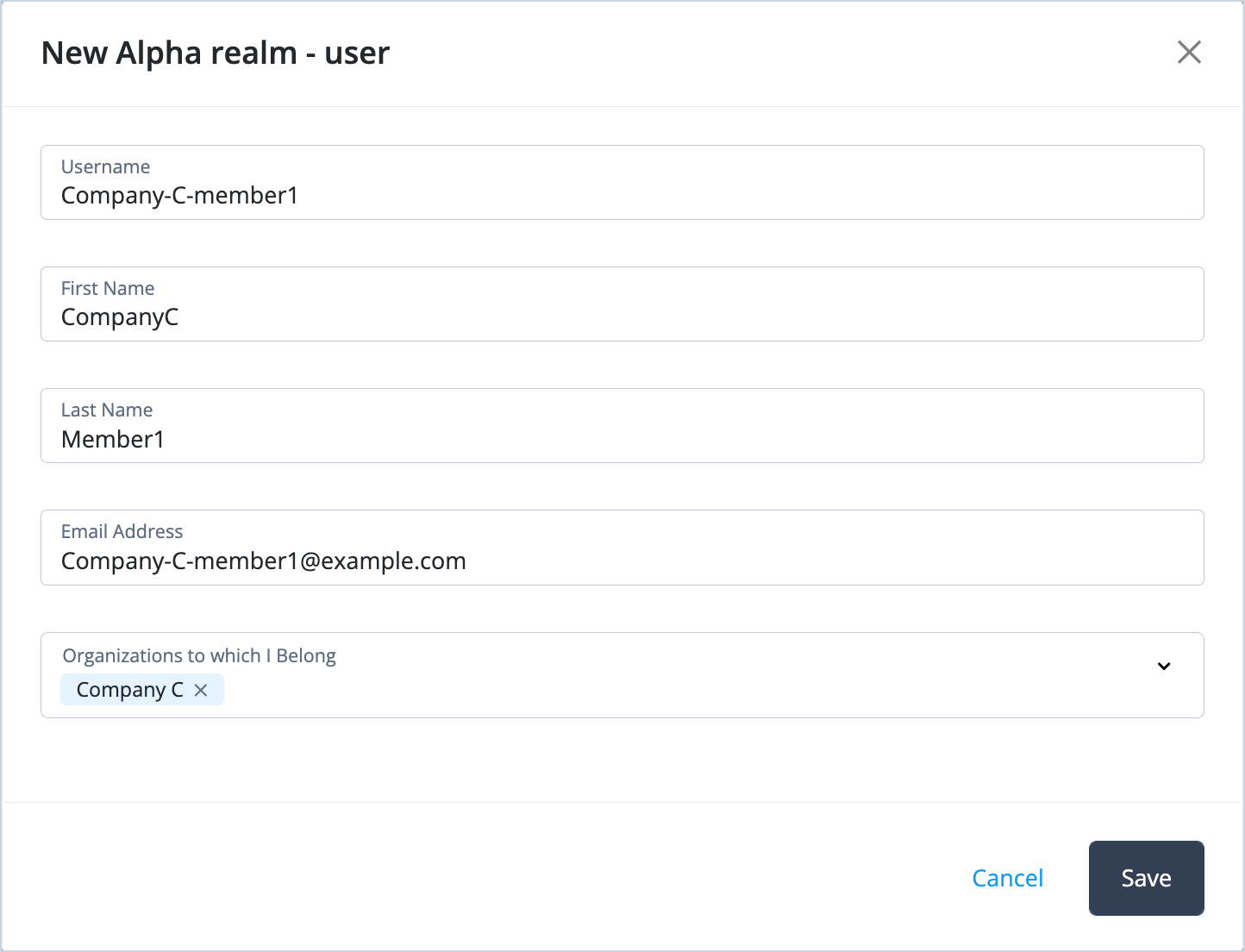
Add an organization member:
-
Go to Alpha realm - user > New Alpha realm - User.
-
Enter the user’s details. For example:
-
Username: Company-C-member1
-
First Name: CompanyC
-
Last Name: Member1
-
Email Address: Company-C-member1@example.com
-
Organizations to which I Belong: Company C
c. Click Save
-
-
-
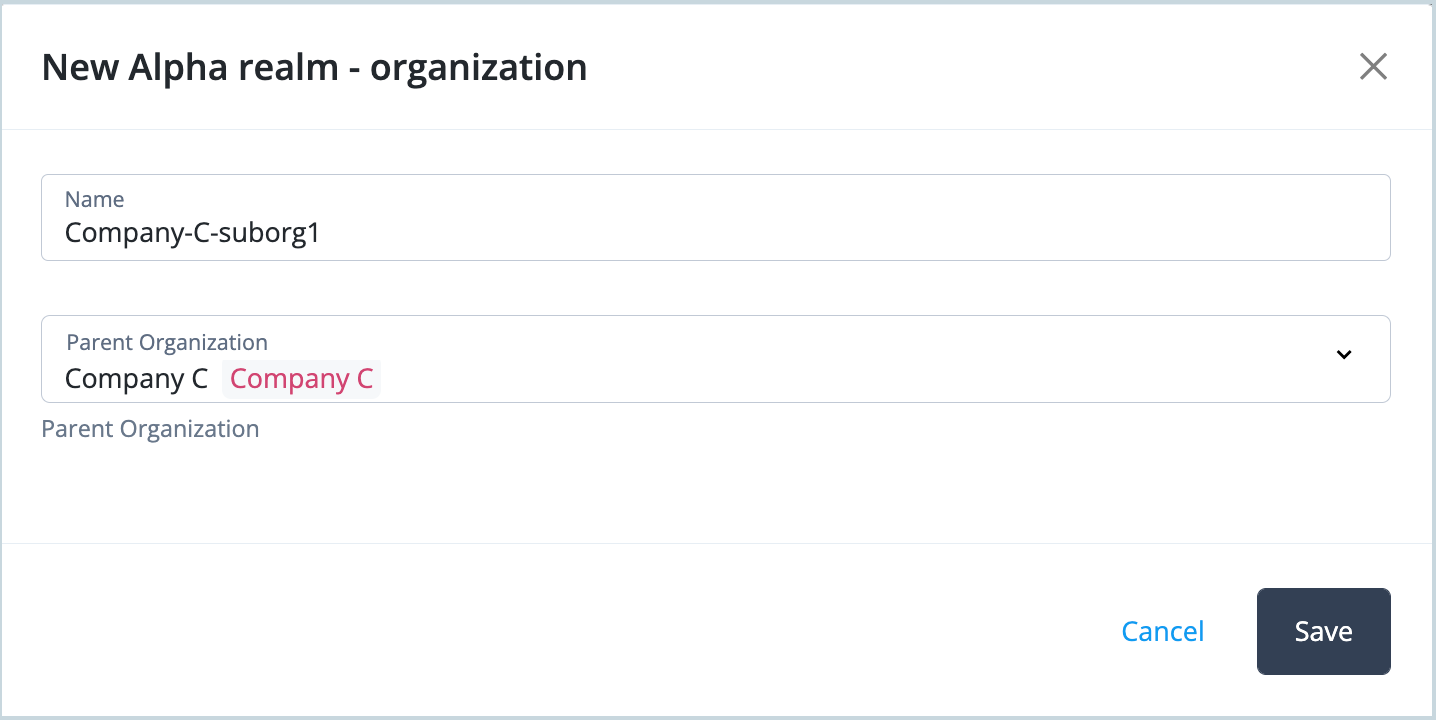
Add a sub-organization:
-
Go to Alpha realm - user > New realm - Organization.
-
Enter the sub-organization details. For example:
-
Name: Company-C-suborg1
-
Parent Organization: Company C
c. Click Save.
-
-
-
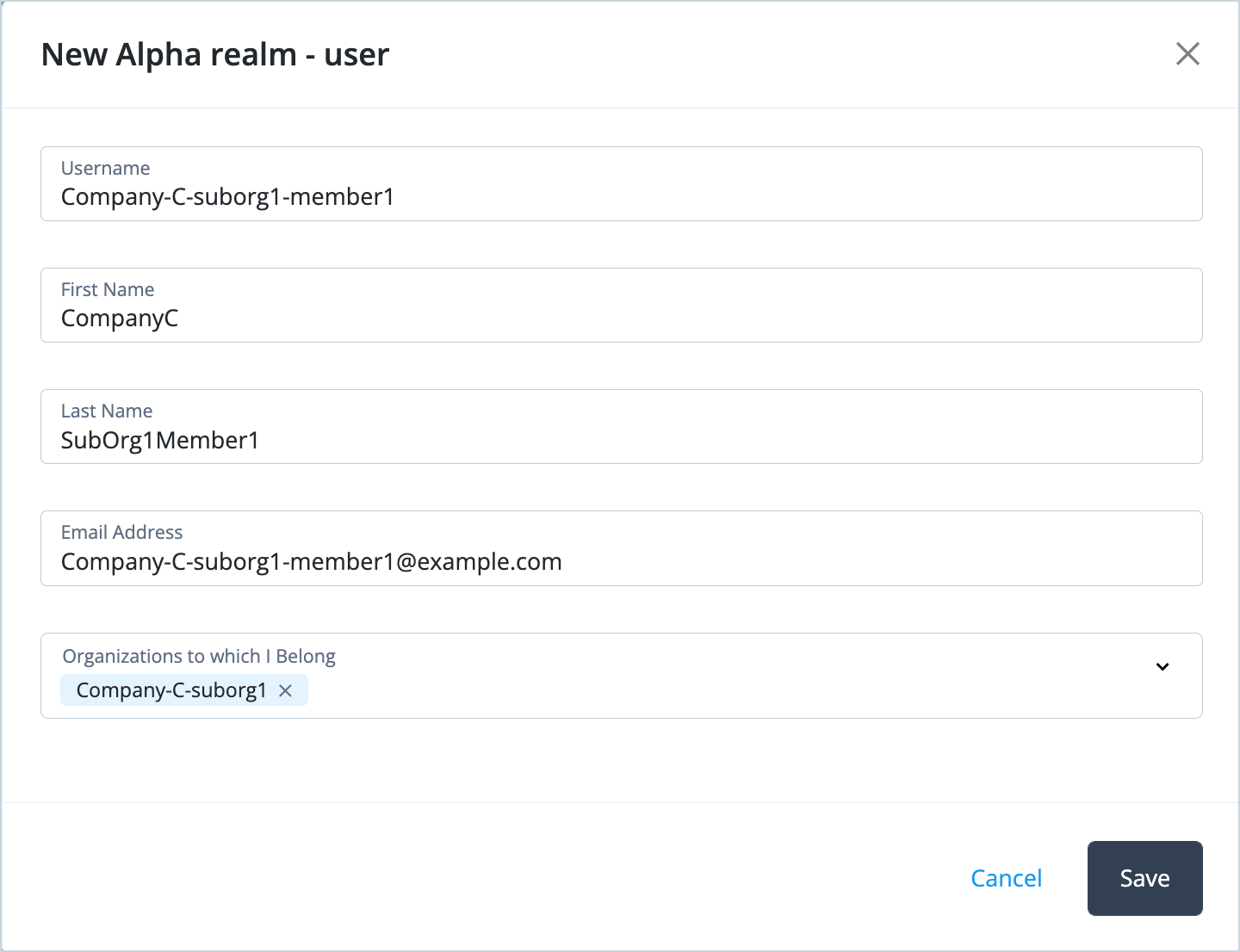
Add a member to the sub-organization:
-
Go to Alpha realm - user > New Alpha realm - User.
-
Enter the user’s details. For example:
-
Username: Company-C-suborg1-member1
-
First Name: CompanyC
-
Last Name: SubOrg1Member1
-
Email Address: Company-C-suborg1-member1@example.com
-
Organizations to which I Belong: Company-C-suborg1
c. Click Save
-
-
-
Sign out of Identity Cloud.
Add administrators to the sub-organization
Only organization owners or tenant administrators can assign administrators to sub-organizations.
-
Sign in to the Identity Cloud end user UI as the Company C owner (Company-C-owner).
-
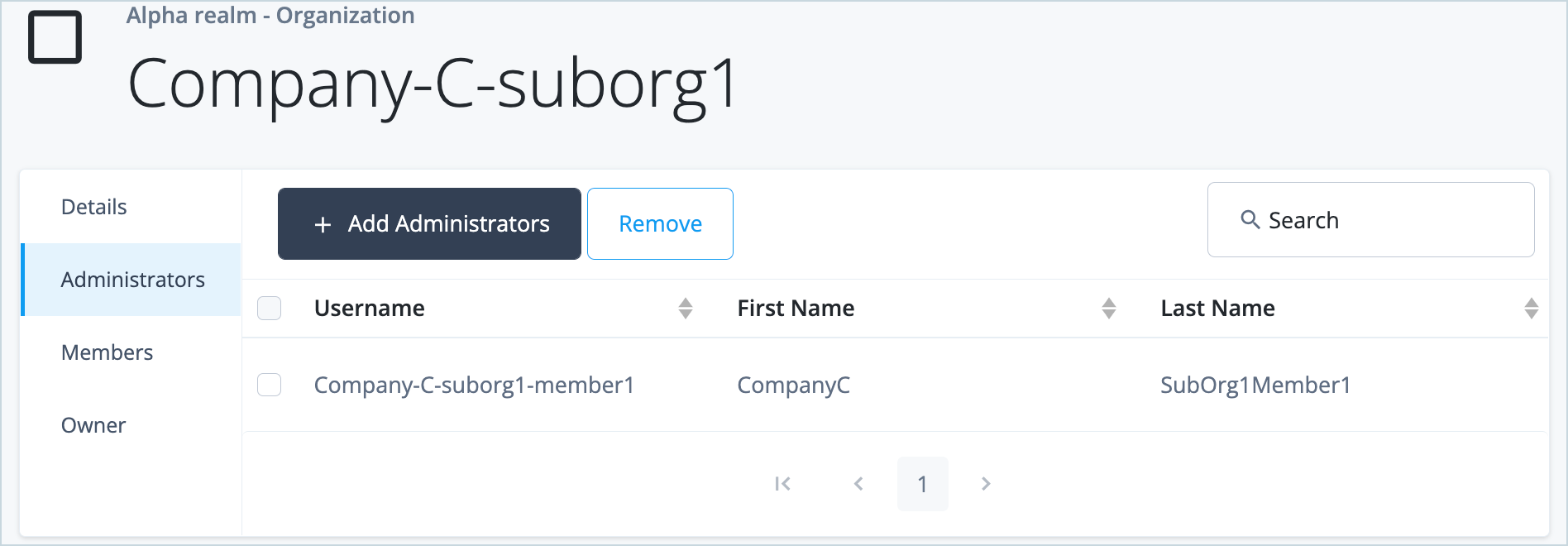
Go to Alpha realm - organization > Company-C-suborg1.
-
Go to Administrators > Add Administrators, and select
CompanyC SubOrg1Member1.
-
Click Save.
-
Sign out of Identity Cloud.
-
Sign in to the Identity Cloud end user UI as the Company C sub-org administrator (Company-C-suborg1-member1).
-
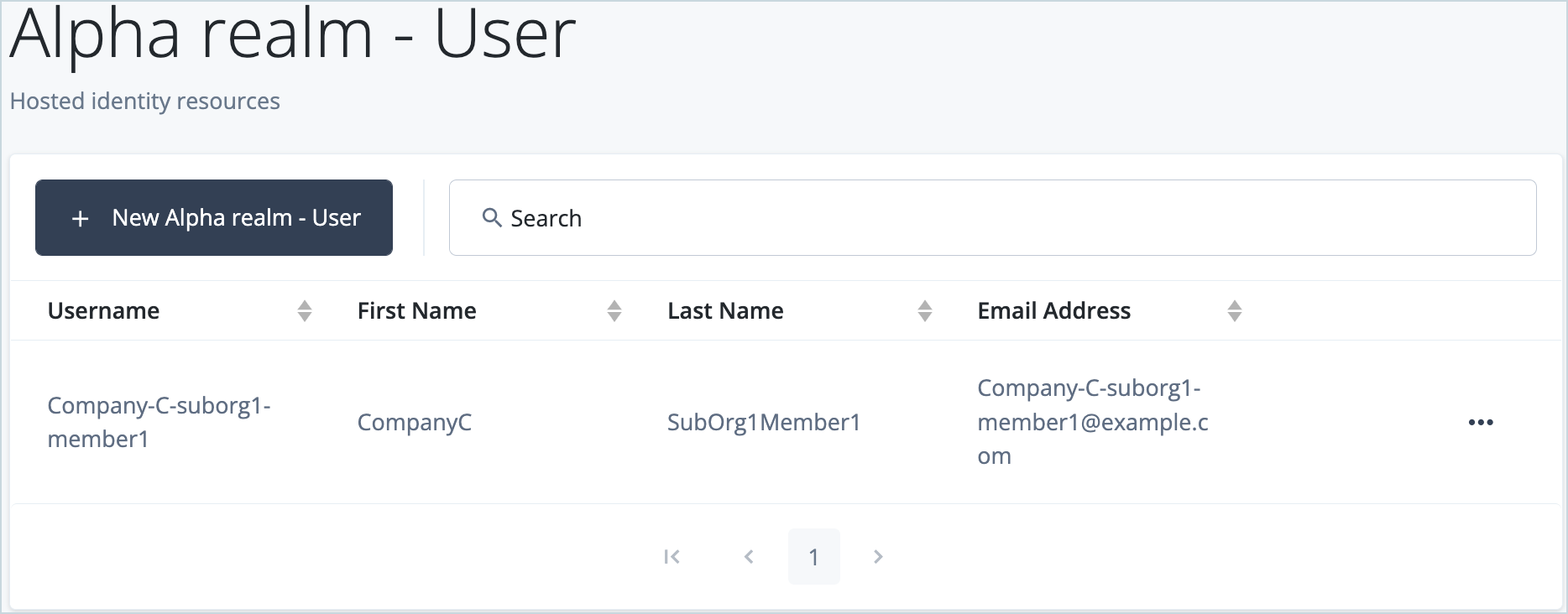
Go to Alpha realm - User.
You should see the members of the sub-organization (and only those).
Allow helpdesk users to access a subset of user management options
This use case demonstrates how to grant helpdesk users access to a subset of user management options based on an internal role.
We’ll configure an internal role that matches on usernames containing ‘helpdesk’ and gives helpdesk users access to manage members of a particular organization.
Prerequisites
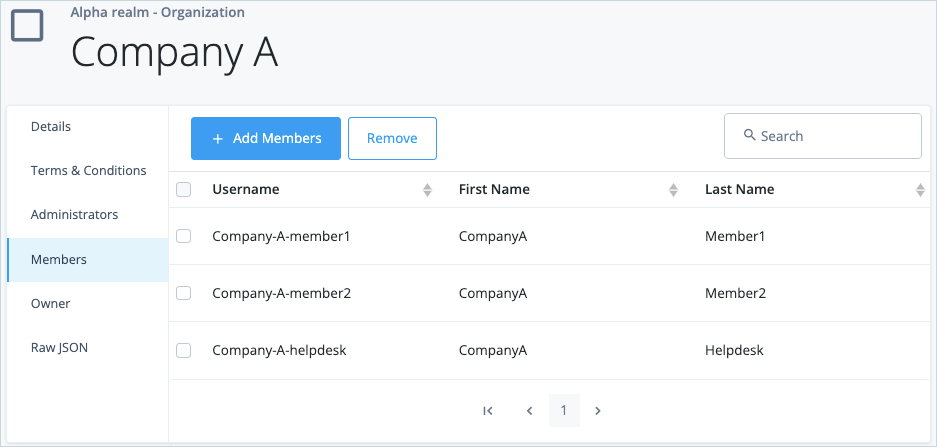
For this example use case we have already created an organization, called “Company A”, with the following users:
-
Organization owner: Company-A-owner
-
Organization administrator: Company-A-admin
-
Organization members: Company-A-member1, Company-A-member2, Company-A-helpdesk
See Organizations for further information on creating organizations, and Manage Identities for further information on creating user identities, in Identity Cloud.
Before you begin
Make a note of the ID of the organization for which you want to set the
internal role, in this case, Company A. The organization ID will look
similar to this: 0f3dc59b-5b6a-4466-87ff-3202c86afddc.
Configure an internal role
-
Sign in to the Identity Cloud admin UI using your admin tenant URL, in the format
https://<tenant-name>/am/XUI/?realm=/#/. -
Go to Identities> Manage > Internal Roles.
-
Click New Internal Role.
-
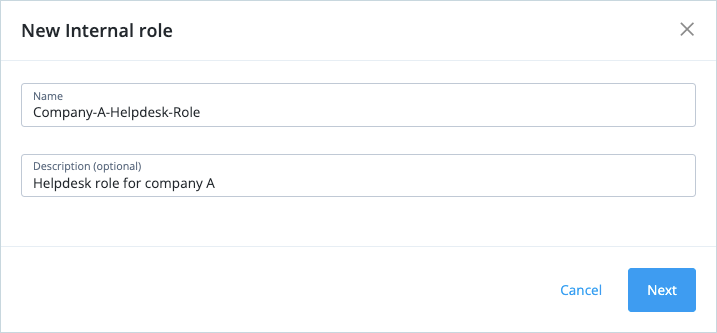
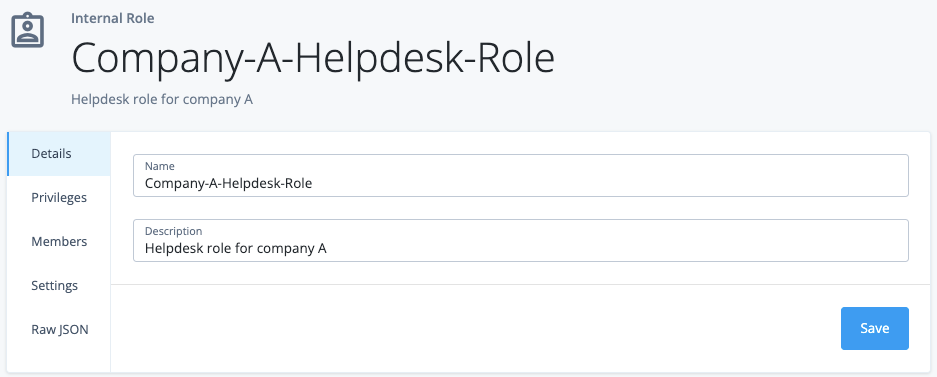
Enter a unique name for the internal role, for example, Company-A-Helpdesk-Role, and an (optional) description.
-
Click Next.
-
Select the identity object for which the role should grant administration privileges. In this case, select
Alpha realm - users.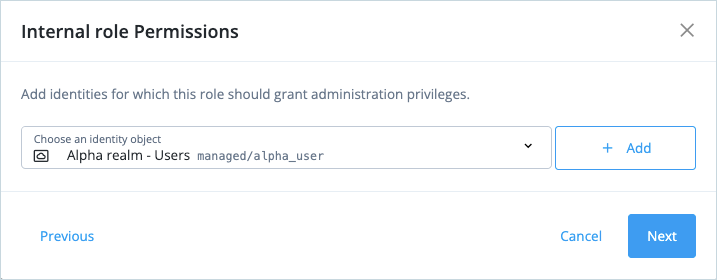
-
Click Add and select the Update check box.
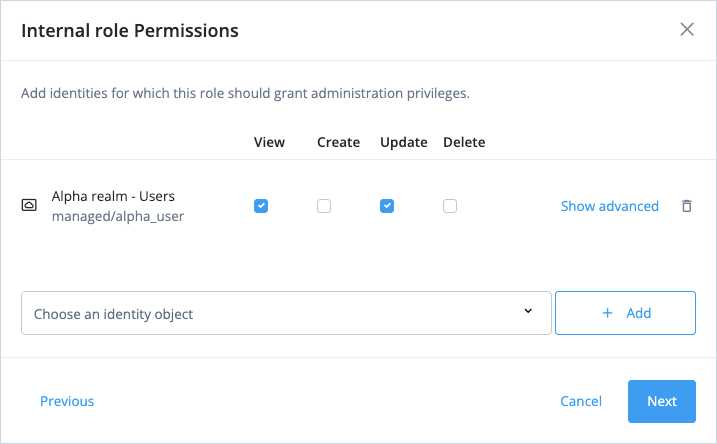
This will allow users with internal role permissions to view and update user identities.
-
Click Show advanced.
-
Set all the attribute permissions to
Read, except password (Read/Write).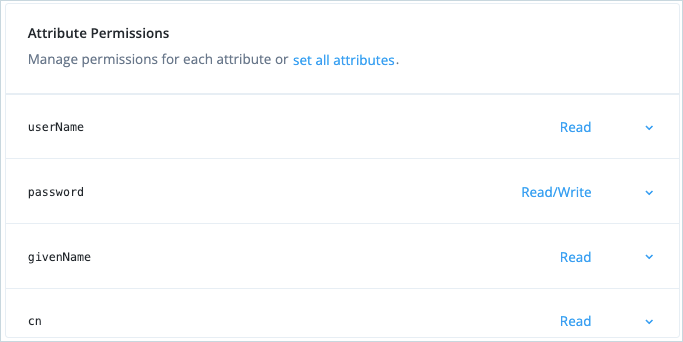
-
Set a filter to only apply the internal role to users who are members of a specified organization. In this example, the organization is Company A.
-
Toggle Administer only a subset of Alpha realm - Users by applying a filter to On.
-
Click Advanced editor.
-
Enter
/memberOfOrgIDs eq "<org ID>", where<org ID>is the ID of the organization (Company A).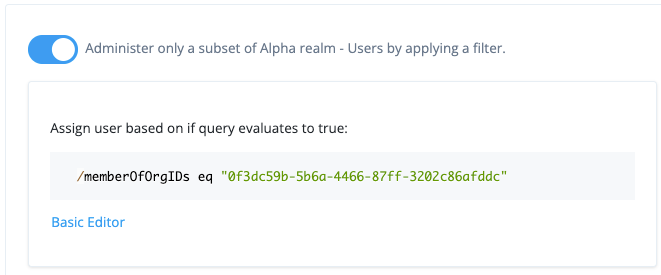
-
-
Click Next.
-
Toggle A conditional filter for this role to On and set the following condition:
Usernamecontainshelpdesk.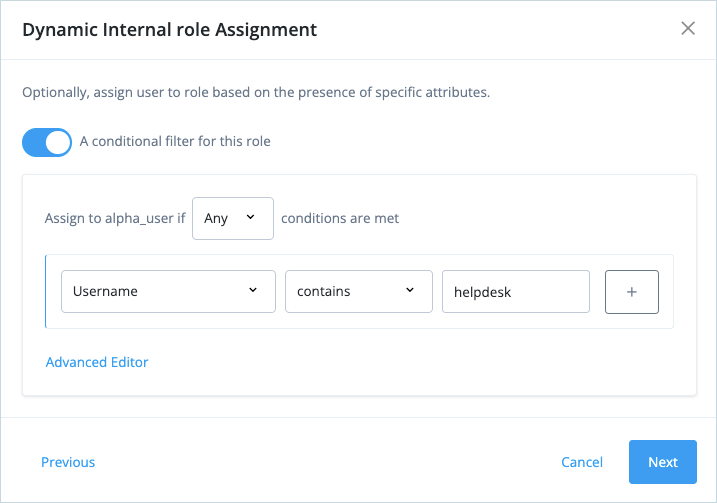
This will apply the internal role only to those users who have “helpdesk” in their username.
-
Click Next and then Save.
-
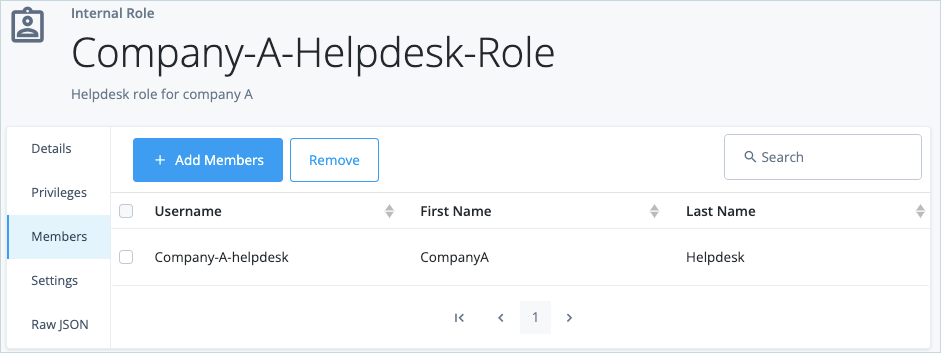
Click Members to see the members of the internal role. Only users with ‘helpdesk’ in their username should be listed.
-
Sign out of Identity Cloud.
Confirm the privileges for users with the internal role
-
Sign in to the Identity Cloud end user UI as the helpdesk user (Company-A-helpdesk).
-
Click Alpha realm - user.
Only users in the alpha realm who are members of Company A should be listed.

-
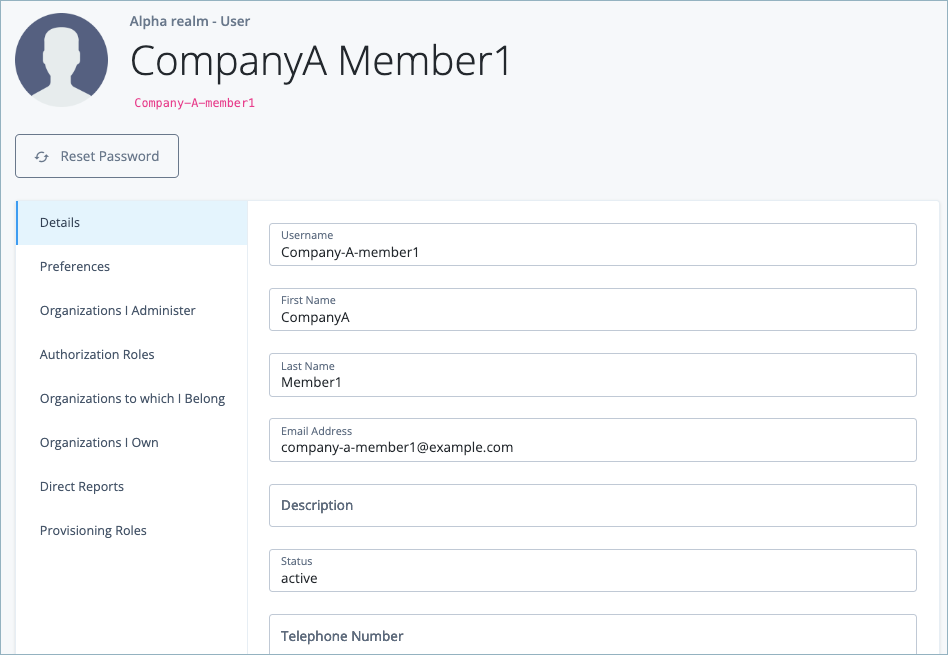
Click on a user to view their details.
All the details are view-only except Reset Password.
Conclusion
With Identity Cloud’s flexible Organization model, you can easily build hierarchy, ownership and delegated administration to suit your business needs. Further, if you want to allow only certain users in an organization access to certain user management options, this is easily achieved using delegated administration and internal roles.