The Basics of Developing Scripted Connectors for Java Remote Connector
Author: |
Konstantin Lapine |
Created at: |
Jun 2023 |
Updated at: |
Dec 2023 |
The Basics of Developing Scripted Connectors for Java Remote Connector Server (Part 1 of 2)
+
Continues in The Basics of Developing Scripted Connectors for Java Remote Connector Server (Part 2).
In the ForgeRock Identity Cloud (Identity Cloud) managed environment, syncing identities via a remote connector server provides necessary flexibility in integrating the ForgeRock Identity Platform (Platform) with external systems.
Scripted implementations present a relatively easy way to extend this flexibility further and almost indefinitely, including the option to develop a new connector when the available solutions do not meet one’s requirements. Thus, a scripted connector can address edge cases, aid with proofing a concept, serve as a demo, and potentially outline future development plans for a standard feature.
The following content overlays the existing ever-evolving official docs with additional details on developing connectors based on the Groovy Connector Toolkit for the Java Remote Connector Server (RCS) built on top of ForgeRock Open Identity Connector Framework (ICF).
Additional information could also be found on the ForgeRock Backstage site.
Use the links under the Contents section to quickly navigate to an area of interest. If you feel lost in a long chapter, navigate to the closest Back to contents link and try again.
The quoted paragraphs, such as this one, indicate that the content they provide is supplementary and optional.
##Contents
-
Scripted Groovy Connection Configuration
-
-
-
-
&scriptId=<script_id> (system action to execute and return from)
-
link:#heading--developing-connector-configuration-system-actions-rest-parts-request-params[&arg1=value1&arg2=value2
-
. . (script arguments)]
-
-
-
-
Scripted Groovy Connector (Toolkit)
-
Registering Connection in IDM
-
Deployment Requirements
-
Platform UI
-
IDM’s REST
-
Create Configuration
-
Use a Provisioner File
-
Example
-
-
-
Schema Script
-
Object Classes
-
objectClass(Closure closure)
-
type(String type)
-
attribute(String name[, Class type[, Set flags]])
-
attribute(AttributeInfo attributeInfo)
-
attributes(Closure closure)
-
-
defineObjectClass(ObjectClassInfo objectClassInfo[, . . . ])
-
-
Example Data
-
Users
-
Groups
-
-
Example Schema Script
-
Original Data Structure
-
Flat Representation of Data
-
-
-
Search Script
-
Requesting Search Operation
-
IDM’s REST
-
IDM Script
-
-
Responding with Data
-
Filtering Results
-
Read by Resource ID
-
Query Definition
-
-
Paging and Sorting
-
Page Size
-
Sorting
-
Tracking Position in Paged Results
-
-
Attributes to Get
-
Example Search Script
-
Flat Representation of Data
-
-
-
Test Script
-
-
Conclusion
-
##Choosing IDE
For a Java RCS, you will write scripts in the Apache Groovy programming language (Groovy). Consult the IDE integration support for Groovy document when you choose an IDE for your scripted RCS development.
In general, you can get a better support for Groovy in a Java-specialized IDE, like IntelliJ IDEA (IntelliJ).
In a non-Java or a polyglottal IDE, you might be able to effectively maintain your RCS scripts, but Groovy-related features may not be readily available or have limited functionality and support available.
For example, as of this writing, no Groovy debugger extension is available for Visual Code Studio—a very popular code editor. This means that if you want to do remote debugging and attach a debugger to your RCS process, you will have to use something like IntelliJ.
##Interacting with RCS via IDM’s REST
A remote connector is a system object, and as such, you can interact with it via IDM’s REST—which is a convenient option to validate your work during development.
You will need to authorize your requests to IDM’s REST as an IDM
administrator. In Identity Cloud, this means including an OAuth 2.0
bearer token in the Authorization header of your request. The token
needs to be obtained with a client mapped to an IDM subject associated
with the admin role.
The easiest way of accomplishing this type of authorization is signing
in to the IDM admin UI, and using the browser console for making HTTP
request with jQuery. Internally, jQuery uses XMLHttpRequest (XHR),
and such requests are automatically authorized by the IDM admin UI. In
addition, browser console can serve well as a JavaScript text editor. It
will provide an interactive playground with code highlighting,
autocompletion, and error checking. It will add necessary headers to
your requests.
For example (where [ . . . ] denotes omission from the original
content), you could check what scripted connectors are bundled with your
connector server:
IDM admin UI browser console
(async function () {
    var connectorServerName = 'rcs';
    /**
     * Get an array of available connector references.
     */
    var { connectorRef } = await $.ajax({
        method: 'POST',
        url: '/openidm/system?_action=availableConnectors'
    });
    /**
     * Get a list of scripted connectors for an RCS.
     */
    var scriptedConnectorRef = connectorRef.filter((connectorRef) => {
        return connectorRef.connectorHostRef === connectorServerName;
    }).filter((connectorRef) => {
        return connectorRef.connectorName.toLowerCase().includes('scripted');
    });
    console.log('scriptedConnectorRef', JSON.stringify(scriptedConnectorRef, null, 4));
}());
[
    {
        "connectorHostRef": "rcs",
        "displayName": "Scripted SQL Connector",
        "bundleVersion": "1.5.20.15",
        "systemType": "provisioner.openicf",
        "bundleName": "org.forgerock.openicf.connectors.scriptedsql-connector",
        "connectorName": "org.forgerock.openicf.connectors.scriptedsql.ScriptedSQLConnector"
    },
    {
        "connectorHostRef": "rcs",
        "displayName": "Scripted REST Connector",
        "bundleVersion": "1.5.20.15",
        "systemType": "provisioner.openicf",
        "bundleName": "org.forgerock.openicf.connectors.scriptedrest-connector",
        "connectorName": "org.forgerock.openicf.connectors.scriptedrest.ScriptedRESTConnector"
    },
    {
        "connectorHostRef": "rcs",
        "displayName": "Scripted Poolable Groovy Connector",
        "bundleVersion": "1.5.20.15",
        "systemType": "provisioner.openicf",
        "bundleName": "org.forgerock.openicf.connectors.groovy-connector",
        "connectorName": "org.forgerock.openicf.connectors.groovy.ScriptedPoolableConnector"
    },
    {
        "connectorHostRef": "rcs",
        "displayName": "Scripted Groovy Connector",
        "bundleVersion": "1.5.20.15",
        "systemType": "provisioner.openicf",
        "bundleName": "org.forgerock.openicf.connectors.groovy-connector",
        "connectorName": "org.forgerock.openicf.connectors.groovy.ScriptedConnector"
    }
]
In this example, the
connectorServerNamevariable corresponds to the namesake setting in theConnectorServer.propertiesfile described in the Configure a remote server doc. In Identity Cloud, you can see individual Connector Servers and Server Clusters in the Platform admin UI under Identities > Connect; you can use either a server or a cluster name to identify your RCS.
This technique will be used in the examples included in this writing.
Alternatively, you could use an actual IDE like Postman for crafting your requests to IDM’s REST.
You can also obtain your access token separately and use it with cURL.
For example:
curl 'https://openam-dx-kl03.forgeblocks.com/openidm/system?_action=availableConnectors' \
-X POST \
-H 'Authorization: Bearer $ACCESS_TOKEN' \
-H 'Content-Length: 0'
[heading—developing-error-handling]# Error Handling
The connector will catch an unhandled exception in your scripts and try to provide a helpful message in the response sent to IDM.
For example:
SearchScript.groovy
[ . . . ]
            handler {
                // uid resource.uid
                id resource.id
                resource.each { entry ->
                    if (!['uid', 'id'].find { it == entry.key }) {
                        attribute entry.key, entry.value
                    }
                }
            }
[ . . . ]
Response
{"code":400,"reason":"Bad Request","message":"Uid value must not be blank!"}
If it is supported, the browser response will be reflected in the UI, for example:
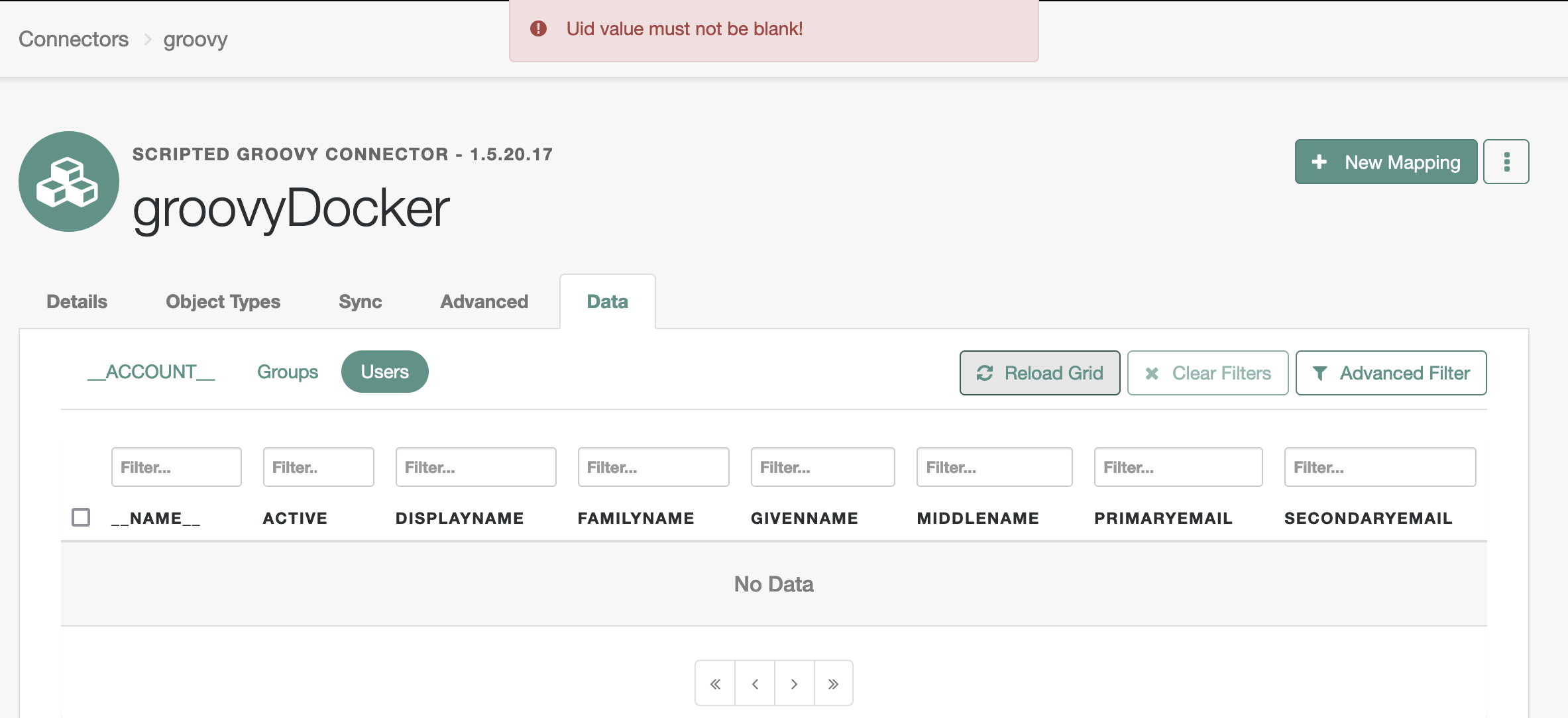
If you want to respond with a custom error message from your script, you can throw an exception to inform the client about a particular situation during your script execution.
For example:
SearchScript.groovy
[ . . . ]

switch (objectClass.objectClassValue) {
    case 'users':

    [ . . . ]

    case 'groups'

    [ . . . ]

    default:
        throw new UnsupportedOperationException(operation.name() + ' operation of type: ' + objectClass.getObjectClassValue() + ' is not supported.')
}
Response
{"code":404,"reason":"Not Found","message":"SEARCH operation of type: __ACCOUNT__ is not supported."}
UnsupportedOperationException is a Java exception, which, among some other most commonly used Java classes, is automatically provided in Groovy scripts.
You also have the ability to handle unexpected exceptions in your
scripts with try/catch, and respond with custom error messages
relevant to your scripted functionality with desired level of details
included in the response sent to the client.
For example:
SearchScript.groovy
try {

    // code

} catch (e) {

    // logging

    throw new UnsupportedOperationException('Error occurred during ' + operation + ' operation')
}
Should an exception occur, a request for search operation would respond with the predefined error content—in this case, a very generic error message:
{"code":404,"reason":"Not Found","message":"Error occurred during SEARCH operation"}
For debugging purposes, you can output additional information to the RCS
logs from any place in your script, including the catch block.
##Custom Logging
##Custom Logging > Methods of the Log class
In RCS scripts, you can use methods of the
Log
class, an instance of which is provided via the log binding, to output
custom logs from your connector scripts. Normally, you would use one the
following methods, listed below in order they become active with respect
to the
Log.Level
selected in the logging configuration:
-
error(java.lang.String format, java.lang.Object… args)- loggable at any debug level (except when it is set to “OFF”). -
warn(java.lang.String format, java.lang.Object… args)- loggable atWARN,INFO, andOKlevels. -
info(java.lang.String format, java.lang.Object… args)- loggable atINFOandOKlevels. -
ok(java.lang.String format, java.lang.Object… args)- loggable at theOKlevel.
During development of your scripts, you will have an opportunity to
change debug levels for different parts of the framework and your
scripts, as will be explained in the
Controlling Debug
Output chapter. By default, RCS is configured to output logs at the
INFO level.
The first argument passed into a method of the Log class is the actual content of your debug message, which can be optionally parameterized using placeholders referring to additional arguments.
The additional arguments are a comma-separated Arbitrary Number of Arguments, which can be used to parameterize your message, but otherwise optional.
For example with just a message passed in (and no additional arguments):
SearchScript.groovy
try {

    [ . . . ]

} catch (e) {
    log.error e.message

    throw new UnsupportedOperationException('Error occurred during ' + operation + ' operation')
}
RCS logs
[rcs] Oct 20, 2022 12:41:12 AM INFO ERROR SearchScript: No such property: getResourceData for class: SearchScriptEventually, all of these methods call the log(Log.Level level, java.lang.Throwable ex, java.lang.String format, java.lang.Object… args) method, which uses the java.text.MessageFormat class to construct a log message from the passed in parameters.
This means:
-
In order to output an object without referencing its individual properties, before you pass the object into one of the listed methods of the Log class as a single argument, you need to convert the object to a String. Or else, you might get a wordy error.
For example:
TestScript.groovytry { log.ok operation } catch (e) { log.error e.message }RCS logs[rcs] Oct 20, 2022 11:43:45 PM ERROR TestScript: No signature of method: org.identityconnectors.common.logging.Log.info() is applicable for argument types: (org.forgerock.openicf.connectors.groovy.OperationType) values: [TEST]%0APossible solutions: info(java.lang.String, [Ljava.lang.Object;), isInfo(), info(java.lang.Throwable, java.lang.String, [Ljava.lang.Object;), isOk(), find(), any()You can convert an object to a String by using its
.toString()method or by prepending your log message with a String:For example:
TestScript.groovylog.info '' + operation log.info operation.toString()
RCS logs[rcs] Oct 20, 2022 11:47:24 PM DEBUG TestScript: TEST [rcs] Oct 20, 2022 11:47:24 PM DEBUG TestScript: TEST
Alternatively, you can parameterize you message by adding a FormatElement in the message pattern and substituting it with one of the additional arguments, which are denoted in the API docs as log(
, java.lang.Object… args). Doing so will automatically convert the argument into a String, and it can also help to make the log messages less redundant and easier to maintain.For example:
SearchScript.groovylog.ok '{0}', operation log.ok '{0}/{1} {2}', configuration.scriptRoots.collect { it }, configuration.searchScriptFileName, objectClassRCS logsJul 24, 2023 11:07:47 PM DEBUG SearchScript: SEARCH Method: invoke0 Jul 24, 2023 11:07:47 PM DEBUG SearchScript: [/opt/openicf/scripts/groovy]/SearchScript.groovy ObjectClass: users Method: invoke0
-
If you try to output raw JSON, its curly braces will be interpreted as a FormatElement and cause an error.
For example, as reasoned on in the Connection Configuration > “systemActions” chapter, a script that you “run on resource” can accept a configuration JSON defined in the system action source or passed in as an argument in a system action request, and you might want to output this JSON in your debug logs:
ScriptOnResourceScript.groovy[ . . . ] try { log.ok 'actionSource JSON: ' + scriptText [ . . . ] } catch (e) { log.error e.message }RCS logsJul 25, 2023 7:13:09 PM ERROR ScriptOnResourceScript: cant parse argument number: "key": "value" Method: invokeTo mitigate this issue, you can firstly parse the JSON and then convert the resulting object to a String.
For example:
ScriptOnResourceScript.groovyimport groovy.json.JsonSlurper try { def jsonSlurper = new groovy.json.JsonSlurper() def actionSourceJson = jsonSlurper.parseText scriptText log.ok 'Parsed scriptText: ' + actionSourceJson [ . . . ] } catch (e) { log.error e.message }RCS logsJul 25, 2023 7:19:50 PM INFO ScriptOnResourceScript: Parsed scriptText: [key:value] Method: invokeSince you are probably going to parse your JSON anyway for future use in the script, outputting the resulting object in the logs might be adequate. However, if you want to see the raw JSON in the debug output, you can do so with a Message Format Pattern.
For example:
ScriptOnResourceScript.groovy[ . . . ] log.info '{0}', scriptText [ . . . ]RCS logsAug 28, 2023 9:59:55 PM INFO ScriptOnResourceScript: scriptText: {"key": "value"}
##Custom Logging > Controlling Debug Output
Adjusting debug output in RCS is described in the Java Remote Connector Server Logging Configuration for Developing Connectors blog posted on the ForgeRock Community site.
##Custom Logging > Temporary Logs with println
You should use methods of the
Log
class in your scripts for outputting debug logs that is to stay in the
code and be used in the final application. Because this way you can
control the debug output by setting appropriate
Log.Level
in the logback.xml configuration file at different deployment stages
of your application.
During the development phase, however, for a quick temporary output, you
could use the
println
method. System.out.println will automatically apply .toString()
method available in all Java objects to the content it outputs. This
will allow to print out content of any variables without additional
processing or using special syntax.
It will be up to you to provide any extra information in the output and you will loose ability to automatically collect logs across your debugging sessions for future analysis—comparing to techniques described in the Methods of the
Logclass chapter.
For example:
TestScript.groovy
println operation
RCS logs
[rcs] TESTMuch of the commonly used Java functionality is imported in Groovy by default, including the
java.lang.*package whereprintlncomes from. Hence, you don’t need to use the fullSystem.out.printlnstatement.
To outline string values in the printed out content of an object, you can use the inspect() method in Groovy.
For example:
SearchScript.groovy
println binding.variables.query()
println binding.variables.query().inspect()
RCS Logs
[rcs] [not:false, operation:GREATERTHAN, left:__NAME__, right:m]
[rcs] ['not':false, 'operation':'GREATERTHAN', 'left':'__NAME__', 'right':'m']
##Attaching Debugger
Attaching a debugger to your RCS process will allow to pause connector execution at select break points in your connector scripts and inspect the state of the scripting context in a more agile and dynamic way than by utilizing debug logging.
When developing scripts, you are likely to run RCS in a remote Java Virtual Machine (JVM). In order to be able to attach a debugger to this process from your local development setup, you will need to perform the following steps:
-
Invoke RCS JVM for debugging with the Java Debug Wire Protocol (JDWP) options.
In RCS, you can specify the JDWP options in a couple of alternative ways: * Engage the RCS’ defaults.
+ You could rely on the default JDWP options defined in RCS start-up scripts. You can do so by supplying a
jpdaargument in the start-up command for your RCS.+ For example, in a containerized deployment, the RCS’ Docker ENTRYPOINT script expects an optional
jpdaargument; if one is detected, it constructs JDWP options for RCS’ JVM:+
/opt/openicf/bin/docker-entrypoint.sh:+
[ . . . ]

if [ "$1" = "jpda" ] ; then
if [ -z "$JPDA_TRANSPORT" ]; then
    JPDA_TRANSPORT="dt_socket"
fi
if [ -z "$JPDA_ADDRESS" ]; then
    JPDA_ADDRESS="5005"
fi
if [ -z "$JPDA_SUSPEND" ]; then
    JPDA_SUSPEND="n"
fi
if [ -z "$JPDA_OPTS" ]; then
    JPDA_OPTS="-agentlib:jdwp=transport=$JPDA_TRANSPORT,address=$JPDA_ADDRESS,server=y,suspend=$JPDA_SUSPEND"
fi
OPENICF_OPTS="$OPENICF_OPTS $JPDA_OPTS"
shift
fi

[ . . . ]

exec java ${OPENICF_OPTS}  [ . . . ]

[ . . . ]
+
JDWP is a part of Java Platform Debugger Architecture; hence, JPDA abbreviation is used in the RCS code.
-
Provide custom JDWP options at RCS launch.
Alternatively, on a “*nix” machine, including containerized RCS deployments, you can define your custom JDWP options in optional
OPENICF_OPTSenvironment variable, which the start-up scripts expect.For example:
rcs.yamlexport OPENICF_OPTS=-agentlib:jdwp=transport=dt_socket,address=*:5005,server=y,suspend=n [ . . . ]
On Windows, the start-up script for Java RCS does not accept any additional JVM options, but you can define them if you Install a Java RCS on Windows as a Windows service.
In all cases, the JDWP
addressoption defines the remote JVM’s TCP/IP port, to which your local debugger will eventually connect. It will be a local to the RCS instance port, but to distinguish it from the port on the debugger machine, we will call it “remote”.Optionally, you can include the host information in the address option, an IP or the
localhostdesignation, to limit where the debugger connection could be made from; for example,address=127.0.0.1:5005.If you omit the host identifier in the Java Development Kit (JDK) 9 and above, the connection will be limited to
localhost. In the older versions of JDK, if no host is specified, a connection would be allowed from any IP. To achieve the same behavior in JDK 9+, you can use a wildcard as the host value; for example,address=*:5005. It is considered the best practice to limit connections to a specific IP, but in some environments you might need to allow connections from any host and secure access to the debugging port by other means.Note, that the default JDWP
addressoption in RCS does not include host information; and thus, connections to the debugging port might be allowed only fromlocalhost:/opt/openicf/bin/docker-entrypoint.sh:[ . . . ] if [ -z "$JPDA_ADDRESS" ]; then JPDA_ADDRESS="5005" fi [ . . . ]
-
-
Publishing Debugging Port.
In your RCS deployment, you will need to have the remote debugging port accessible from your local debugger, so that it can communicate with the RCS process. This may require publishing the port specified in the JDWP options.
Execution of these steps will depend on how your RCS is deployed.
##Attaching Debugger > Enabling Remote Debugging in Kubernetes
-
##Invoking RCS JVM for Debugging
In a Kubernetes deployment, you can specify the JDWP options as follows: * Engage the RCS’ defaults.
+ In a Kubernetes manifest for your RCS, the
jpdaargument can be added to the command that calls the/opt/openicf/bin/docker-entrypoint.shscript.+ For example:
+
rcs.yaml+
[ . . . ]
command: ['bash', '-c']
args:
- /opt/openicf/bin/docker-entrypoint.sh jpda;
[ . . . ]
-
Provide custom JDWP options at RCS launch.
You can define an
OPENICF_OPTSenvironment variable in your Kubernetes manifest and include your custom JDWP options in its value.For example:
rcs.yaml[ . . . ] env: - name: OPENICF_OPTS value: "-agentlib:jdwp=transport=dt_socket,address=5005,server=y,suspend=n" [ . . . ]
Alternatively, if you need to define RCS’ JVM options dynamically, the command that calls the
/opt/openicf/bin/docker-entrypoint.shscript in your Kubernetes manifest can be used for exporting (or updating) theOPENICF_OPTSenvironment variable prior to starting the RCS.For example:
rcs.yaml[ . . . ] spec: containers: - image: rcs name: rcs command: ['bash', '-c'] args: - export OPENICF_OPTS="$OPENICF_OPTS -Dconnectorserver.connectorServerName=$HOSTNAME [ . . . ] -agentlib:jdwp=transport=dt_socket,address=5005,server=y,suspend=n" && /opt/openicf/bin/docker-entrypoint.sh; [ . . . ]Adding the `$OPENICF_OPTS ` default to the export command will allow for extending the variable defined at the container level, either in the Kubernetes manifest file or, as will be shown later, in the Kubernetes cluster.
For example:
[ . . . ]
spec:
  containers:
  - image:  rcs
    name: rcs
    command: ['bash', '-c']
    args:
    - export OPENICF_OPTS="$OPENICF_OPTS -Dconnectorserver.connectorServerName=$HOSTNAME [ . . . ]"
      && /opt/openicf/bin/docker-entrypoint.sh;
    env:
    - name: OPENICF_OPTS
      value: "-agentlib:jdwp=transport=dt_socket,address=5005,server=y,suspend=n"
[ . . . ]
In the case of attaching a debugger to RCS deployed within a Kubernetes cluster, you can leave the host information out of the
addressoption, and thus limit the debugger connection to be made only fromlocalhostin JDK 9+, which will be aligned with the RCS’ JDWP defaults.In addition, in a Kubernetes cluster, you can add, update, or remove an environment variable using kubectl set env command. This way, you can add or update the
OPENICF_OPTSvariable with your custom JDWP options at runtime; doing so will automatically restart the container(s), and the updatedOPENICF_OPTScontent will be applied to the JVM options in the RCS container(s) after restart.For example:
Terminal$ kubectl set env statefulsets/rcs -c rcs OPENICF_OPTS="-agentlib:jdwp=transport=dt_socket,address=5005,server=y,suspend=n"
You can check the updated container environment with the
--listoption.For example:
Terminal$ kubectl set env statefulsets/rcs -c rcs --list=true OPENICF_OPTS=-agentlib:jdwp=transport=dt_socket,address=5005,server=y,suspend=n
You can remove the variable and its effects defined at the container level with the (negative)
OPENICF_OPTS-option.For example:
Terminal$ kubectl set env statefulsets/rcs -c rcs OPENICF_OPTS-
The export command you defined in your RCS manifest will still work, and the corresponding JVM options will still take effect after container restarts.
-
-
##Publishing Debugging Port
Deployed in Kubernetes, your RCS deployment in the Client mode and its debugging port are unlikely to be exposed externally. This means, you will need to let your debugger access the remote process by forwarding connections made to a local port on your machine to a remote port on the RCS pods in your Kubernetes cluster.
Here, the local port is the one you will use in your debugger configuration; the remote port is the one that you specified in the JDWP
addressoption. In the following example, the “local” port is on the left and the “remote” one is on the right:Terminal$ kubectl port-forward statefulsets/rcs 5005:5005 Forwarding from 127.0.0.1:5005 -> 5005 Forwarding from [::1]:5005 -> 5005
This concludes the specifics of enabling remote debugging for RCS running in a Kubernetes cluster. Adjust the examples according to your particular requirements.
##Attaching Debugger > Enabling Remote Debugging in Docker
If you run RCS in a standalone Docker container not managed by a system such as Kubernetes, you can enable remote debugging as described in the Deploying Java Remote Connector Server in a Docker Container article.
##Attaching Debugger > Configuring and Starting Debugger
IntelliJ is a popular IDE that has rich and refined support for Java and Groovy; and thus, it is probably going to be your best option for developing Groovy scripts for RCS. Below, find an example of how you can configure IntelliJ for remote debugging and attach its debugger to your RCS process:
-
Create a new IntelliJ project.
For example, you can use
File > New > Project from Existing Sources…and point it to the folder that contains your project files—such as README, configuration, etc.—and the actual scripts; then, the folder content could be accessed and maintained underProject > Project Files. Do not import any sources at this point; you will add the scripts you need to debug as a module in the next step.Open the project.
-
Add a new module with
File > New Module from Existing Sources…and point it to your connector’s scripts location.If/when you have more than one connector in your RCS, mark only the connector-specific scripts as the source files in the Import Module dialog. Creating a separate module for each connector from its existing scripts will let you reference the module in a debugging configuration and thus limit its scope to the scripts for a particular connector.
Otherwise, if you included files with the same name for more than one connector in a module, and set a breakpoint in one of the namesake scripts, the debugger could open a file with the same name for a different connector—the first script file with this name that was found in the module sources.
The module files will serve as the sources of your (RCS) application, which is one of the prerequisites for attaching a debugger in IntelliJ.
For example, two modules registered for a project might appear under the Project Files in the following manner:

-
Select
Run>Edit Configurations… -
Select
Add New Configuration(+), then selectRemote JVM Debugfrom the list of predefined configuration templates. -
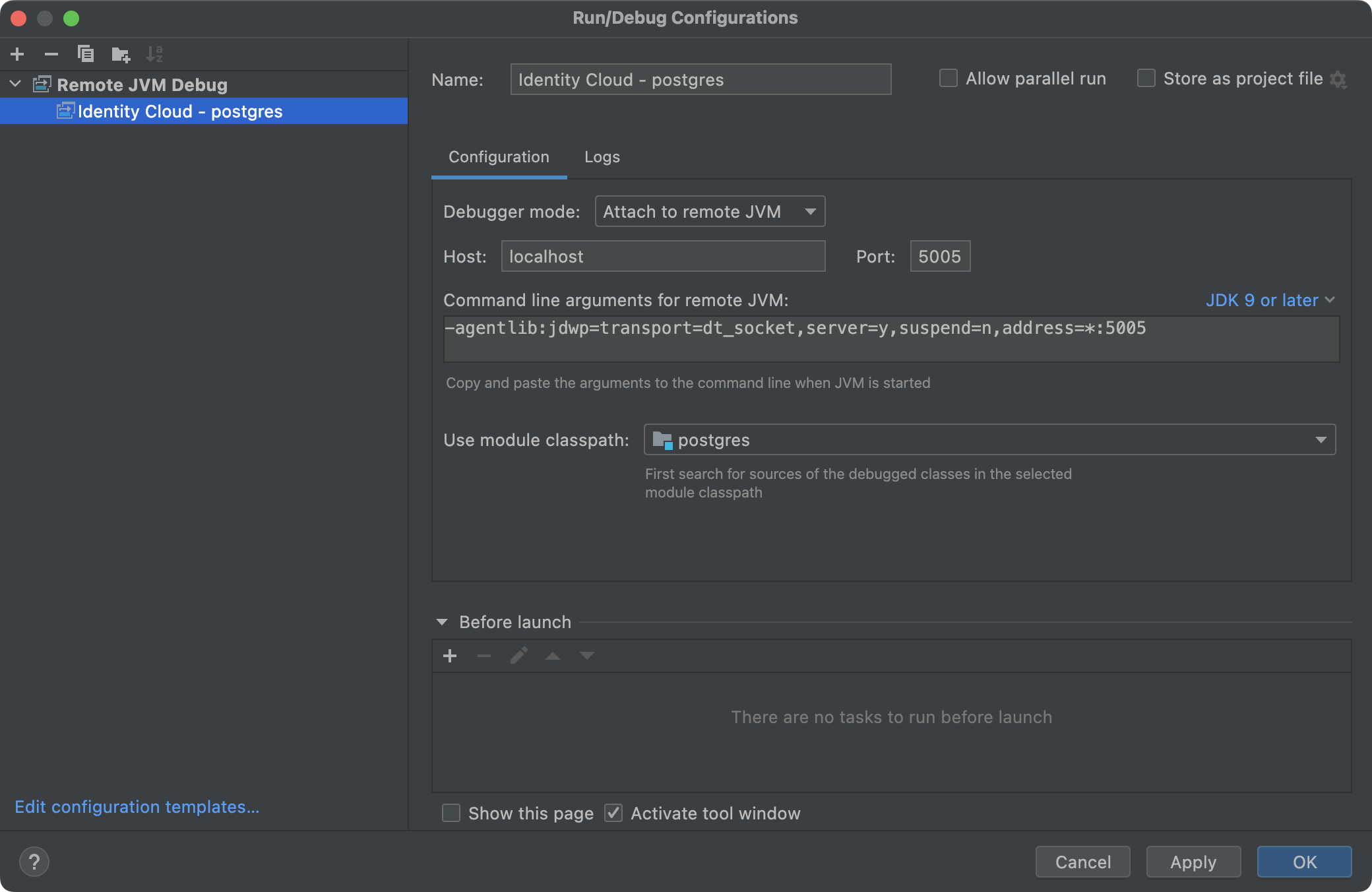
In the
Configurationtab, provide values (or verify the defaults) for the following settings:-
Name: your-rcs-connector-debugging-configuration-name -
Debugger mode: Attach to remote JVM -
Host: localhostThe host to which the debugger will connect. Choose localhost because we, actually, attempt to debug locally (that is, the debugger runs locally and connects to a local port, and then it is forwarded to a remote port in the Kubernetes cluster); you could also use
127.0.0.1or::1as the Host value. -
Port: 5005The local port the debugger will connect to, from which connections will be forwarded (with the
kubectl port-forward [ . . . ]command) to the remote port. -
Command line arguments for remote JVM (for JDK 9 or later): JDK 9 or laterThis input is to provide a template for your JDWP options according to your previous choices, and you will see the following:
-agentlib:jdwp=transport=dt_socket,server=y,suspend=n,address=*:5005Note, however, that: * The
*prefix inJDK 9+means that the connection will be allowed on the remote host from any IP.+ Leaving the host information out and having just the port specified will limit connections to the localhost only, which is the safest option that will work in this case.
+
Removing the wildcard or replacing it with a specific identifier (for example, an IP or
localhost) is considered the best practice. In reality, however, it is unlikely that any IP/port will be made public on your RCS; hence, limiting debugging connections to your JVM might be a minor consideration in this case.-
The remote JVM port is populated with the same number as your local debugger port, for it assumes that the two ports, local and remote, are the same.
If the remote debugging port in your RCS were different from the local one, you could still use this input for getting your JDWP options template, and simply update the port with the actual remote port that you will use for debugging.
Naturally, in such case, you would also need to port-forward your local connections to that port with the
kubectl port-forward [ . . . ]command.For example, if your remote JVM port is
5006, your actual JDWP options could look like the following:Terminal$ kubectl set env statefulsets/rcs -c rcs JAVA_OPTS="$JAVA_OPTS -agentlib:jdwp=transport=dt_socket,server=y,suspend=n,address=5006"
and your port-forwarding command would be:
Terminalkubectl port-forward statefulsets/rcs 5005:5006
-
-
Use module classpath: your-rcs-connector-module-nameHere, you reference the module created from your existing connector’s scripts—so that the debugger looks for the breakpoints positions only in those files.
-
The end result may look similar to the following:
Select
ApplyorOK.
-
-
Start debugging.
For example, you can select the bug button in the upper right of your IDE UI:

-
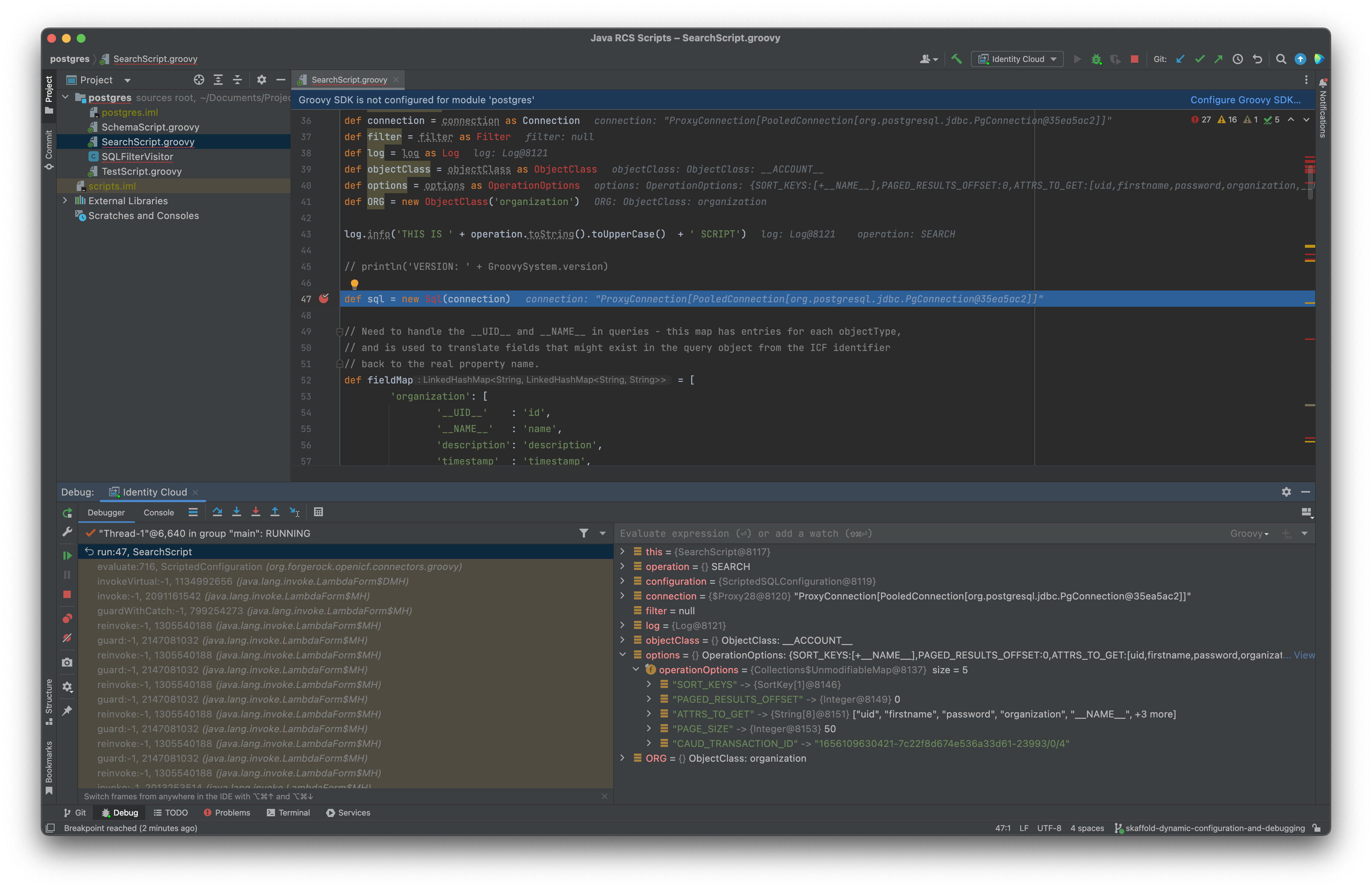
Add breakpoints.
If everything is set up correctly, you should be able to see the breakpoints verified and employed when you are using your connector.
For example:
-
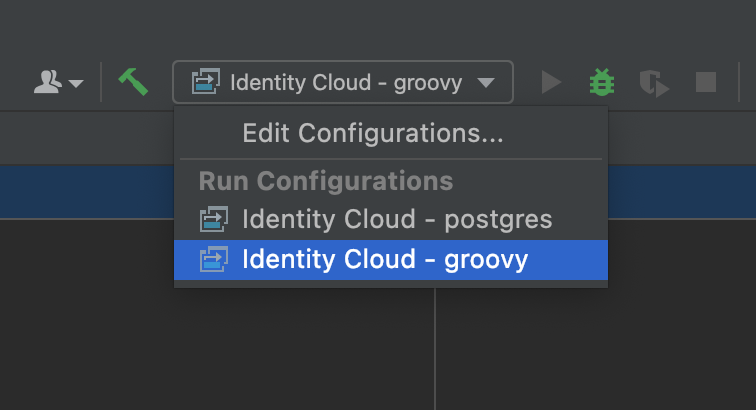
If you want to use debugger with another scripted connector in the same IntelliJ project:
-
Add a new module via
File > New Module from Existing Sources…, and point it to the other connector’s scripts. -
Under
Run > Edit Configurations…, add a new remote JVM debugging configuration, and select the new module in theUse module classpath:input. -
Select the new debug configuration before you start your debug session.
For example:
-
For additional details, consult the IntelliJ docs on setting debugging environment and debugging.
##Scripting Context
##Scripting Context > Bindings
A Groovy script can receive externally defined content via the binding object defined in the script’s top-level scope. In connector scripts, the variable bindings are defined according to the connector type (Groovy, Scripted REST, or Scripted SQL for a scripted connector) and the script operation type, which are derived from the respective connection configuration registered in IDM and the requested ICF operation.
For example:
provisioner.openicf-<connector-name>.json
{
    "connectorRef": {
        "bundleName": "org.forgerock.openicf.connectors.groovy-connector",
        "connectorName": "org.forgerock.openicf.connectors.groovy.ScriptedConnector",
        [ . . . ]
    },
    [ . . . ]
    "configurationProperties": {
        "scriptExtensions": [
            "groovy"
        ],
        "scriptRoots": [
            "/opt/openicf/scripts/groovy"
        ],
        "scriptOnResourceScriptFileName":  null,
        "authenticateScriptFileName":  null,
        "createScriptFileName":  null,
        "customizerScriptFileName": null,
        "deleteScriptFileName":  null,
        "resolveUsernameScriptFileName":  null,
        "schemaScriptFileName": "SchemaScript.groovy",
        "searchScriptFileName": "SearchScript.groovy",
        "syncScriptFileName":  null,
        "testScriptFileName": "TestScript.groovy",
        "updateScriptFileName":  null,
        "scriptBaseClass": null,
        [ . . . ]
    },
    "systemActions" : [
        {
            "scriptId" : "script-1",
            "actions" : [
                {
                    "systemType" : ".*ScriptedConnector",
                    "actionType" : "groovy",
                    "actionSource" : "println 'actionSource bindings: '; println binding.variables;"
                }
            ]
        }
    ],
    [ . . .]
}
You can inspect variable bindings passed to the script (and thus, directly accessible in the script top-level scope) as shown in the following example:
SchemaScript.groovy
println 'operation: ' + operation
RCS logs
[rcs] operation: SCHEMAYou can also output the entire content of the binding.variables
property:
SchemaScript.groovy
println binding.variables.inspect()
RCS logs
['builder':org.forgerock.openicf.connectors.groovy.ICFObjectBuilder@290017f2, 'operation':SCHEMA, 'configuration':org.forgerock.openicf.connectors.groovy.ScriptedConfiguration@5a34f2f9, 'log':org.identityconnectors.common.logging.Log@32095aee]
The binding.variables property is an instance of the
java.util.LinkedHashMap
class. You can loop over its entries and get more detailed information
about individual bindings:
For example:
SchemaScript.groovy
binding.variables.each { key, value ->
    def className = value ? value.class.name : ''
    println key + ': ' + className
}
RCS logs
[rcs] Bindings:
[rcs] builder: org.forgerock.openicf.connectors.groovy.ICFObjectBuilder
[rcs] operation: org.forgerock.openicf.connectors.groovy.OperationType
[rcs] configuration: org.forgerock.openicf.connectors.groovy.ScriptedConfiguration
[rcs] log: org.identityconnectors.common.logging.Log
Registering Connection in IDM and Schema Script (Part 2) chapters provide details on enabling and requesting schema operation, which invokes the schema script.
##Global Variables
Bindings, both the binding instance and the individual variable
bindings, behave as global variables. This opens a possibility of
reassigning them accidentally and thus breaking something in your code.
To avoid a situation like this in complex and involved scripts, you could reassign variable bindings to the namesake local variables upfront. You can further clarify bindings’ designations by referencing their types.
For example:
TestScript.groovy
import org.identityconnectors.common.logging.Log
import org.forgerock.openicf.connectors.groovy.OperationType
import org.forgerock.openicf.connectors.groovy.ScriptedConfiguration

def operation = operation as OperationType
def configuration = configuration as ScriptedConfiguration
def log = log as Log

[ . . . ]
Doing so and adding corresponding dependencies to your scripted connector project can enable your IDE to show bindings’ class information and provide additional code completion options.
For example, in IntelliJ, you can add your dependencies as modules. Even if you don’t manage your connector scripts as a Java project, for the
identityconnectorsandopenicfpackages, you could importjava-frameworkandgroovy-commonfrom the General Access Connectors repository; and thus, allow your IDE to show the additional information about your variables.
##Scripted Groovy Connector Bindings
In ICF operations with Groovy scripts, you can navigate through descriptions and examples of use for common and operation-specific bindings (that is, externally defined input variables) available in connector scripts.
Below, find additional information about some common properties accessible from the scripting context:
##Scripted Groovy Connector Bindings > configuration
The configuration binding is an instance of
org.forgerock.openicf.connectors.groovy.ScriptedConfiguration, which
provides access to connection properties registered in IDM and some
additional properties defined by ICF.
You can print out the entire binding content by inspecting
configuration.properties, which returns a map:
SearchScript.groovy
println configuration.properties.inspect()
To make a map output more readable and/or informative, you could print the map keys individually and recursively when a key itself is a map.
For example:
SearchScript.groovy
/**
 * @param object    Any variable.
 * @param label     String
 *                  Optional label to precede the output.
 * @param space     int
 *                  Optional indentation size.
 * @todo            Extend to handle complex types other than Map.
 */
def printObjectProperties = { object, label='Map', space=4 ->
    def printProperties
    printProperties = { propertyValue, propertyName, indent ->
        def message = indent + propertyName +  ' (' + propertyValue.getClass().name + '):'
        if (propertyValue instanceof Map) {
            println message

            propertyValue.each { entry ->
                printProperties entry.value, entry.key, indent + ' ' * space
            }
        } else {
            println message + ' ' + propertyValue.inspect()
        }
    }
    printProperties object, label, ''
}

printObjectProperties configuration.properties, 'configuration.properties'
RCS logs
[rcs] configuration.properties (java.util.LinkedHashMap):
[rcs]     imports ([Ljava.lang.String;): ['org.identityconnectors.framework.common.objects.*']
[rcs]     disabledGlobalASTTransformations ([Ljava.lang.String;): [null]
[rcs]     scriptOnResourceScriptFileName (org.codehaus.groovy.runtime.NullObject): null
[rcs]     parentLoader (org.identityconnectors.framework.impl.api.local.BundleClassLoader): org.identityconnectors.framework.impl.api.local.BundleClassLoader@12bbfc54
[rcs]     deleteScriptFileName (org.codehaus.groovy.runtime.NullObject): null
[rcs]     propertyBag (java.util.concurrent.ConcurrentHashMap):
[rcs]         myCustomProperties (java.util.LinkedHashMap):
[rcs]             count (java.lang.Integer): 0
[rcs]             config (org.apache.groovy.json.internal.LazyMap):
[rcs]                 key1 (java.lang.String): 'value1'
[rcs]                 key2 (org.apache.groovy.json.internal.LazyMap):
[rcs]                     key1 (java.lang.String): 'value1'
[rcs]         myCustomMethods (java.util.LinkedHashMap):
[rcs]             getSum (SearchScript$_run_closure2): SearchScript$_run_closure2@61997137
[rcs]     scriptExtensions ([Ljava.lang.String;): ['groovy']
[rcs]     syncScriptFileName (org.codehaus.groovy.runtime.NullObject): null
[rcs]     defaultCustomizerScriptName (java.lang.String): '/org/forgerock/openicf/connectors/groovy/CustomizerScript.groovy'
[rcs]     recompileGroovySource (java.lang.Boolean): false
[rcs]     createScriptFileName (org.codehaus.groovy.runtime.NullObject): null
[rcs]     tolerance (java.lang.Integer): 10
[rcs]     customSensitiveConfiguration (org.codehaus.groovy.runtime.NullObject): null
[rcs]     customizerClass (org.codehaus.groovy.runtime.NullObject): null
[rcs]     minimumRecompilationInterval (java.lang.Integer): 100
[rcs]     authenticateScriptFileName (org.codehaus.groovy.runtime.NullObject): null
[rcs]     warningLevel (java.lang.Integer): 1
[rcs]     targetDirectory (org.codehaus.groovy.runtime.NullObject): null
[rcs]     schemaScriptFileName (java.lang.String): 'SchemaScript.groovy'
[rcs]     class (java.lang.Class): class org.forgerock.openicf.connectors.groovy.ScriptedConfiguration
[rcs]     scriptBaseClass (org.codehaus.groovy.runtime.NullObject): null
[rcs]     customConfiguration (org.codehaus.groovy.runtime.NullObject): null
[rcs]     connectorMessages (org.identityconnectors.framework.impl.api.ConnectorMessagesImpl): org.identityconnectors.framework.impl.api.ConnectorMessagesImpl@3ea2423
[rcs]     debug (java.lang.Boolean): false
[rcs]     classpath ([Ljava.lang.String;): []
[rcs]     releaseClosure (org.codehaus.groovy.runtime.NullObject): null
[rcs]     updateScriptFileName (org.codehaus.groovy.runtime.NullObject): null
[rcs]     sourceEncoding (java.lang.String): 'UTF-8'
[rcs]     customizerScriptFileName (org.codehaus.groovy.runtime.NullObject): null
[rcs]     testScriptFileName (org.codehaus.groovy.runtime.NullObject): null
[rcs]     verbose (java.lang.Boolean): false
[rcs]     groovyScriptEngine (groovy.util.GroovyScriptEngine): groovy.util.GroovyScriptEngine@53a79e33
[rcs]     searchScriptFileName (java.lang.String): 'SearchScript.groovy'
[rcs]     scriptRoots ([Ljava.lang.String;): ['/opt/openicf/scripts/groovy']
[rcs]     resolveUsernameScriptFileName (org.codehaus.groovy.runtime.NullObject): null
You can also access each configuration property individually:
SearchScript.groovy
println 'Script Roots: ' + configuration.scriptRoots.inspect()
RCS logs
[rcs] Script Roots: ['/opt/openicf/scripts/groovy']
Most of this content corresponds directly to the keys in the connection configuration at the time it is registered in IDM, where you can specify some of the connector configuration properties. ICF defines additional properties in the connector configuration.
##Scripted Groovy Connector Bindings > configuration > configuration.propertyBag
If you need to keep a custom global reference accessible from any
connector script, you can save it in the configuration.propertyBag
property, which is a map. This will allow to dynamically define, cache,
and share within a connector instance anything that can be passed as a
variable: a primitive or a reference to an object, such as a map or a
closure.
The content saved in configuration.propertyBag will be reset when
“configurationProperties.customConfiguration” and
“configurationProperties.customSensitiveConfiguration” properties have
been changed in the connection configuration, the RCS is restarted, or
the IDM connector instance service (OSGi) is restarted.
You can populate configuration.propertyBag at different stages of a
connector life cycle:
##Scripted Groovy Connector Bindings > configuration.propertyBag > In Connection Configuration
Initial content for configuration.propertyBag can be provided via
“configurationProperties.customConfiguration” and
“configurationProperties.customSensitiveConfiguration” keys in a
connection configuration.
Doing so, the connection-specific content—which could be settings, secrets, references, etc.—can be saved in IDM environment, with an option to use property value substitution and Environment-Specific Variables and Secrets (ESVs) (in Identity Cloud).
See the Connection Configuration > “configurationProperties” > “customConfiguration” and “customSensitiveConfiguration” chapter for details.
Note that if “configurationProperties.customConfiguration” or
“configurationProperties.customSensitiveConfiguration” properties have
been changed in the connection configuration, the
configuration.propertyBag content will be reset on the connector that
is using this configuration.
##Scripted Groovy Connector Bindings > configuration.propertyBag > In Customizer Script
In connector implementations based on the Scripted Groovy Connector Toolkit, ICF uses the Stateful Configuration interface. This means that a configuration instance is initialized once during the connector’s management cycle and before any ICF operations with Groovy scripts are performed.
You can use custom configuration initialization in the connector server environment via a script referenced under the “configurationProperties.customizerScriptFileName” key in a connection configuration.
During the initialization process, the customizer script will have
access to the configuration instance and can be used to update
configuration.propertyBag content, which will become globally
available for all the scripts implementing ICF operations at runtime.
Note that while a stateful connector configuration is initialized only once, the customizer script runs every time when the corresponding connection configuration is updated in IDM; you can leverage this fact while developing your customizer script functionality.
======= ##Scripted Groovy Connector Bindings > configuration.propertyBag > In Customizer Script > For Groovy Connector
In a plain Groovy connector, the customizer script will have access to the following bindings:
-
log, which is an instance of the org.identityconnectors.common.logging.Log class that can be used for outputting debugging information. -
configuration, which is an instance oforg.forgerock.openicf.connectors.groovy.ScriptedConfiguration, and which provides access to its.propertyBagproperty and the other connector configuration properties.
Thus, you can interact with the configuration.propertyBag content in a
customizer script.
For example:
CustomizerScript.groovy
configuration.propertyBag.myCustomProperties = [:]
configuration.propertyBag.myCustomProperties.count = 0
configuration.propertyBag.apiConfig.apiKey = System.getenv('API_KEY')

[ . . . ]
SearchScript.groovy
println configuration.propertyBag.apiConfig.apiKey

[ . . . ]
RCS logs
[rcs] bm90LWFuLWFwaS1rZXkSimilarly, the customizer script can reference other connector server
resources, and it could also be driven by the existing propertyBag
content defined in “custom(Sensitive)Configuration”.
======= ##Scripted Groovy Connector Bindings > configuration.propertyBag > In Customizer Script > For Scripted SQL Connector
Everything said in regard to configuration.propertyBag in a plain
Groovy connector applies to a Scripted SQL one, except its configuration
instance is extended to
org.forgerock.openicf.connectors.scriptedsql.ScriptedSQLConfiguration
and contains additional, Scripted SQL-specific properties.
======= ##Scripted Groovy Connector Bindings > configuration > configuration.propertyBag > In Customizer Script > For Scripted REST Connector
Scripted
REST connector does not define configuration binding in the top-level
scope of its customizer script. Instead, it allows to use init,
decorate, and release methods inside a closure passed into the
customize method, which is defined in the script’s top-level scope.
The init method accepts a closure, in which you can configure a passed
in
HTTPClientBuilder
instance, which will be used to build customized
CloseableHttpClient.
The init closure runs when the connector configuration is initialized.
The decorate method accepts a closure in which you can customize
further an instance of the HTTP client built with the HTTPClientBuilder.
Then, the HTTP client is provided as the customizedConnection binding
for making requests in the connector’s scripts. The decorate closure
runs on every ICF operation.
The
releaseclosure runs when the stateful configuration is released. It could be used to dispose any custom objects not handled by ICF. Otherwise you don not need to call the release method.
The closures passed into init, decorate, and release methods have
their
delegates
assigned an instance of the
org.forgerock.openicf.connectors.scriptedrest.ScriptedRESTConfiguration
class, which extends
org.forgerock.openicf.connectors.groovy.ScriptedConfiguration and thus
provides access to propertyBag and the other connector’s configuration
properties.
This means that in the init closure you can update the propertyBag
content during the connector configuration initialization and before any
scripted ICF operations are performed, and in the decorate closure,
you can update the propertyBag content at runtime.
For example:
CustomizerScript.groovy
[ . . . ]

import org.forgerock.openicf.connectors.scriptedrest.ScriptedRESTConfiguration
import org.apache.http.impl.client.HttpClientBuilder
import org.apache.http.client.HttpClient

customize {
    init { HttpClientBuilder builder ->
        def c = delegate as ScriptedRESTConfiguration

        c.propertyBag.myCustomProperties = [:]
        c.propertyBag.myCustomProperties.count = 0
        c.propertyBag.apiConfig.apiKey = System.getenv('API_KEY')

        [ . . . ]
    }

    decorate { HttpClient httpClient ->
        def c = delegate as ScriptedRESTConfiguration

        c.propertyBag.myCustomProperties.count += 1
    }
}
Comprehensive examples of customizer script for scripted REST connector
could be found in an IDM installation in
Samples
provided with IDM, in the accessible for ForgeRock customers
General
Access Connectors repository, and in the
Scripted
REST connector documentation. In particular, the OAuth2 Authentication
Implementation example demonstrates how OAuth 2.0 authorization could be
performed, and how resulting from it access tokens can be saved in
propertyBag and shared with the scripts performing data operations.
Having the
ScriptedRESTConfigurationinstance as the delegate and as the enclosing class for the closures, you could access its properties directly. However, for the reasons explained in Scripting Context > Global Variables, and as shown in official examples shipped with IDM, you might want to reassign your delegate to a variable of this particular,ScriptedRESTConfigurationtype.For illustration:
CustomizerScript.groovy(for scripted REST connector)[ . . . ] import org.forgerock.openicf.connectors.scriptedrest.ScriptedRESTConfiguration import org.apache.http.impl.client.HttpClientBuilder import org.apache.http.client.HttpClient customize { init { HttpClientBuilder builder -> def c = delegate as ScriptedRESTConfiguration assert c.propertyBag == propertyBag [ . . . ] } decorate { HttpClient httpClient -> def c = delegate as ScriptedRESTConfiguration assert c.propertyBag == propertyBag [ . . . ] } release { def configuration = delegate as ScriptedRESTConfiguration assert configuration.propertyBag == propertyBag [ . . . ] } }
##Scripted Groovy Connector Bindings > configuration > configuration.propertyBag > In Scripts at Runtime
All
ICF
operations with Groovy scripts will have access to the configuration
binding. Thus, the scripts will have read and write access to the
configuration properties saved in configuration.propertyBag.
For example:
SearchScript.groovy
[ . . . ]

configuration.propertyBag.myCustomProperties.count += 1
It should be noted that while some other configuration properties can be
changed from a script with immediate effect, you should limit your
runtime configuration customizations to the designated area that
configuration.propertyBag is.
##Scripted Groovy Connection Configuration
Configuration properties that you can register in IDM for different remote connector types can be found under Connector reference.
This chapter will elaborate on some additional details, not currently present in the ever improving docs.
##Scripted Groovy Connection Configuration > “configurationProperties”
The “configurationProperties” key in a connection configuration contains settings that are specific to the remote system.
##Scripted Groovy Connection Configuration > “configurationProperties” > “customConfiguration” and “customSensitiveConfiguration”
The content of custom(Sensitive)Configuration keys in a connection
configuration can be used for setting parameters accessible to the
connector scripts via configuration.propertyBag binding.
You might have come across an example of using customConfiguration and customSensitiveConfiguration in the current docs:
"customConfiguration" : "kadmin { cmd = '/usr/sbin/kadmin.local'; user='<KADMIN USERNAME>'; default_realm='<REALM>' }",
"customSensitiveConfiguration" : "kadmin { password = '<KADMIN PASSWORD>'}",
However, just from the code sample, it might not be entirely clear how (and why) this Groovy-like syntax works, and how you can leverage it to set custom configuration options used in a script.
The content provided in “customConfiguration” will be evaluated with a
matching parse method of the
groovy.util.ConfigSlurper
class.
In particular, the
parse(String
script) method accepts a special script that can be used to set keys in
configuration.propertyBag using variable assignment or
Closure syntax:
-
Assigning variables:
"customConfiguration": "key1 = 'value1';"
-
Defining closures:
"customConfiguration": "key1 { key2 = 'value2'; };"
If you use a closure for setting “customConfiguration” variables, the
literal preceding the closure becomes a key in the
configuration.propertyBag map, and its value will be a map-like
ConfigObject
with its keys corresponding to the variables set by the closure code.
You can also create such maps of parameters by using variable assignment
or dot notation. Saving your parameters in maps may help to better
organize your custom configuration and reduce redundancy.
For example:
provisioner.openicf-<connection-name>.json
{
    "connectorRef": {
        "connectorHostRef": "rcs",
        "bundleVersion": "1.5.20.15",
        "bundleName": "org.forgerock.openicf.connectors.groovy-connector",
        "connectorName": "org.forgerock.openicf.connectors.groovy.ScriptedConnector"
    },
    "configurationProperties": {
        "customConfiguration": "key1 = 'value1'; key2 = 'value2'; map1 { key1 = 'value3'; key2 = 'value4'; }; map2.key1 = 'value5'; map2.key2 = 'value6'; map3 = [ key1: 'value7', key2: 'value8' ];",
        [ . . . ]
    }
    [ . . . ]
}
Note that multi-line statements are not supported in JSON. This means, you must put all “customConfiguration” content in one line, and separate multiple Groovy statements with semicolons.
You can use new lines for separating Groovy statements as well:
[ . . . ]
"customConfiguration": "key1 = 'value1'\n key2 = 'value2'\n map1 { key1 = 'value3'\n key2 = 'value4'\n }\n map2.key1 = 'value5'\n map2.key2 = 'value6'\n map3 = [ key1: 'value7', key2: 'value8' ]\n",
[ . . . ]
The parsed custom configuration content will be used to populate
configuration.propertyBag properties:
TestScript.groovy
println configuration.propertyBag.key1
println configuration.propertyBag.key2
println configuration.propertyBag.map1.key1
println configuration.propertyBag.map1.key2
println configuration.propertyBag.map2.key1
println configuration.propertyBag.map2.key2
println configuration.propertyBag.map3.key1
println configuration.propertyBag.map3.key2
RCS logs
[rcs] value1
[rcs] value2
[rcs] value3
[rcs] value4
[rcs] value5
[rcs] value6
[rcs] value7
[rcs] value8
If you don’t want your (hardcoded) connection configuration to be
exposed in clear text in IDM, you can also supply the
configuration.propertyBag content via the connection’s
“customSensitiveConfiguration” configuration property. The information
defined with the “customSensitiveConfiguration” key will be encrypted on
IDM side; its content will become a
GuardedString
(that is, an encrypted string), and it will continue to be encrypted in
transport to the connector server.
The properties defined in “customSensitiveConfiguration” will overwrite
the same keys provided in “customConfiguration”. A map defined in
propertyBag can be updated from both keys.
For example:
provisioner.openicf-<connection-name>.json
{
    [ . . . ]
    "configurationProperties": {
        "customConfiguration": "key1 = 'value1'; key2 = 'value2'; map1 { key1 = 'value3'; };",
        "customSensitiveConfiguration": "key1 = 'sensitive-value1'; map1 { key2 = 'value4'; };",
        [ . . . ]
    }
    [ . . . ]
}
TestScript.groovy
println configuration.propertyBag.key1
println configuration.propertyBag.key2
println configuration.propertyBag.map1.inspect()
RCS logs
[rcs] sensitive-value1
[rcs] value2
[rcs] ['key2':'value4', 'key1':'value3']
You can also use property value substitution in the “custom(Sensitive)Configuration” values to allow for dynamic and secure content. In addition to the IDM variables, in Identity Cloud, you can also reference Environment-Specific Variables and Secrets (ESVs). Doing will help to define environment-specific configuration—especially in controlled environments, such as staging and production in Identity Cloud, where the connection configuration properties are a part of the immutable config. It can also hide sensitive information from the UIs.
For example:
provisioner.openicf-<connection-name>.json
{
    [ . . . ]
    "configurationProperties": {
        "customConfiguration": "oauth2Config { provider = 'https://&{fqdn}/'; client_id = 'client-id' }; apiConfig { url = '${esv.rcs.api.config.key}'; key = '${esv.rcs.api.config.key}' };",
        "customSensitiveConfiguration": "oauth2Config { client_secret = '&{esv.rcs.oauth2.client_secret}' }",
        [ . . . ]
    }
    [ . . . ]
}
TestScript.groovy
println configuration.propertyBag.apiConfig.inspect()
println configuration.propertyBag.oauth2Config.inspect()
RCS logs
[rcs] ['url':'bm90LWFuLWFwaS1rZXk', 'key':'bm90LWFuLWFwaS1rZXk']
[rcs] ['client_secret':'Up0N4Tt95', 'discoveryUri':'https://openam-dx-kl04.forgeblocks.com/am/oauth2/alpha/.well-known/openid-configuration', 'client_id':'RCSClient']
In this case, over a secure connection, everything, including the OAuth 2.0 secrets, could be saved in “customConfiguration”, but using “customSensitiveConfiguration” is an option.
Note that the maps in propertyBag are actual objects and don’t have to
be parsed (like a JSON).
The configuration code saved in “custom(Sensitive)Configuration” and interpolated by IDM will be sent to and evaluated by ICF.
This means that you could assign configuration.propertyBag
properties dynamically by defining a script (or using
Groovy string
interpolation) and referencing the connector server resources (such as
its file system, environment variables, methods, etc.).
For example:
provisioner.openicf-<connection-name>.json
{
    [ . . . ]
    "configurationProperties": {
        "customConfiguration": "apiConfig { apiKey = System.getenv('API_KEY') };",
        [ . . . ]
    }
}
Given the limitations of JSON and considering that connection configuration is being transmitted over the network, it might be more effective and efficient to define connector server-specific settings in a script hosted on the connector server, which will have read and write access to the
configuration.propertyBagproperty, as described in theconfiguration.propertyBag> In Customizer Script chapter.This also means that you can execute any arbitrary code delivered via “customConfiguration” on the connector server. However, actions defined in “systemActions” provide better facilities for this type of interaction.
##Scripted Groovy Connector (Toolkit) > Connection Configuration > “systemActions”
Since remote connector is a system object, you can initiate a scripted action on it. You can define your action under the “systemActions” key in the connection configuration.
Running a remote script may serve as the means of making a change to or getting a response from the remote system without authorizing to that system or changing its firewall rules; the script will have access to the connector server environment.
A scripted action on a remote connector could also be used to modify the connector behavior, because the script will have access to the libraries and bindings available to the connector, including its configuration.
##Scripted Groovy Connector (Toolkit) > Connection Configuration > “systemActions” > Defining System Action
To outline its general structure, below is an example of a system action definition with two individual actions—one returning script bindings and another one solving a math problem:
provisioner.openicf-<connection-name>.json
{
    "connectorRef": {
        "connectorName": "org.forgerock.openicf.connectors.groovy.ScriptedConnector",
        [ . . . ]
    },
    [ . . . ]
    "systemActions": [
        {
            "scriptId" : "script-1",
            "actions" : [
                {
                    "systemType" : ".*ScriptedConnector",
                    "actionType" : "groovy",
                    "actionSource" : "binding.variables.toString();"
                },
                {
                    "systemType" : ".*ScriptedConnector",
                    "actionType" : "groovy",
                    "actionSource" : "2 * 2"
                }
            ]
        },
        [ . . . ]
    ]
}
You can request a system action identified by its “scriptId” via IDM’s APIs, as described later in Invoking via IDM’s REST and Invoking from an IDM Script chapters.
Each system action is defined with the following keys:
-
[heading—developing-connector-configuration-system-actions-definition-script-id]#“scriptId”
The ID you will use in your request to invoke this system action.
-
[heading—developing-connector-configuration-system-actions-definition-actions]#“actions”
For each script ID, you can specify one or more action in an array of action definitions.
Each action definition consists of the following keys: ** [heading—developing-connector-configuration-system-actions-definition-actions-system-type]#“systemType”
+ Reference to a connector type for which this action was written. System actions will be performed in the context of the connector type, for which scripting environment will be built.
+ The value for this key corresponds to the “connectorRef.connectorName” value in the connection configuration, and you can populate it with a matching regular expression. If “systemType” does not match “connectorRef.connectorName”, the action will not be executed when the parent system action is requested.
+ Consider the aforementioned example:
-
The system type for both actions is “.*ScriptedConnector”, which matches the connector name, “org.forgerock.openicf.connectors.groovy.ScriptedConnector”.
-
Therefore, when “script-1” system action is requested, both ot its actions will return results.
For example:
{
    "actions": [
        {
            "result": "[arg1:Arg1, param1:Param1, operation:RUNSCRIPTONCONNECTOR, options:OperationOptions: {CAUD_TRANSACTION_ID:1674597149435-ad859d99bf71003de8ae-19623/0/1}, configuration:org.forgerock.openicf.connectors.groovy.ScriptedConfiguration@213027ec, log:org.identityconnectors.common.logging.Log@41b1ffbf]"
        },
        {
            "result": 4
        }
    ]
}
To run an action on a connector of a different type, you will need a matching “systemType” value.
For example:
provisioner.openicf-<connection-name>.json{ "connectorRef": { "connectorName": "org.forgerock.openicf.connectors.scriptedrest.ScriptedRESTConnector", [ . . . ] }, [ . . . ] "systemActions": [ { "scriptId" : "script-1", "actions" : [ { "systemType" : ".*ScriptedRESTConnector", "actionType" : "groovy", "actionSource" : "binding.variables.toString();" } ] }, [ . . . ] ] }Note that for this connector type,
ScriptedRESTConnector, the response will reveal two additional bindings available for the action script:connectionandcustomizedConnection:{ "actions": [ { "result": "[arg1:Arg1, param1:Param1, operation:RUNSCRIPTONCONNECTOR, options:OperationOptions: {CAUD_TRANSACTION_ID:1674597562382-5618dcd582b30aa5ae0d-20316/0/1}, configuration:org.forgerock.openicf.connectors.scriptedrest.ScriptedRESTConfiguration@27a387dd, connection:org.apache.http.impl.client.InternalHttpClient@21979403, customizedConnection:InnerRESTClient@106ef511, log:org.identityconnectors.common.logging.Log@6124b177]" } ] }If there are no actions with “systemType” matching “connectorRef.connectorName”, requesting the parent system action will return a 400 error accompanied with the following message:
Script ID:
<system-action-scriptId>for systemType<connection-name>is not defined.-
[heading—developing-connector-configuration-system-actions-definition-actions-action-type]#“actionType”
A language reference, indicating which language the system action script is written and should be interpreted in.
For a Java RCS, the action type is always “groovy”.
-
[heading—developing-connector-configuration-system-actions-definition-actions-action-source-or-file]#“actionSource” or “actionFile”
A system action script content can be provided as a relative path reference to a script located on the IDM host in the “actionFile” key, or as inline script in the “actionSource” key:
-
-
“actionFile”
The reference to a script file in the IDM installation folder.
In Identity Cloud, you do not have access to the IDM file system. In such environment, you need to customize your system action with the content provided in “actionSource” key and/or by passing in additional arguments to your system action requested via IDM’s APIs.
-
“actionSource”
Some text sent to RCS; for example, the actual script to be executed. The “actionSource” value MUST contain a non-whitespace string.
Because JSON does not support multiline content, if “actionSource” is a (Groovy) script, you can separate your statements with semicolons or new lines.
For example:
[ . . . ]
{
    [ . . . ]
    "actionSource" : "println 'actionSource bindings: '; println binding.variables;"
},
{
    [ . . . ]
    "actionSource" : "println 'actionSource bindings: ' \nprintln binding.variables"
}
[ . . . ]
Consult JSON on the acceptable JSON syntax.
You can also use a formatting tool where your script content is converted into a JSON-acceptable format; for example, Free Online JSON Escape / Unescape Tool - FreeFormatter.com
-
The Invoking via IDM’s REST chapter provides additional details on how a system action can be defined and customized.
The Invoking from an IDM Script chapter demonstrates how a system action can be invoked from a script.
##Scripted Groovy Connection Configuration > “systemActions” > Invoking via IDM’s REST
You can run a script on a remote connector by sending a POST request to IDM’s REST API:
/openidm/system/<connection-name>?_action=script&`scriptId=<script_id>`[&`arg1=value1`&`arg2=value2`
. . . ][&`scriptExecuteMode=resource`]
##Scripted Groovy Connection Configuration > “systemActions” > Invoking via IDM’s REST > Parts of the Request:
-
[heading—developing-connector-configuration-system-actions-rest-parts-path]#
/openidm/system/<connection-name>Path to the IDM’s endpoint, at which your remote connection is registered.
As an example,
/openidm/system/groovypath in your system action request will correspond to a remote connection registered at/openidm/config/provisioner.openicf/groovy, as described in the final step of the Configure connectors over REST doc. -
[heading—developing-connector-configuration-system-actions-rest-parts-action]#
?_action=scriptWhen executing a script on a remote connector, the
_actionargument value is always to bescript. -
[heading—developing-connector-configuration-system-actions-rest-parts-script-id]#
&scriptId=<script_id>The identifier of the system action you are trying to invoke, which is saved in your connection configuration JSON under the “systemActions.scriptId” key.
For example, consider the following system action definition:
provisioner.openicf-<connection-name>.json{ "connectorRef": { "connectorName": "org.forgerock.openicf.connectors.groovy.ScriptedConnector", [ . . . ] }, [ . . . ] "systemActions": [ { "scriptId" : "script-1", "actions" : [ { "systemType" : ".*ScriptedConnector", "actionType" : "groovy", "actionSource" : "println 'actionSource bindings: '; println binding.variables;" } ] }, [ . . . ] ] }Requesting this action via IDM’s REST could be done in the following way:
IDM Admin Browser Console(async function () { var data = await $.ajax('/openidm/system/groovy?_action=script&scriptId=script-1', { method: 'POST' }); console.log(JSON.stringify(data, null, 4)); }());Because this particular “actionSource” script does not return anything, the response data will bear an empty result from the only action defined and executed for this script ID:
Browser Network Response{ "actions": [ { "result": null } ] }In Groovy, you don’t have to explicitly return anything from a script; the result of the last statement is returned automatically. However, in the provided example, the last statement is a println call, which returns nothing; hence, there is
nullresult in the response.To return something in the response, end your script with a statement returning “serializable” value. A value is serializable if it can be converted into a valid JSON text.
In a Java RCS, instances of the following classes (and the corresponding primitives) are serializable and could be returned from your script: Boolean (and
boolean) Integer (andint) Long (andlong) Float (andfloat) Double (anddouble) BigDecimal BigInteger String Character (andchar) Byte (byteandbyte[]) URI File Class List Map (but not SortedMap) Map.Entry Set (but not SortedSet) Locale GuardedString GuardedByteArray+
Besides manually defining data returned from a script, you could also use a number of built-in ICF-specific Handlers and Mappings that can consume and return serialized values.
+ Generally, if you try to return a non-serializable value from your script you will receive an error message in the response, similar to the following:
+
{
    "actions": [
        {
            "error": "No serializer for class: class java.util.HashMap$Node"
        }
    ]
}
+ or
+
{
    "actions": [
        {
            "error": "No serializer for class: class groovy.lang.Script"
        }
    ]
}
+ As an example of a serializable value that could result from an arbitrary operation performed in a remotely executed script, you could return a list:
+
provisioner.openicf-<connection-name>.json+
{
    "connectorRef": {
        "connectorName": "org.forgerock.openicf.connectors.groovy.ScriptedConnector",
        [ . . . ]
    },
    [ . . . ]
    "systemActions": [
        {
            "scriptId" : "script-1",
            "actions" : [
                {
                    "systemType" : ".*ScriptedConnector",
                    "actionType" : "groovy",
                    "actionSource" : "println 'actionSource bindings: '; println binding.variables; [1, 2, 3];"
                }
            ]
        },
        [ . . . ]
    ]
}
+ In the response, you will now see an array in the result of the single action defined for the “script-1” system action:
+
Browser Network Response+
{
    "actions": [
        {
            "result": [
                1,
                2,
                3
            ]
        }
    ]
}
+ Multiple actions defined for a system action will return multiple results in the “actions” array in the response.
+ This particular “actionSource” script will also output its variable bindings in the RCS logs:
+
RCS logs+
[rcs] actionSource bindings:
[rcs] [operation:RUNSCRIPTONCONNECTOR, options:OperationOptions: {CAUD_TRANSACTION_ID:1659985544219-55e3d75b5a1adc2a72f9-134922/0/4}, configuration:org.forgerock.openicf.connectors.groovy.ScriptedConfiguration@73133988, log:org.identityconnectors.common.logging.Log@2cba672e]
+ Note that the
operationbinding value reveals the script on connector operation environment, which is the default execution mode for a system action script. In this mode, the script specified in “actionSource” (or “actionFile”) is executed in a context built for a run on connector script.+
You can read about common RCS script bindings in Variables available to all Groovy scripts, and find more specific information in the sections designated to a particular script operation.
-
[heading—developing-connector-configuration-system-actions-rest-parts-request-params]#`&arg1=value1&arg2=value2 . . . `
Besides
scriptId, you can pass additional arbitrary arguments in the query string. These will become top-level variables in the scripting context.It might be more efficient, however, to define you script parameters in the request body.
-
[heading—developing-connector-configuration-system-actions-rest-parts-request-body]#
request bodyThe key/value pairs provided as JSON in the request body will be available to the remotely executed script as top-level variables.
For example, you could execute the following request:
IDM Admin Browser Console(async function () { var data = await $.ajax('/openidm/system/groovy?_action=script&scriptId=script-1', { method: 'POST', headers: { 'Content-Type': 'application/json' }, data: JSON.stringify({ arg1: 'value1' }) }); console.log(JSON.stringify(data, null, 4)); }());In the RCS logs, in the bindings available to your action script, you will now see
arg1, which was a key in your request body JSON:[rcs] actionSource bindings: [rcs] [arg1:value1, operation:RUNSCRIPTONCONNECTOR, options:OperationOptions: {CAUD_TRANSACTION_ID:1659985960800-d72d565f715c26629c97-65231/0/4}, configuration:org.forgerock.openicf.connectors.groovy.ScriptedConfiguration@73133988, log:org.identityconnectors.common.logging.Log@2cba672e]Different types of values in the request body JSON will be presented in the script as the following types:
object> java.util.HashMapnumber> java.lang.Integer or java.lang.Doublearray> java.util.ArrayListnull> org.codehaus.groovy.runtime.NullObjectboolean> java.lang.Booleanstring> java.lang.String **undefined> Will NOT be present.+ For example, providing this request body:
+
data: JSON.stringify({
    arg1: 'value1',
    arg2: {
        arg3: 1,
        arg4: 1.1,
        arg5: [
            'value3',
            'value4'
        ],
        arg6: true,
        arg7: null,
        arg8: undefined
    }
})
+ will yield the following output in the RCS logs:
+
[arg2:[arg3:1, arg5:[value3, value4], arg4:1.1, arg7:null, arg6:true], arg1:value1, operation:RUNSCRIPTONCONNECTOR, options:OperationOptions: {CAUD_TRANSACTION_ID:1661235801641-96bc95f49bbf8e27d3e4-54089/0/4}, configuration:org.forgerock.openicf.connectors.groovy.ScriptedConfiguration@26f4d226, log:org.identityconnectors.common.logging.Log@1726fedb] -
[heading—developing-connector-configuration-system-actions-rest-parts-execute-mode]#
&scriptExecuteMode=resource(optional and important)The absence or presence of this parameter in a system action request will determine one of the two execution modes for the scripted system action: ** By default, without this optional parameter populated with this particular value, the script you specify in “actionSource” or “actionFile” script will “run on connector”.
+ In this mode, the script you specify in “actionSource” or “actionFile” will be sent to RCS, where your scripted connector package is deployed. ICF will execute the script in the connector type-specific context, with all the variable bindings for “run on connector” operation available to the script.
+ This has been the mode illustrated in all previous examples.
-
Including
&scriptExecuteMode=resourcein a system action request will cause the remote script to “run on resource”.======= [heading—developing-connector-configuration-system-actions-rest-parts-execute-mode-script-reference]#
&scriptExecuteMode=resource(optional and important) > Executed ScriptIn this latter mode, a script hosted on the RCS will be executed.
Exactly which script hosted on RCS is going to be executed is specified in the connection configuration under the “scriptOnResourceScriptFileName” key.
For example:
provisioner.openicf-<connection-name>.json{ "connectorRef": { "connectorName": "org.forgerock.openicf.connectors.groovy.ScriptedConnector", [ . . . ] }, "configurationProperties": { "scriptExtensions": [ "groovy" ], "scriptRoots": [ "/opt/openicf/scripts/<connection-name>" ], "scriptOnResourceScriptFileName": "ScriptOnResourceScript.groovy", [ . . . ] }, [ . . . ] "systemActions": [ { "scriptId" : "script-1", "actions" : [ { "systemType" : ".*ScriptedConnector", "actionType" : "groovy", "actionSource" : "println 'actionSource bindings: '; println binding.variables; [1, 2, 3];" } ] }, [ . . . ] ] }======= [heading—developing-connector-configuration-system-actions-rest-parts-execute-mode-script-context]#
&scriptExecuteMode=resource(optional and important) > Context of Executed ScriptThe content provided either in “actionSource” or via “actionFile” will be available to the the script referenced in “scriptOnResourceScriptFileName” as the
scriptTextvariable binding.For example:
ScriptOnResourceScript.groovy[ . . . ] println 'ScriptOnResourceScript.groovy bindings: ' + binding.variables
IDM Admin Browser Console(async function () { var data = await $.ajax('/openidm/system/groovy?_action=script&scriptId=script-1&scriptExecuteMode=resource', { method: 'POST', headers: { 'Content-Type': 'application/json' }, data: JSON.stringify({ arg1: 'value1' }) }); console.log(JSON.stringify(data, null, 4)); }());RCS logs[rcs] ScriptOnResourceScript.groovy bindings: [scriptArguments:[arg1:value1], scriptText:println 'actionSource bindings: '; println binding.variables; [1, 2, 3];, scriptLanguage:groovy, operation:RUNSCRIPTONRESOURCE, options:OperationOptions: {CAUD_TRANSACTION_ID:1659989514919-55e3d75b5a1adc2a72f9-142363/0/5}, configuration:org.forgerock.openicf.connectors.groovy.ScriptedConfiguration@21fa1b88, log:org.identityconnectors.common.logging.Log@3f3e5b1c]Note:
-
The
operationtype is “RUNSCRIPTONRESOURCE”, which corresponds to the script on resource operation. -
The script you provided in “actionSource” is available to
ScriptOnResourceScript.groovyas thescriptTextbinding. -
The
scriptTextcontent is for a Groovy environment, as indicated in thescriptLanguagebinding. -
The request data is saved in the
scriptArgumentsbinding (which is an unmodifiable map).Note also that this particular
ScriptOnResourceScript.groovydoes not return anything; and thus, in the browser response you will see no result:Browser Network Response{ "actions": [ { "result": null } ] }======= [heading—developing-connector-configuration-system-actions-rest-parts-execute-mode-evaluate]#
&scriptExecuteMode=resource(optional and important) > EvaluatingscriptTextThe script you see in the
scriptTextvariable is NOT automatically executed by RCS. TheScriptOnResourceScript.groovyscript can ignorescriptTextor use its text value in any desirable way.For example, the samples/scripted-sql-with-mysql/tools/ResetDatabaseScript.groovy script does not expect a
scriptTextbinding, and can be executed “on resource” with any (non-whitespace) content in the “actionSource” value.If the
scriptTextcontent is a script,ScriptOnResourceScript.groovycan evaluate it and return its result:ScriptOnResourceScript.groovy[ . . . ] println 'ScriptOnResourceScript.groovy bindings: ' + binding.variables new GroovyShell().evaluate(scriptText)
This time, in addition to the bindings printed out from
ScriptOnResourceScript.groovy, the script provided in “actionSource” will execute as well and log out its available variables:RCS logs[rcs] ScriptOnResourceScript.groovy bindings: [scriptArguments:[arg1:value1], scriptText:println 'actionSource bindings: '; println binding.variables; [1, 2, 3];, scriptLanguage:groovy, operation:RUNSCRIPTONRESOURCE, options:OperationOptions: {CAUD_TRANSACTION_ID:1661542196240-3c9381d89956a1ca3441-148731/0/4}, configuration:org.forgerock.openicf.connectors.groovy.ScriptedConfiguration@308df108, log:org.identityconnectors.common.logging.Log@12972750] [ . . . ] [rcs] actionSource bindings: [rcs] [:]The empty map representing bindings in the script defined in “actionSource” means that no outside-defined variables have been made available to the evaluated script. This is because no arguments were passed to the groovy.lang.GroovyShell constructor used to create the instance that evaluated the
scriptTextcontent.You can supply the “actionSource” script with the very same bindings defined for
ScriptOnResourceScript.groovyby passing itsbindingobject into thegroovy.lang.GroovyShellconstructor:ScriptOnResourceScript.groovy[ . . . ] println 'ScriptOnResourceScript.groovy bindings: ' + binding.variables new GroovyShell(binding).evaluate(scriptText)
RCS logs[rcs] ScriptOnResourceScript.groovy bindings: [scriptArguments:[arg1:value1], scriptText:println 'actionSource bindings: '; println binding.variables; [1, 2, 3];, scriptLanguage:groovy, operation:RUNSCRIPTONRESOURCE, options:OperationOptions: {CAUD_TRANSACTION_ID:1661543987519-3c9381d89956a1ca3441-151976/0/5}, configuration:org.forgerock.openicf.connectors.groovy.ScriptedConfiguration@7a551e98, log:org.identityconnectors.common.logging.Log@26179ea7] [ . . . ] [rcs] actionSource bindings: [rcs] [scriptArguments:[arg1:value1], scriptText:println 'actionSource bindings: '; println binding.variables; [1, 2, 3];, scriptLanguage:groovy, operation:RUNSCRIPTONRESOURCE, options:OperationOptions: {CAUD_TRANSACTION_ID:1661543987519-3c9381d89956a1ca3441-151976/0/5}, configuration:org.forgerock.openicf.connectors.groovy.ScriptedConfiguration@7a551e98, log:org.identityconnectors.common.logging.Log@26179ea7]Alternatively, you could explicitly define “actionSource”-specific bindings:
ScriptOnResourceScript.groovy[ . . . ] println 'ScriptOnResourceScript.groovy bindings: ' + binding.variables // Do some processing. def sum = 1 + 1 Binding binding = new Binding() binding.setVariable('args', scriptArguments) binding.setVariable('sum', sum) new GroovyShell(binding).evaluate(scriptText)Now, the action script bindings will be limited to the variables explicitly set for this
GroovyShellinstance in theScriptOnResourceScript.groovyscript:RCS logs[rcs] ScriptOnResourceScript.groovy bindings: [scriptArguments:[arg1:value1], scriptText:println 'actionSource bindings: '; println binding.variables; [1, 2, 3];, scriptLanguage:groovy, operation:RUNSCRIPTONRESOURCE, options:OperationOptions: {CAUD_TRANSACTION_ID:1661545941051-690832f475140dd87466-16728/0/4}, configuration:org.forgerock.openicf.connectors.groovy.ScriptedConfiguration@308df108, log:org.identityconnectors.common.logging.Log@12972750] [ . . . ] [rcs] actionSource bindings: [rcs] [args:[arg1:value1], sum:2]In the last few examples,
ScriptOnResourceScript.groovyends with aGroovyShellcall; and thus, the browser response will contain the result of evaluating the “actionSource” script:Browser Network Response{ "actions": [ { "result": [ 1, 2, 3 ] } ] }======= [heading—developing-connector-configuration-system-actions-rest-parts-execute-mode-interpret]#
&scriptExecuteMode=resource(optional and important) > Other Applications ofscriptTextYou can customize the script “on resource” behavior in the following ways:
-
With the additional parameters (passed in the request body) available to the script as the
scriptArgumentsbinding. -
Via the “actionSource” content (and/or in a self-managed environment, via the “actionFile” reference) for each defined and performed action in a system action.
In the latter case, the script content can be any text. It could be evaluated by the script “on resource”, or used in a conditional statement, or applied in any other similar way. It could be a reference to a local (to RCS) and completely separate script file.
Or,
scriptTextprovided via “actionSource” could be a JSON, whichScriptOnResourceScript.groovycan parse and use for all the above and more.Note that since “systemActions” definition is read and interpolated by IDM, you can use dynamic references in this content, as demonstrated in the Connection Configuration > “configurationProperties” > “customConfiguration” and “customSensitiveConfiguration” chapter.
For example, the following system action with the “script-2” ID could be added to the connection configuration:
provisioner.openicf-<connection-name>.json{ "connectorRef": { "connectorName": "org.forgerock.openicf.connectors.groovy.ScriptedConnector", [ . . . ] }, "configurationProperties": { "scriptExtensions": [ "groovy" ], "scriptRoots": [ "/opt/openicf/scripts/<connection-name>" ], "scriptOnResourceScriptFileName": "ScriptOnResourceScript.groovy", [ . . . ] }, [ . . . ] "systemActions": [ { "scriptId" : "script-1", "actions" : [ { "systemType" : ".*ScriptedConnector", "actionType" : "groovy", "actionSource" : "println 'actionSource bindings: '; println binding.variables; [1, 2, 3];" } ] }, { "scriptId" : "script-2", "actions" : [ { "systemType" : ".*ScriptedConnector", "actionType" : "groovy", "actionSource" : "{\"scriptPath\":\"/opt/openicf/scripts/groovy/ScriptOnResourceScript.script-2.action-0.groovy\"}" }, { "systemType" : ".*ScriptedConnector", "actionType" : "groovy", "actionSource" : "{\"scriptPath\":\"/opt/openicf/scripts/groovy/ScriptOnResourceScript.script-2.action-1.groovy\"}" } ] } ] }The system action defined under the “script-2” ID has two actions, each containing a path to a local file in its “actionSource”.
Assume that the referenced files have a very simple Groovy script returning an object—a list and a map respectively:
ScriptOnResourceScript.script-2.action-0.groovy[1, 2]
ScriptOnResourceScript.script-2.action-1.groovy[ a: 'a', b: 'b']
The
ScriptOnResourceScript.groovyscript can evaluate the content of each action file referenced in “actionSource”—one action at the time—in the following way:ScriptOnResourceScript.groovyimport groovy.json.JsonSlurper def jsonSlurper = new groovy.json.JsonSlurper() def actionSourceJson = jsonSlurper.parseText scriptText println actionSourceJson.inspect() def scriptFileText = new File(actionSourceJson.scriptPath).text new GroovyShell().evaluate scriptFileText
When the system action identified as “script-2” is requested via IDM’s APIs:
IDM Admin Browser Console(async function () { var data = await $.ajax('/openidm/system/groovy?_action=script&scriptId=script-2&scriptExecuteMode=resource', { method: 'POST', headers: { 'Content-Type': 'application/json' }, data: JSON.stringify({ arg1: 'value1' }) }); console.log(JSON.stringify(data, null, 4)); }());In the response, you should now see the data returned for each action:
{
    "actions": [
        {
            "result": [
                1,
                2
            ]
        },
        {
            "result": {
                "a": "a",
                "b": "b"
            }
        }
    ]
}
In the RCS logs you will see the content of the parsed JSON provided in “actionSource”:
RCS logs['scriptPath':'/opt/openicf/scripts/groovy/ScriptOnResourceScript.script-2.action-1.groovy']
In this way, “actionSource” could serve as a great tool for referencing local scripts that can be maintained as separate files under the RCS installation. If you don’t need to define any (dynamic) content on IDM side, the “actionSource” key could contain just a string representing a path to a script file.
Note that in such case, the content of “actionSource” is NOT a script. If you attempt to evaluate it directly, you will get an error.
For example, if you try to request the very same system action to “run on connector” (notice absence of the
&scriptExecuteMode=resourceargument):IDM Admin Browser Console(async function () { var data = await $.ajax('/openidm/system/groovy?_action=script&scriptId=script-2', { method: 'POST', headers: { 'Content-Type': 'application/json' }, data: JSON.stringify({ arg1: 'value1' }) }); console.log(JSON.stringify(data, null, 4)); }());RCS will try to evaluate the “actionSource” content as a script, and you will see the following errors reported in the browser response:
{
    "actions": [
        {
            "error": "No such property: openicf for class: Script1661393119839"
        },
        {
            "error": "No such property: openicf for class: Script1661393119971"
        }
    ]
}
-
##Scripted Groovy Connection Configuration > “systemActions” > Invoking from IDM Script
You can invoke a system action from an
IDM
script by calling
openidm.action(resource, actionName, content, params, fields) function
for Actions supported on system resources (system/*).
##Scripted Groovy Connection Configuration > “systemActions” > Invoking from an IDM Script > Syntax
Except for the actual syntax, all the information used for invoking a
system action via IDM’s REST applies here. Arguments passed into an
openidm.action(resource, actionName, content, params, fields) call can
be mapped to the parts of a REST request for a system action in the
following way:
-
resourcecorresponds to the /openidm/system/<connection-name> part of the path. -
actionNamecorresponds to the #heading--developing-connector-configuration-system-actions-rest-parts-action (“execute script” action) URL parameter and is always populated with ‘script’. -
contentis an object that in the REST request is described in the request body JSON. -
paramsis an object containing additional arguments, such as #heading--developing-connector-configuration-system-actions-rest-parts-script-id, #heading--developing-connector-configuration-system-actions-rest-parts-execute-mode, and any additional arguments included in the query string of the REST request. -
fieldscan be omitted.
##Scripted Groovy Connection Configuration > “systemActions” > Invoking from IDM Script > Examples
For comparison, let’s assume the same connection configuration as in the previous REST examples:
provisioner.openicf-<connection-name>.json
{
    [ . . . ]
    "configurationProperties": {
        "scriptOnResourceScriptFileName": "ScriptOnResourceScript.groovy",
        [ . . . ]
    },
    "systemActions": [
        {
            "scriptId" : "script-1",
            "actions" : [
                {
                    "systemType" : ".*ScriptedConnector",
                    "actionType" : "groovy",
                    "actionSource" : "println 'actionSource bindings: '; println binding.variables; [1, 2, 3];"
                }
            ]
        }
    ]
}
Then, the system action identified by the “script-1” ID could be requested from a script in IDM in the following ways:
-
[heading—developing-connector-configuration-system-actions-script-examples-on-connector]#“run on connector”
IDM Admin > Managed object > alpha_user > onRead Inline Script (text/javascript)try { const response = openidm.action( 'system/groovy', 'script', { arg1: 'value1' }, { scriptId: 'script-1' } ); logger.error(String(response)); } catch (e) { logger.error(e.message); }In IDM logs, you will see the
loggeroutput with the JSON returned by the system action:IDM logs"SEVERE: { \"actions\": [ { \"result\": [ 1, 2, 3 ] } ] }"In RCS logs you will see the bindings available for the “run on connector” script:
RCS logs[rcs] actionSource bindings: [rcs] [arg1:value1, operation:RUNSCRIPTONCONNECTOR, options:OperationOptions: {CAUD_TRANSACTION_ID:1660248281913-d3e36ed8cab1c078539d-31401/0/5}, configuration:org.forgerock.openicf.connectors.groovy.ScriptedConfiguration@28200dd8, log:org.identityconnectors.common.logging.Log@4d49370f] -
[heading—developing-connector-configuration-system-actions-script-examples-on-resource]#“run on resource”
IDM Admin > Managed object > alpha_user > onRead Inline Script (text/javascript)try { const response = openidm.action( 'system/groovy', 'script', { arg1: 'value1' }, { scriptId: 'script-1', scriptExecuteMode: 'resource' } ); logger.error(String(response)); } catch (e) { logger.error(e.message); }Note the additional
scriptExecuteMode: 'resource'argument.Let’s assume the following “script on resource” content:
ScriptOnResourceScript.groovy[ . . . ] println 'ScriptOnResourceScript.groovy bindings: ' + binding.variables Binding binding = new Binding(); binding.setVariable('args', scriptArguments) new GroovyShell(binding).evaluate(scriptText)In IDM logs, you will still see JSON returned by the system action, which is the result of evaluating the “actionSource” content:
IDM logs"SEVERE: { \"actions\": [ { \"result\": [ 1, 2, 3 ] } ] }"The RCS logs, however, will now include output of the bindings available for both scripts, the hosted on RCS
ScriptOnResourceScript.groovyand the script sent to RCS in “actionSource”, as both are going to be executed:RCS logs[rcs] ScriptOnResourceScript.groovy bindings: [scriptArguments:[arg1:value1], scriptText:println 'actionSource bindings: '; println binding.variables; [1, 2, 3];, scriptLanguage:groovy, operation:RUNSCRIPTONRESOURCE, options:OperationOptions: {CAUD_TRANSACTION_ID:1660248944505-d3e36ed8cab1c078539d-32885/0/5}, configuration:org.forgerock.openicf.connectors.groovy.ScriptedConfiguration@4ebedbe8, log:org.identityconnectors.common.logging.Log@4f41fd7e] [ . . . ] [rcs] actionSource bindings: [rcs] [args:[arg1:value1]]Once again, all considerations you might have for invoking a system action with a REST call, except the actual syntax, apply to invoking a system action from an IDM script.
##Scripted Groovy Connection Configuration > “systemActions” > “run on resource” vs “run on connector”
Whether the script you send to RCS is run “on connector” or “on resource”, it is executed in the connector environment, on the connector server, where the connector package is deployed.
But the way your script content is used is different in the two modes:
-
For a “run on connector” operation ICF executes the script, and the script has direct access to the connector type-specific context.
-
For a “run on resource” operation, the “actionFile” or “actionSource” script content is given as the
scriptTextvariable to a script already hosted on RCS. The hosted-on-RCS script will be executed by ICF, and will perform its actions in the connector context. Optionally, the hosted script could evaluate the provided script text, or use it in any other way, or simply ignore thescriptTextbinding.If
scriptTextcontains a script to evaluate, its bindings can be defined only by the hosted on RCS script. As an example, the hosted on RCS script can share its own bindings defined by ICF.
The “run on resource” script execution mode could be more efficient than the “run on connector” one because:
-
The hosted script is loaded, compiled, and cached once, when the connector is activated, while an “actionSource” or an “actionFile” script is evaluated every time a “run on connector” action is called.
-
The hosted script doesn’t have to be transmitted from IDM to RCS, while the “actionSource” or “actionFile” content does.
In addition, in a managed environment such as the Identity Cloud, you cannot host a custom script file and reference it in “actionFile”. Your system action-specific script content is limited to “actionSource”. Arguably, in this case, a more practical approach to perform a custom system action of any considerable complexity is executing a “run on resource” script, which will enable you to maintain the scripted functionality in separate file(s) hosted on the connector server.
It is possible to run any arbitrary script maintained outside of the connection configuration “on connector” by providing the script content in the request body and evaluating it in the “actionSource” script. The script will have access to all other arguments and to
RUNSCRIPTONCONNECTORbindings, but the same maintainability concerns might apply.For example:
provisioner.openicf-<connection-name>.json{ [ . . . ], "systemActions": [ { "scriptId": "script-2", "actions": [ { "systemType": ".*ScriptedConnector", "actionType": "groovy", "actionSource": "new GroovyShell(binding).evaluate(connectorScript)" } ] } ] }
IDM Admin Browser Console(async function () { var data = await $.ajax('/openidm/system/groovy?_action=script&scriptId=script-2', { method: 'POST', headers: { 'Content-Type': 'application/json' }, data: JSON.stringify({ params: { param1: 2, param2: 2 }, connectorScript: ` // Any Groovy script: params.param1 + params.param2 ` }) }); console.log(JSON.stringify(data, null, 4)); }());{ "actions": [ { "result": 4 } ] }
##Scripted Groovy Connection Configuration > “systemActions” > Support in Connectors
The “systemAction” key and its content are only accepted and supported by connectors that implement Script on connector operation and (optionally) Script on resource operation.
You can check a connector implementation details in the
OpenICF Interfaces Implemented by [ . . . ] section of its
docs.
As of RCS version 1.20.5.17, the following connectors have implemented
both system action operations:
In addition, the following connectors have implemented only Script on connector operation:
Although unrelated to Java RCS, Scripted connectors with PowerShell also support script on connector operation.