Integrating ForgeRock Identity Platform 6.5
Author: |
Mark Nienaber |
Created at: |
Aug 2019 |
Updated at: |
Nov 2022 |
Overview
It’s a relatively common requirement to need to integrate the products that make up the ForgeRock Identity Platform. The IDM Samples Guide contains a good working example of just how to do this. Each version of the ForgeRock stack has slight differences, both in the products themselves, as well as the integrations. As such this blog will focus on version (6.5) of the products and will endeavour to include as much useful information to speed integrations for readers of this blog, including sample configuration files, REST calls etc.
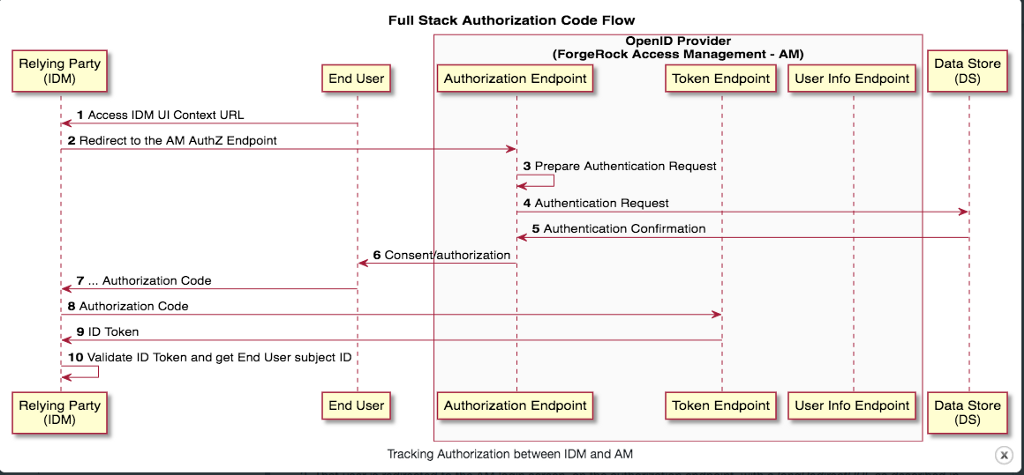
In this integration IDM acts as an OIDC Relying Party, talking to AM as
the OIDC Provider using the OAuth 2.0 authorization grant. The following
sequence diagram illustrates successful processing from the
authorization request, through grant of
the authorization code, and ID token from the authorization provider,
AM.
You can find more details in the
IDM
Samples Guide.
Sample files
For this integration I’ve included configured sample files which can be found by accessing the link below, modified, and either used as an example or just dropped straight into your test environment.
It should not have to be said but just in case…
DO NOT deploy these to production without appropriate testing / hardening:
https://stash.forgerock.org/users/mark.nienaber_forgerock.com/repos/fullstack6.5/.
Postman Collection
For any REST calls made in this blog you’ll find the Postman collection available here: https://documenter.getpostman.com/view/5814408/SVfJVBYR?version=latest
Sample Scripts
We will set up some basic vanilla instances of our products to get started. I’ve provided some scripts to install both DS as well as AM.
-
DS — simple shell script : installDSFullStack6.5.sh
-
AM — Amster script: install_am.amster
Products used in this integration
Documentation can be found Docs - ForgeRock Backstage.
Note: In this blog I install the products under my home directory, this is not best practice, but keep in mind the focus is on the integration, and not meant as a detailed install guide.
Setup new DS instances
On Server 1 (AM Server) install a fresh DS 6.5 instance for an external AM config store (optional) and a DS repository to be shared with IDM.
Add the following entries to the hosts file:
$ sudo vi /etc/hosts
Before running the DS install script you’ll need to copy the Example.ldif file from the full-stack IDM sample to the DS/AM server. You can do this manually or use SCP from the IDM server.
scp ~/openidm/samples/full-stack/data/Example.ldif [fradmin@opendj.example.com](mailto:fradmin@opendj.example.com):~/DownloadsModify the sample file installDSFullStack6.5.sh including:
-
server names
-
port numbers
-
location of DS-6.5.0.zip file
-
location of the Example.ldif from the IDM full-stack sample.
Once completed, run to install both an external AM Config store as well as the DS shared repository. i.e.
script_dir=`pwd`ds_zip_file=~/Downloads/DS/DS-6.5.0.zip ds_instances_dir=~/opends/ds_instances ds_config=${ds_instances_dir}/config ds_fullstack=${ds_instances_dir}/fullstack
#IDMFullStackSampleRepo ds_fullstack_server=http://opendj.example.com[opendj.example.com] ds_fullstack_server_ldapPort=5389 ds_fullstack_server_ldapsPort=5636 ds_fullstack_server_httpPort=58081 ds_fullstack_server_httpsPort=58443 ds_fullstack_server_adminConnectorPort=54444
#Config ds_amconfig_server=http://amconfig1.example.com[amconfig1.example.com] ds_amconfig_server_ldapPort=3389 ds_amconfig_server_ldapsPort=3636 ds_amconfig_server_httpPort=38081 ds_amconfig_server_httpsPort=38443 ds_amconfig_server_adminConnectorPort=34444
Now let’s run the script on Server 1, the AM / DS server, to create a new DS instances.
chmod +x ./installdsFullStack.sh ./installdsFullStack.sh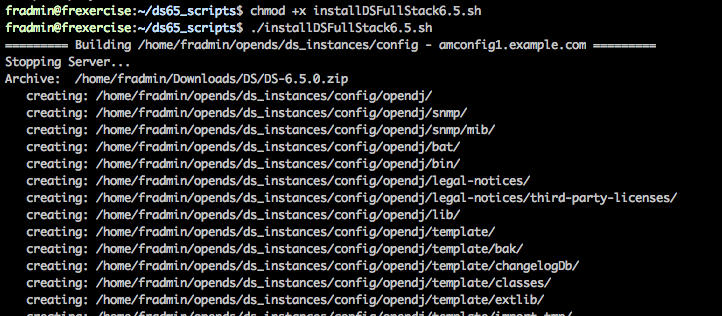
Install DS instances
You now have 2 DS servers installed and configured, let’s install AM.
Setup new AM server
On Server 1 we will install a fresh AM 6.5.2 on Tomcat using the provided Amster script.
Assuming the tomcat instance is started drop the AM WAR file under the webapps directory renaming the context to secure (change this as you wish).
cp ~/Downloads/AM-6.5.2.war ~/tomcat/webapps/secure.war

Copy the amster script install_am.amster into your amster 6.5.2 directory and make any modifications as required.
install-openam
–serverUrl http://openam.example.com:8080/secure
–adminPwd password
–acceptLicense
–cookieDomain example.com
–cfgStoreDirMgr ‘uid=am-config,ou=admins,ou=am-config’
–cfgStoreDirMgrPwd password
–cfgStore dirServer
–cfgStoreHost amconfig1.example.com
–cfgStoreAdminPort 34444
–cfgStorePort 3389
–cfgStoreRootSuffix ou=am-config
–userStoreDirMgr ‘cn=Directory Manager’
–userStoreDirMgrPwd password
–userStoreHost opendj.example.com
–userStoreType LDAPv3ForOpenDS
–userStorePort 5389
–userStoreRootSuffix dc=example,dc=com
:exit
Now run amster and pass it this script to install AM. You can do this manually if you like, but scripting will make your life easier and allow you to repeat it later on.
cd amster6.5.2/
./amster install_am.amster
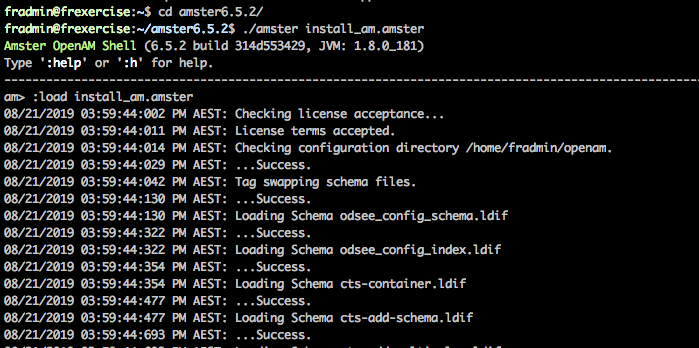
Install AM
At the end of this you’ll have AM installed and configured to point to the DS instances you set up previously.
-
Deployment location: ~/tomcat/webapps/secure
-
IP address: 172.16.112.129
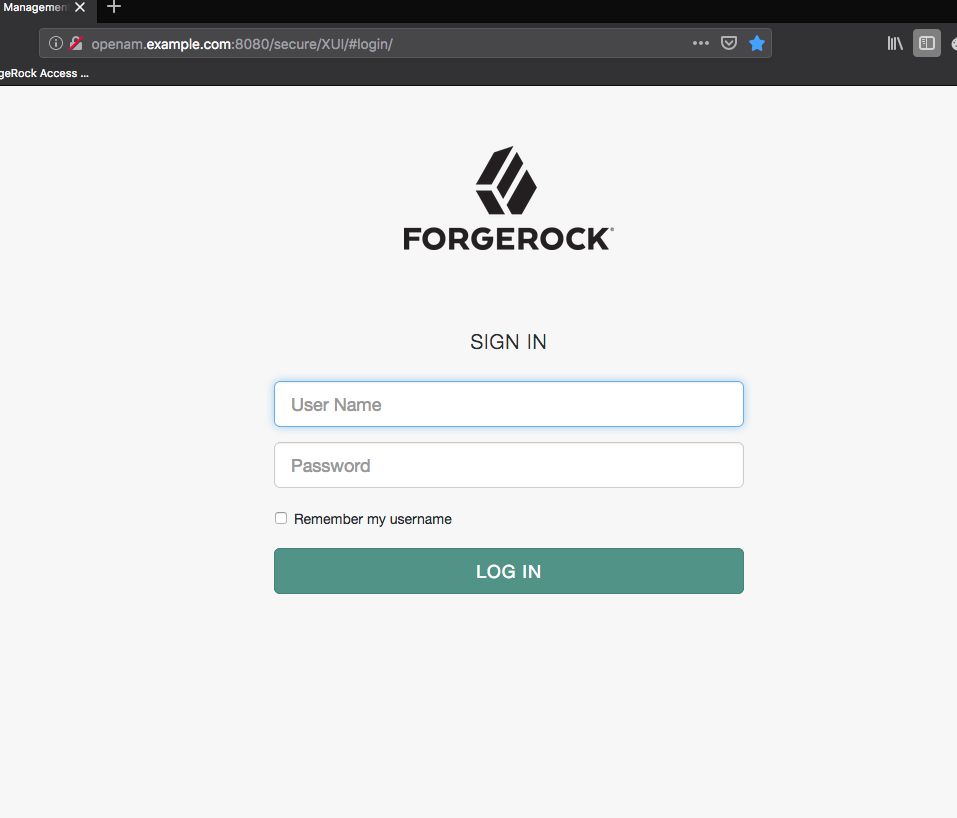
AM Successfully installed
Setup new IDM server
On Server 2 install/unzip a new IDM 6.5.0.1 instance.
-
Deployment Location: ~/openidm
-
IP Address: 172.16.112.130
-
IDM URL: http://openidm.example.com:8080/
Make sure the IDM server can reach AM and DS servers by adding an entry to the hosts file.
sudo vi /etc/hosts
Hosts file entry
Modify the hostname and port of the IDM instance in the boot.properties file. An example boot.properties file can be found HERE.
cd ~/openidm
vi /resolver/boot.properties
Set appropriate openidm.host and openidm.port.http/s.

openidm/resolver/boot.properties
We now have the basic AM / IDM and DS setup and are ready to configure each of the products.
Configure IDM to point to shared DS repository
Modify the IDM LDAP connector file to point to the shared repository. An example file can be found HERE.
vi ~/openidm/samples/full-stack/conf/provisioner.openicf-ldap.json

Change “host” and “port” to match shared repo configured above.
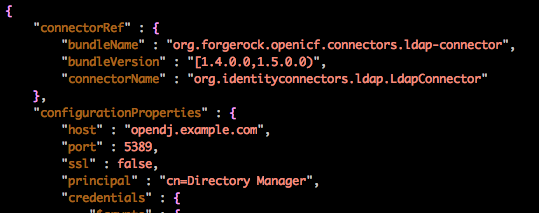
provisioner.openicf-ldap.json
Configure AM to point to shared DS repository
Login as amadmin and browse to Identity Stores in the realm you’re configuring. For simplicity I’m using Top Level Realm , DO NOT this in production!!.
Set the correct values for your environment, then select Load Schema and Save.
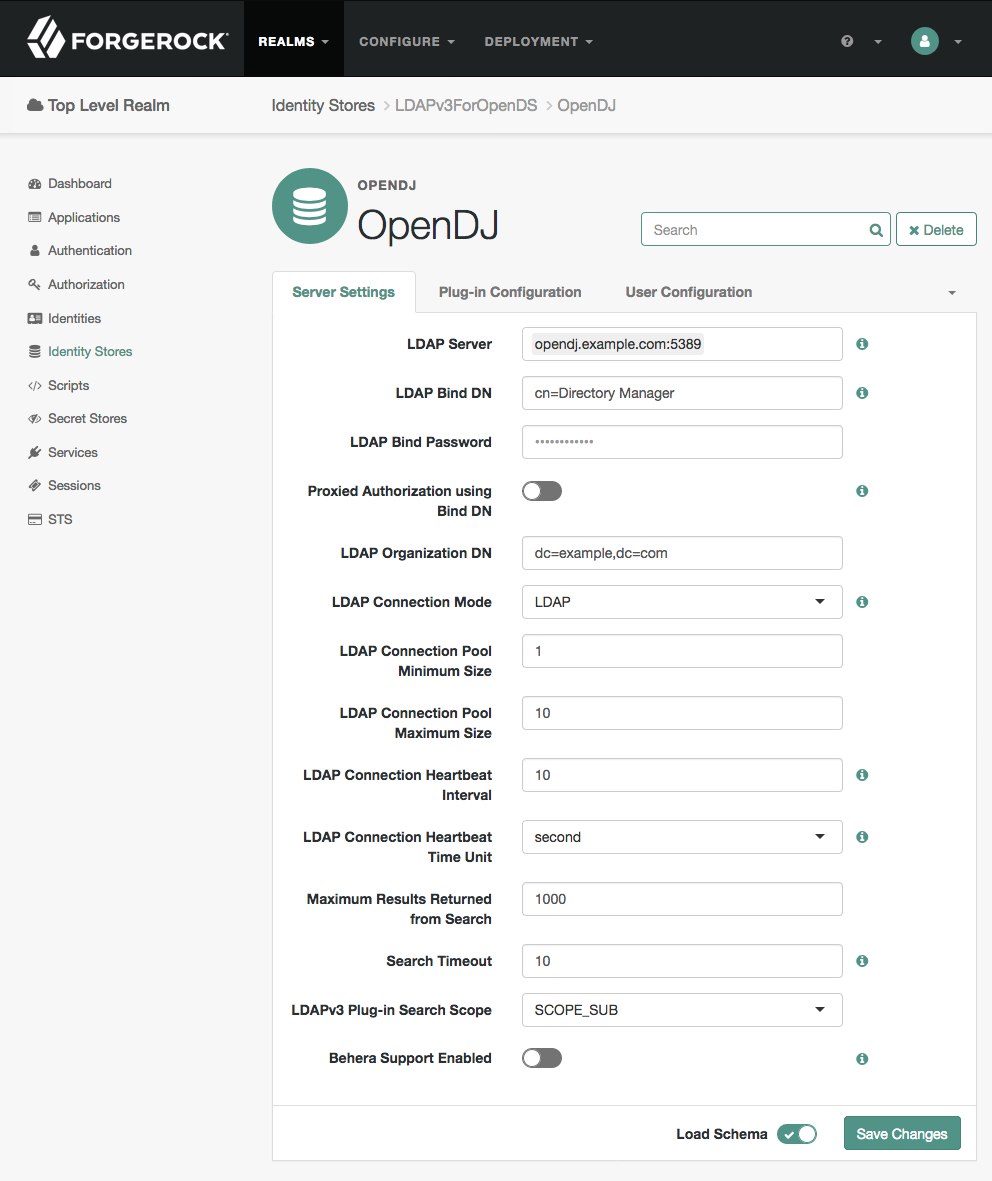
Shared DS Identity Store
Browse to Identities and you should now see two identities that were imported in the Example.ldif when you setup the DS shared repository.
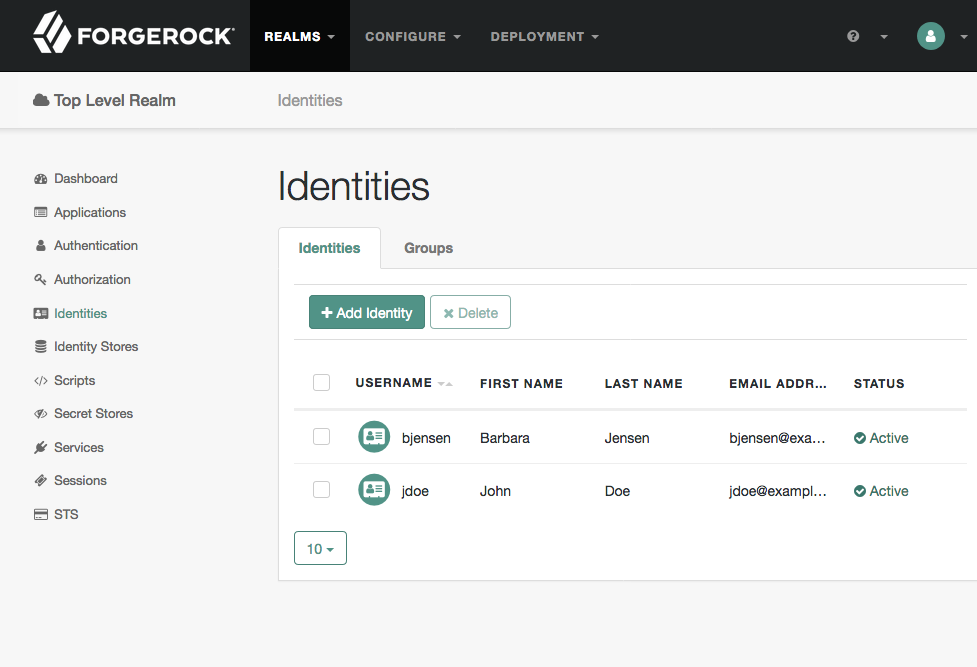
List of identities
We will setup another user to ensure AM is configured to talk to DS correctly. Select + Add Identity and fill in the values then press Create.
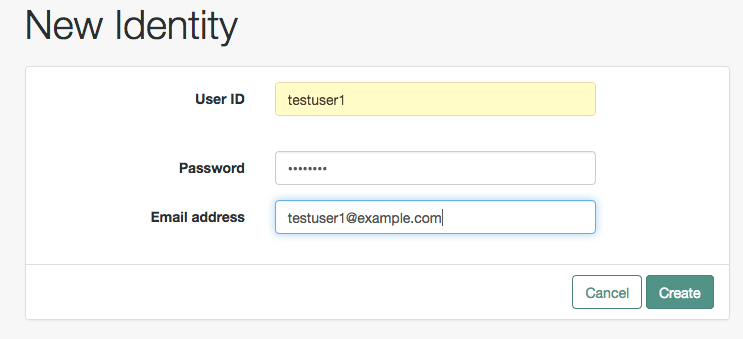
Create new identity
Modify some of the users values and press Save Changes
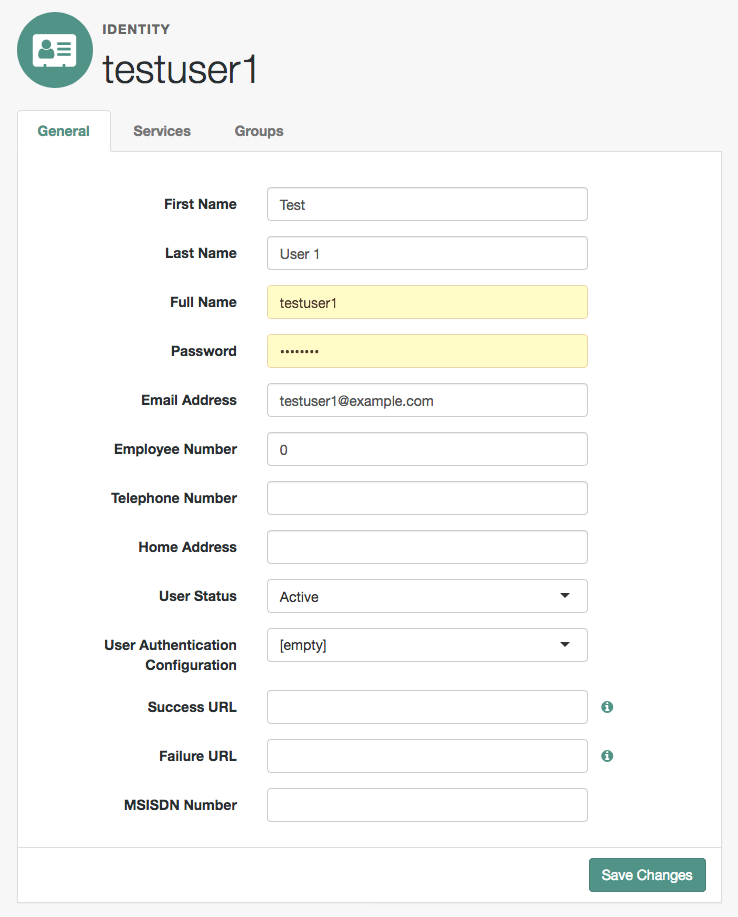
Modify attributes
Prepare IDM
We will start IDM now and check that it’s connected to the DS shared repository.
Start the IDM full-stack sample
Enter the following commands to start the full-stack sample.
cd ~/openidm/
./startup.sh -p samples/full-stack
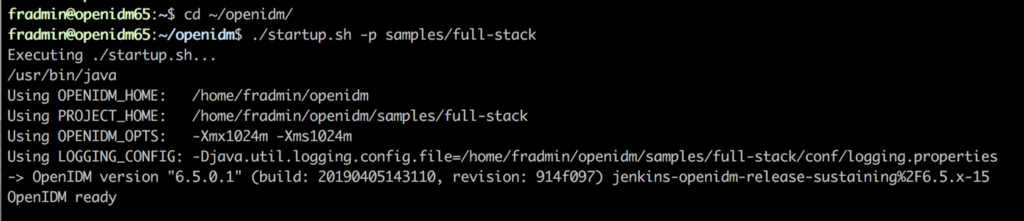
Start full-stack sample
Reconcile DS Shared Repository
We will now run a reconciliation to pull users from the DS shared repository into IDM.
Browse to Configure, then Mappings then on the System/ldap/account→Mananged/user mapping select Reconcile
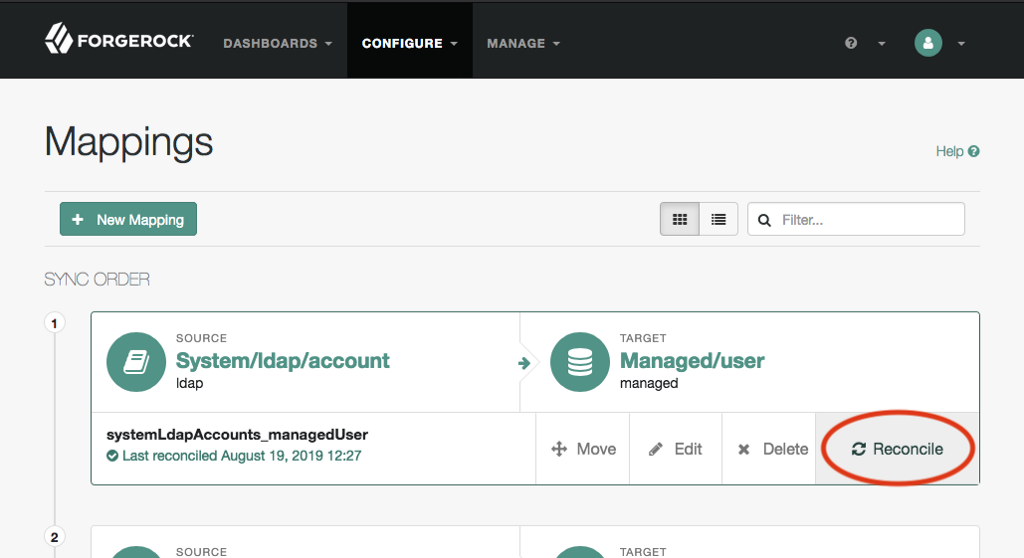
Reconcile DS shared repository
The users should now exist under Manage, Users.
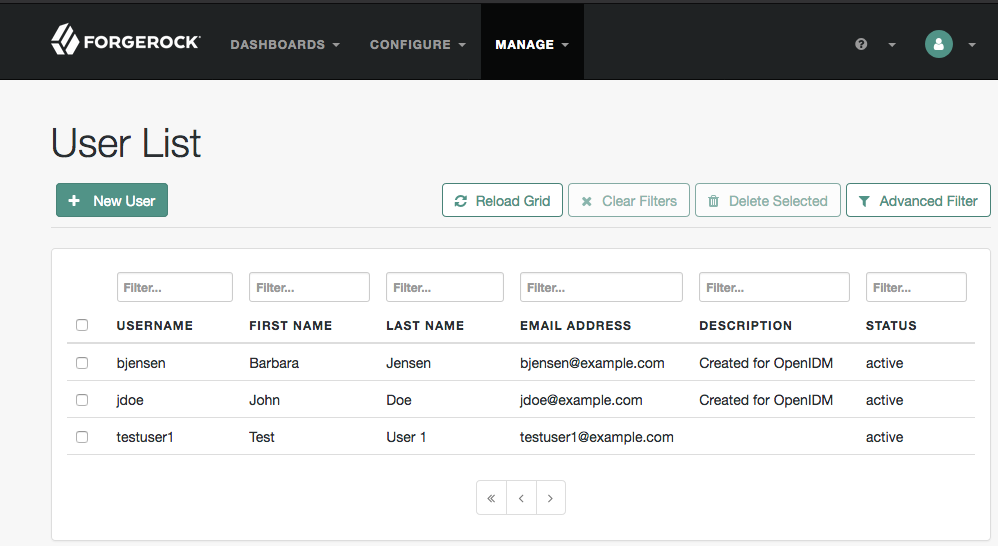
User list
Let’s Login with our newly created testuser1 to make sure it’s all working.
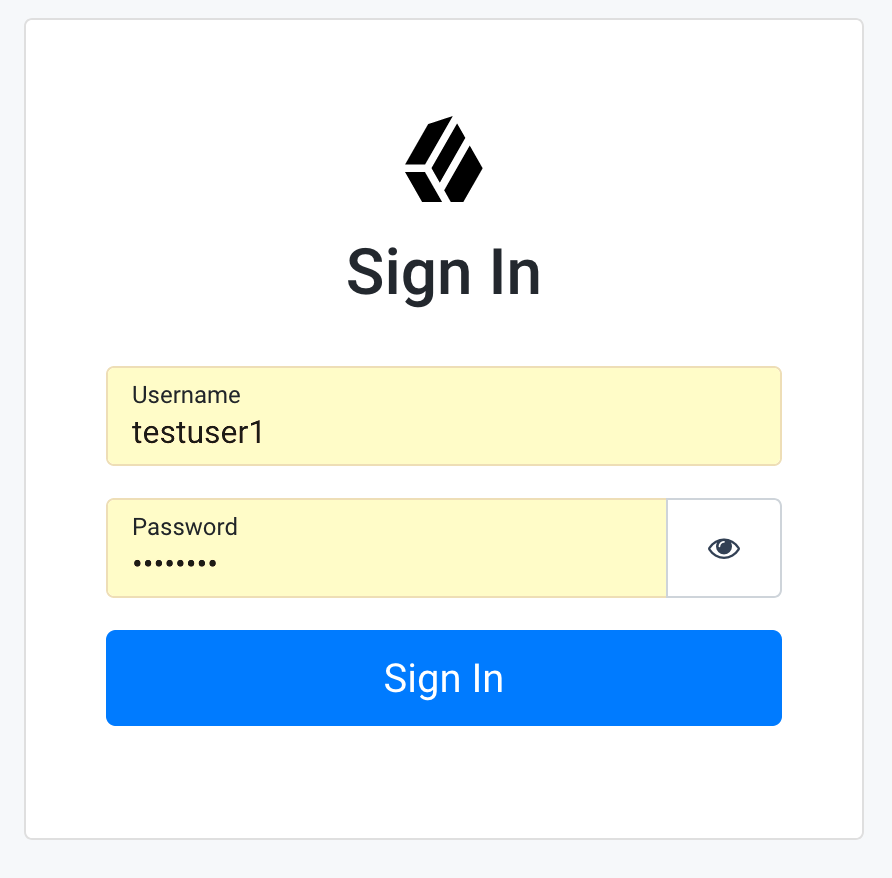
End User UI Login
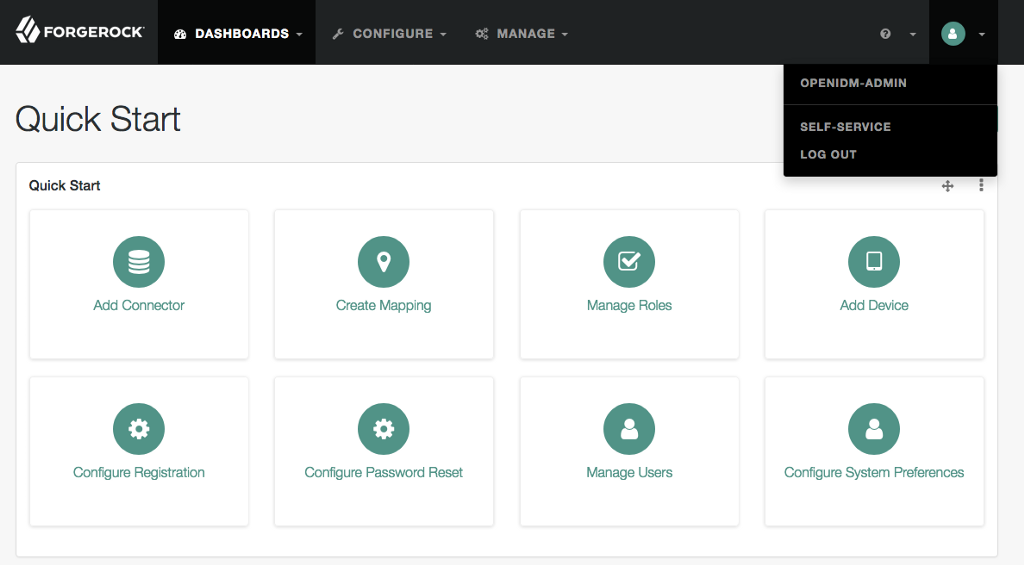
You should see the welcome screen.
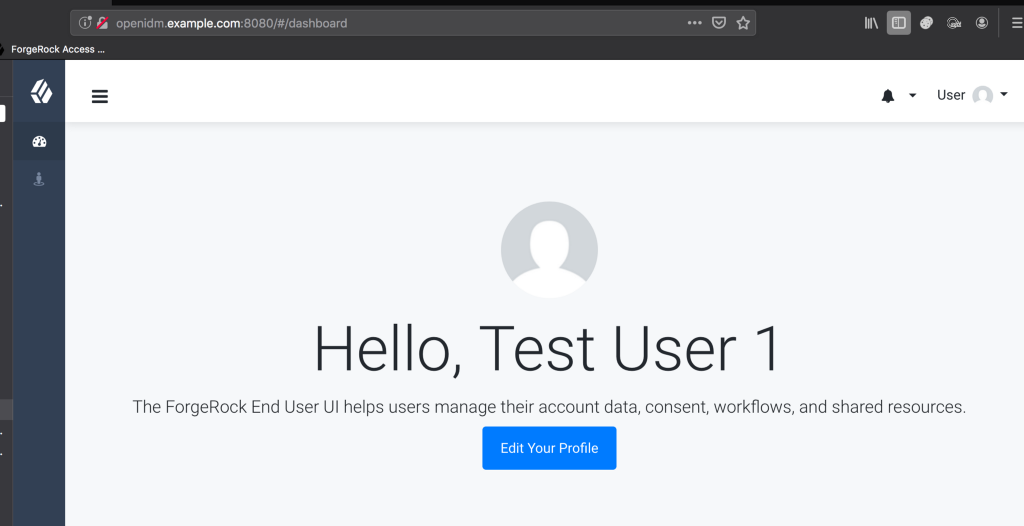
Welcome Page
IDM is now ready for integration with AM.
Configure AM for integration
Now we will set up AM for integration with IDM.
Setup CORS Filter
Set up a CORS filter in AM to allow IDM as an origin. An example web.xml can be found HERE.
vi tomcat/webapps/secure/WEB-INF/web.xml

Add the appropriate CORS filter. (See sample file above)
</filter-mapping>
<filter-mapping>
<filter-name>CORSFilter</filter-name>
<url-pattern>/json/*</url-pattern>
</filter-mapping>
<filter-mapping>
<filter-name>CORSFilter</filter-name>
<url-pattern>/oauth2/*</url-pattern>
</filter-mapping>
<filter>
<filter-name>CORSFilter</filter-name>
<filter-class>org.forgerock.openam.cors.CORSFilter</filter-class>
<init-param>
<param-name>methods</param-name>
<param-value>POST,PUT,OPTIONS</param-value>
</init-param>
<init-param>
<param-name>origins</param-name>
<param-value>http://openidm.example.com:8080,http://openam.example.com:8080,http://localhost:8000,http://localhost:8080,null,file://</param-value>
</init-param>
<init-param>
<param-name>allowCredentials</param-name>
<param-value>true</param-value>
</init-param>
<init-param>
<param-name>headers</param-name>
<param-value>X-OpenAM-Username,X-OpenAM-Password,X-Requested-With,Accept,iPlanetDirectoryPro</param-value>
</init-param>
<init-param>
<param-name>expectedHostname</param-name>
<param-value>openam.example.com:8080</param-value>
</init-param>
<init-param>
<param-name>exposeHeaders</param-name>
<param-value>Access-Control-Allow-Origin,Access-Control-Allow-Credentials,Set-Cookie</param-value>
</init-param>
<init-param>
<param-name>maxAge</param-name>
<param-value>1800</param-value>
</init-param>
</filter>
Configure AM as an OIDC Provider
Login to AM as an administrator and browse to the Realm you’re configuring. As already mentioned, I’m using the Top Level Realm for simplicity.
Once you’ve browsed to the Realm, on the Dashboard, select Configure OAuth Provider.
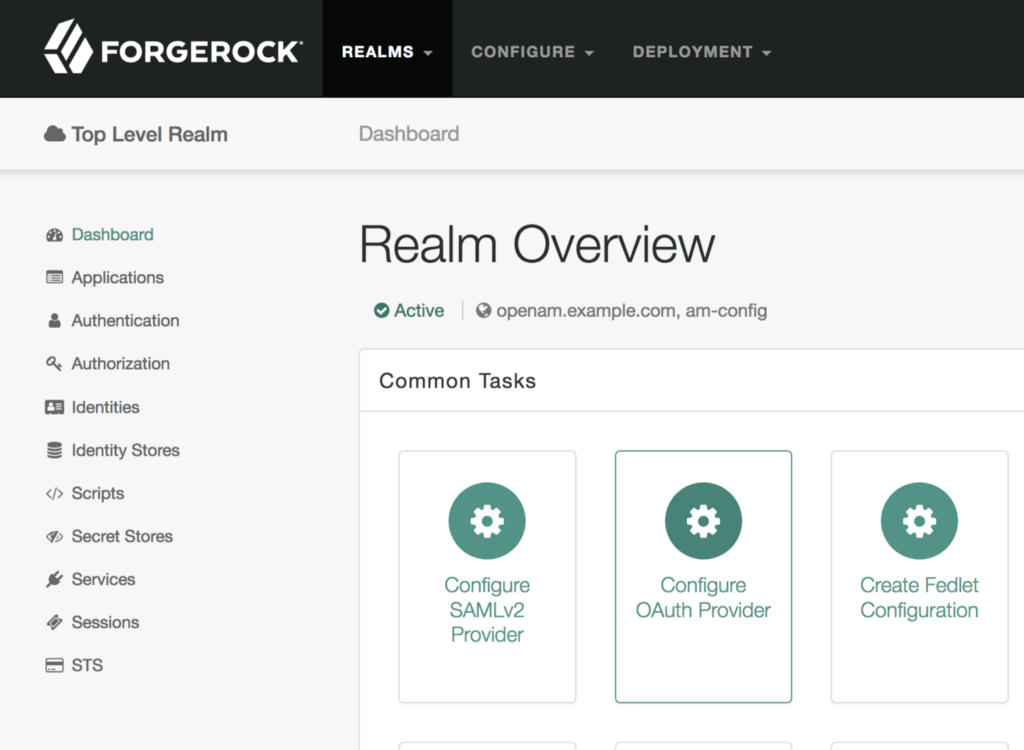
Configure OAuth Provider
Now select Configure OpenID Connect.

Configure OIDC
If you need to modify any values like the Realm then do, but I’ll just press Create.

OIDC Server defaults
You’ll get a success message.

Success
AM is now configured as an OP, let’s set some required values. Browse to Services, then click on OAuth2 Provider.

AM Services
On the Consent tab, check the box next to Allow Clients to Skip Consent, then press Save.
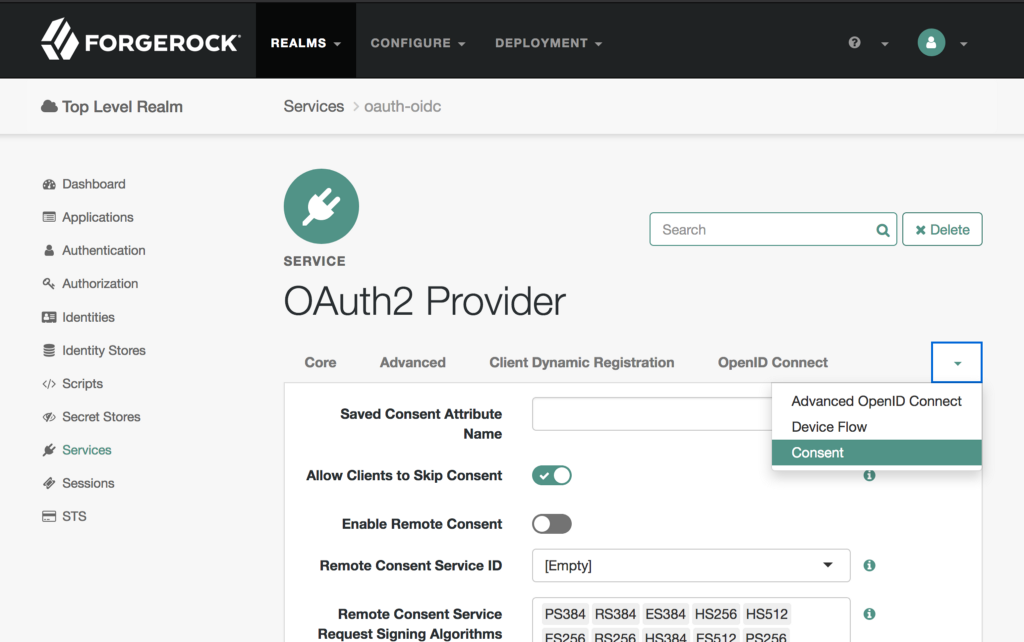
Consent settings
Now browse to the Advanced OpenID Connect tab set openidm as the value for Authorized OIDC SSO Clients ( this is the name of the Relying Party / Client which we will create next). Press Save.

Authorized SSO clients
Configure Relying Party / Client for IDM
You can do these steps manually but let’s call AM’s REST interface, you can save these calls and easily replicate this step with the click of a button if you use a tool like Postman (See HERE for the Postman collection). I am using a simple CURL command from the AM server.
Firstly we’ll need an AM administrator session to create the client so call the /authenticate endpoint. (I’ve used jq for better formatting, so I’ll leave that for you to add in if required)
curl -X POST
http://openam.example.com:8080/secure/json/realms/root/authenticate
-H ‘Accept-API-Version: resource=2.0, protocol=1’
-H ‘Content-Type: application/json’
-H ‘X-OpenAM-Password: password’
-H ‘X-OpenAM-Username: amadmin’
-H ‘cache-control: no-cache’
-d ‘\{}’
The SSO Token / Session will be returned as tokenId , so save this value.

Authenticate
Now we have a session we can use that in the next call to create the client. Again this will be done via REST however you can do this manually if you want. Substitute the tokenId value from above for the value of the iPlanetDrectoryPro.
curl -X POST
‘http://openam.example.com:8080/secure/json/realms/root/agents/?action=create’
-H ‘Accept-API-Version: resource=3.0, protocol=1.0’
-H ‘Content-Type: application/json’
-H 'iPlanetDirectoryPro: djyfFX3h97jH2P-61auKig_i23o._AAJTSQACMDEAAlNLABxFc2d0dUs2c1RGYndWOUo0bnU3dERLK3pLY2c9AAR0eXBlAANDVFMAAlMxAAA.’
-d ‘\{
“username”: “openidm”,
“userpassword”: “openidm”,
“realm”: “/”,
“AgentType”: [“OAuth2Client”],
“com.forgerock.openam.oauth2provider.grantTypes”: [
“[0]=authorization_code”
],
“com.forgerock.openam.oauth2provider.scopes”: [
“[0]=openid”
],
“com.forgerock.openam.oauth2provider.tokenEndPointAuthMethod”: [
“client_secret_basic”
],
“com.forgerock.openam.oauth2provider.redirectionURIs”: [
“[0]=http://openidm.example.com:8080/”
],
“isConsentImplied”: [
“true”
],
“com.forgerock.openam.oauth2provider.postLogoutRedirectURI”: [
“[0]=http://openidm.example.com:8080/”,
“[1]=http://openidm.example.com:8080/admin/”
]
}’
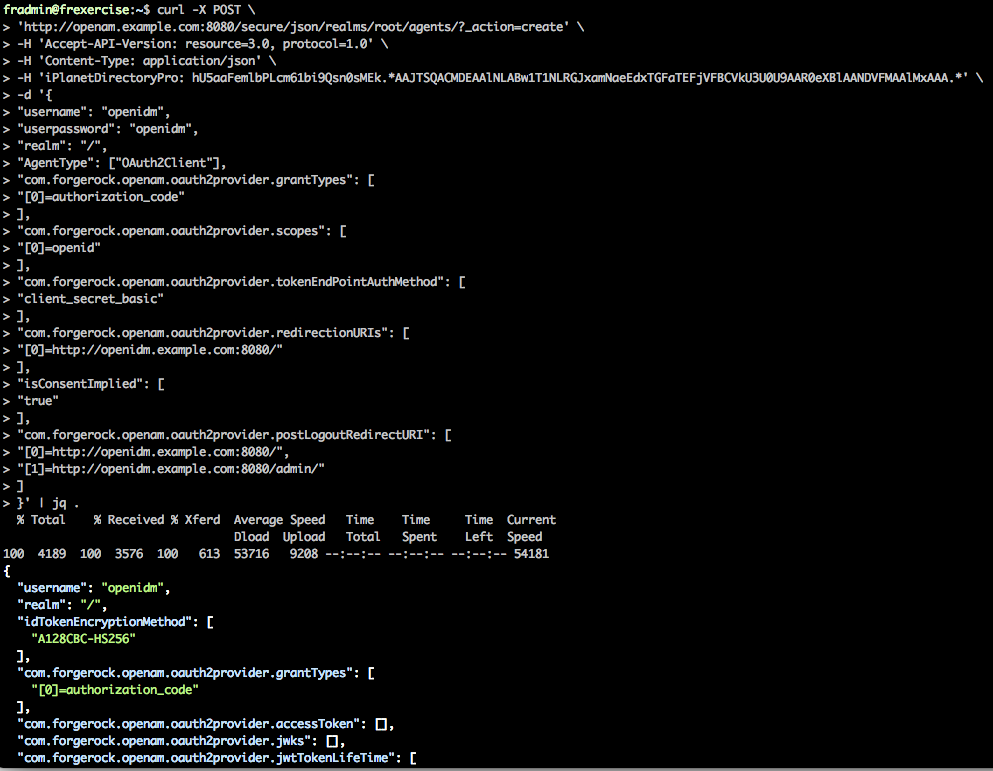
Create Relying Party
The OAuth Client should be created.
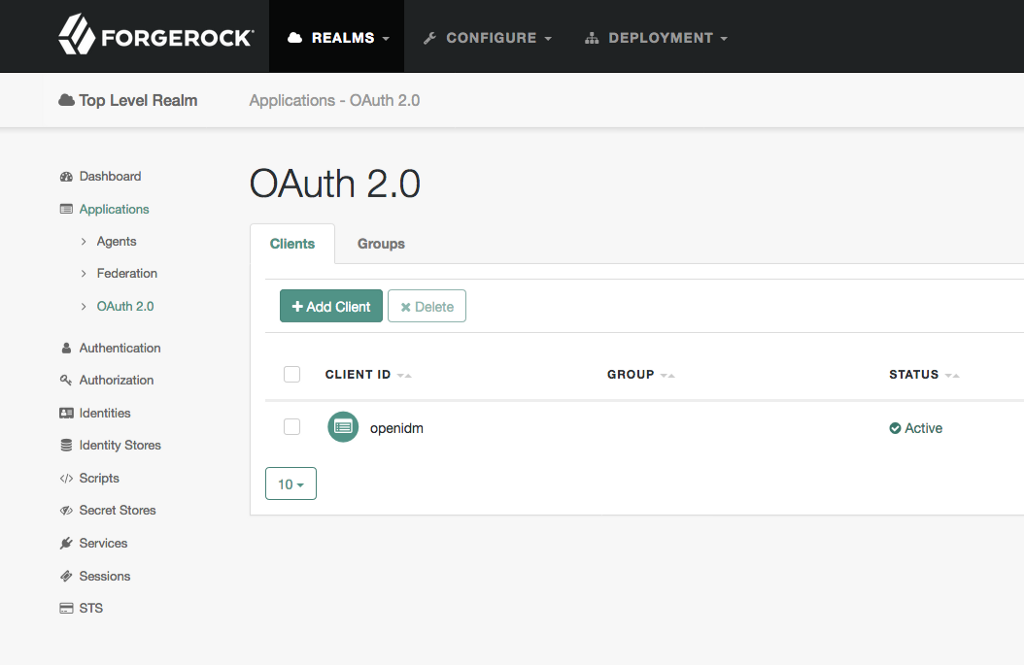
RP / Client created
Integrate IDM and AM
AM is now configured as an OIDC provider and has an OIDC Relying Party for IDM to use, so now we can configure the final step, that is, tell IDM to outsource authentication to AM.
Feel free to modify and copy this authentication.json file directly into your ~/openidm/samples/full-stack/conf folder or follow these steps to configure.
Browse to Configure, then Authentication.
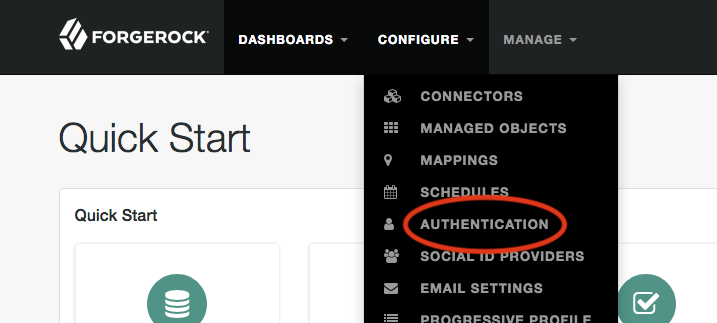
Configure authentication
Authentication should be configured to Local, select ForgeRock Identity Provider.
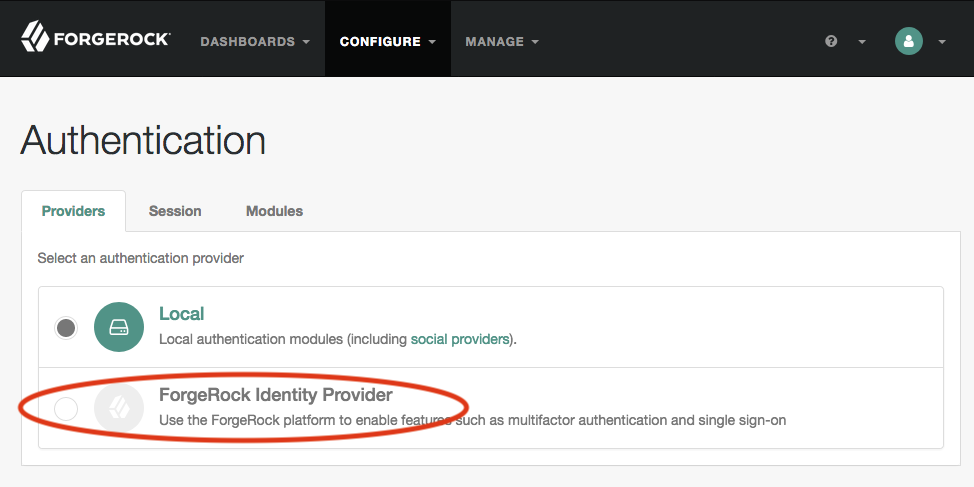
Outsource authentication to AM
After you click above, the Configure ForgeRock Identity Provider page will pop up.
Set the appropriate values for
-
Well-Known Endpoint
-
Client ID
-
Client Secret
-
Note that the common datastore is set to the DS shared repository, leave this as is.
You can change the others to match your environment but be careful as the values must match those set in AM OP/RP configuration above. You can also refer to the sample the sample authentication.json. Once completed press Submit. You will be asked to re-authenticate.
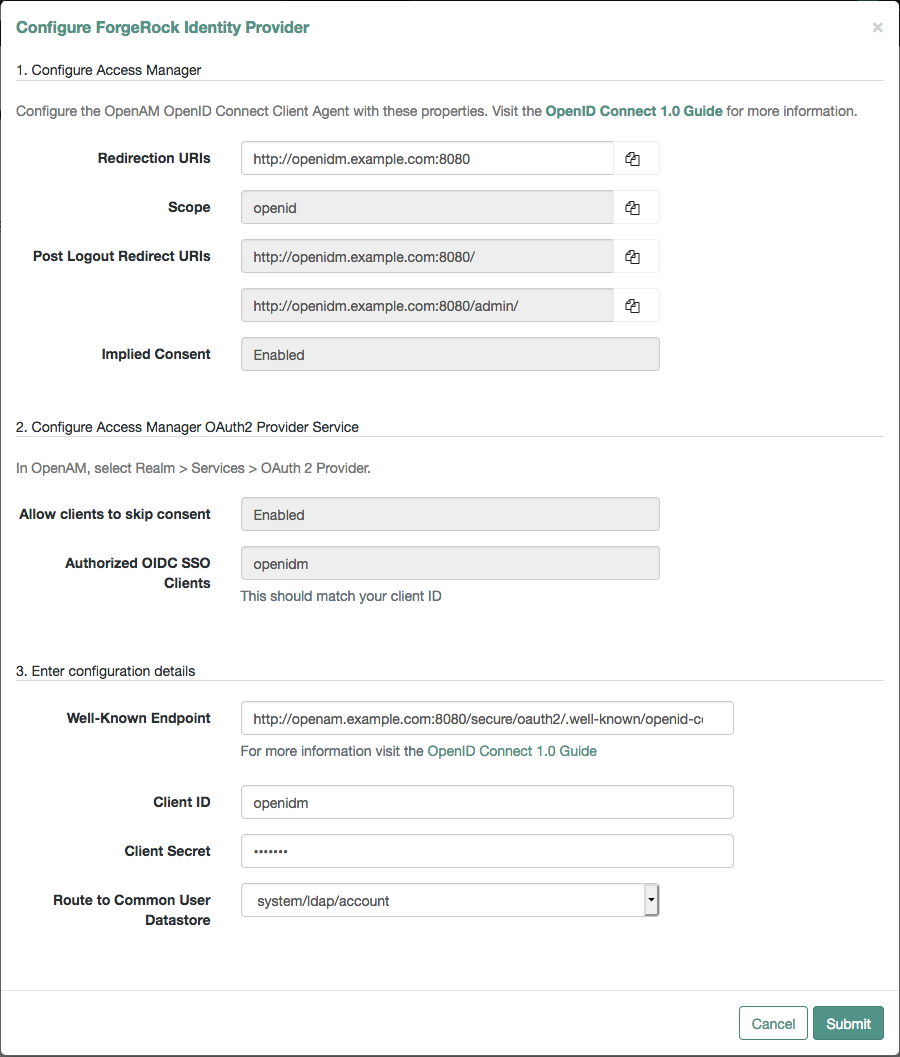
IDM authentication settings
Testing the integrated environment
Everything is now configured so we are ready to test end to end.
Test End User UI
Browse to the IDM End User UI.
You will be directed to AM for login, let’s login with the test user we created earlier.
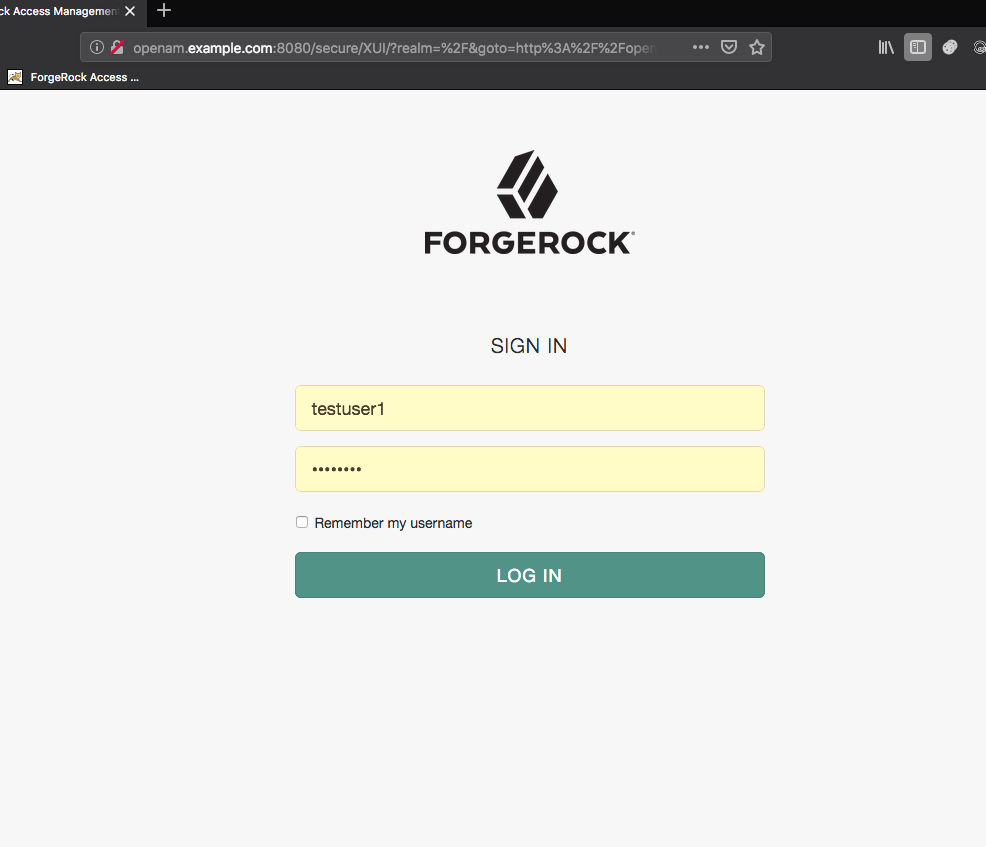
Login as test user
After authentication you will be directed to IDM End User UI welcome page.

Login success
Congratulations you did it!
Test IDM Admin UI
In this test you’ll login to AM as amadmin and IDM will convert this to a session for the IDM administrator openidm-admin.
This is achieved through the following script:
~/openidm/bin/defaults/script/auth/amSessionCheck.js
Specifically this code snippet is used:
if (security.authenticationId.toLowerCase() === "amadmin") {security.authorization = {"id" : "openidm-admin","component" : "internal/user","roles" : ["internal/role/openidm-admin", "internal/role/openidm-authorized"],"moduleId" : security.authorization.moduleId};In a live environment you should not use amadmin, or openidm-admin but create your own delegated administrators, however in this case we will stick with the sample.
Browse to the IDM Admin UI.
You will be directed to AM for login, login with amadmin.
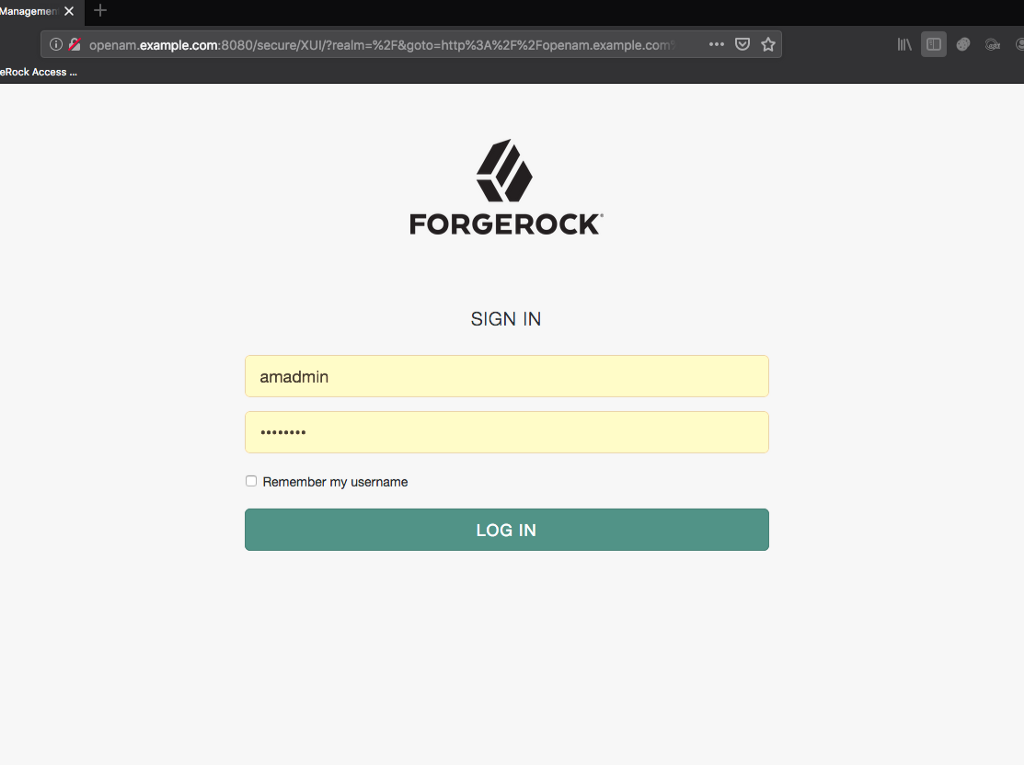
Login as administrator
After authentication you will be directed to IDM End User UI welcome page.
Note: This may seem strange as you requested the Admin UI but it is expected as the redirection URI is set to this page (don’t change this as you can just browse to admin URL after authentication).
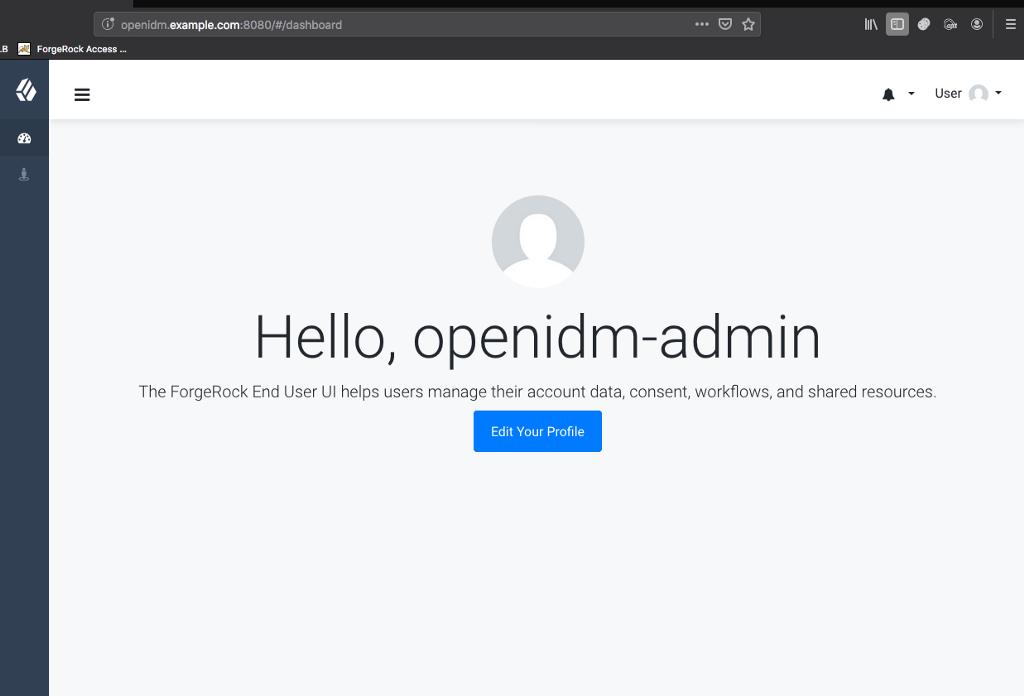
Login success
On the top right click the drop down and select Admin, or alternatively just hit the IDM Admin UI URL again.
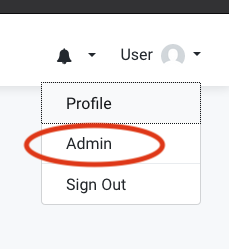
Switch to Admin UI
You’ll now be directed to the Admin UI and as an IDM administrator you should be able to browse around as expected.
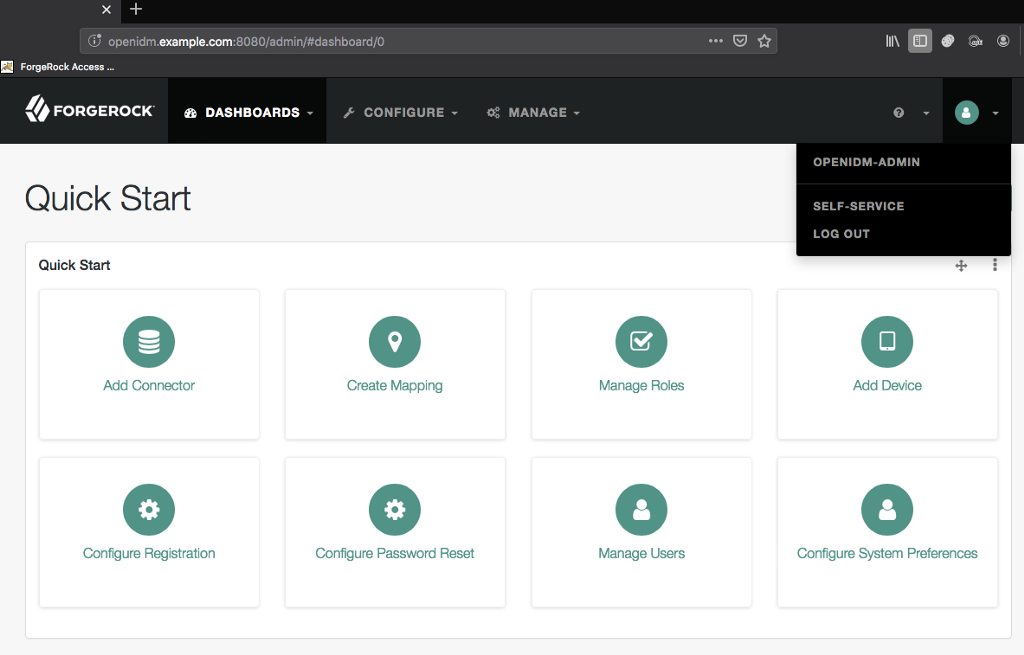
IDM Admin UI success
Congratulations you did it!
Finished.
IDM 6.5 > Samples Guide
Guide providing a number of "sample deployments" that walk you through the essential features of ForgeRock® Identity Management software, as they would be implemented.