Use case: Allow end users to recover a forgotten user ID in ForgeRock
Author: |
Lucy Billington |
Created at: |
Nov 2022 |
Updated at: |
Dec 2022 |
Use case overview
Recovering a forgotten username is a very common use case that is easily implemented in ForgeRock Identity Cloud using Journeys. End users can recover their forgotten username using other information such as their email address.
Steps to achieve this use case
Identity Cloud includes a pre-built sample Forgotten Username journey, which you can adapt or use as a basis for your own journey(s) to meet your business needs.
To review the Forgotten Username journey:
-
Sign in to the Identity Cloud admin UI using your admin tenant URL, in the format
<tenant-name>/am/XUI/?realm=/#/. -
Go to Journeys.
-
Select the ForgottenUsername journey and click Edit.
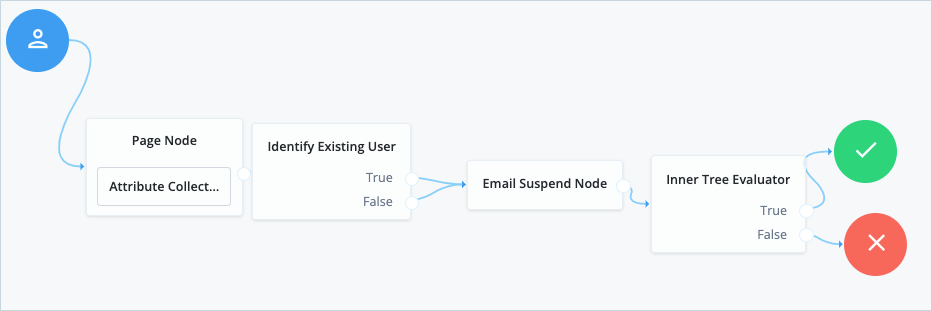
The journey collects a user’s email address and then uses that email address to search for the user. It then emails the user the username associated with the email address along with a link to the default Sign In page.
The journey includes the following nodes:
-
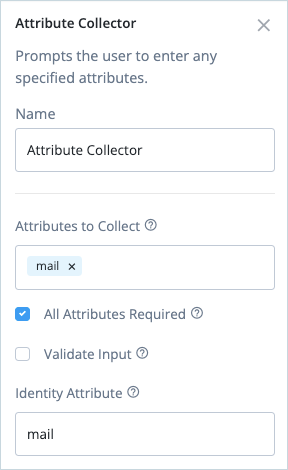
Attribute Collector - this node collects the user’s email address.
-
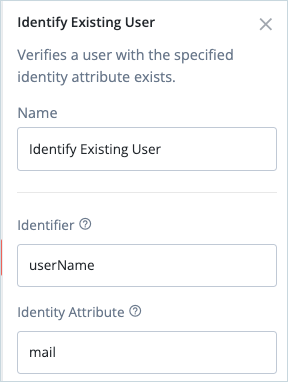
Identify Existing User - this node verifies the user exists based on the email address. The email address should be unique to a user.
-
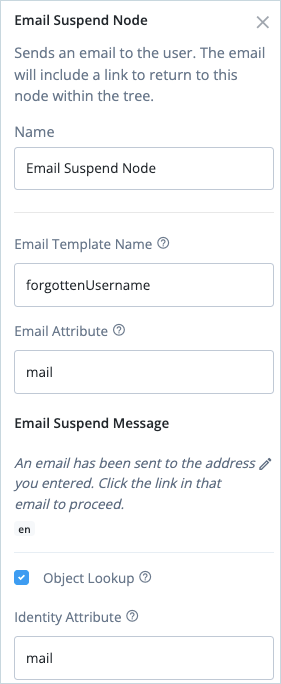
Email Suspend Node - this node generates and sends an email to the user and suspends authentication. It uses the forgottenUsername email template (configured in Email > Templates).
-
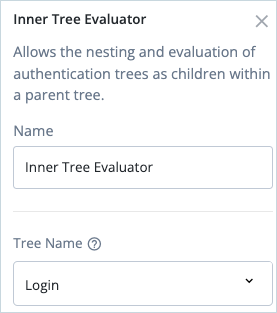
Inner Tree Evaluator - this node nests the default Login journey in the authentication flow.
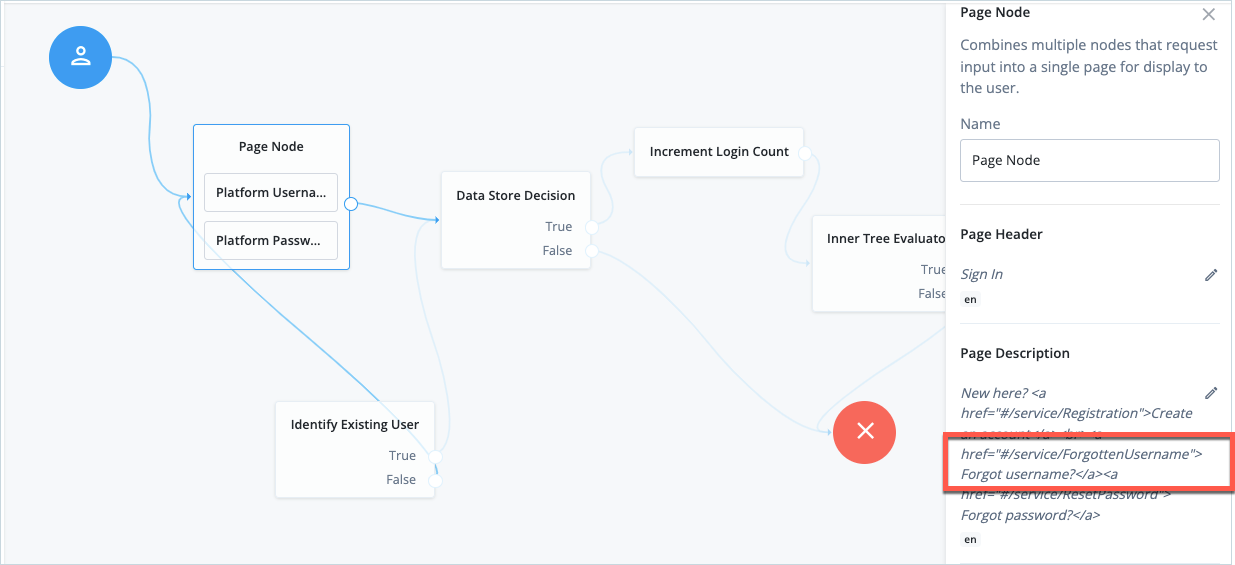
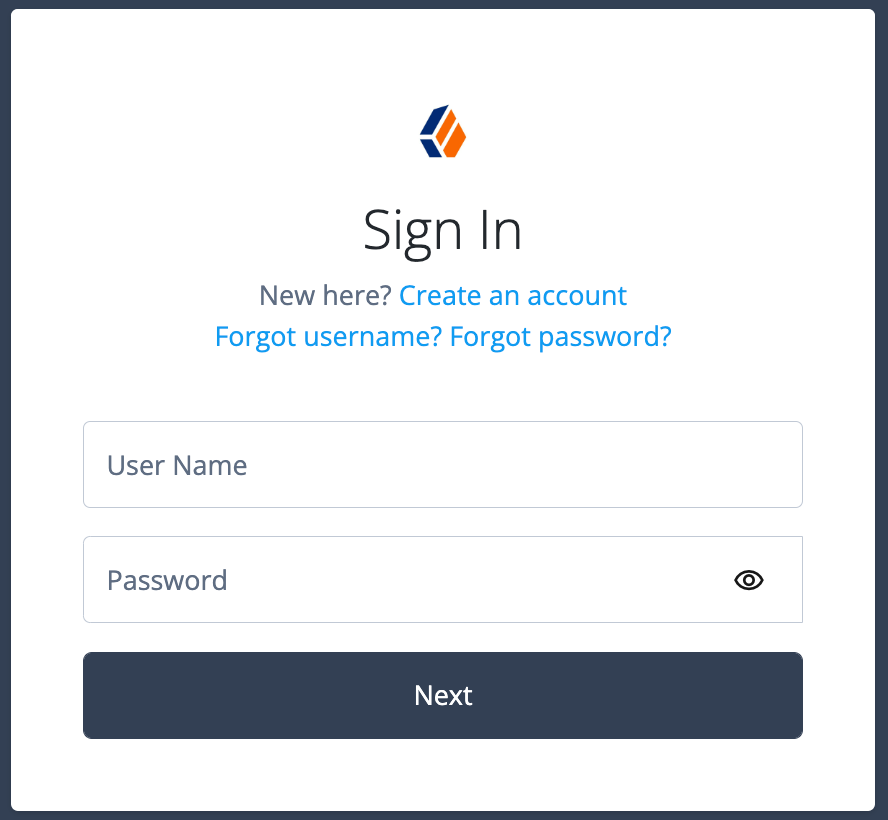
The Forgotten Username journey is accessed from default Login journey using the Forgot username? link on the Sign In screen. This link is configured in the Page Node description in the Login journey:
Testing the use case
To test the use case, ensure that your test end user has an email address that you can access.
-
In the Identity Cloud admin UI, go to Journeys.
-
Click the Login journey and copy the Preview URL.
-
Paste the preview URL into a browser using Incognito or Browsing mode.
-
In the Sign In screen, click the Forgot username?.
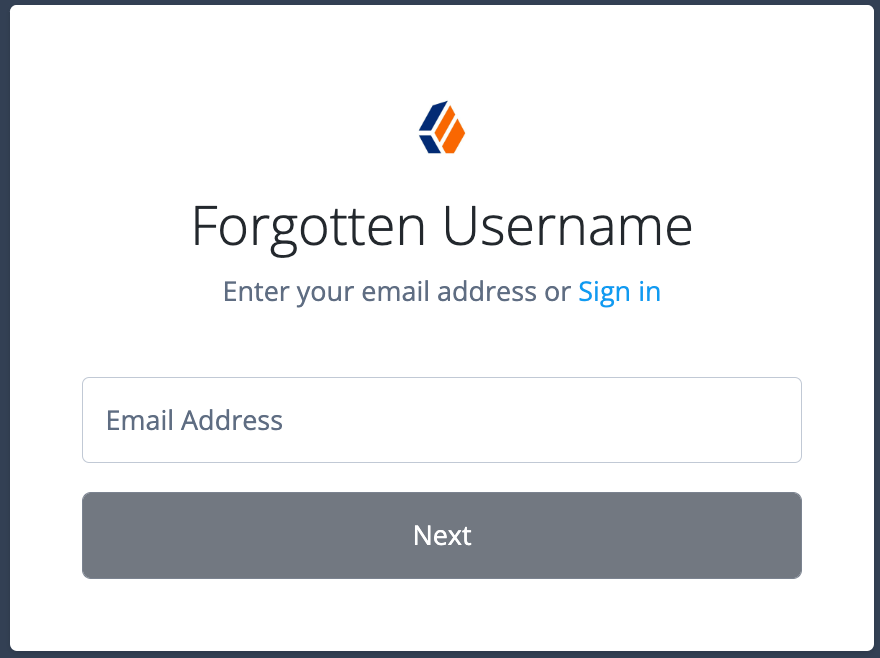
You are prompted to enter the user’s email address.
-
Enter the email address of your test user and click Next.
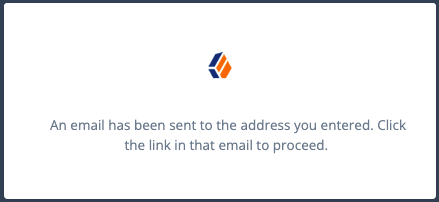
An email is sent to the test user’s email address.
-
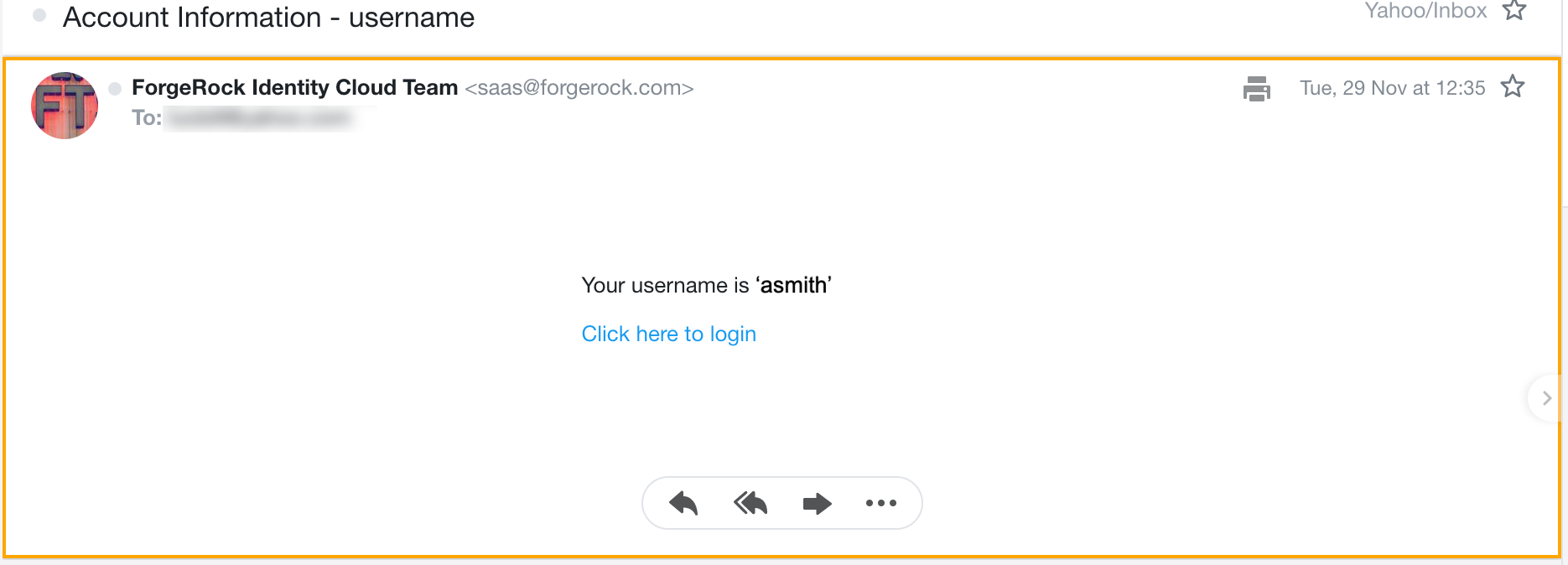
Locate and open the email message in the test user’s inbox. The email message will look similar to this:
-
Copy the username and click the link to sign in.
-
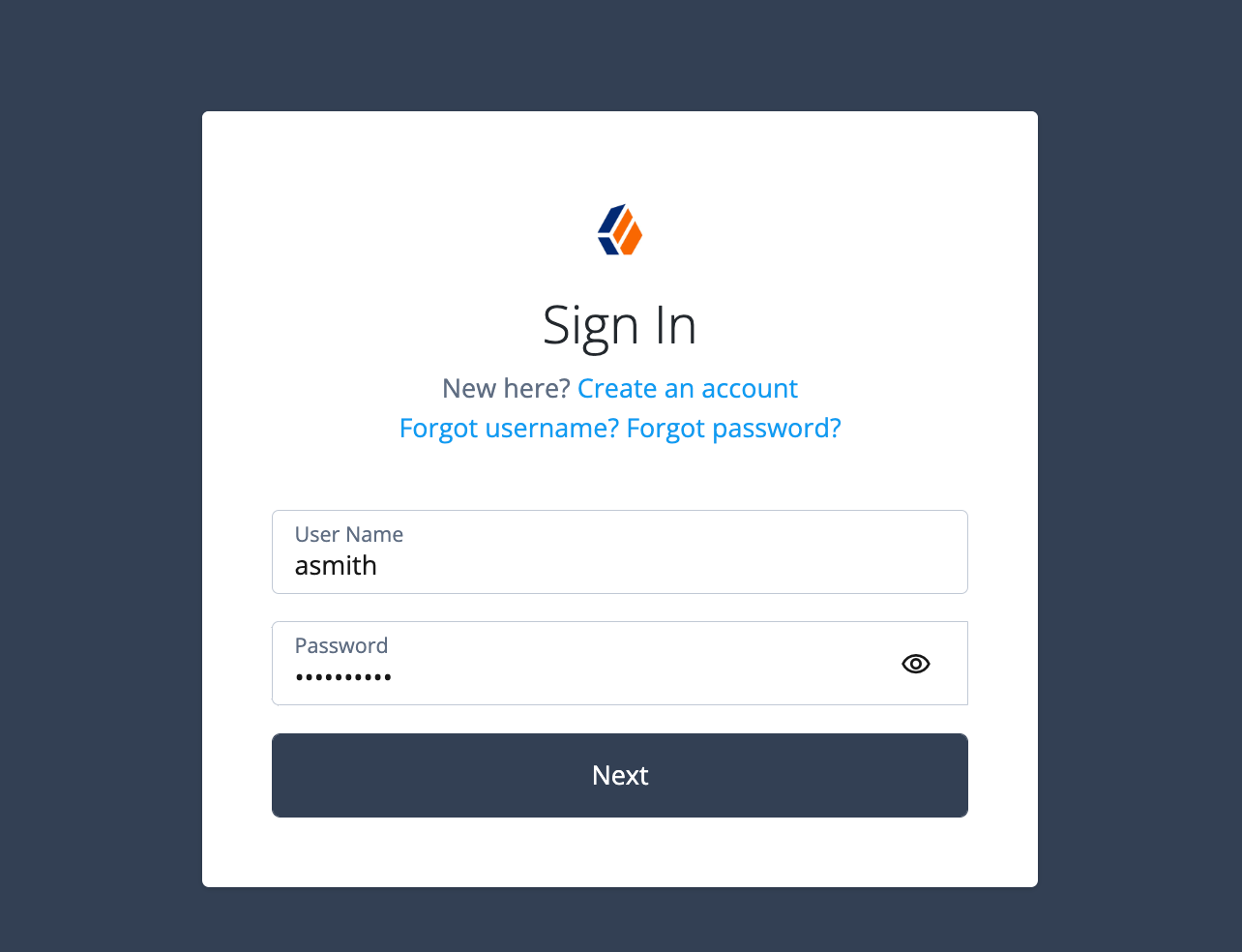
In the Sign In screen, enter the test user’s username and password.
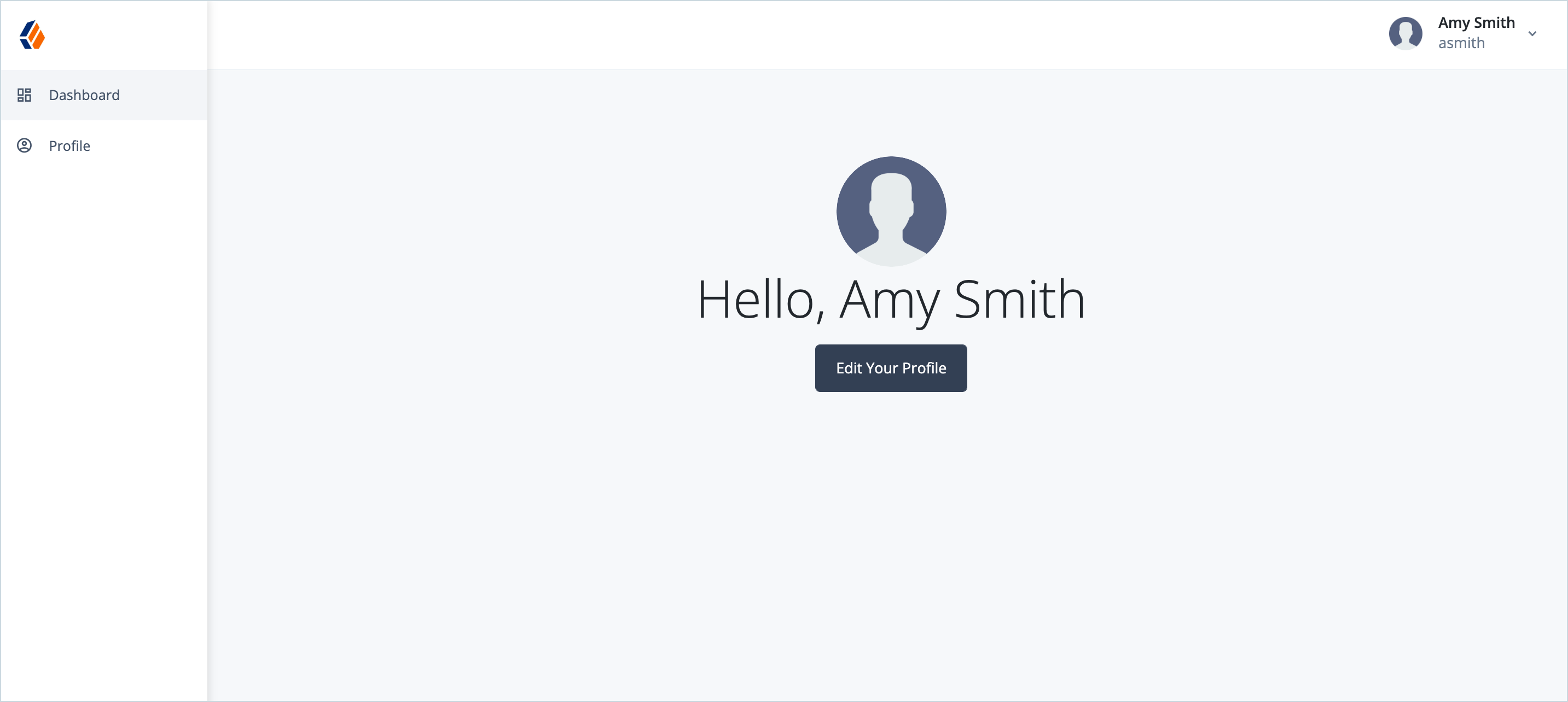
You are successfully logged in.
Additional resources
Documentation:
Training videos:
-
Managing User Journeys (Getting Started)
-
Create & Manage Journeys (Deep Dive)