Customizing Single Logout Using Journeys, Pt. 3: Invalidating the
Author: |
David Gwizdala |
Created at: |
Mar 2024 |
Updated at: |
Mar 2024 |
This is part 3 of 4 in the series Customizing Single Logout Using Journeys.
Invalidating the User’s ForgeRock Session
Once you’ve captured the user’s SSO token, and have performed any necessary logout activities with external services, you can use that token to force session termination for that user. In this example, we’ll be terminating all of a user’s active sessions - but you can always view and terminate specific sessions instead. To accomplish this, we’ll be using the Session Management API within a Scripted Decision Node.
Capturing the Cookie and Existing Session Data
Create a new Journey entitled Terminate ForgeRock Session. In your Journey, connect your Start Node to an Inner Tree Node and select the name of your Journey you created in Capturing the User’s Existing Browser Session. If you haven’t done this step yet, jump back there first - it’ll show you how to reference the user’s cookie (which you’ll use as an SSO token to log them out).
Now that we’ve captured the session, we can optionally call the logout
actions we made in
Terminating
an External Session via REST with another Inner Tree Node. Note that if
you don’t need to call any external endpoints, you’ll need to add an
Identify Existing User Node with the Identifier and Identity Attribute
both set to “userName” (as mentioned in
Ensuring
the User Has an Active Session) as we’ll be referencing the user’s
_id later.
Note: if you’d prefer not use inner trees, you can add the Scripted Decision Nodes you created in previous sections directly into this Journey instead or combine the scripts together (code example here)
Your journey will either look like this:
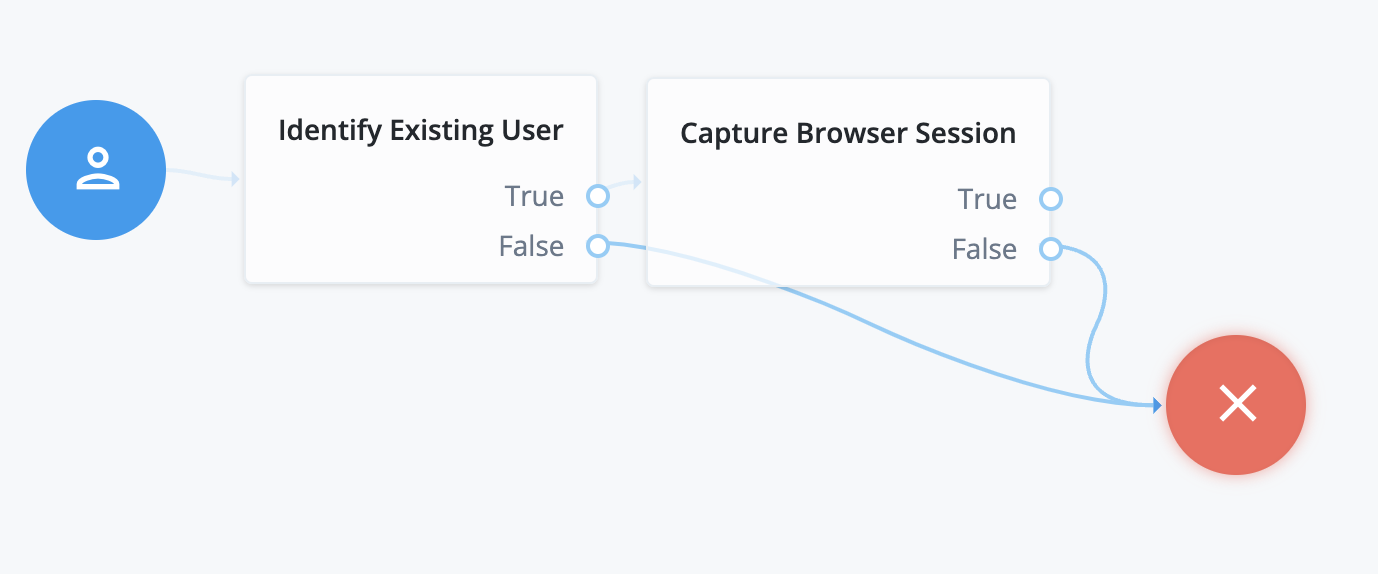
Logging Out the User in ForgeRock - No External Sessions
Or if you added the REST call Journey, like this:
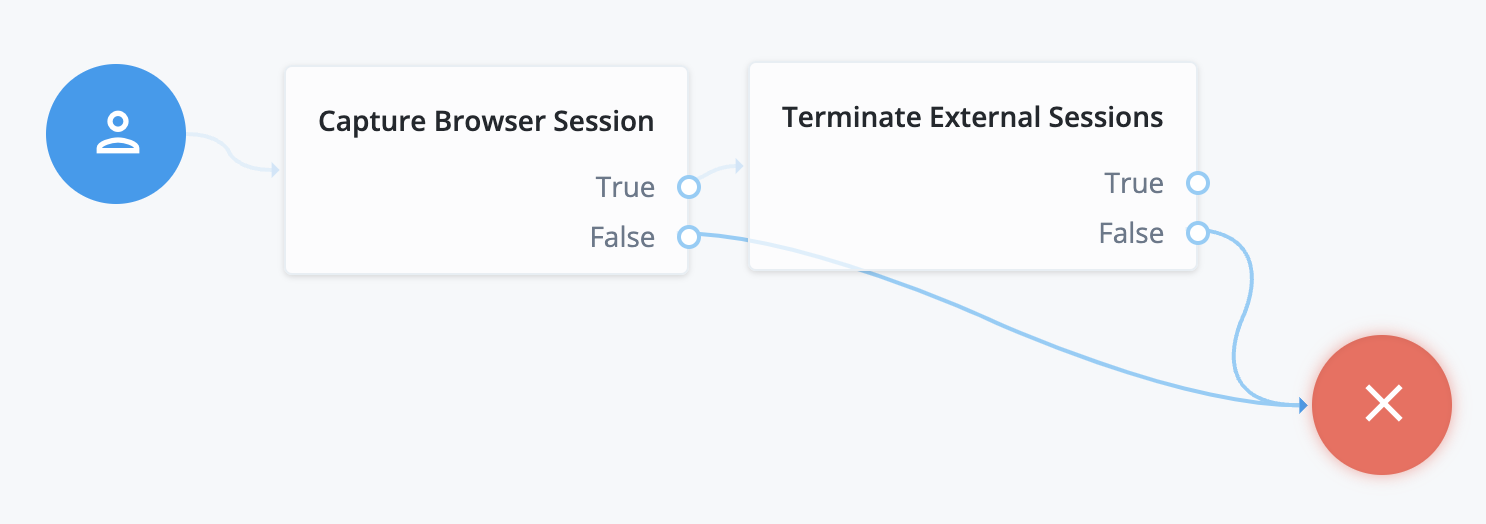
Logging Out the User in ForgeRock - External Sessions
Sending the Request
Next, drag and drop in a Scripted Decision Node and create a Script
named Terminate Sessions. This script will have four outcomes defined:
Success, Failure, No Session, and Error.
Copy/Paste the following Javascript into your Node:
/*
Checks if the user has an existing session, and if so, logs them out.

 This script expects the user's cookie and _id to be stored in shared state.

 This script expects the following ESV to be set:
 - esv.cookie - the cookie of the tenant (found in "Tenant Settings")

 The scripted decision node needs the following outcomes defined:
 - Success
 - Failure
 - No Session
 - Error

 Author: se@forgerock.com
 */

// Request Params
var HOST = requestHeaders.get("host").get(0);
var AM_BASE_URL = "https://" + HOST + "/am/";
// Long-Lived API Token
var TENANT_COOKIE = systemEnv.getProperty("esv.cookie");

var OUTCOMES = {
  SUCCESS: "Success",
  FAILURE: "Failure",
  NO_SESSION: "No Session",
  ERROR: "Error"
};

//// HELPERS

/**
 * Kills all of a user's sessions based on their identifier
 * https://backstage.forgerock.com/docs/idcloud/latest/am-sessions/managing-sessions-REST.html#invalidate-sessions-user
 * @param {string} sessionCookie the user's cookie containing their session authorization
 * @param {string} uid the universal identifier of the user
 * @returns {boolean} whether or not the invalidation was successful
 */
function logoutByUser(sessionCookie, uid) {
  var wasLogoutSuccessful = false;

  var options = {
    method: 'POST',
    headers: {
      "Content-Type": "application/json; charset=UTF-8",
      "Accept-API-Version": "resource=5.1, protocol=1.0"
    },
    body: {
      username: uid
    }
  };
  options.headers[TENANT_COOKIE] = sessionCookie;

  var requestURL = `${AM_BASE_URL}json/realms/root/realms/alpha/sessions/?_action=logoutByUser`;

  var response = httpClient.send(requestURL, options).get();

  if (response.status === 200) {
    var payload = response.text();
    var jsonResult = JSON.parse(payload);
    wasLogoutSuccessful = jsonResult.result;
  }

  return wasLogoutSuccessful;
}

//// MAIN
(function () {
  try {
    var sessionCookie = nodeState.get("sessionCookie");
    var uid = nodeState.get("_id");

    if (!sessionCookie || !uid) {
      outcome = OUTCOMES.NO_SESSION;
    } else if (logoutByUser(sessionCookie, uid)) {
      outcome = OUTCOMES.SUCCESS;
    } else {
      outcome = OUTCOMES.FAILURE;
    }
  } catch(e) {
   logger.error(e);
   outcome = OUTCOMES.ERROR;
  }
}());
How it Works
This script is really doing only one action - it’s calling
logoutByUser from the
Session
Management API using the user’s personal sessionCookie and their _id
we captured earlier. Once the user’s been logged out, it returns
success. That’s it!
Testing
To test that our Journey is successful, we’ll log the user out and then attempt to enter into their user portal. We’ll also use our admin portal to check for any active sessions.
To set this up, at the end of your Journey put an Inner Tree Node that
points to your default Login Journey and connect to the False response
of your Message Node. The True outcome of the Login Journey should
point to the Success Node and the False outcome should point to the
Failure node. That way when the user is invalidated they are placed back
on a page to come back in if they need to.
Finally, we’ll want to make sure that any errors from our Session
Invalidation Script are caught, so put a Message Node on the Error
output of your Scripted Decision Node that informs you if an error
occurred. In a production system, you’ll likely want to handle this
error by returning to another Journey, page, or failure outcome but in
this case we’ll display the message “An Error Occurred. Please view the
logs.” Wire the output of your Message Node to the Failure Node.
Your completed Journey should look something like this:
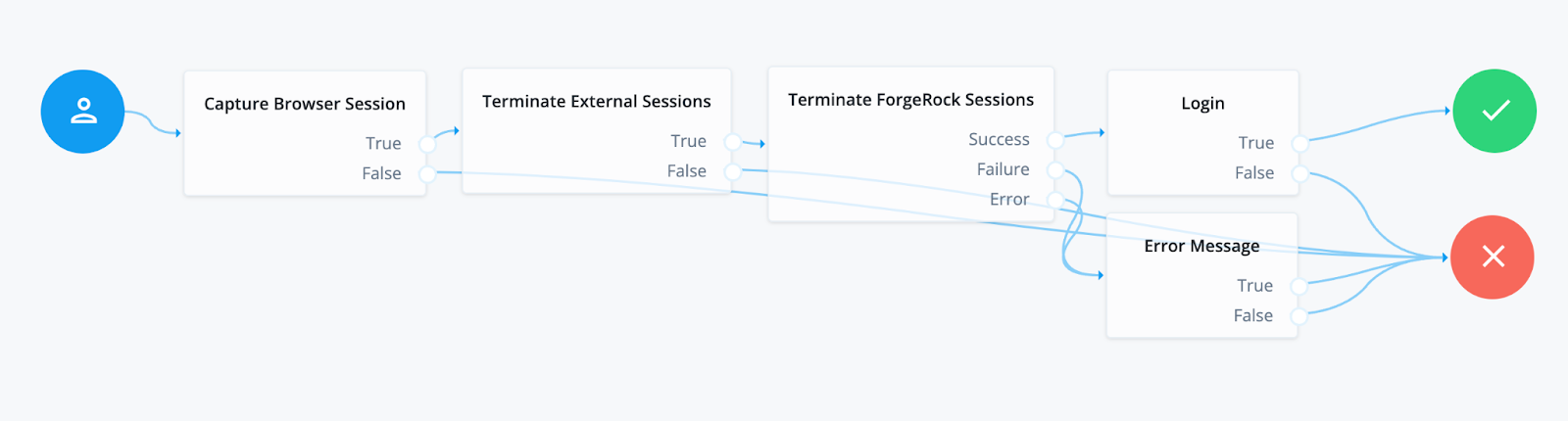
Invalidating ForgeRock Sessions Journey
Open an incognito (or separate browser) window and log in as your test
user. You should see their active session within your AM Native Console
under the “Sessions” tab by searching for their _id (this attribute is
in your managed users page under “Raw JSON”).
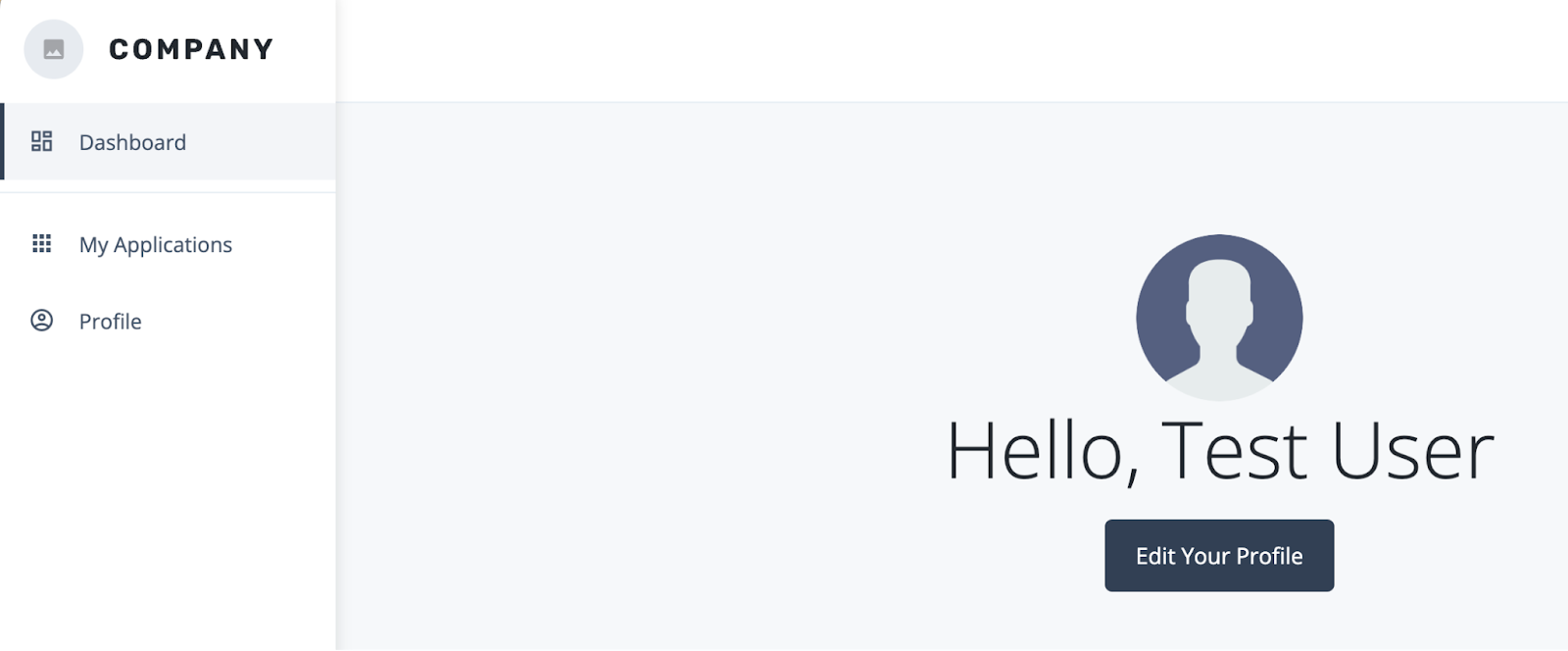
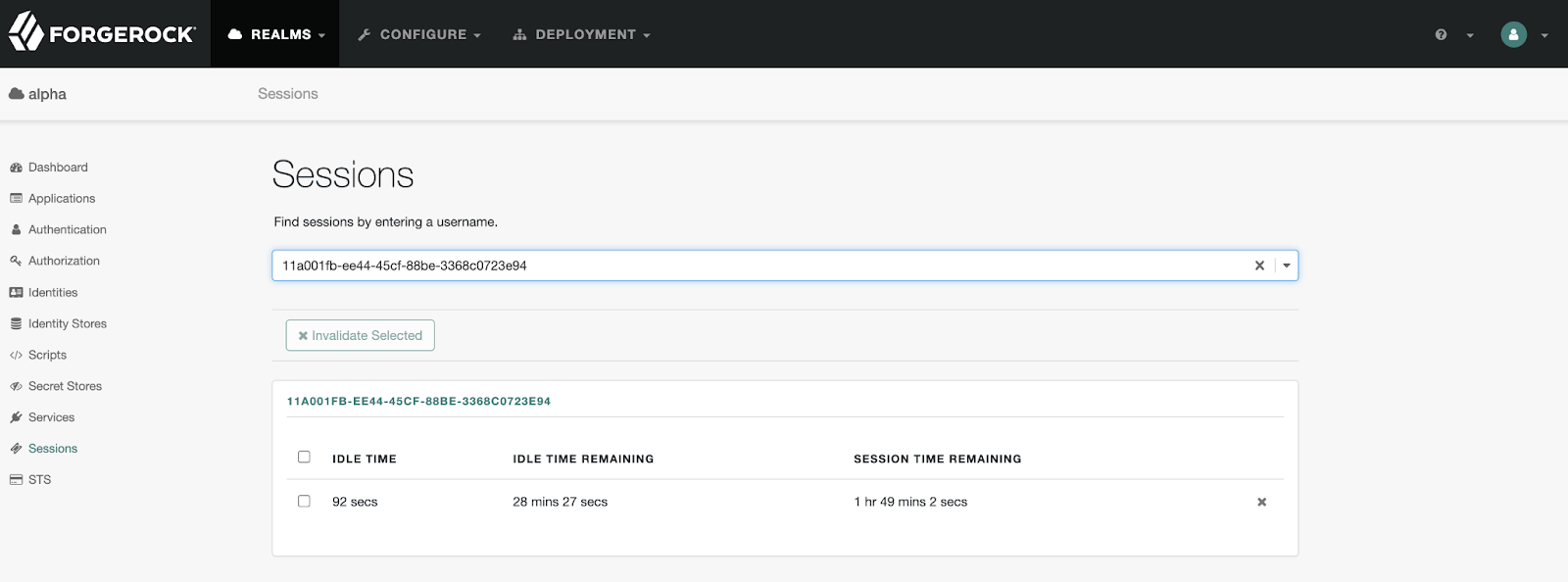
The User and Their Active Session
Once you’ve validated that the user’s session exists and is active, paste in the URL of your new Journey in the browser where you’re logged in as that user. You should be taken to your default login screen. When you check the AM Native console, all sessions related to that user should be gone!
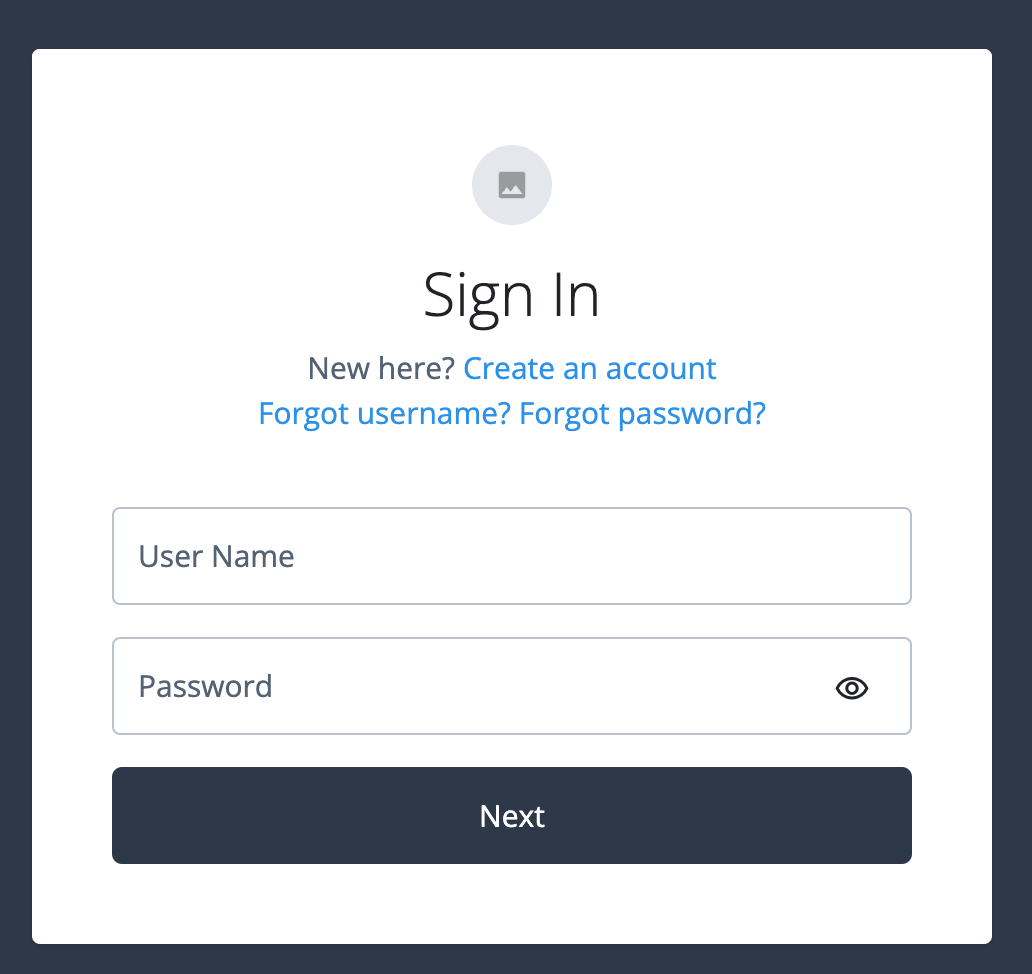
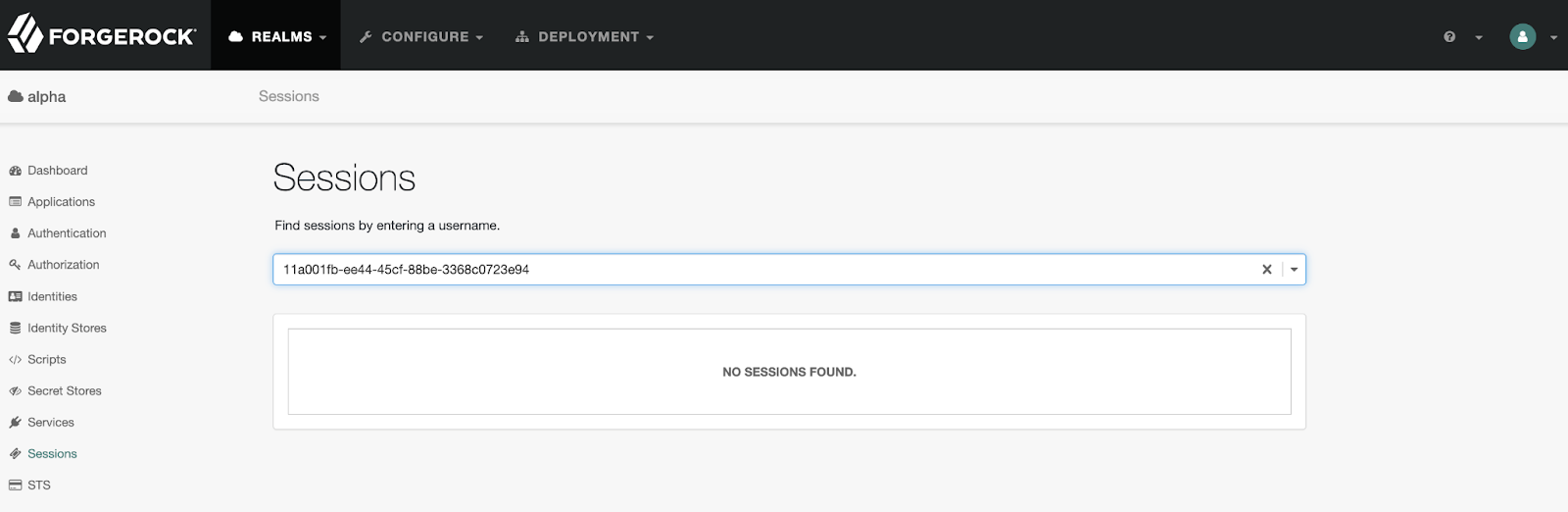
Login Screen for User and No Sessions for Admin
Summary
With this How-To you have invalidated a user’s sessions both from external applications and all sessions within ForgeRock.
The full Journey, including the testing output, can be downloaded here:
This is part of a 4-part series on Creating Custom Single Logout Using Journeys. To continue this series, head to Part 4: Redirecting the User to a Custom URL to learn how to specify where the user goes when they logout.