How to authorize changes of IP addresss in policy using AM and agents
Author: |
Alex Levin |
Created at: |
Sep 2023 |
Updated at: |
Nov 2023 |
This how-to assumes you have an agent connected to ForgeRock AM or Identity Cloud.
The goal is to leverage the platform to save the client ip address in the session, then use policy to detect if the IP address is the same or different. If it is the same, we want to allow the decision, if it is false then we want to reauthenticate.
There are several moving parts
-
Authentication Journey. This needs to have a scripted node to retrieve the client ip address from x-forwarded-for and put this in the session properties.
-
In order to allow a new session property we have to add this to the AM Realm’s session property whitelist
-
Agent configuration. We need to configure 3 things. The first is to use our new journey, forcing authentication (in an OIDC manner), and the second is to retrieve the client IP from X-Forwarded-For and send this for policy evaluations.
-
Policy Rules. We need to set up a policy that allows access to all users for our chosen resource, with an environment condition to run a policy script. This policy script will retrieve the session property created in step 1) and compare it against the agent provided value in 3) and allow access one time if it matches, and otherwise set policy advice to call our tree.
Assumed URLs - note this will work whether you use http or https
Website / AM address: https://squeakycabbage.co.uk:443
AM URL: https://squeakycabbageqalb.squeakycabbage.co.uk:443/openam
First, let’s create the script we are going to call.
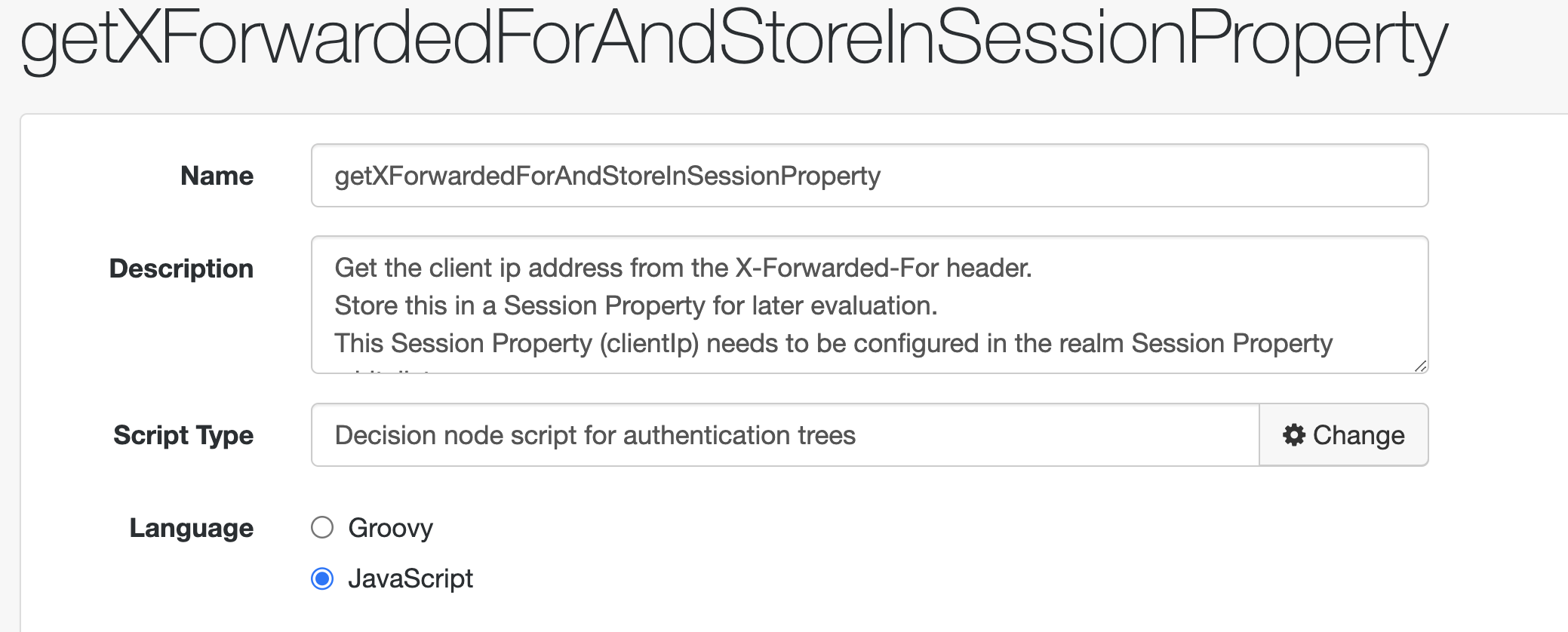
Here is the content of the script:
/*
  - Data made available by nodes that have already executed are available in the sharedState variable.
  - The script should set outcome to either "true" or "false".
 */

var headerName = "X-Forwarded-For";

logger.message("Trying to get headername for getXForwardedForAndStoreInSessionProperty");

if (requestHeaders.get(headerName) == null) {
  logger.error("X-forwarded-For header not found");
  outcome = "false";
} else {
  logger.message("X-forwarded-For header found");
  var xff = requestHeaders.get(headerName);

  /*
   * Get the first IP address from a comma separated list.
   * Note that there could be multiple proxies, in which case
   * future use may want to have the whole string and compare
   * term by term in the policy script
   */
  var clientIp = String(xff.toArray()[0].split(",")[0]);

  var goTo = org.forgerock.openam.auth.node.api.Action.goTo;

  /*
   * clientIp needs to be added to the session property whitelist
   * for this to work
   * future extension would be to check the session before adding
   * the property.
   */
  action = goTo('true').putSessionProperty('clientIp', clientIp).build();

  outcome = "true";
}
Save this.
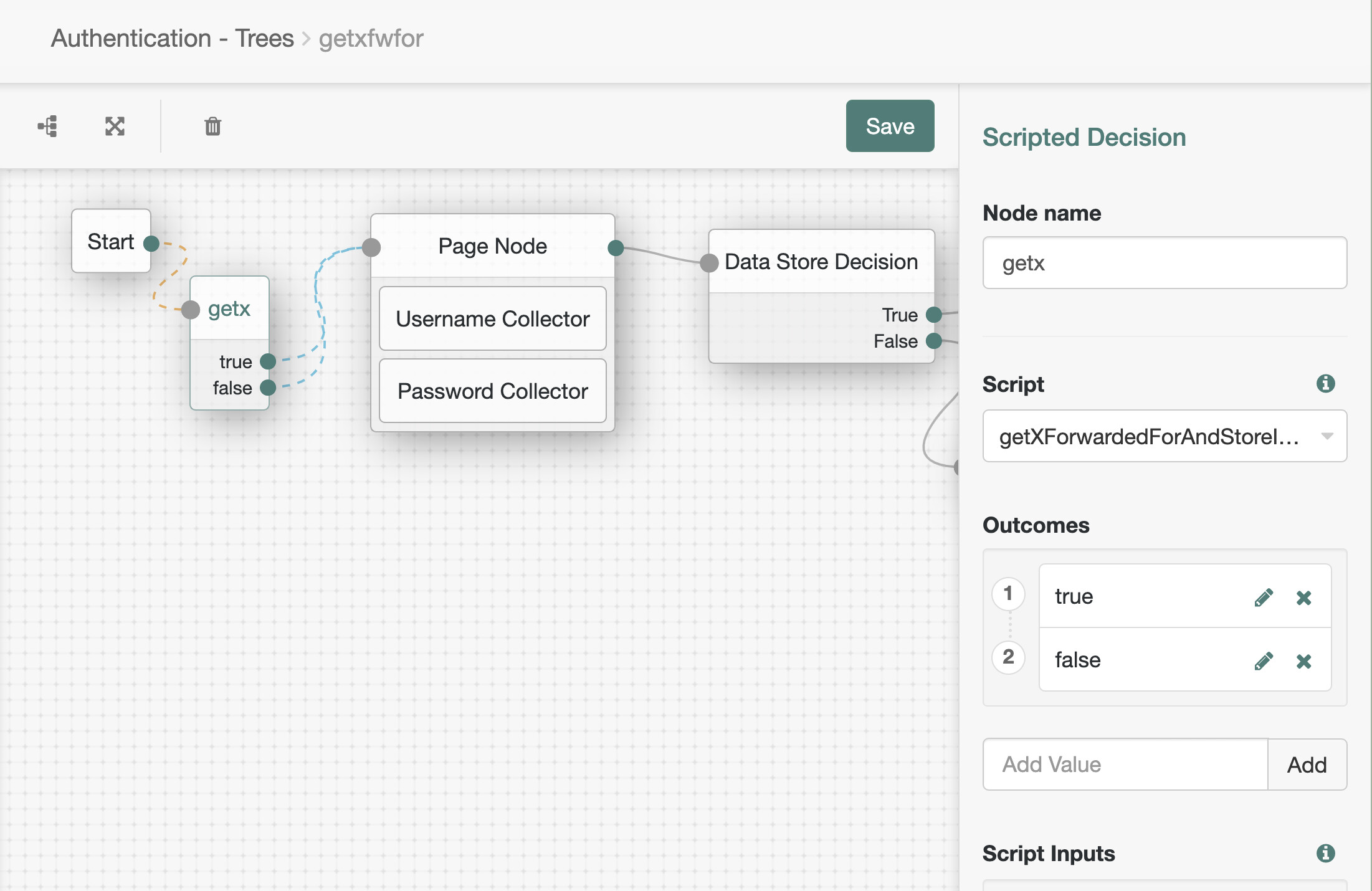
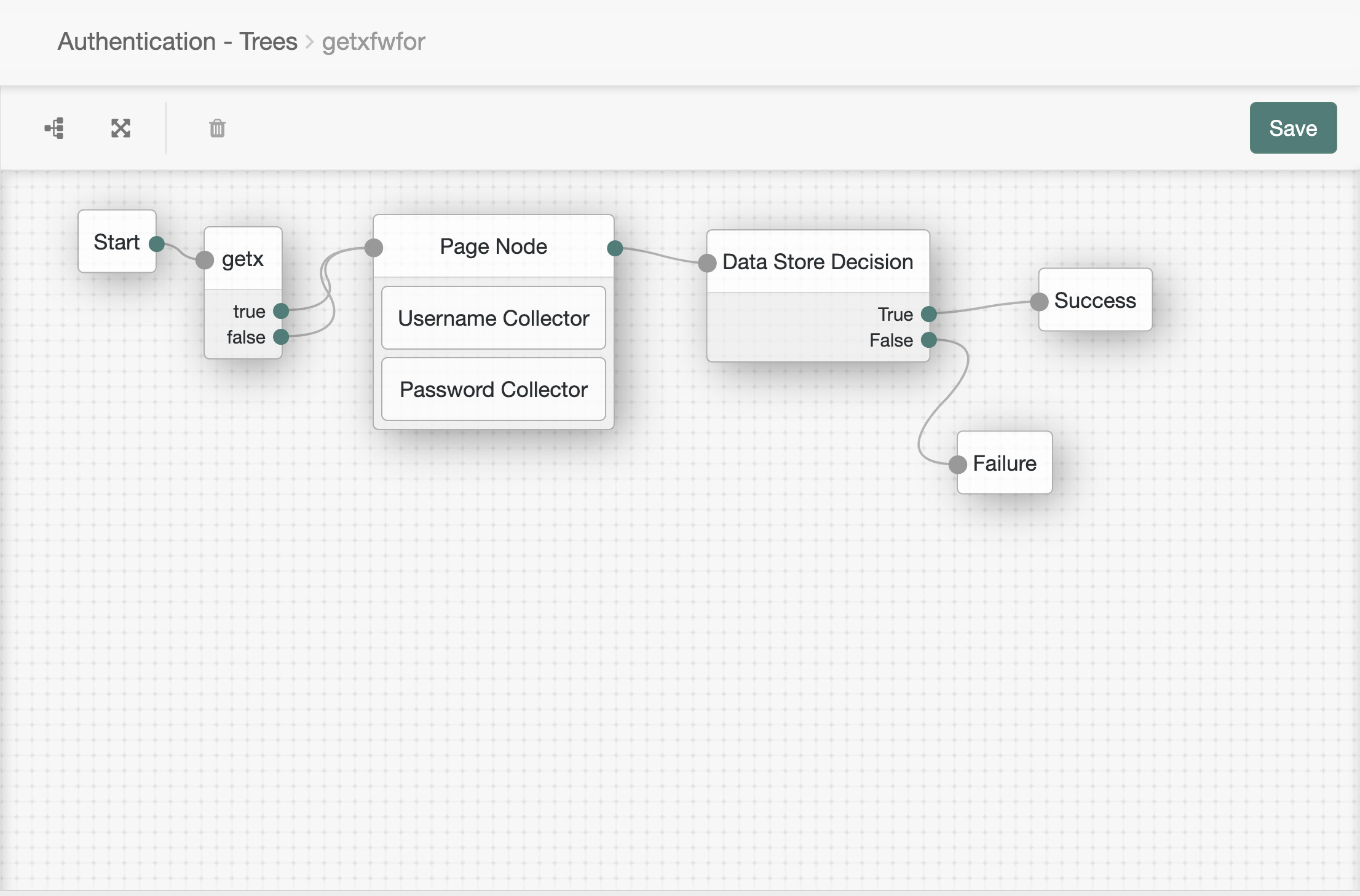
Next, let’s create the journey. I have called it “getxfwfor” to indicate it’s purpose
This consists of a start node, a decision script node, a page node with a username and password and a DataStore decision node going to Success and Failure respectively. For the purpose of this demo, this is a non-critical script so both the exits from the script node go to the page node.
-
Now configure the property “clientIp”
Go to AM > Realms > your realm > Services
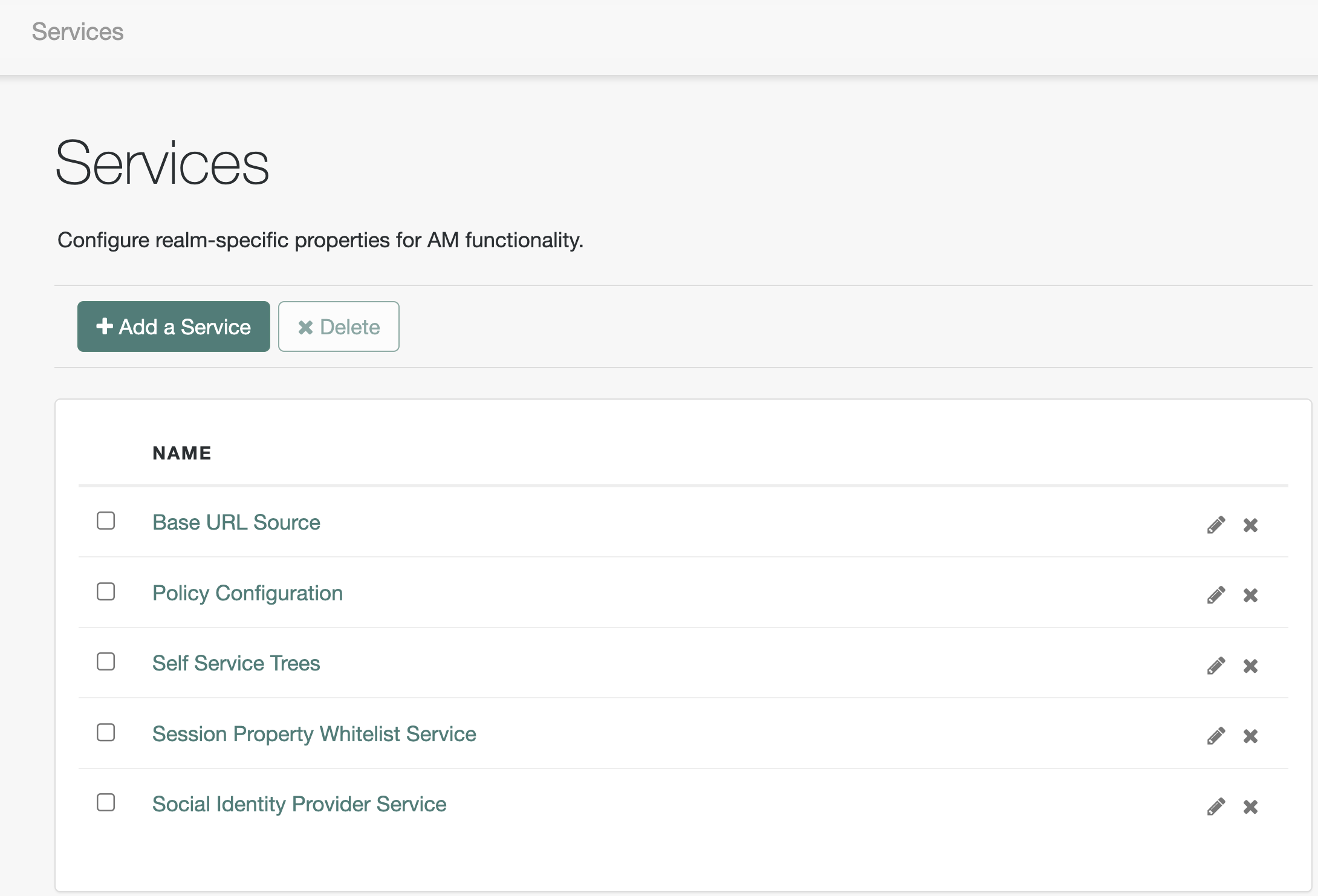
If Session Properties Whitelist doesn’t exist, add it by clicking add
new service:
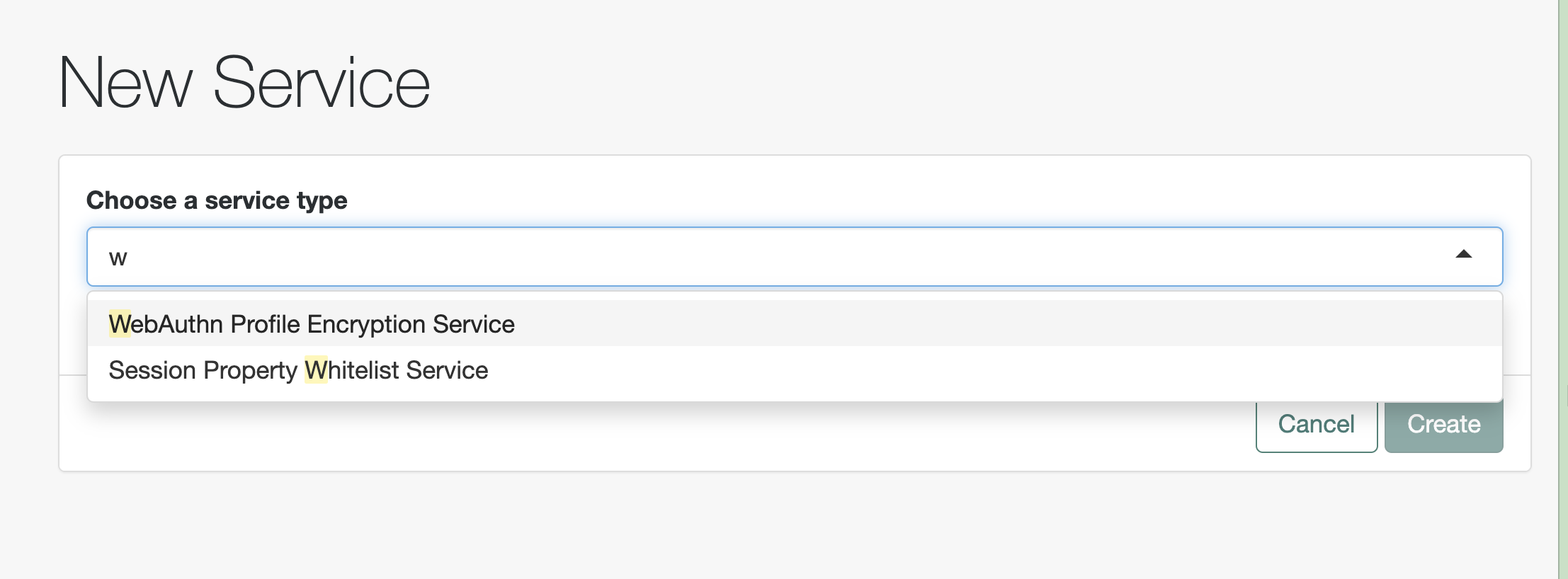
Then select Session Properties Whitelist from the list. Click Create.
Then type in “clientIp” in the box. Save and save again.
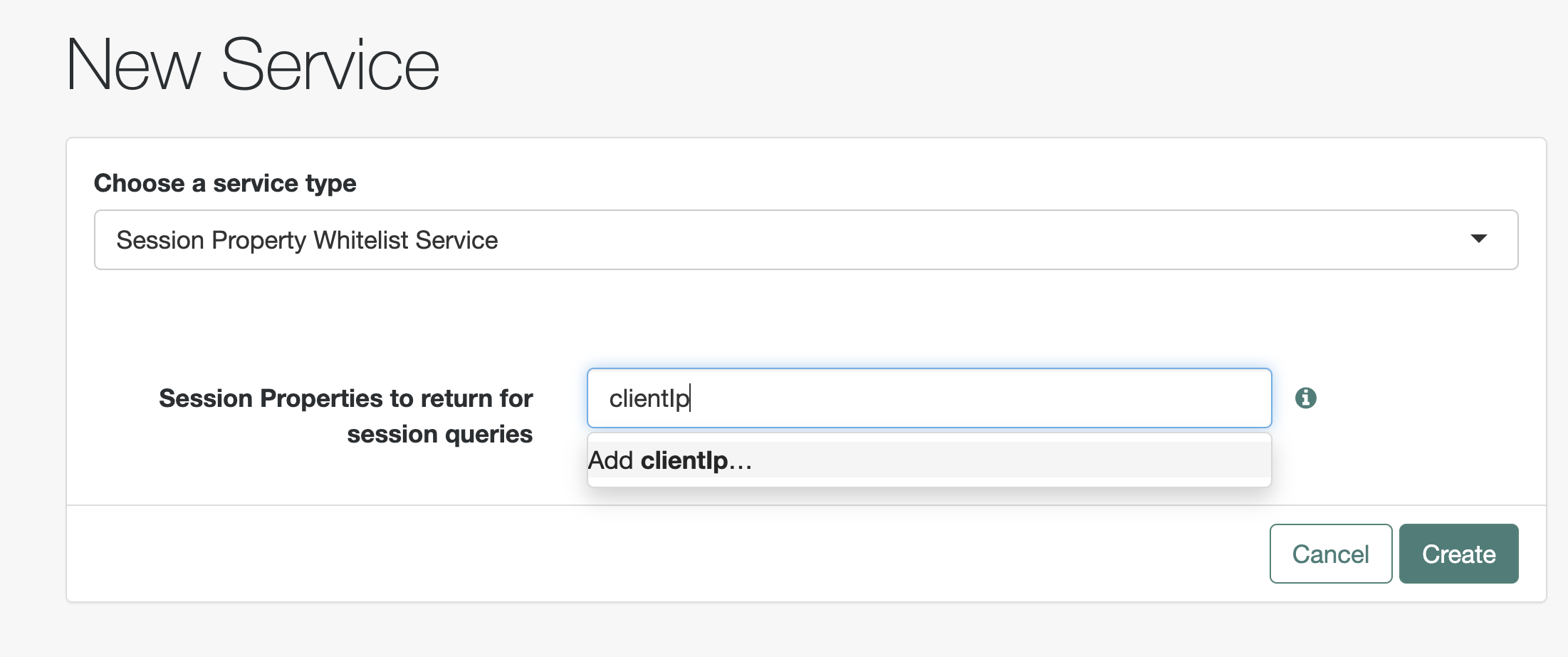
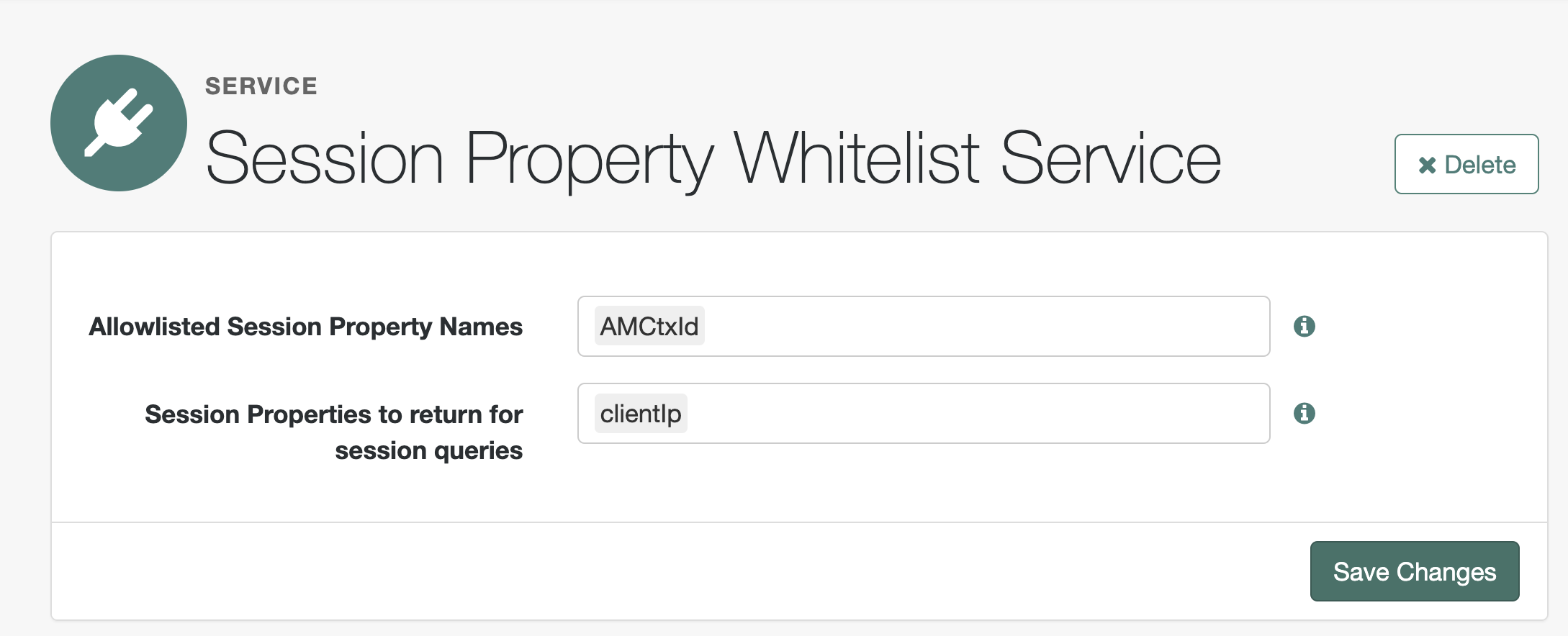
Save changes.
Now test the login works by going to
https://squeakycabbageqalb.squeakycabbage.co.uk/openam/XUI/?realm=/&service=getxfwfor#login/
or
https://squeakycabbageqalb.squeakycabbage.co.uk/openam/XUI/?realm=/alpha&service=getxfwfor#login/
You should be able to log in as a user configured on the realm such as demo.
-
Now we are going to configure our agent profile in AM.
a) Configure the agent profile to use our journey using prompt=login to force authentication via the OIDC login flow.
We are using a conditional login url here which has a few interesting features
|https://squeakycabbageqalb.squeakycabbage.co.uk:433/openam/oauth2/authorize?realm=/&service=getxfwfor&prompt=login
-
There is no filter (no text before the pipe character) meaning this applies to every authentication request, both when there is no token and when there are advices.
-
We are redirecting to oauth2/authorize with a custom service which is our new tree / journey we created in step 1)
-
We are using the query parameter prompt=login. This is an oauth2 parameter that can configure if the user will be prompted for authentication. The default is automatic which means if there is a session, reauthentication does not take place. We are overriding this because we are going to configure advices which needs to reauthenticate against the same tree. This prevents a redirect loop seen in testing.
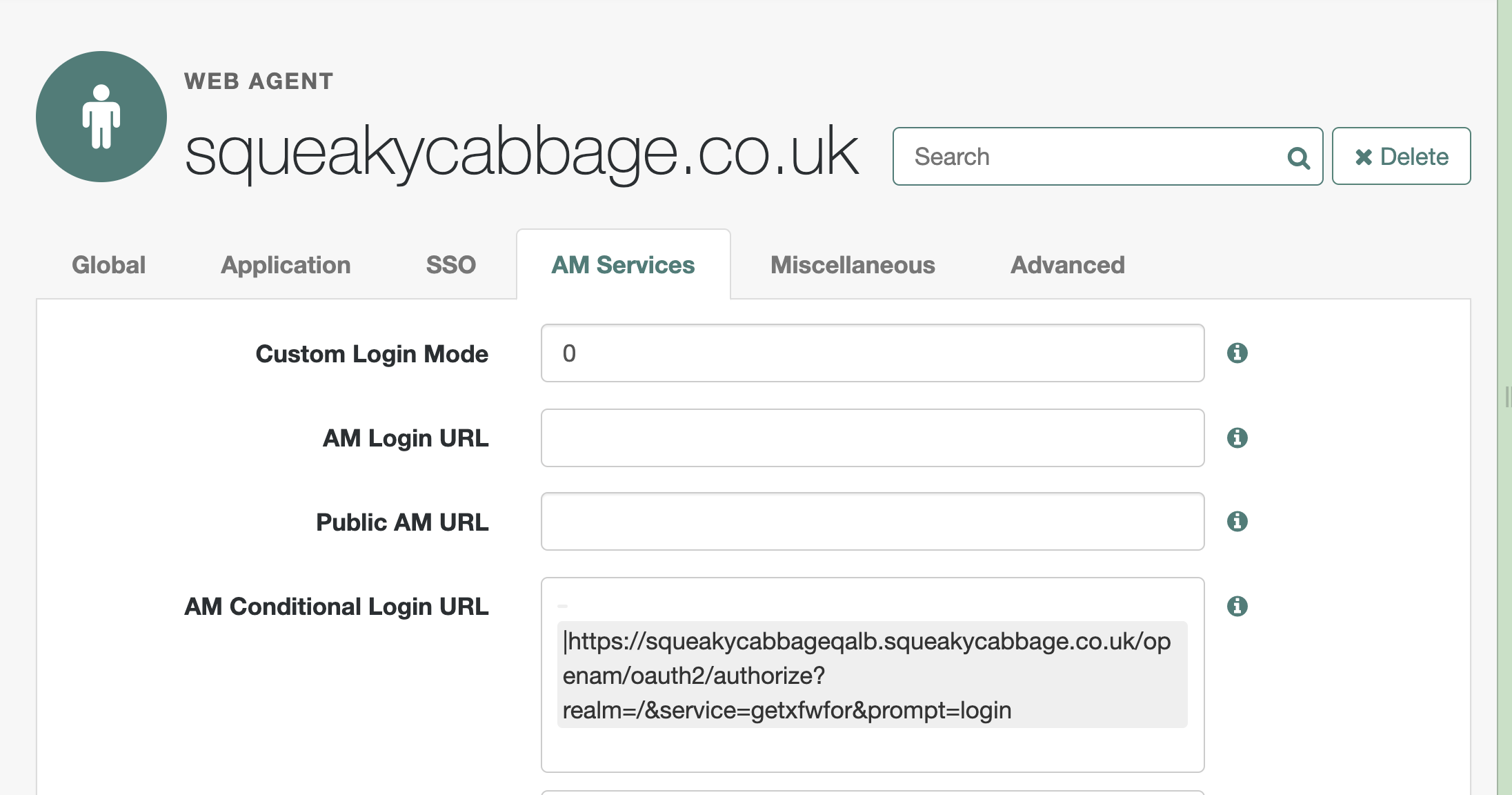
b) Configure the agent profile to receive clientIP from
X-Forwarded-For
In Application>Agents>Web Agents>Profile name>Advanced configure the
Client IP Address Header parameter
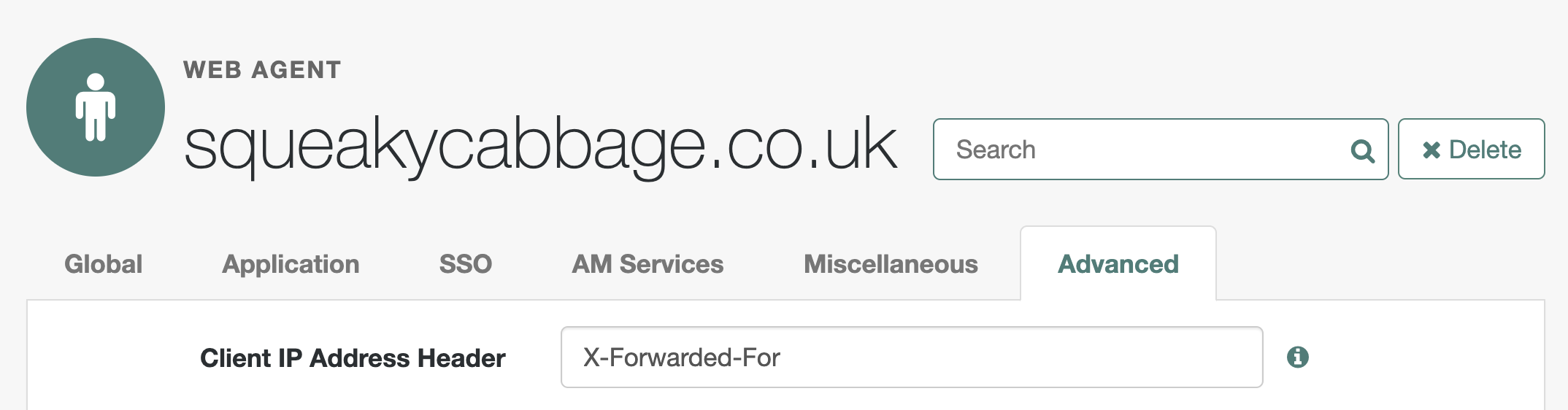
If you test the agent by hitting the configured URL, then authentication will take place using the new tree. You will end up on a 403 page as there is no configured policy.
-
AM authorization configuration
a) Create a policy script to retrieve the client IP and use this for policy decisions
In AM, go to realm>realm name>scripts
Add a new script of type Policy Condition and call it “ip address”
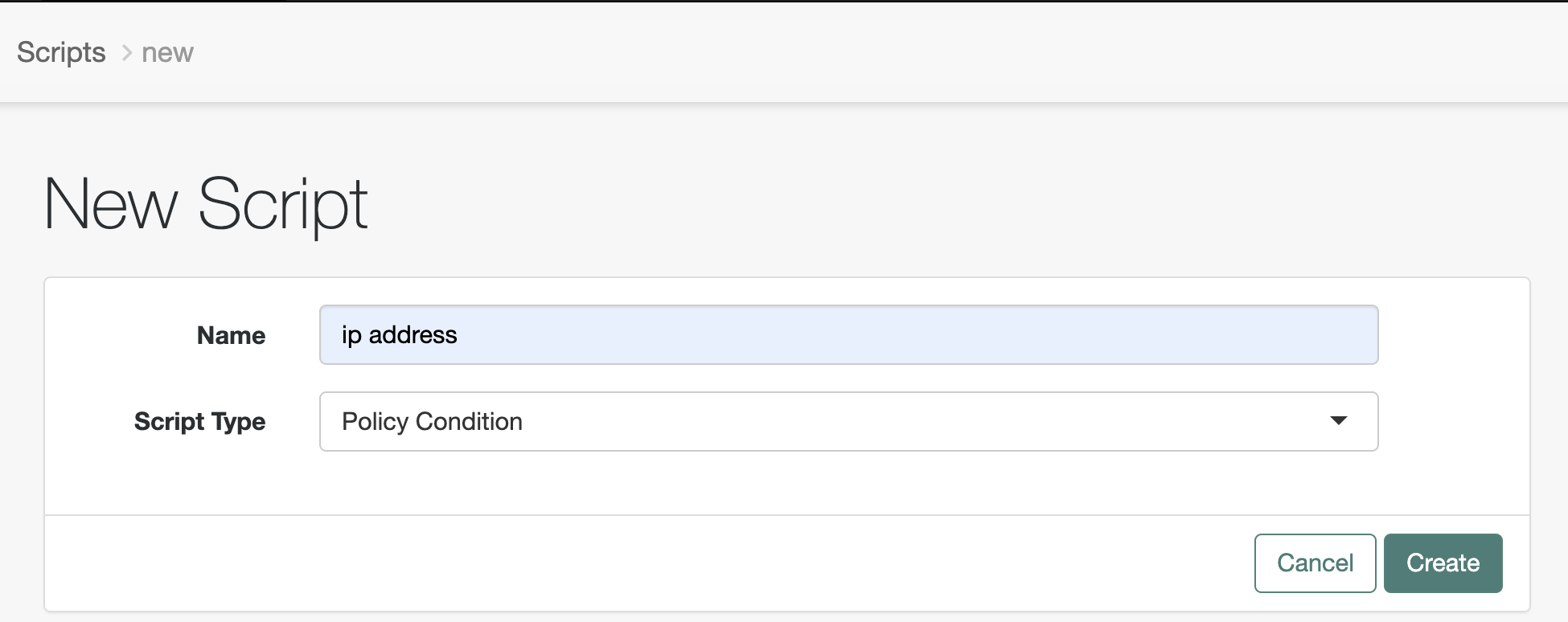
Accept the default type of javascript and add a description
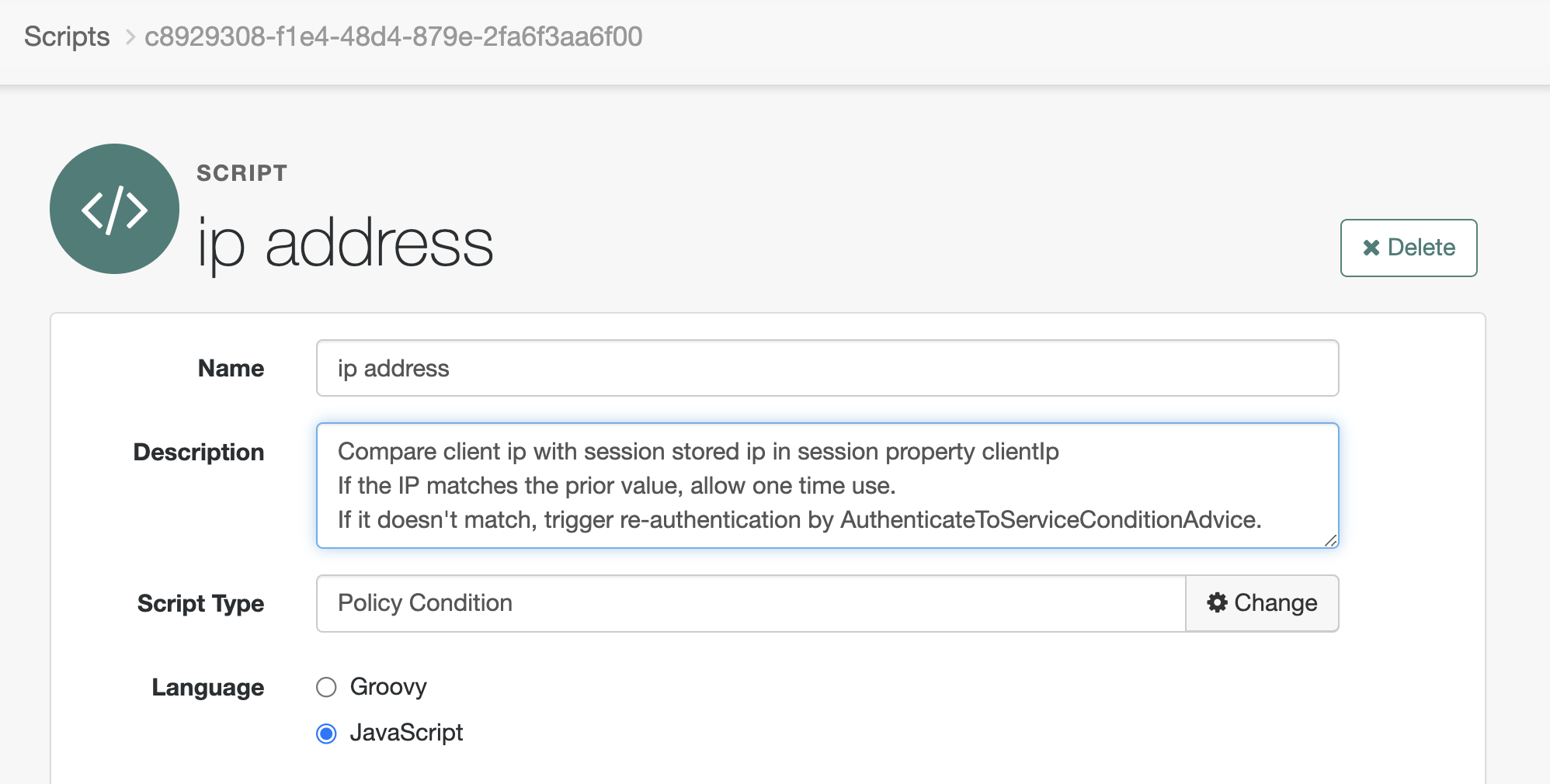
In the script field input the script. Validate and save.
//Script: Policy condition - Compare client ip with session stored ip
var originalIP = session.getProperty("clientIp");
logger.error("#### OriginalIP = {}", originalIP);

/*
 * Gets the first ip address - note that Agent uses the
 * fixed name requestIp for this. It is a standard X-Forwarded-For
 * in this implementation we are ignoring any secondary ip addresses
 * from intermediary proxies
 */
var currentIP = environment.get("requestIp").toArray()[0];
logger.error("#### CurrentIP = {}", currentIP);

if (currentIP !== originalIP) {
  logger.error("#### IP's DO NOT match");
  advice.put("AuthenticateToServiceConditionAdvice", ["getxfwfor"]);
  authorized = false; //Hence terminating the session
} else {
  logger.error("#### IP's match");
  ttl = 1;             // 1 ms validity - change as required
  authorized = true; //Hence keeping the session
}
b) Create a policy to use the script.
In Authorization>Policy Sets select the Policy set associated with your
web agent (In Identity Cloud or a new realm you may need to create this
- see the Agent Identity Cloud for details if this has not already been
done.
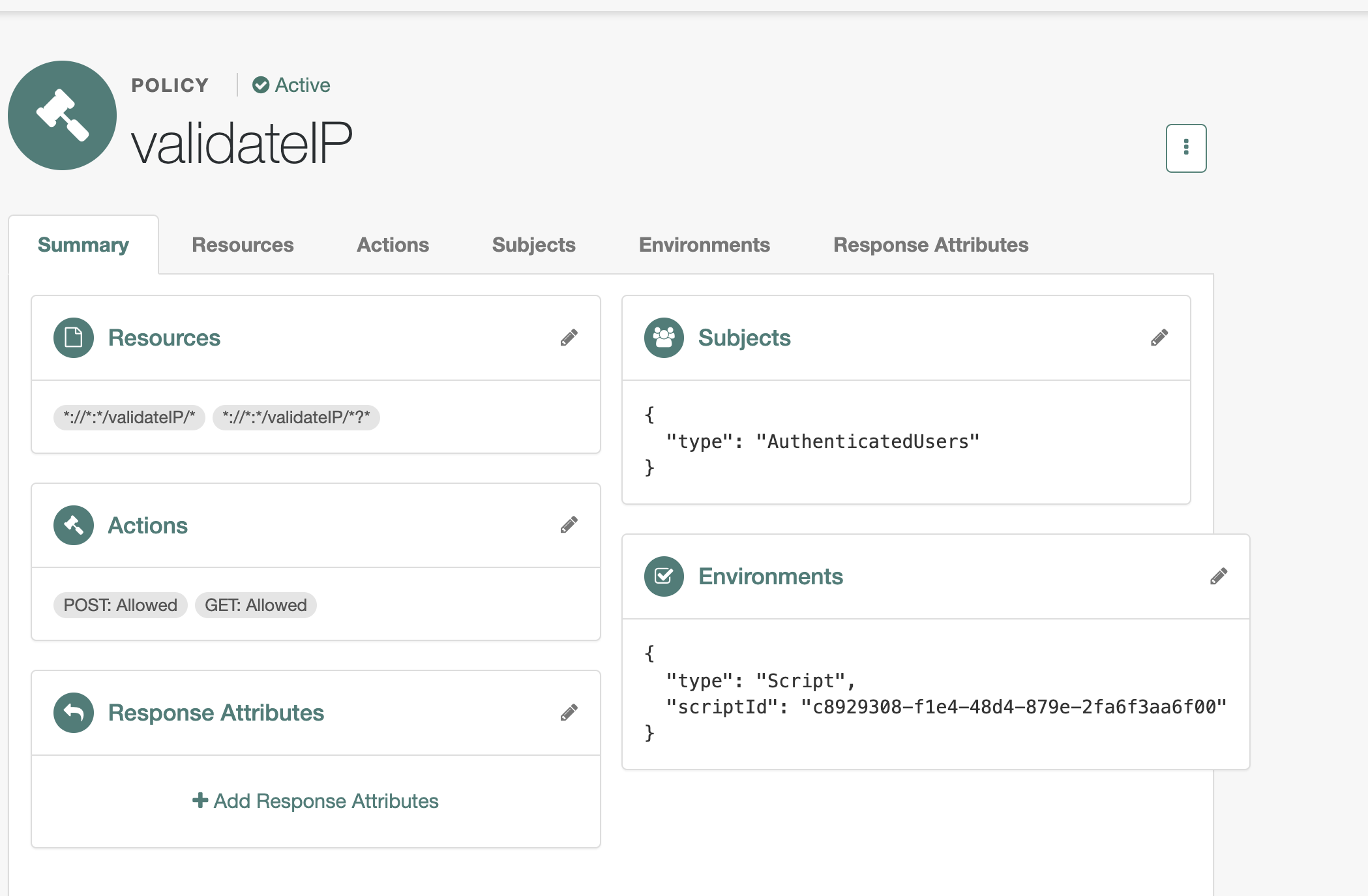
For resources, add two url types: ://:*/validateIP/ and
://:/validateIP/?
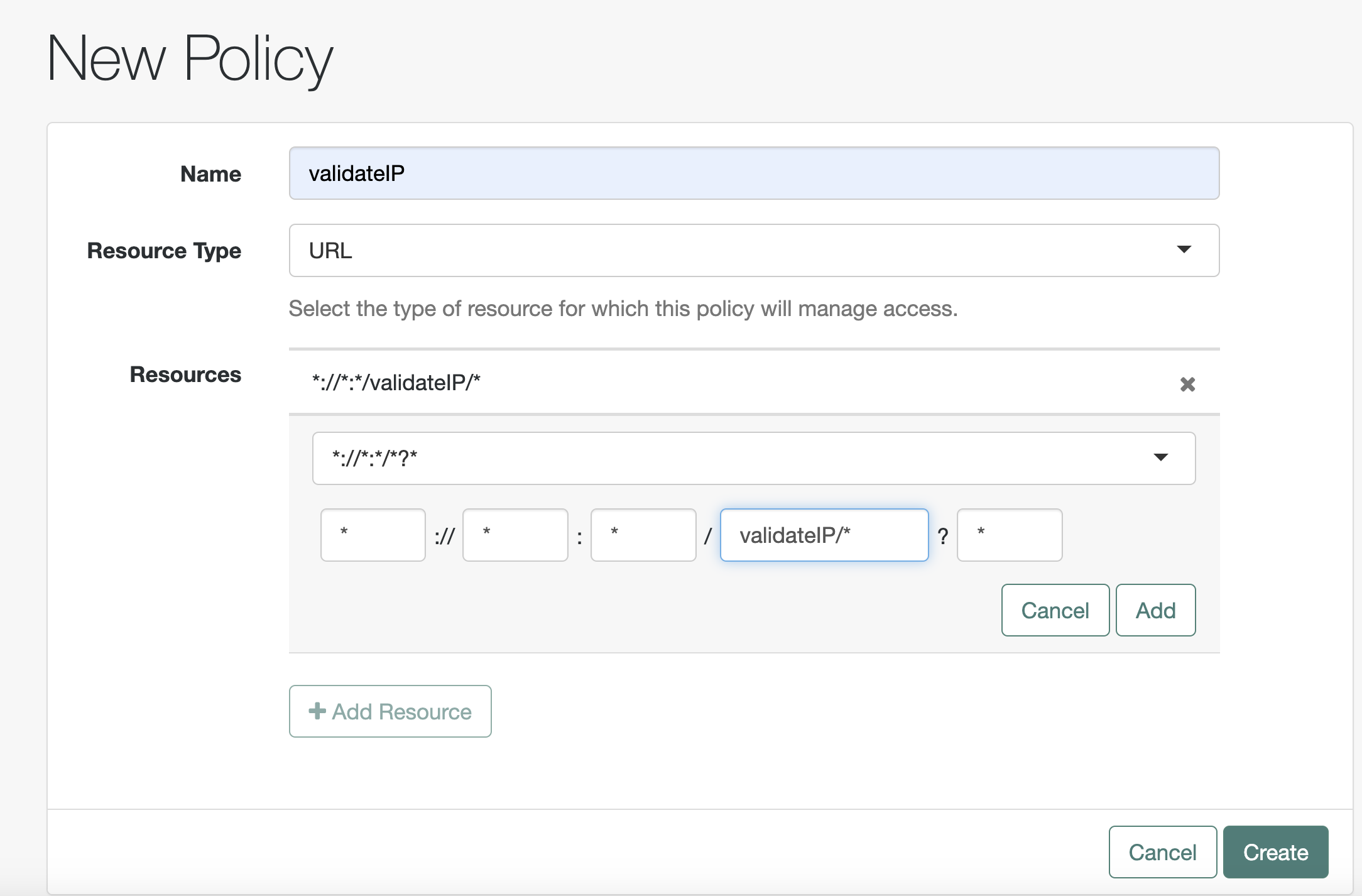
In Actions configure get and post and then click save.
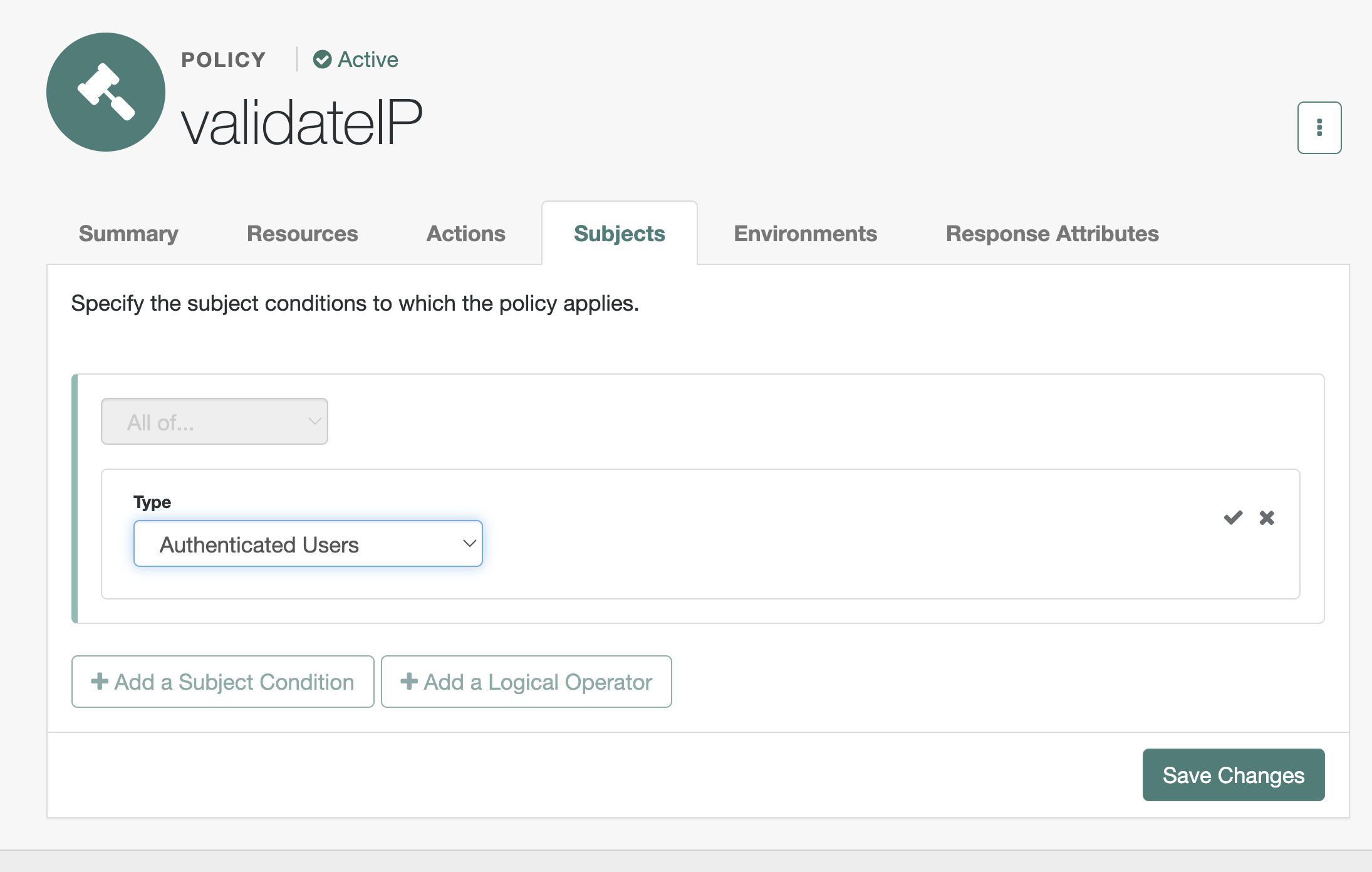
In subjects, Select the type Authenticated users. click the tick and
then save changes.
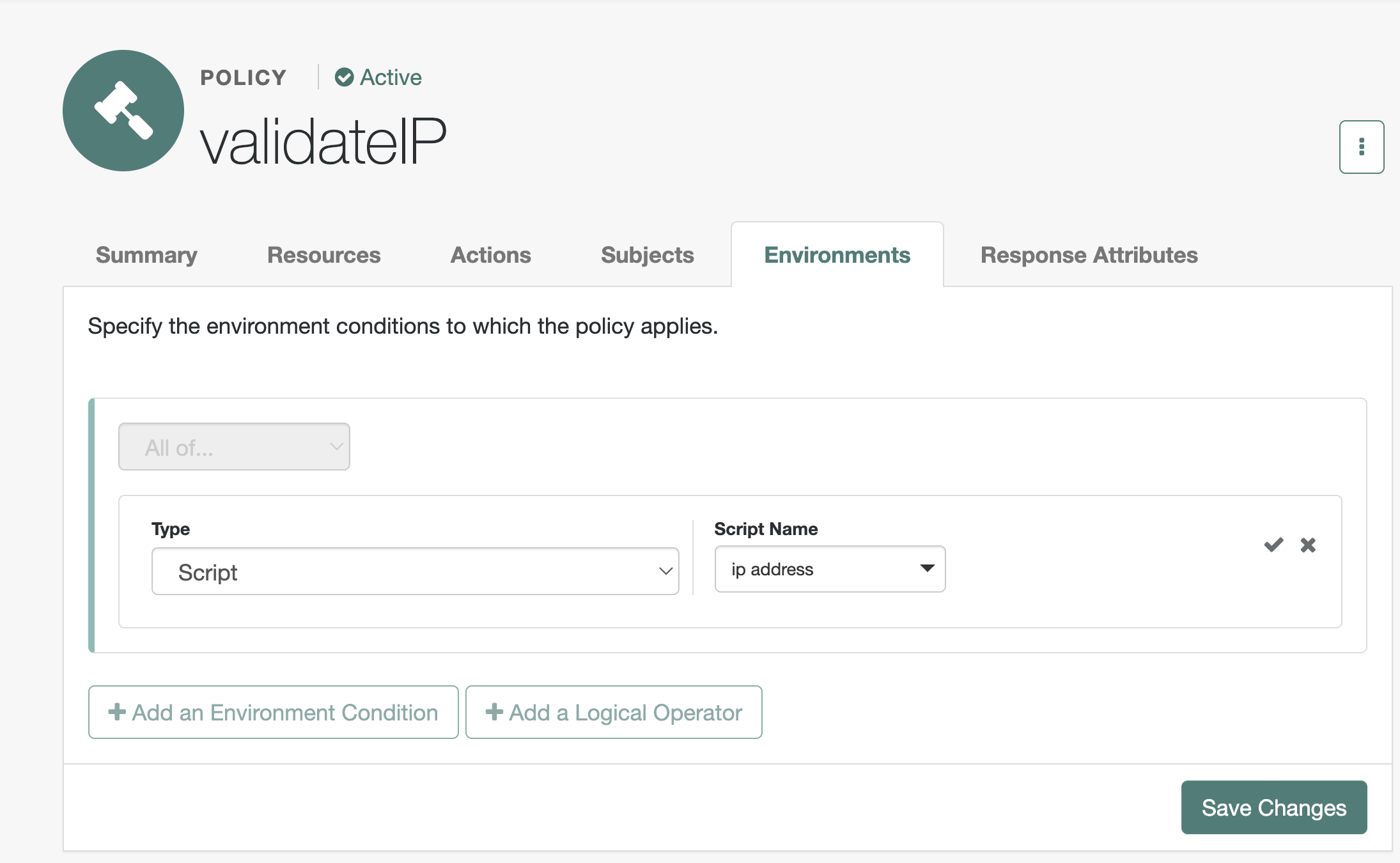
In the environment tab add a new script, select the policy condition script ip address and click the tick before saving.
c) create a page to map to the resource
mkdir -p /var/www/html/validateIP
echo "validateIP" >> /var/www/html/validateIP/index.html
c) Test
This can either be tested by REST (authenticate as agent or policy user, authenticate as user and authorize supplying the user token and requestIP with the IP desired. This is covered in other howto articles.
We will test by accessing the validateIP address.
You will see a redirect to the oauth2 end point if you network trace,
and then an authentication end point
Then shift-refresh to access the same request again. If you look at the
AM access log you will see a policy evaluation request happens each
time.
Now change the IP Address eg by connecting to a different VPN address.
Shift-refresh will now result in reauthenticating, and again this will
be stable until the ip address changes or the session times out.
Acknowledgements
Thanks to the Rajesh Rajasekharan and Konstantin Lapin who have written some great resources.
Script library with lots of examples I borrowed from: GitHub - lapinek/platform-scripting-examples: Random scripting examples for use in the ForgeRock Platform products.
Notes of how to do different scripting tasks:

Summary An overview of the scripting environment in AM Updated on 01/11/2021: added OAuth2 Access Token Modification script type Notes on Scripting in ForgeRock Access Management (AM) 7.0 Scripting in AM extends its authentication, authorization, and federation capabilities. But, it also allows for rapid development for the purpose of demonstration and testing without the need to change and recompile AM’s core. This article aims to complement the currently available and ever-improving offi…
How to set a session property
 Getting
Started with Scripting in ForgeRock Identity Cloud: Part 4 - Adding
properties to user session
[.badge-category__name#Scripting#]
Getting
Started with Scripting in ForgeRock Identity Cloud: Part 4 - Adding
properties to user session
[.badge-category__name#Scripting#]
This is Part 4 of 5 in the series Getting started with Scripting in ForgeRock Identity Cloud. Adding properties to a user session ~ 10 minutes On successful authentication, a session is created for the authenticated user. Sometimes certain applications in an infrastructure expect certain properties/attributes to be made available in a user session. A script can create session properties with the fields and methods of the Action interface. For example, in the following code snippet, the outc…
Tree scripted authentication nodes:
The nuances of how to script policy