Demonstrating a Single-Page App With OIDC-Based SSO
Author: |
Sheila Albertelli |
Created at: |
Mar 2019 |
Updated at: |
Oct 2022 |
Written by Marc Craig
Summary
Instructions for demonstrating a single-page app with OIDC-based SSO.
Using OIDC to Build an SSO Client for Your REST APIs explained why you want standards-based single sign-on (SSO) for your web clients.
ForgeRock shows how to implement OpenID Connect (OIDC)-based SSO in your single-page app. ForgeRock provides a sample application that demonstrates login and logout. The sample application is a public client that protects its access to the OAuth 2.0 authorization code and its access tokens from third parties with HTTPS and Proof Key for Code Exchange (PKCE). This article walks you through a demonstration of the sample application’s features. It uses the ForgeRock Identity Platform running on your computer to provide the standard services.
Running the ForgeRock Identity Platform
The demonstration in this article depends on the 6.5 release of the
ForgeRock Identity Platform. The ForgeRock platform assets for
Kubernetes deployments are defined in a git repository called
forgeops. The forgeops assets let you run the platform in minikube
on your computer, or in a Kubernetes-based cloud platform. This article
assumes you want to try the sample on your computer with minikube.
The setup process builds the following layers, starting from the bottom and working up:
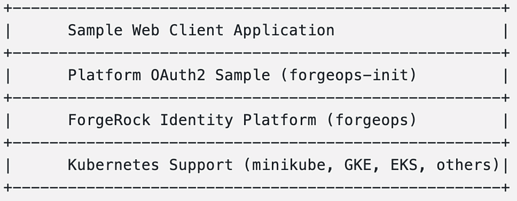
Follow these steps to build the bottom three layers:
-
Install third-party software for Kubernetes support:
-
Docker (Get Docker)
-
minikube(minikube start | minikube)
(required only if you run everything locally on your laptop) -
kubectl(Install Tools | Kubernetes) -
skaffold(GitHub - GoogleContainerTools/skaffold: Easy and Repeatable Kubernetes Development)
-
-
Clone the following
gitrepositories:
Clone at least the forgeops and forgeops-init repositories into the
same directory. The code in the forgeops-init repository relies on the
relative location of the forgeops repository.
-
Use the 6.5
forgeopsartifacts:
cd forgeops
git checkout release/6.5.1-
Follow the README for the 6.5 branch of the Platform OAuth2 Sample.
At the end of this part of the setup process, verify that you have
completed all steps successfully. For example, log in to the end user UI
as user.0:`password` to view the user’s profile page. Start by
visiting the end user UI login page, ignoring certificate validation
errors if you have not trusted the test CA certificate,
google-chrome --ignore-certificate-errors https://end-user-ui.sample.forgeops.com/:
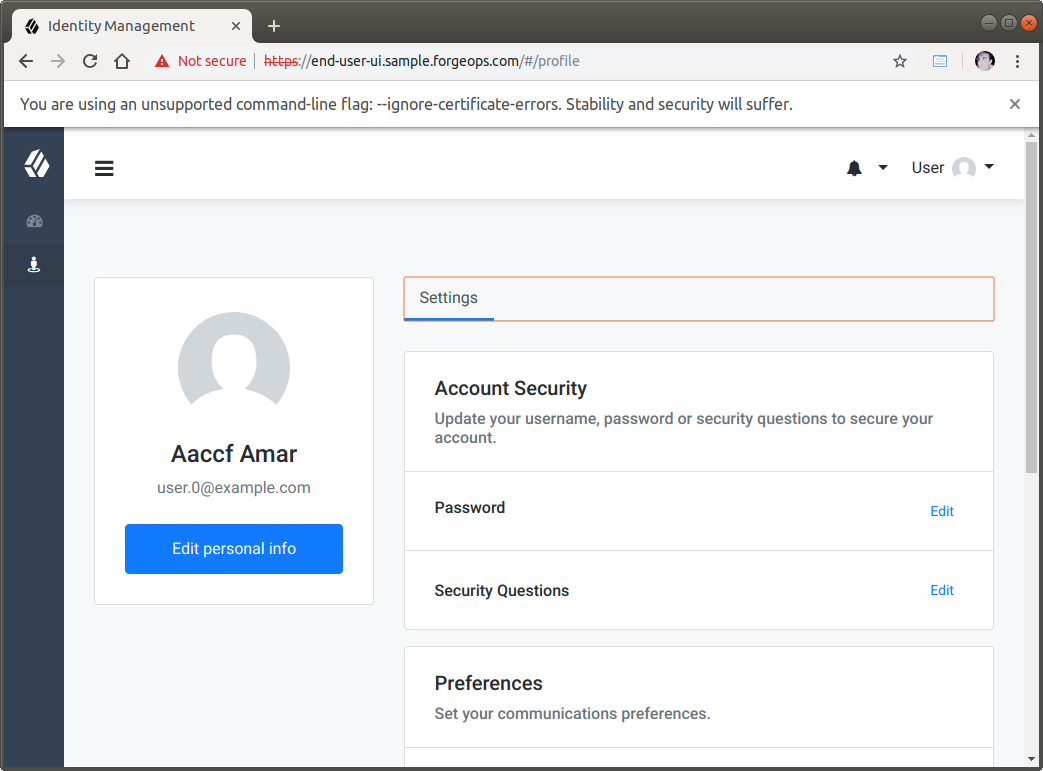
This shows that you have successfully deployed the ForgeRock Identity
Platform 6.5 in minikube.
Running the Sample Application
The sample application under
exampleOAuth2Clients/openidm-ui-enduser-appauth uses two JavaScript
libraries:
Simplifies PKCE for handling the initial login redirection and token acquisition. Helps establish a session by providing valid access and ID tokens in your browser’s session storage.
Helps the application acting as an OpenID Relying Party (RP) associate its local session with the OpenID Provider (OP).
Together, the libraries facilitate OIDC-based SSO.
The sample application is open source software. ForgeRock would like to know how you use it.
ForgeRock welcomes your PRs, bug reports and requests for enhancements on GitHub at GitHub - ForgeRock/exampleOAuth2Clients: Example OAuth2 clients for standards-based profile management.
To run the sample application, follow these steps:
-
Check out the 6.5 version of the sample application code:
git checkout -b 6.5 -t origin/6.5-
Switch to the
exampleOAuth2Clients/openidm-ui-enduser-appauthdirectory. -
Review the sample code in
index.htmland related files. You can see how the single-page app uses theAppAuthHelperandSessionCheckmodules to get the tokens and to check for an invalid session, as would happen after logout. -
Register the application as an RP with ForgeRock Access Management deployed in
minikube:
curl -k 'https://login.sample.forgeops.com/json/realms/root/realm-config/agents/OAuth2Client/appAuthClient' \
 -X PUT --data '{
     "coreOAuth2ClientConfig": {
         "redirectionUris": [
             "http://localhost:18888/appAuthHelperRedirect.html",
             "http://localhost:18888/sessionCheck.html"
         ],
         "scopes": [
             "openid",
             "profile",
             "profile_update",
             "consent_read",
             "workflow_tasks",
             "notifications"
         ],
         "grantTypes": [
             "authorization_code",
             "implicit"
         ],
         "isConsentImplied": true,
         "clientType": "Public",
         "tokenEndpointAuthMethod": "client_secret_post"
     }
 }' \
 -H 'Content-Type: application/json' -H 'Accept: application/json' \
 -H 'Cookie: iPlanetDirectoryPro='$( \
     curl -k 'https://login.sample.forgeops.com/json/realms/root/authenticate' \
     -X POST \
     -H 'X-OpenAM-Username:amadmin' \
     -H 'X-OpenAM-Password:password' \
     | sed -e 's/^.*"tokenId":"\([^"]*\)".*$/\1/' \
 )
The response is a JSON resource indicating successful registration. Key fields:
{"_id":"appAuthClient", "_type":{"_id":"OAuth2Client","name":"OAuth2 Clients","collection":true}}-
Install the JavaScript library dependencies:
npm i oidcsessioncheck appauthhelper-
Serve the files through an HTTP server on your computer:
http-server -p 18888-
View the page in your browser:
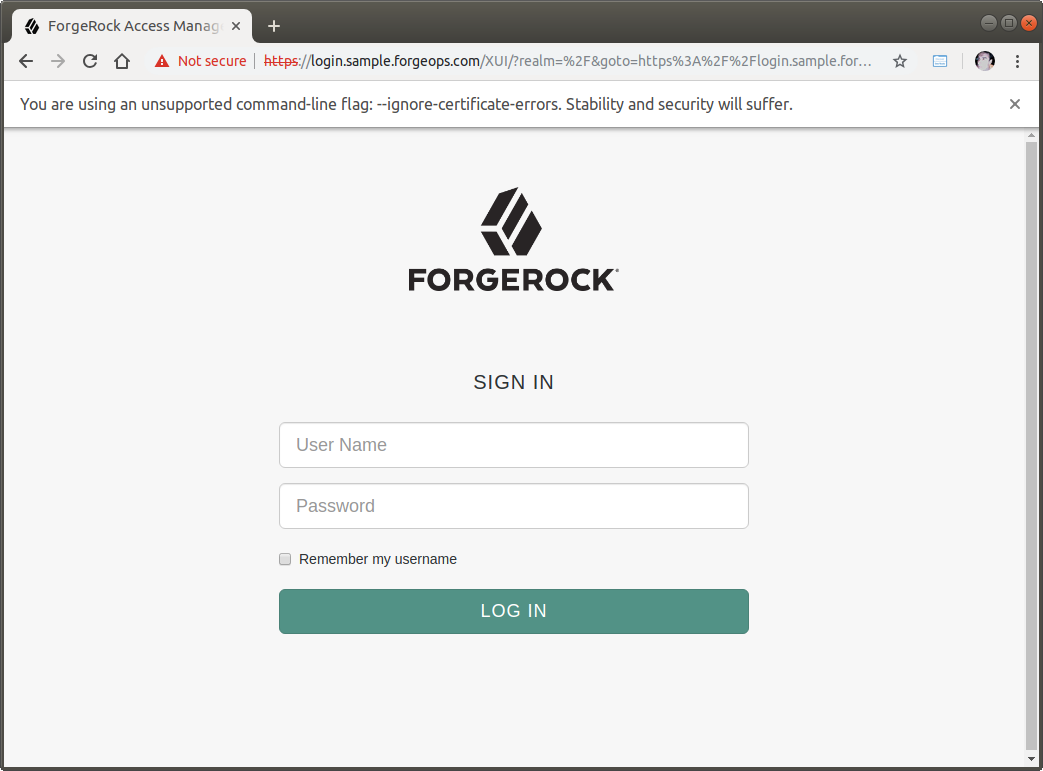
Demonstrating Sample Application Features
Once the ForgeRock Identity Platform and sample application are running together, you can demonstrate the features.
Use of the JavaScript Libraries
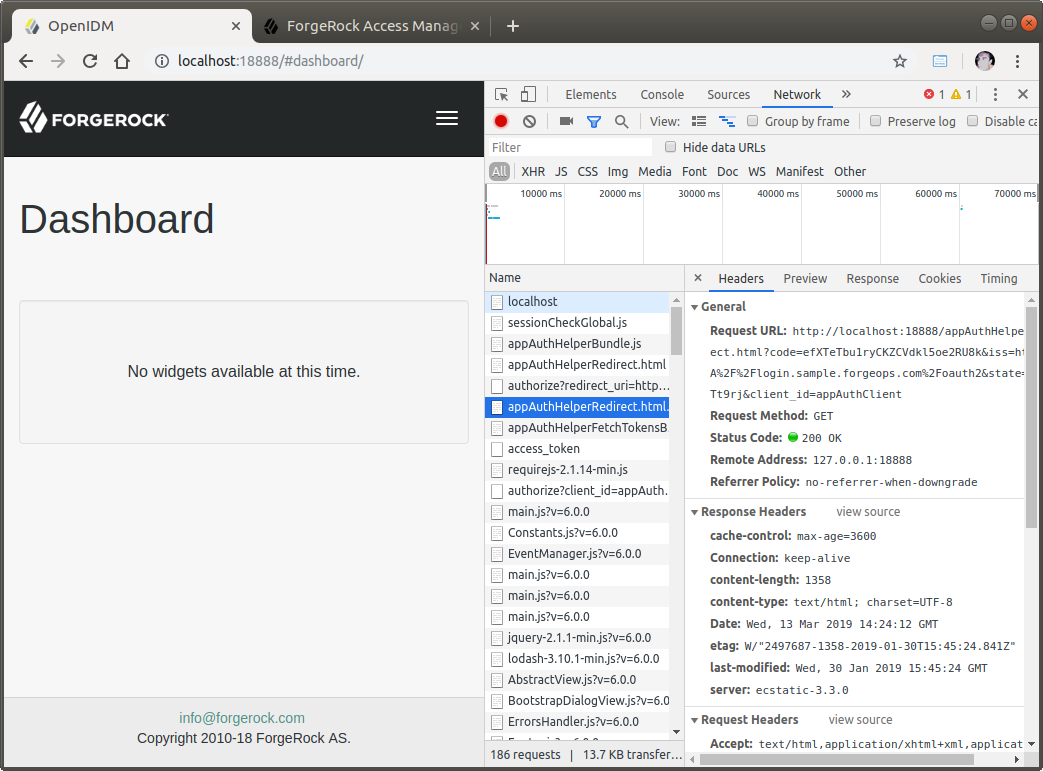
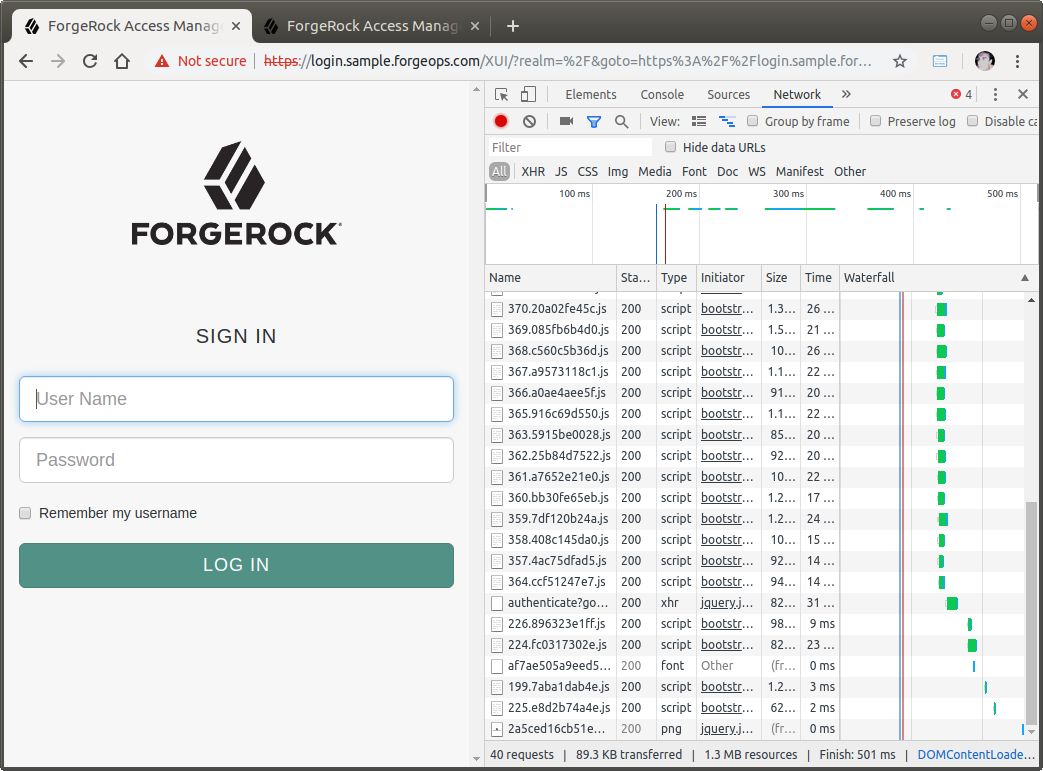
To see the JavaScript libraries in use and the messages exchanged, use the browser’s developer tools.
When logging in, you can see the appauthhelper library in action:
When clicking within a page, you can see the oidcsessioncheck in use:

Single Sign-On
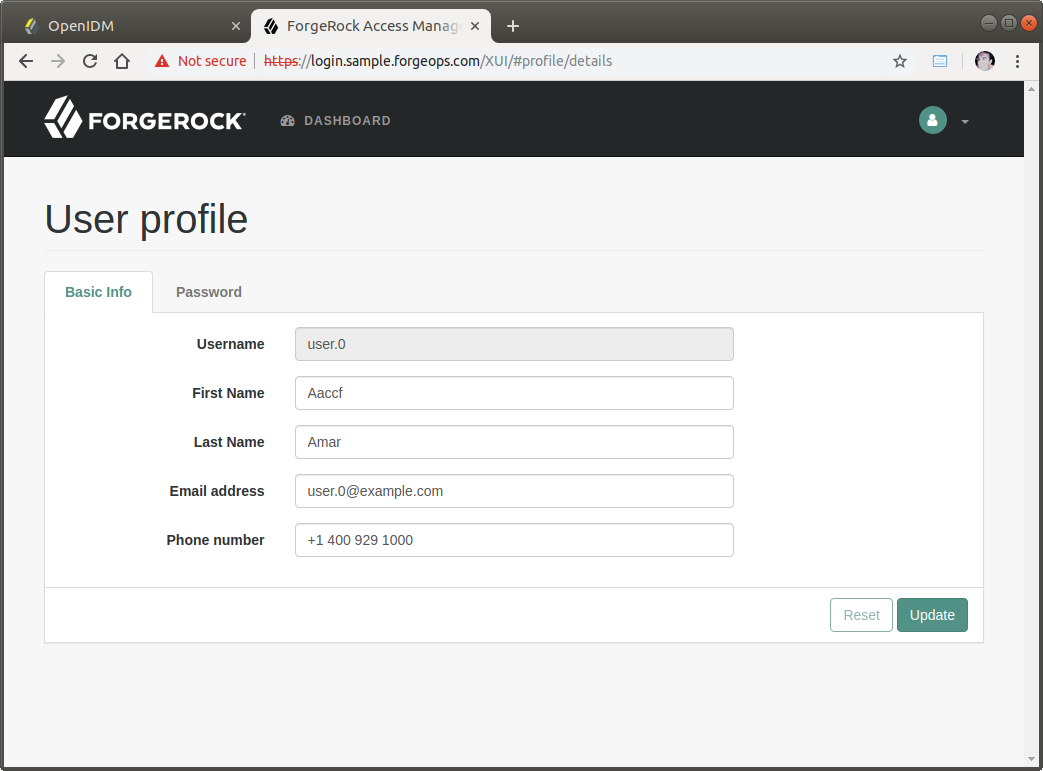
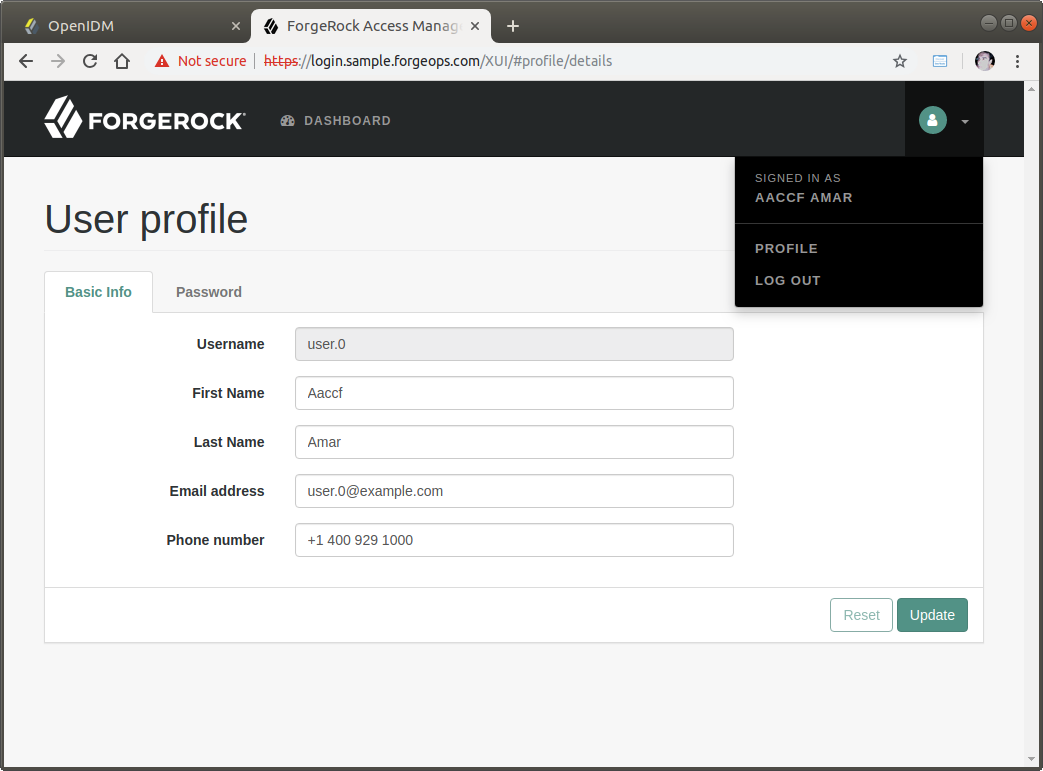
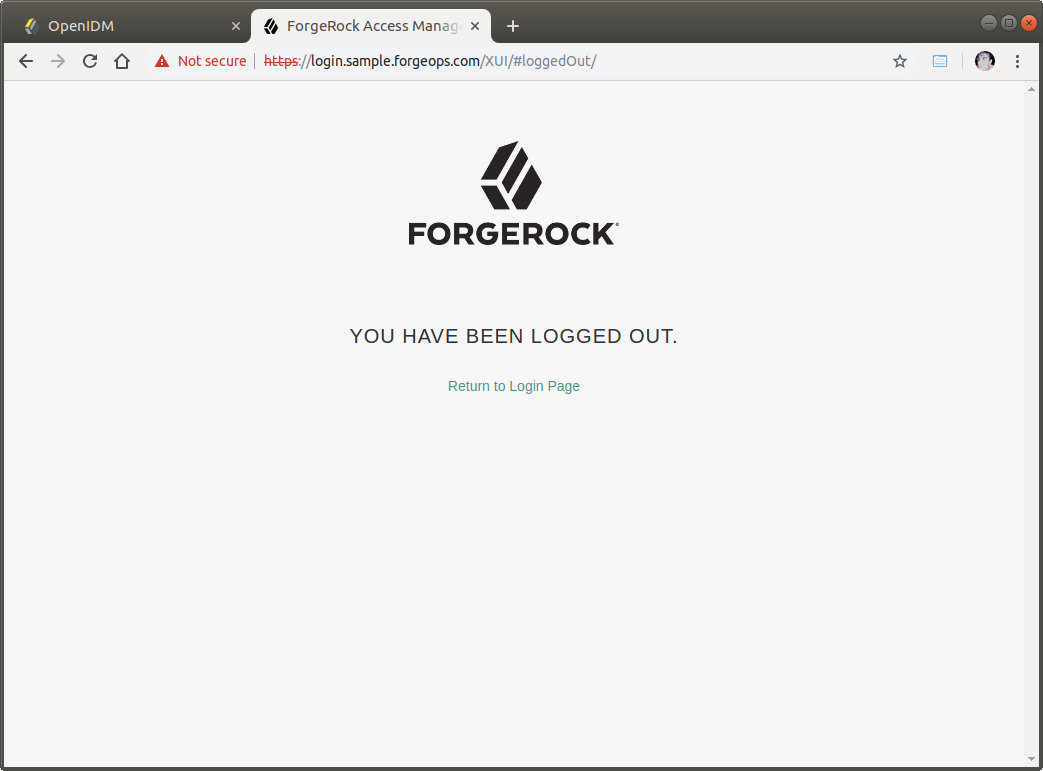
To demonstrate SSO after you log in through the sample application, open another browser tab to access the AM console, https://login.sample.forgeops.com/.
Notice that you automatically see the profile page without further login:
Further Reading
-
A full description of the sample application is in the README.
-
The documentation about
forgeopsand the related deployment models is published on ForgeRock BackStage. The first document to read is Start Here. -
For more information about the ForgeRock Identity Platform, see the ForgeRock Identity Platform page.