Customizing Single Logout Using Journeys, Pt. 1: Capturing the User’s
Author: |
David Gwizdala |
Created at: |
Mar 2024 |
Updated at: |
Mar 2024 |
This is part 1 of 4 in the series Customizing Single Logout Using Journeys.
Capturing the User’s Existing Browser Session
Your users’s SSO Token is stored within their session. With this token you are able to act as the user, including terminating their open sessions.
If the user is initiating SLO from a browser-based application that uses a logout redirect, you can securely capture the user’s ForgeRock session without requiring them to hit an API endpoint or pass additional user identity credentials insecurely through query parameters.
Getting the Cookie Name
ForgeRock stores the user’s browser session within a cookie, keyed to the cookie ID unique to your tenant. Your Journey will inspect the browser’s cookies and retrieve the stored session, returning false if there’s no session available. To get the cookie ID for your tenant, go to your Tenant Settings > Global Settings, and copy the value set for Cookie.
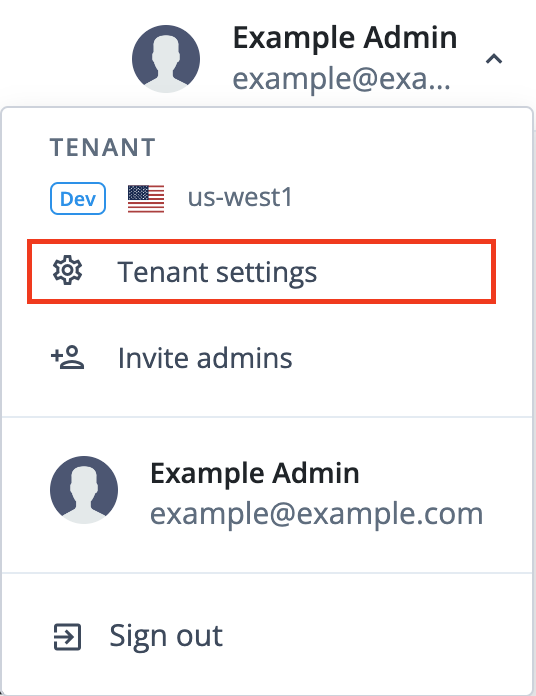
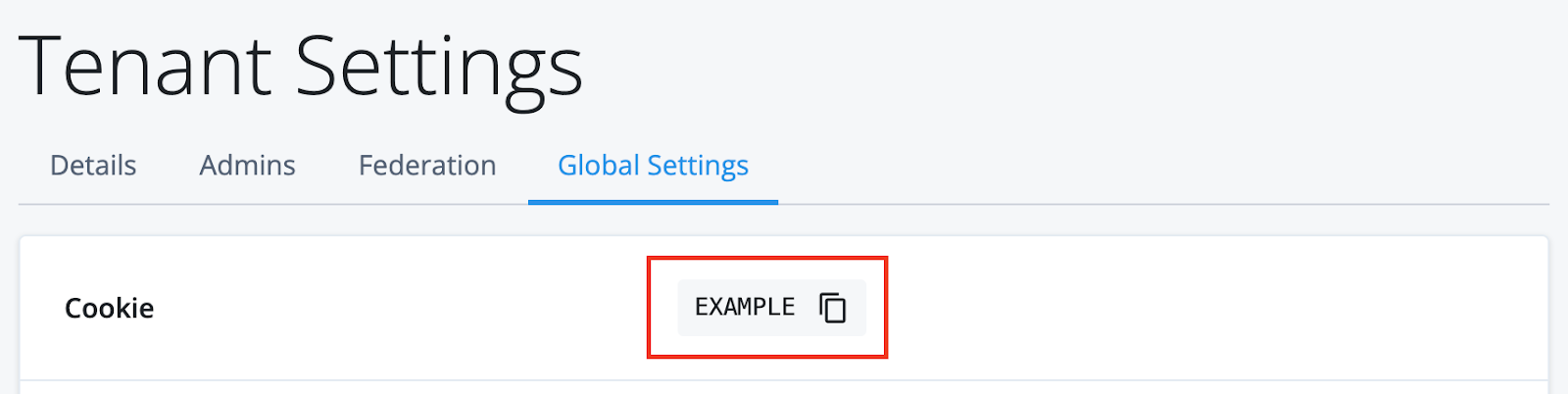
Retrieving your Tenant Cookie
You can use this value directly within your Scripted Decision Node, however if you’d like to reuse it across other parts of your platform it’s recommended to set the Cookie as an Environment Secret or Variable, which you can do from within the same screen.
Go to Environment Secrets and Variables > Add Secret and paste in the
value you copied on the previous page. For this example, the secret is
named esv-cookie.
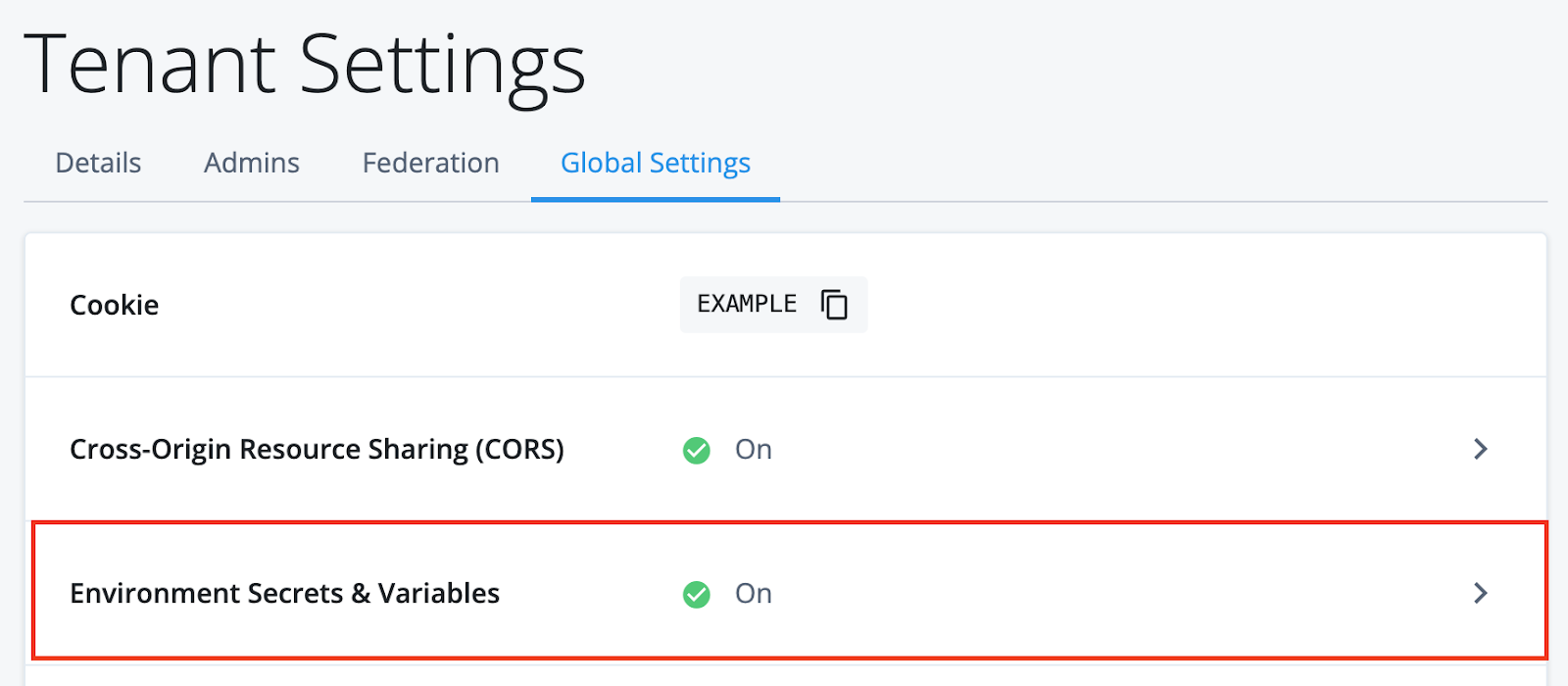
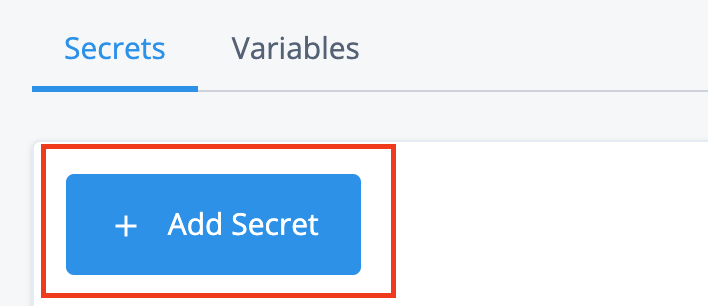
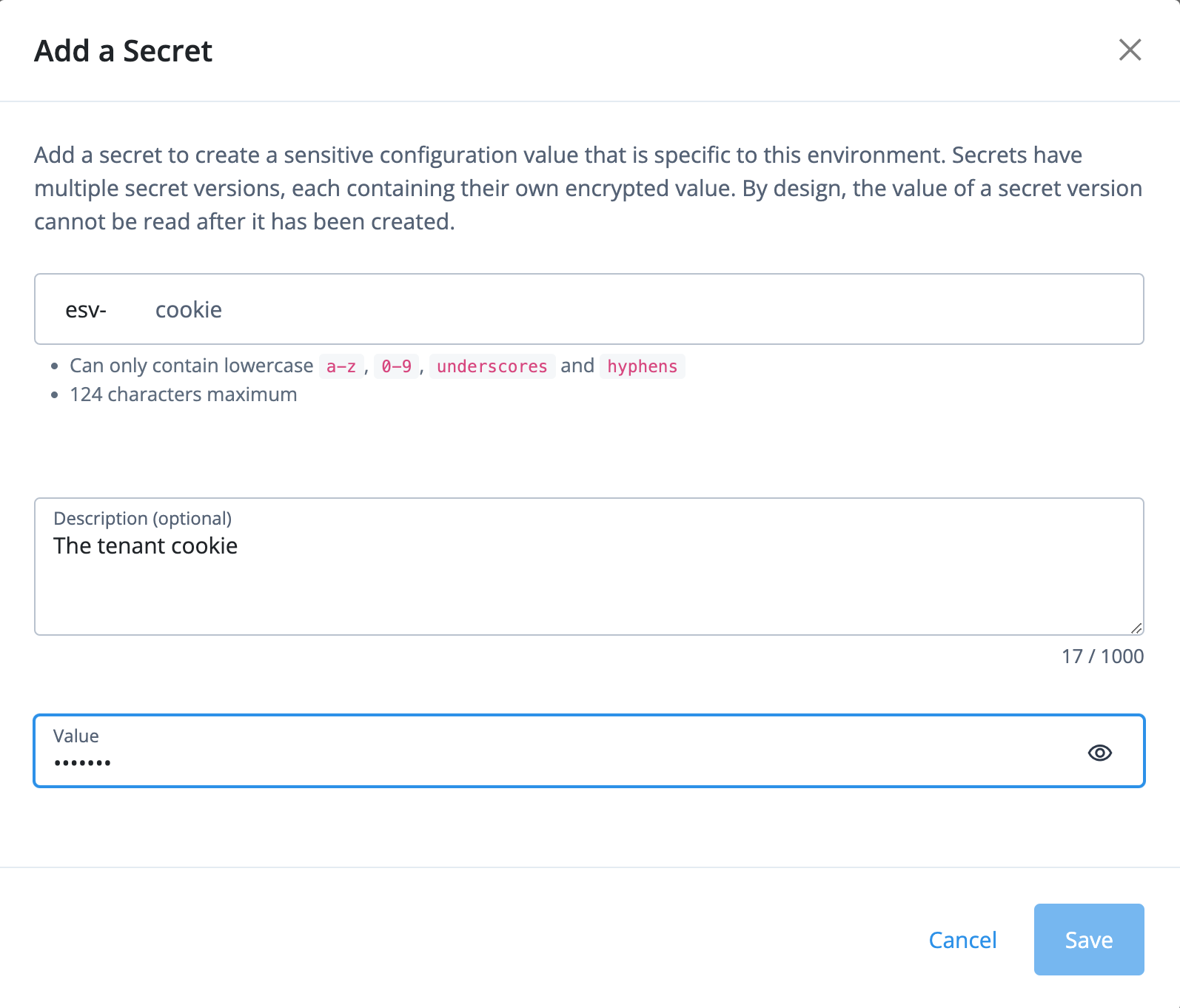
Setting the Cookie in an ESV
Retrieving the User’s Session
Now that we have the cookie name, we can use it to find and retrieve the user’s in-browser session.
Create a new Journey entitled Capture Cookie. In your Journey, connect
your Start Node to a Scripted Decision Node and create a Script named
Get Session By Cookie. This script will have two outcomes defined:
Session Found and No Session Found.
Copy/Paste the following Javascript into your Node:
/*
Checks if the user has an existing session, and if so, stores it in shared state.

 This script expects the following ESV to be set:
    esv.cookie - the cookie of the tenant (found in "Tenant Settings")

 The scripted decision node needs the following outcomes defined:
 - Session Found
 - No Session Found

 Author: se@forgerock.com
 */

// The tenant cookie. Found in Tenant Settings/Global Settings
var TENANT_COOKIE = systemEnv.getProperty("esv.cookie");

var OUTCOMES = {
  SESSION_FOUND: "Session Found",
  NO_SESSION_FOUND: "No Session Found"
};

//// MAIN
(function () {
  // Default outcome
  outcome = OUTCOMES.NO_SESSION_FOUND;

  var sessionCookie = "";
  var userCookieString = requestHeaders.get("cookie").get(0);
  // parse the cookies
  var userCookies = userCookieString.split("; ");
  // look for the right cookie
  var i = 0;
  while (i < userCookies.length && !sessionCookie) {
    var userCookieData = userCookies[i].split("=");
    if (userCookieData[0] == TENANT_COOKIE) {
     sessionCookie = userCookieData[1];
     nodeState.putShared("sessionCookie", sessionCookie);
    }
    i += 1;
  }

  if (sessionCookie) {
    outcome = OUTCOMES.SESSION_FOUND;
  }

  action.goTo(outcome);
}());
How It Works
Let’s break this script down:
// The tenant cookie. Found in Tenant Settings/Global Settings
var TENANT_COOKIE = systemEnv.getProperty("esv.cookie");
We retrieve the tenant cookie name from environment variables.
var userCookieString = requestHeaders.get("cookie").get(0);
  // parse the cookies
  var userCookies = userCookieString.split("; ");
Then, we retrieve the user’s cookies from within their request headers, which is provided as a string, and split the value into an array of cookies.
// look for the right cookie
var i = 0;
while (i < userCookies.length && !sessionCookie) {
  var userCookieData = userCookies[i].split("=");
  if (userCookieData[0] == TENANT_COOKIE) {
    sessionCookie = userCookieData[1];
    nodeState.putShared("sessionCookie", sessionCookie);
  }
  i += 1;
}
Finally, search the array to see if there’s a cookie whose key matches the one we had stored in our ESVs. If there is a match, we store that value in state and then end our search.
Testing
To test this script, we’ll add a message on both success and failure that 1) tells us which route the user took, and 2) shows us what data is captured.
First, put a Message Node on the No Session Found output of your
Scripted Decision Node that informs you if no session is found. This can
be whatever message you’d like - the example uses the message “No
Session Found”. Wire the output of your Message Node to the Failure
Node.
Secondly, add a Configuration Provider Node to the Session Found
output with its True output going to the Success Node. It will use the
Node Type “Message Node” and the following transformation script:
/*
    Displays the User's Cookie from "sessionCookie" stored in state.
*/

var sessionCookie = nodeState.get("sessionCookie");

config = {
  "message": {
    "en": `Captured User Cookie: ${sessionCookie ? sessionCookie : 'No session found'}`
  },
  "messageYes": {"en": "Continue"},
  "messageNo": {"en": "Cancel"},
}
Your Journey (including the configuration for your Configuration Provider) should look something like this:
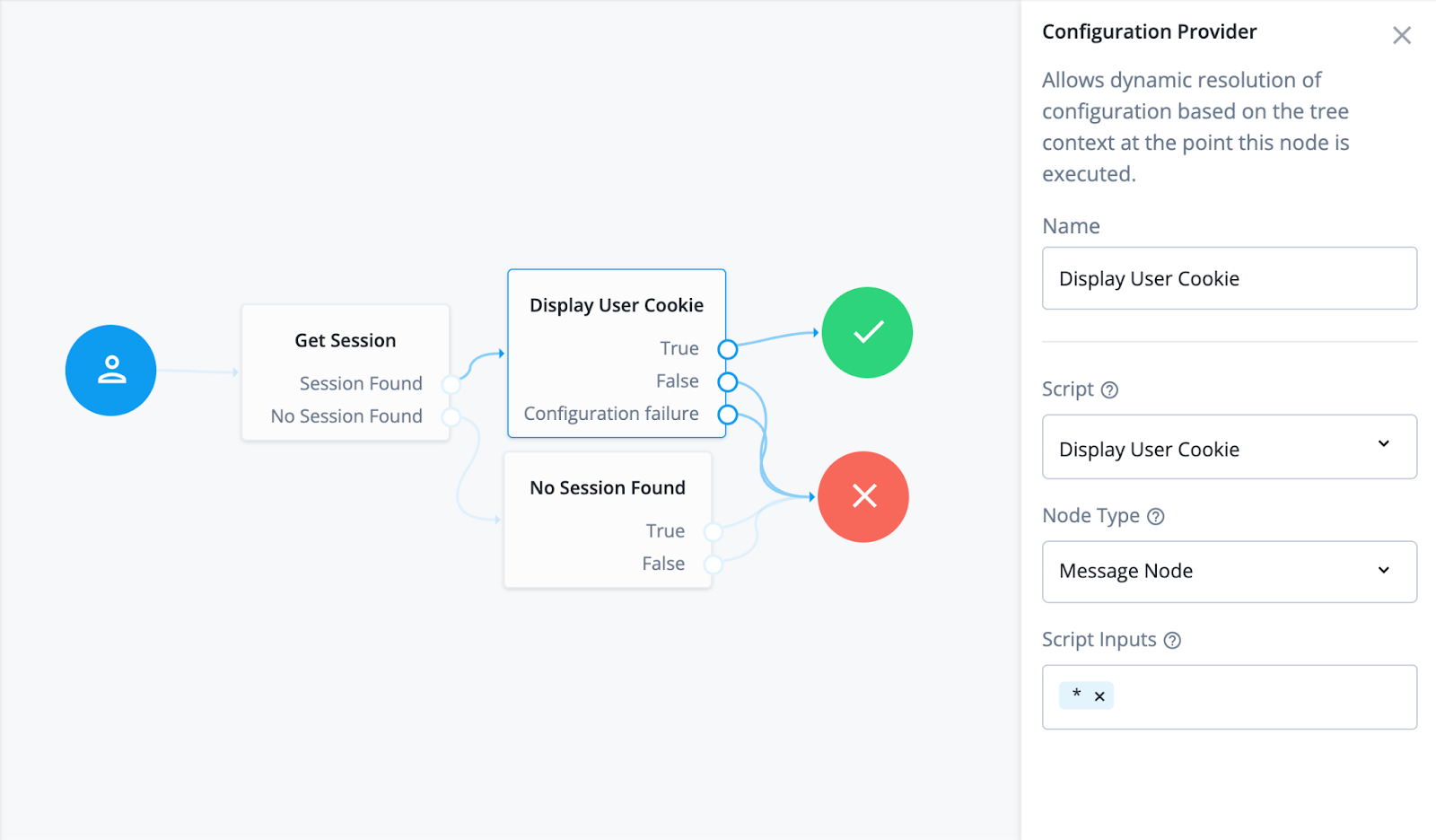
Getting the Session Journey
Open an incognito (or separate browser) window, log in as a tenant user, and then inspect the browser cookies (in Chrome, it’s under Application/Cookies). You should have one that matches your cookie name you found in the tenant admin.
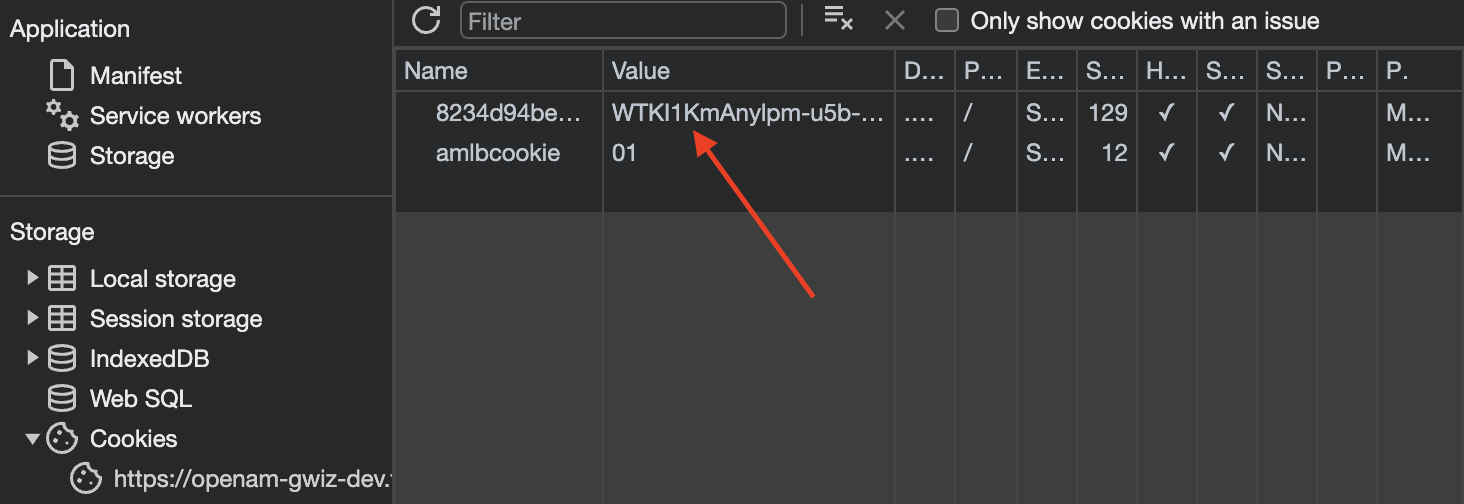
A Logged-In User’s Cookie
In the same or in another tab, Paste in the URL of your new Journey. You should reach your Message Node displaying the cookie you saw stored in your browser.
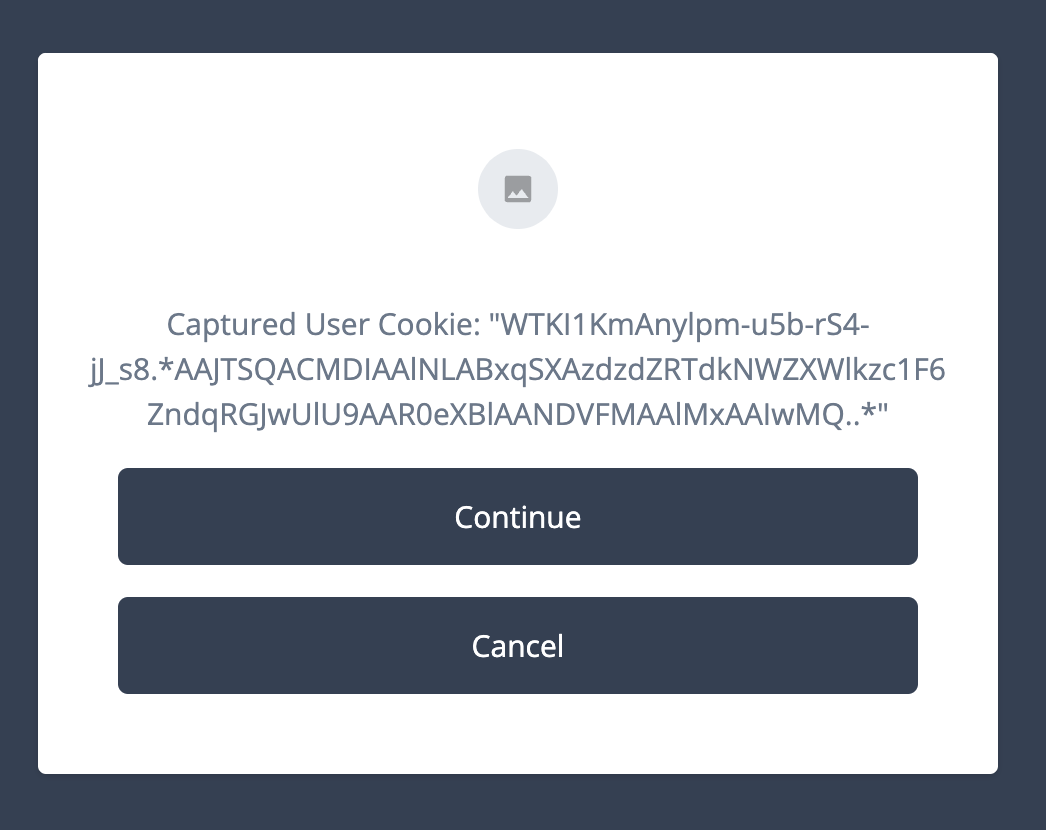
The User’s Cookie in Shared State
Now, hit “Continue” to reach the user’s dashboard, log out the user, and then go back to your Journey. You should hit the Message Node indicating that no session cookie was found.
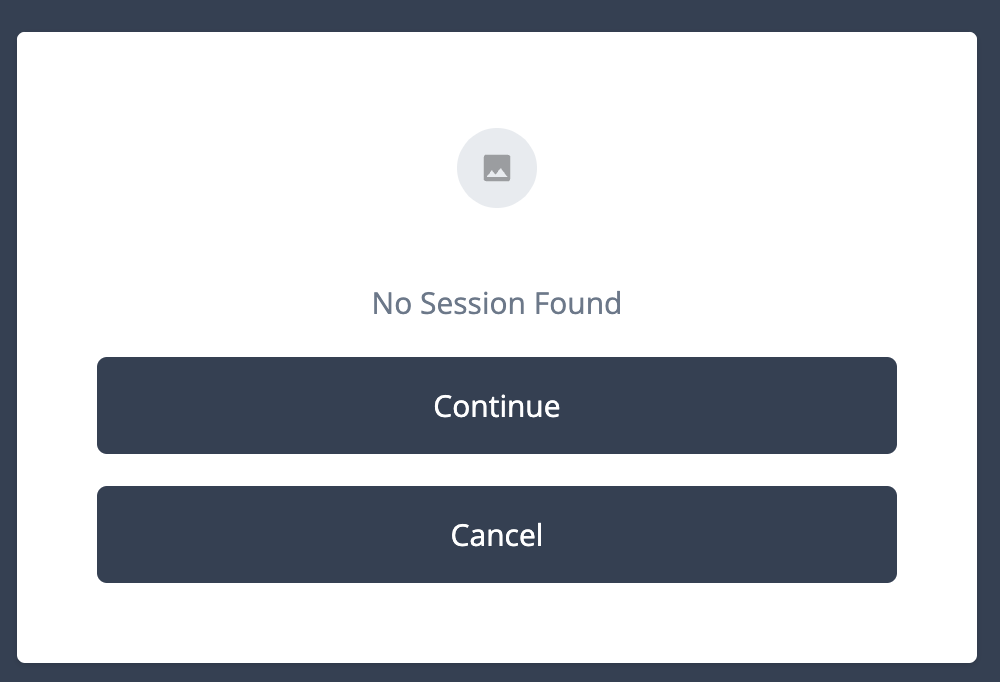
No Session Found
Summary
With this How-To you have:
-
Retrieved the Tenant Session Cookie Name and stored it as an ESV
-
Captured the User’s Cookies from within a Journey
-
Retrieved the User’s Session from the Cookies
The full Journey, including the testing output, can be downloaded here:
Once you have a user’s session in your Journey you can securely act as the user when calling ForgeRock APIs, for example Invalidating the User’s ForgeRock Session (part 3 of 4 in this series).
This is part of a 4-part series on Creating Custom Single Logout Using Journeys. To continue this series, head to Part 2: Terminating an External Session via REST to learn how to reach out to external APIs to end external sessions.