Deploying and Testing Self-Service Operations
Author: |
Shankar Raman |
Created at: |
Jul 2021 |
Updated at: |
May 2022 |
Introduction
Self-service operations, such as resetting one’s own password, getting forgotten usernames, and others, require access to email. Mailhog is a lightweight utility for sending and viewing email messages in a Kubernetes cluster, especially for development and test purposes.
Note: Mailhog is not meant for use in production environments.
ForgeRock does not guarantee the individual success developers may have in implementing the code on their development platforms.
Set up Mailhog in your Kubernetes cluster
Prerequisites:
-
You have set up the CDK and your Kubernetes context is set to your CDK cluster.
-
You have installed Helm 3.
+ -
Set up your Kubernetes context and namespace. For example:
kubectl ctx minikube

kubectl ns my-<span class="hljs-keyword">namespace</span>
Install Mailhog in your namespace using Helm 3:
helm repo add codecentric https://codecentric.github.io/helm-charts

helm install mailhog codecentric/mailhog
Verify that the Mailhog pod is running:
kubectl get pods | grep mailhog
mailhog-16...zl   1/1     Running     1          23m
Optional: To verify delivery of SMTP messages, set up port forwarding on SMTP port 1025 using a terminal window:
export POD_NAME=mailhog-16...zl

kubectl port-forward --namespace my-namespace $POD_NAME 1025
To view the emails received on the Mailhog server, set up port forwarding on HTTP port 8025 using another terminal window:
export POD_NAME=mailhog-16...zl

kubectl port-forward --namespace my-namespace $POD_NAME 8025
Enable the email service in IDM
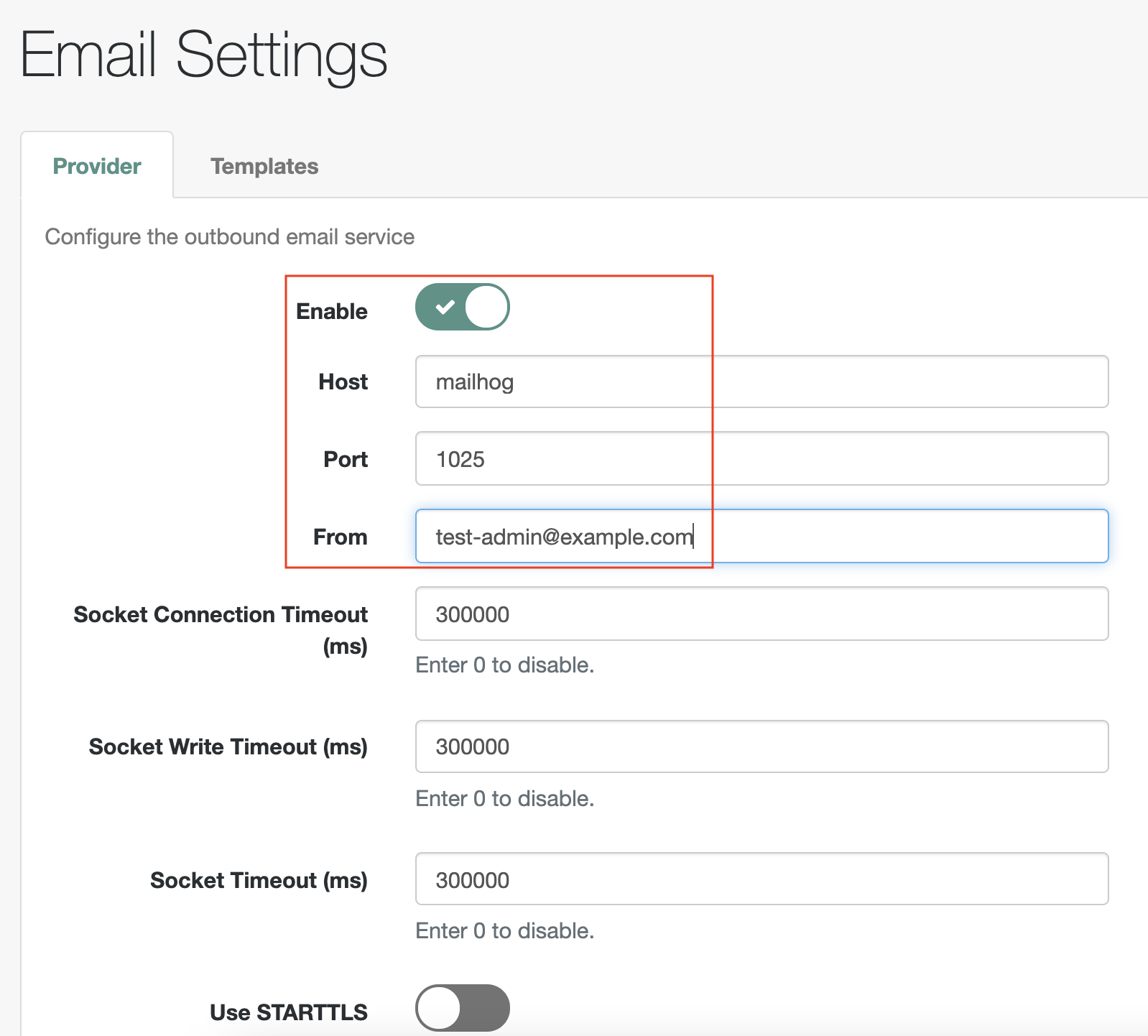
After verifying that the Mailhog server is able to send and receive messages, you can configure email settings in the IDM server:
Log in to the IDM administration console and configure email settings.
Reset a user’s password
-
In a web browser, access the reset password service in your deployment.
For example: https://my-namespace.iam.example.com/am/?service=ResetPassword.
-
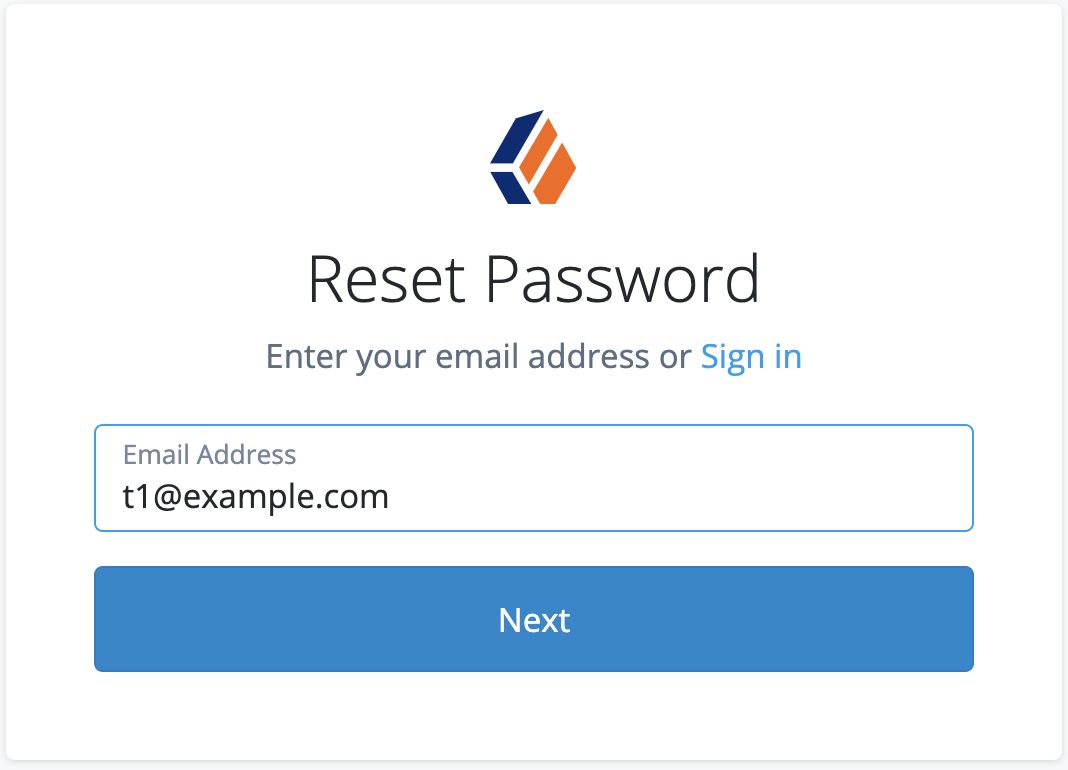
Enter the email ID of the user whose password needs to be reset. For example, the email ID for our test user is t1@example.com.
-
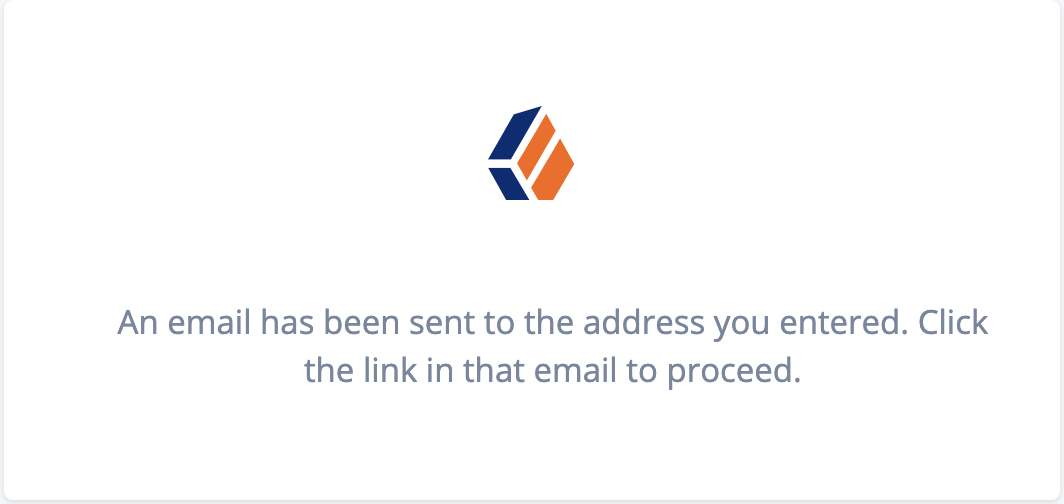
A notification appears indicating that an email has been sent to the address you entered.
-
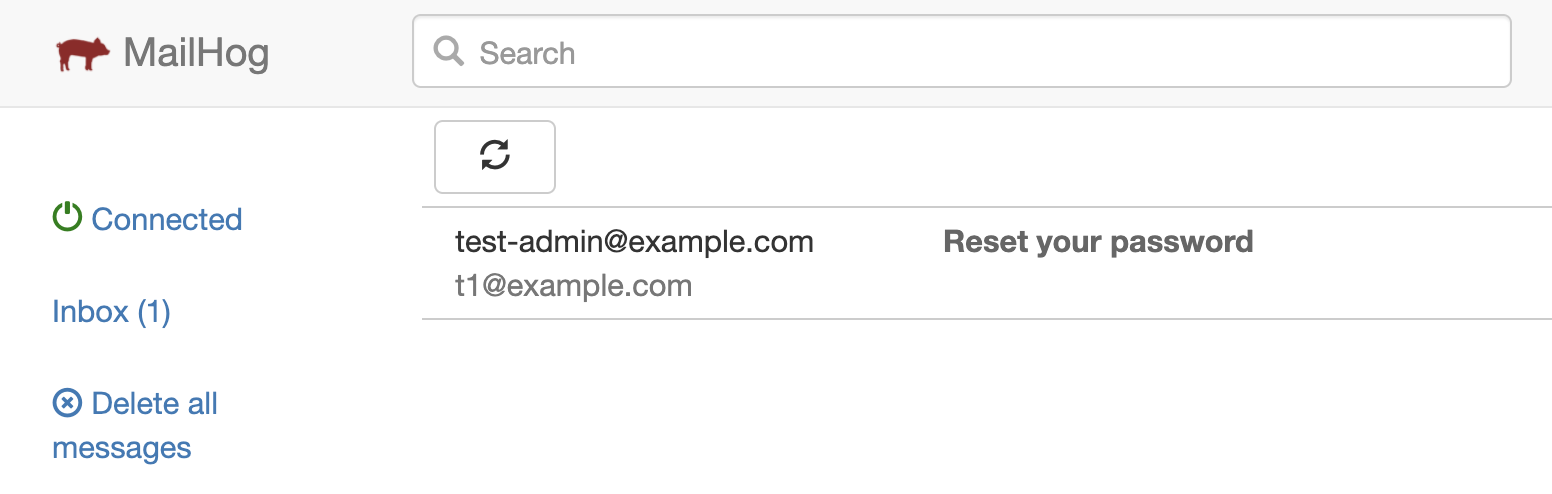
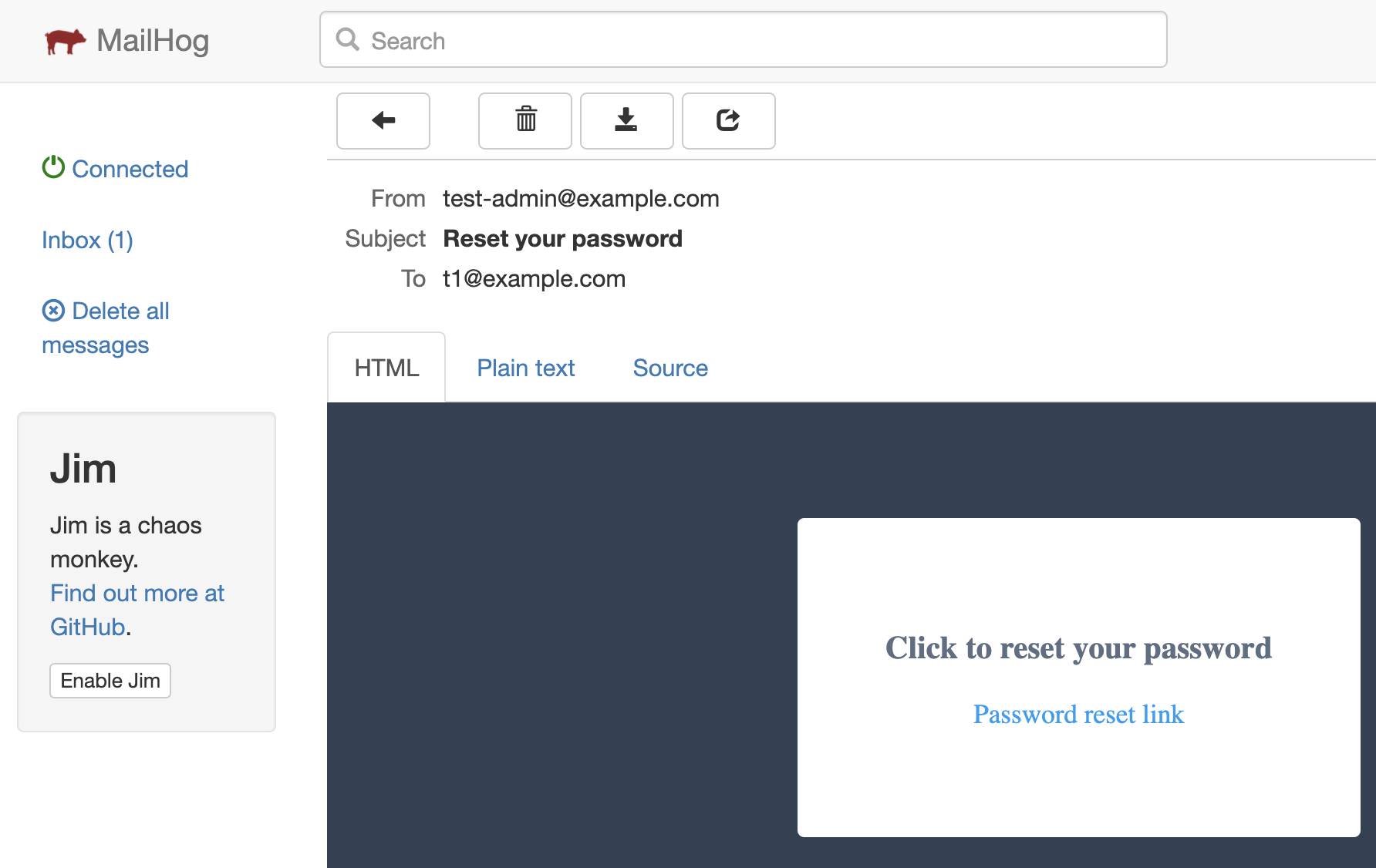
View your Mailhog inbox to see if you have received an email to reset the password.
-
Open the reset your password email and click the Reset Password link.
-
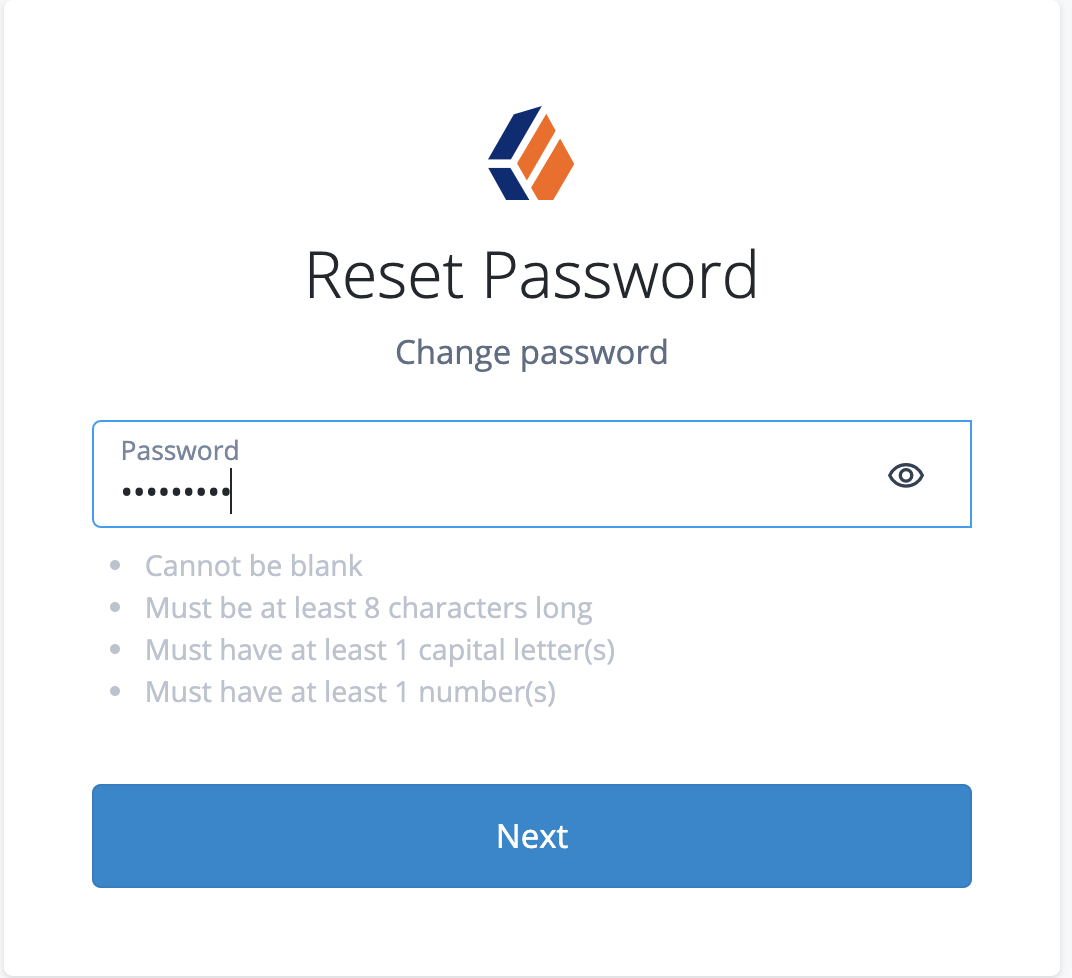
Enter the new password.
 +
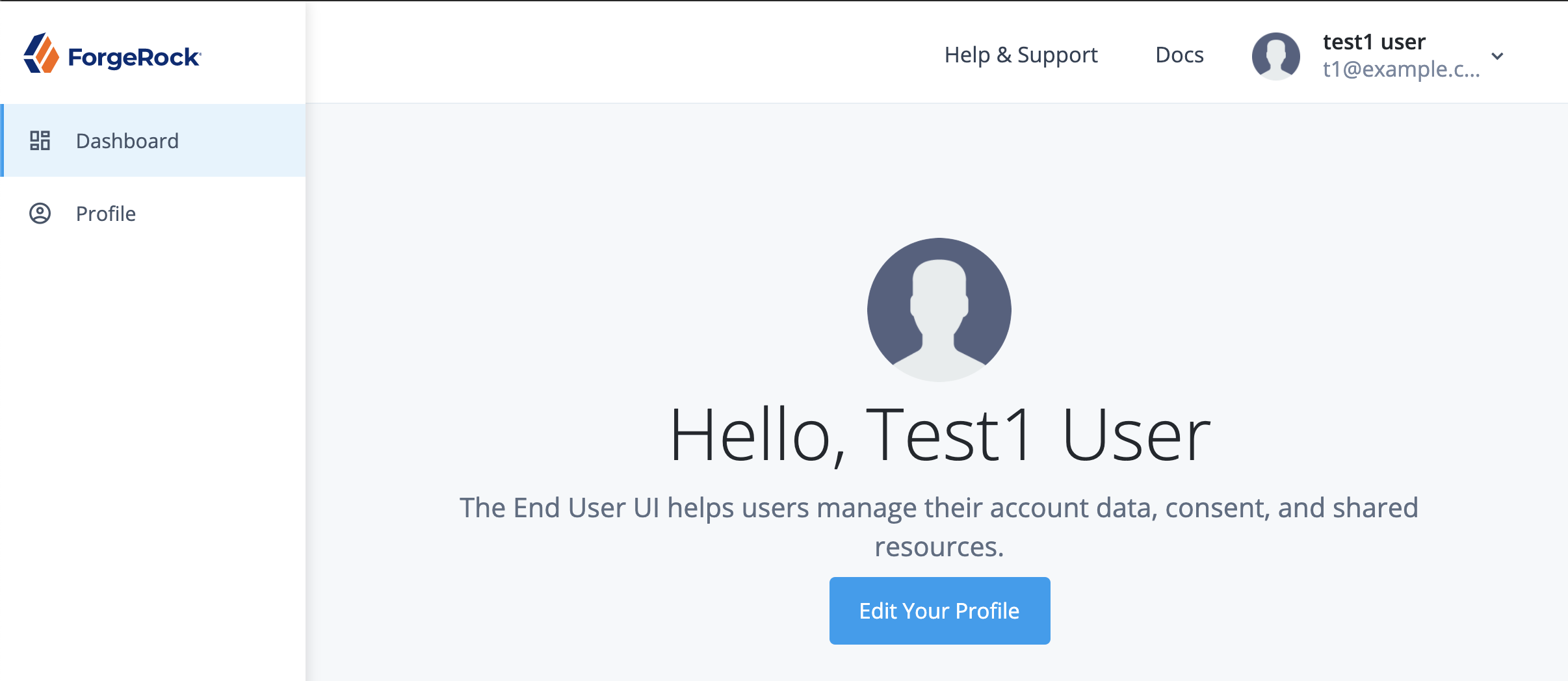
. Verify that you can log in after you have reset the password.
Obtain a forgotten username
-
In a web browser, access the reset password service in your deployment. For example: https://my-namespace.iam.example.com/am/?service=ForgottenUsername.
-
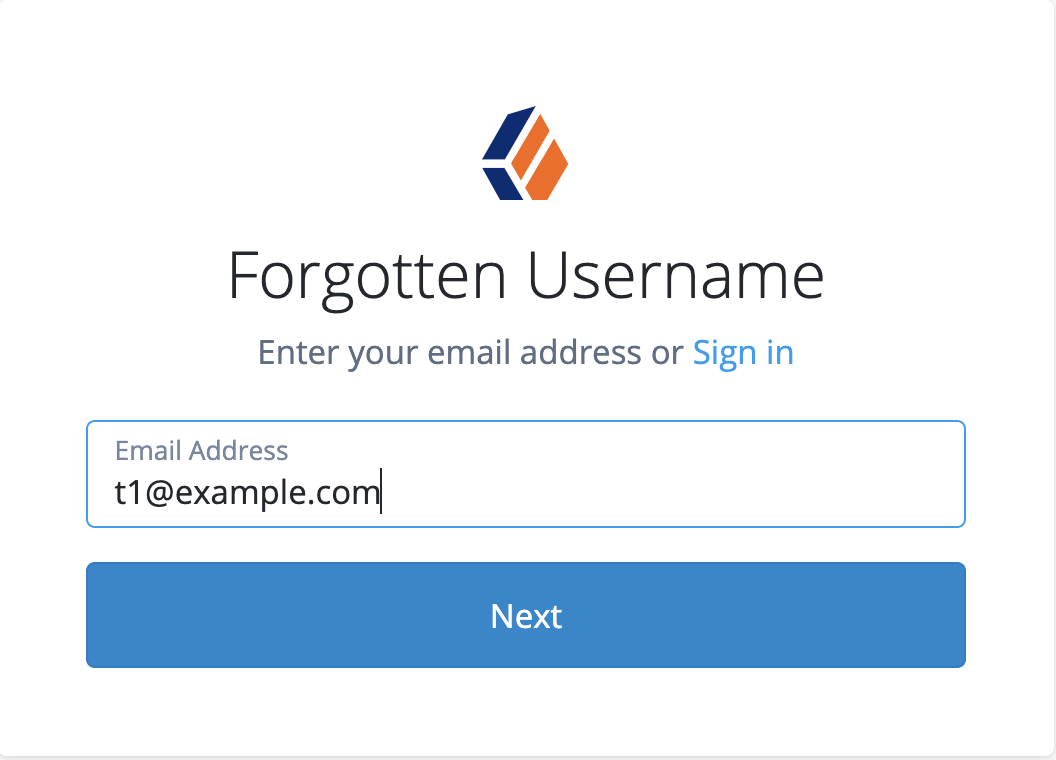
Enter the email ID of the user whose username you want to obtain. For example, the email ID for our test user is t1@example.com.
-
A notification appears indicating an email has been sent.
+ -
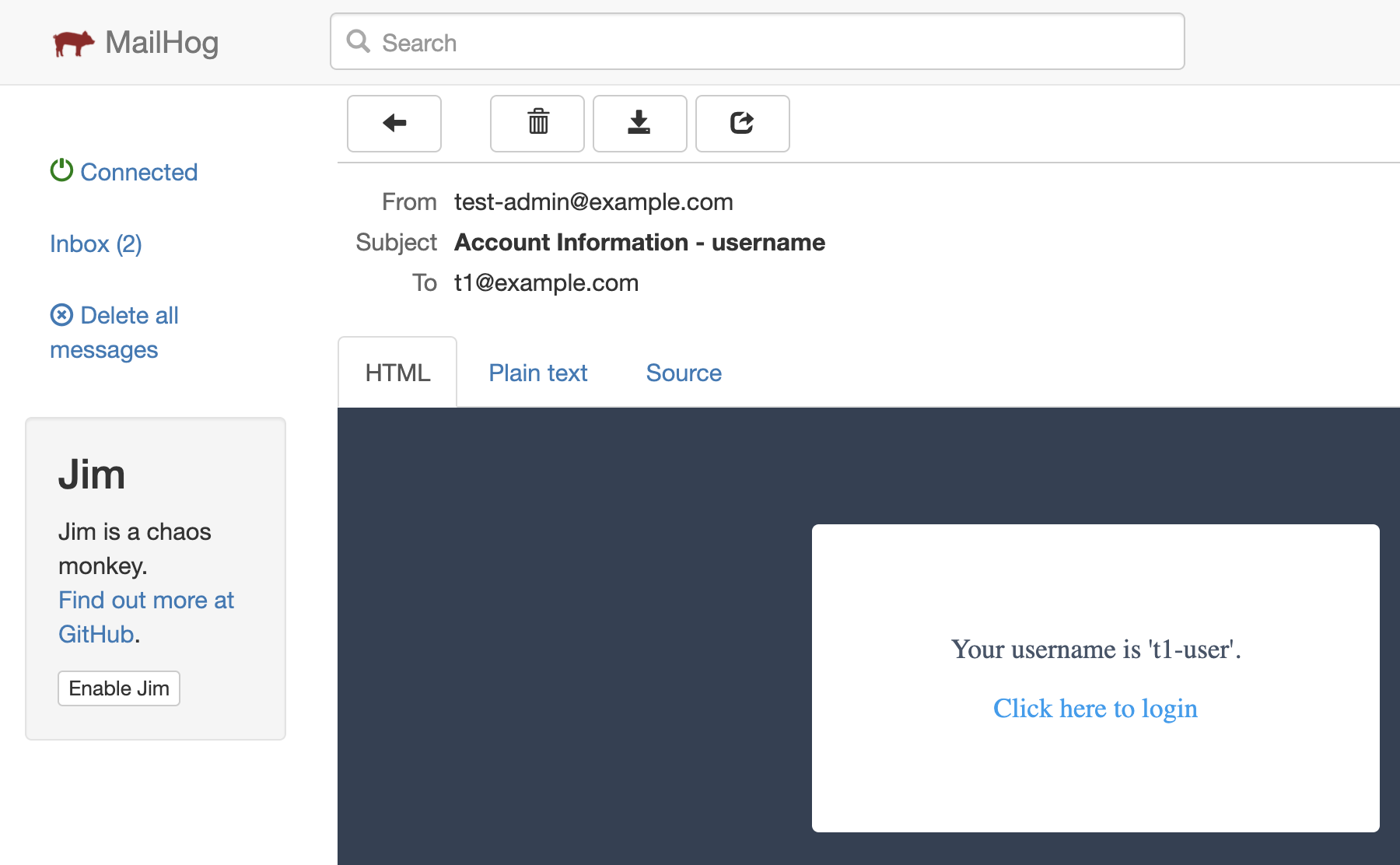
View your Mailhog inbox to see if you have received the Account Information - username email.

-
Click the login link and log in with the username you received in the email.
-
Log in with the obtained username and the password.

-
Verify that you are able to log in as the user.
There you have it, a simple way to set up Mailhog, and the test password
reset and forgotten username in a development environment.
 +
*More from this author*
 Configure
a Simple Social Login with Facebook on Your CDK Environment
[.badge-category__name#Setup#]
Configure
a Simple Social Login with Facebook on Your CDK Environment
[.badge-category__name#Setup#]
Introduction ForgeRock Identity Platform supports authentication through social identity providers such as Facebook and Google, and lets users login to AM using their social provider credentials. In this article, we configure Facebook as the social identity provider in a CDK deployment. Note: ForgeRock does not guarantee the individual success developers may have in implementing the code on their development platforms. References Social Authentication in AM 7.1 documentation Prerequisite…